YST15_Users_E.pdf - 第108页
2-80 2 Operation 4 Check the analysis result. If there are enough quantities of all necessary packagings for the job orders, Gr een tick (OK) , or Blue tick (OK with alias) are displayed at left of the job orders . If th…
2-79
2
Operation
3.7.4 Analyze in PLANNNER
The created job orders are judged about their production feasibility in PLANNER based on the stock in the
machine.
1
Select job orders to be analyzed.
Tick the check boxes at left end of the job orders to be analyzed.
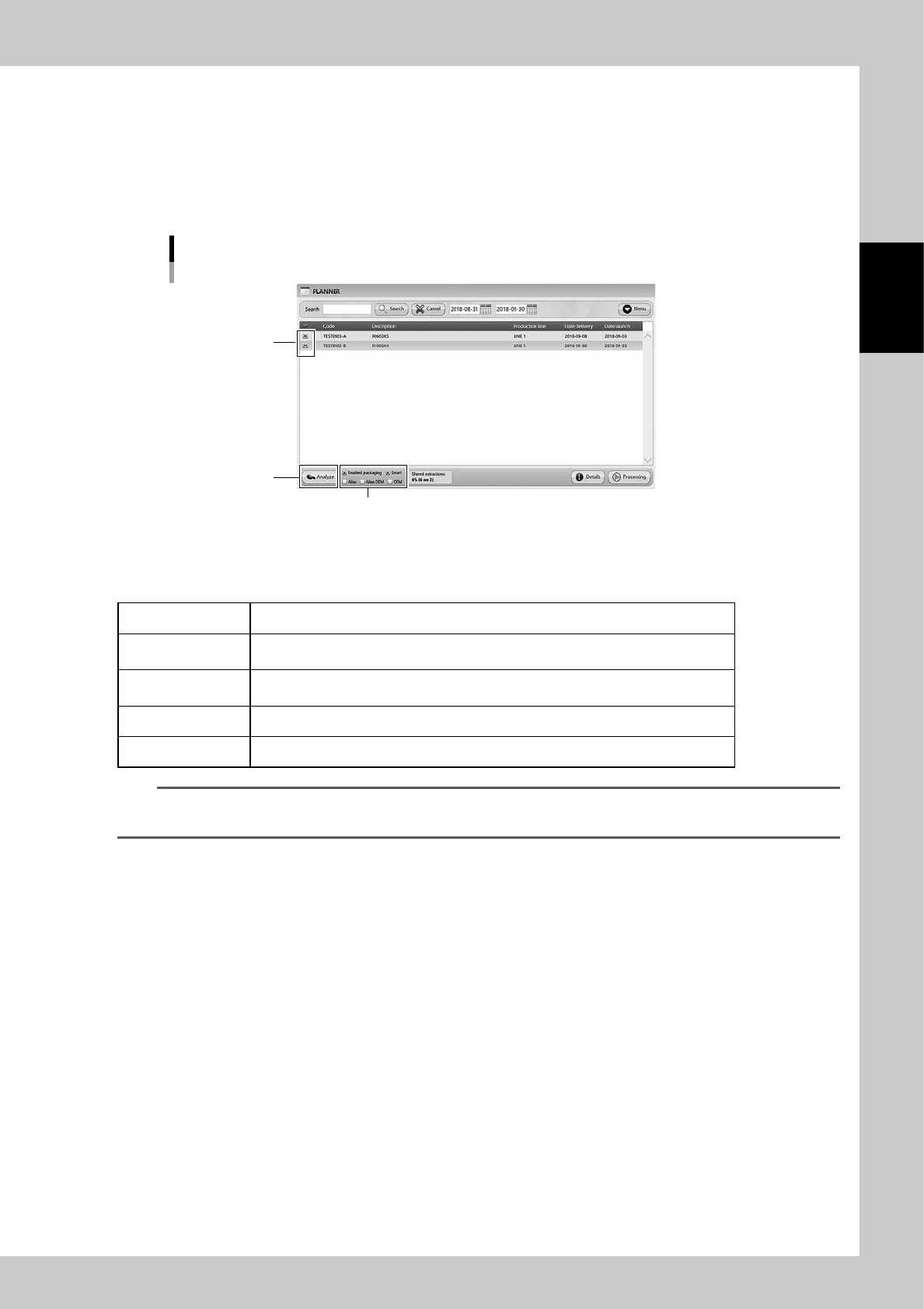
"PLANNER" screen
[Analyze] button
Analysis options
Tick the check boxes
24297-KMS-00
2
Select the analysis option.
Tick the boxes for the necessary analysis options at bottom.
Enabled packaging This is ticked as default. Ticking it allows the analysis to use only "Enable" packagings.
SMART
This is ticked as default.
Ticking it allows the analysis to use packagings blocked for the other job orders.
Alias
Ticking it allows the analysis to use alias items, which are registered in "3.3.2 Register a
packaging manually" if there are no enough quantities of required items.
Alias OEM Ticking it means ticking "Alias" and "OEM" combined.
OEM Ticking it specifies the manufacturer set in "3.5.2 Register a BOM manually".
TIP
• "Enabled Packaging" and "Smart" are ticked as default.
• It is impossible to tick "OEM2 or "Alias" or "Alias OEM" simultaneously.
3
Perform production analysis.
Press [Analyze] button, then the message "Analysis could take several minutes. Do you want to pro-
ceed?" appears.Check the message and press [Yes], then the analysis starts.
2-80
2
Operation
4
Check the analysis result.
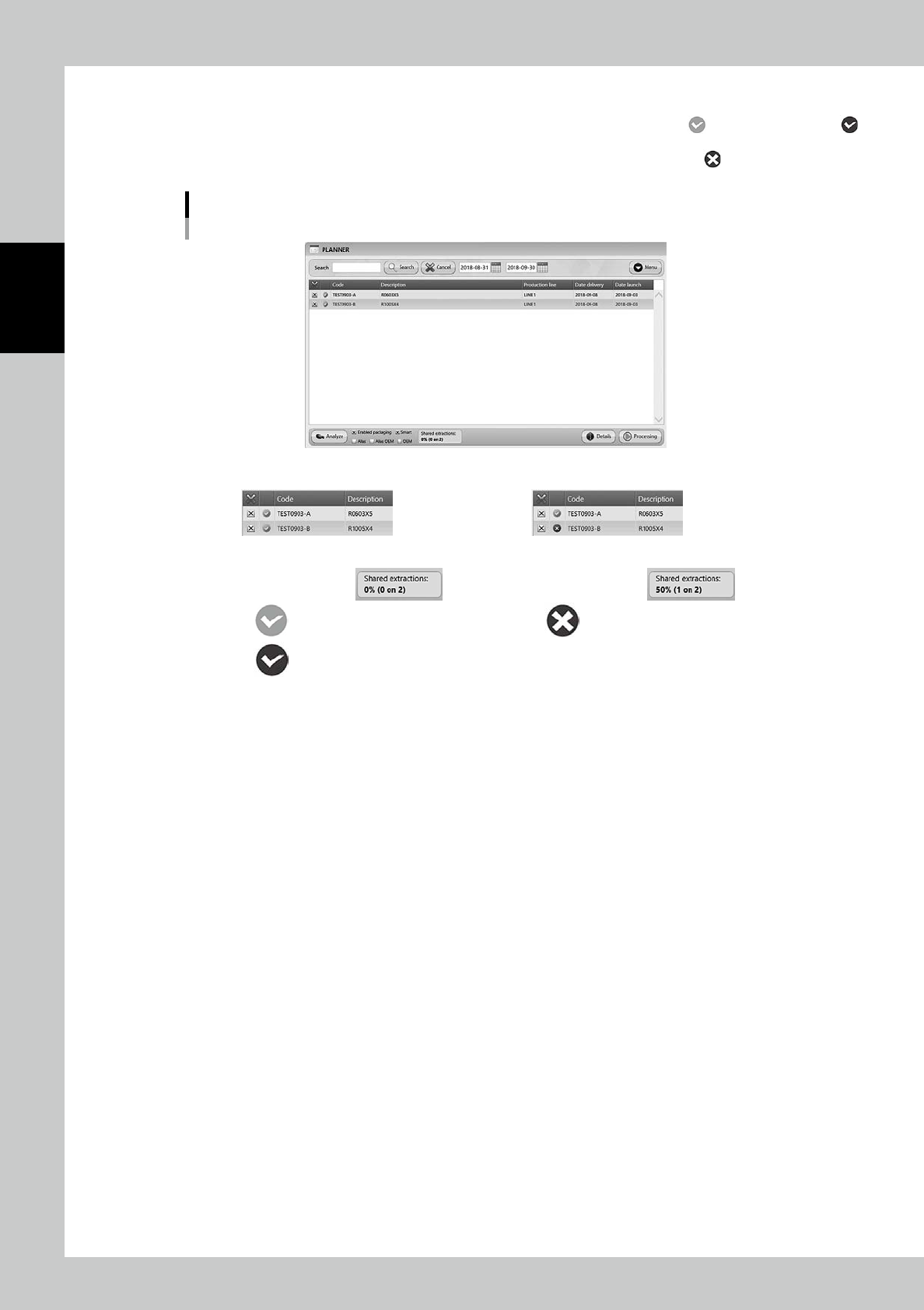
If there are enough quantities of all necessary packagings for the job orders, Green tick (OK) , or
Blue tick (OK with alias) are displayed at left of the job orders.
If there are no enough quantities of necessary packagings for some job orders,
is displayed.
Analysis result
• There are enough quantities of all necessary packagings
for the job orders.
• There are no enough quantities of necessary packagings
for some job orders.
OK (green)
Ratio of packagings used in common
Ratio of packagings used in common
OK with alias (blue)
Not enough
24298-KMS-00
5
If there are no enough packagings of some job orders, revise their product analysis.
If there are no enough packagings of some job orders, perform either of the followings.
Perform one, then analyze the job order again.
1. Revise the job order.
2. Check which packagings are not enough, then add the packagings.
3. If some items are able to be alternative for the packagings, make settings of alias for the items.
2-81
2
Operation
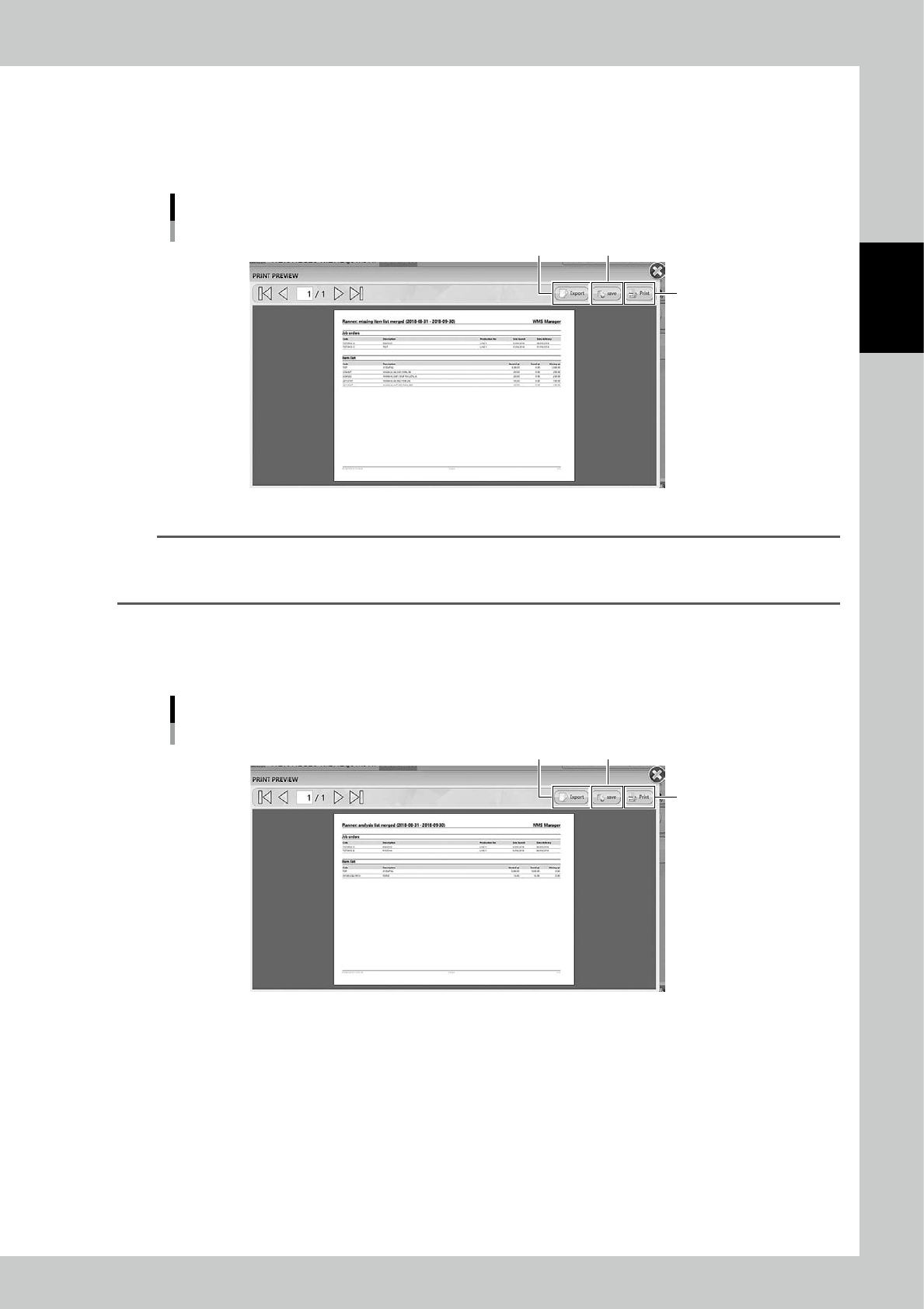
2. Check the packagings which are not enough. Items are listed in "Missing item list".
Select job orders and select "Print missing items" in Menu, then the job orders are listed in "PRINT PREVIE" screen.
Press [Save] button to save the list in pdf format, press [Export] button to save the list in XML format.
If the machine is connected to a printer through an external network, pressing [Print] button prints the list.
"PRINT PREVIEW" screen "Missing item list"
[Export] button [Save] button
[Print] button
24299-KMS-00
n
NOTE
Print analysis list
Select job orders and select "Print analysis list" in Menu, then the selected job orders and necessary items are listed in
"PRINT PREVIE" screen.
Press [Save] button to save the list in pdf format, press [Export] button to save the list in XML format, same as the other
list.
If the machine is connected to a printer through an external network, pressing [Print] button prints the list.
"PRINT PREVIEW" screen
[Export] button [Save] button
[Print] button
242A0-KMS-00