YST15_Users_E.pdf - 第28页
3.7 Planner 2-74 3.7.1 PLANNNER screen 2-74 3.7.2 Create a job order in PLANNER 2-77 3.7.3 Create a job order by import function in PLANNER 2-78 3.7.4 Analyze in PLANNNER 2-79 3.8 W arehouses 2-84 3.8.1 W AREHOUSE screen…

Chapter 2 Operation
Contents
1. Turning on/off the machine 2-1
1.1 Turning on the machine 2-1
1.2 Initialization 2-5
1.3 Turning off the machine. 2-7
2. Managing item packagings in YST15 2-9
2.1 Overview of Items/Packaging/B.O.M/Job Orders 2-9
2.2 Loading/Unloading flow 2-11
3. Operation screen and operation buttons 2-12
3.1 Overview 2-12
3.1.1 Upper area 2-12
3.1.2 Middle area 2-14
3.1.3 Lower area 2-15
3.2 ITEMS 2-16
3.2.1 ITEMS screen 2-16
3.2.2 Register an item manually 2-19
3.2.3 Register items by import function 2-22
3.2.4 Disable and remove items 2-24
3.2.5 Make a setting of Alias 2-26
3.3 Packaging 2-27
3.3.1 PACKAGING screen 2-27
3.3.2 Register a packaging manually 2-32
3.3.3 Register packagings by import function. 2-36
3.3.4 Disable and remove packagings 2-40
3.4 Loading/Unloading packagings 2-42
3.4.1 Loading packagings 2-42
3.4.2 Unload packagings manually 2-44
3.5 BOM 2-45
3.5.1 B.O.M 2-45
3.5.2 Register a BOM manually 2-48
3.5.3 Register a BOM by import function. 2-52
3.5.4 Disable and remove BOMs 2-55
3.6 Job Orders 2-57
3.6.1 JOB ORDERS screen 2-57
3.6.2 Create a job order manually 2-59
3.6.3 Create a job order by import function 2-62
3.6.4 Unload packagings by a job order 2-65

3.7 Planner 2-74
3.7.1 PLANNNER screen 2-74
3.7.2 Create a job order in PLANNER 2-77
3.7.3 Create a job order by import function in PLANNER 2-78
3.7.4 Analyze in PLANNNER 2-79
3.8 Warehouses 2-84
3.8.1 WAREHOUSE screen 2-84
3.9 Traceability 2-87
3.9.1 Packaging traceability 2-87
3.9.2 Job Order traceability 2-88
3.9.3 Item traceability 2-88
3.9.4 Lots Traceability 2-89
3.10 Charts 2-90
3.10.1 ENVIRONMENTAL CONDITIONS screen 2-90
3.11 DELIVERY ORDERS 2-91
3.11.1 DELIVERY ORDERS screen 2-91
3.11.2 Delivery orders setting 2-93
3.12 Others 2-94
3.12.1 USERS 2-94
3.12.2 SETTINGS screen 2-97
3.12.3 INTEGRATION screen 2-97
3.12.4 ALERTS screen 2-98
3.12.5 Logout 2-98
2-1
2
Operation
1. Turning on/off the machine
1.1 Turning on the machine
1
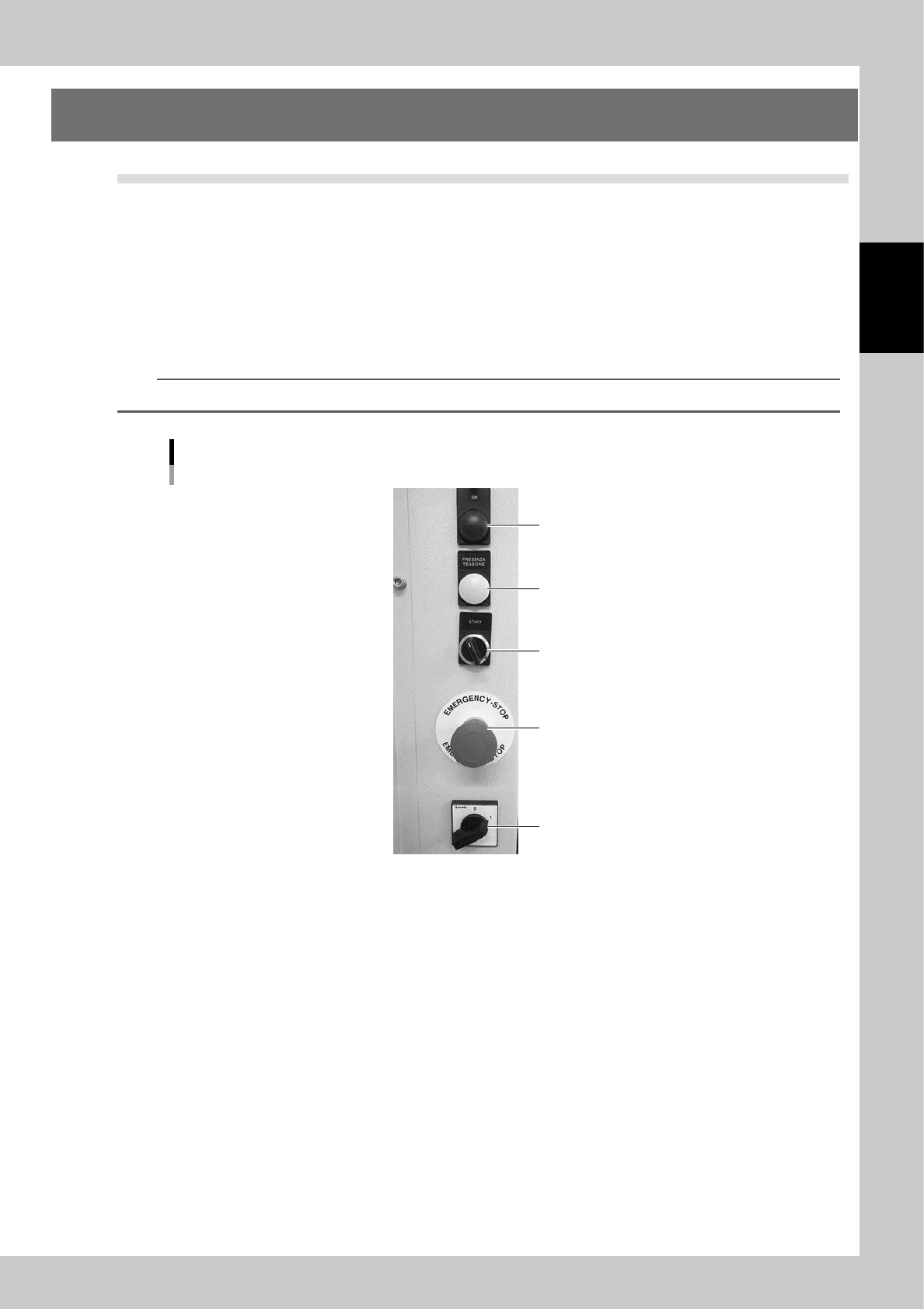
Confirm Emergency stop button is released.
If it remains pressed, turn it left to release.
2
Turn the main switch to 1 from 0 turn the machine on.
3
Turn the operation switch right.
Boards, axes and sensors are powered on, then Power indicator lights on.
Once boards are all powered on, Operation indicator lights green.
TIP
It takes five seconds until boards are powered on.
Operation buttons
Operation indicator
Power indicator
Operation switch
Emergency stop button
Main switch
23201-KMS-00