YST15_Users_E.pdf - 第98页
2-70 2 Operation 6 Unload the packagings. Press [Extract] in "EXTRACT" screen, then the packagings ar e unloaded onto Loading/Unloading area. EXTRACT JOB ORDER screen Set-up extraction for initial unloading “Fa…
2-69
2
Operation
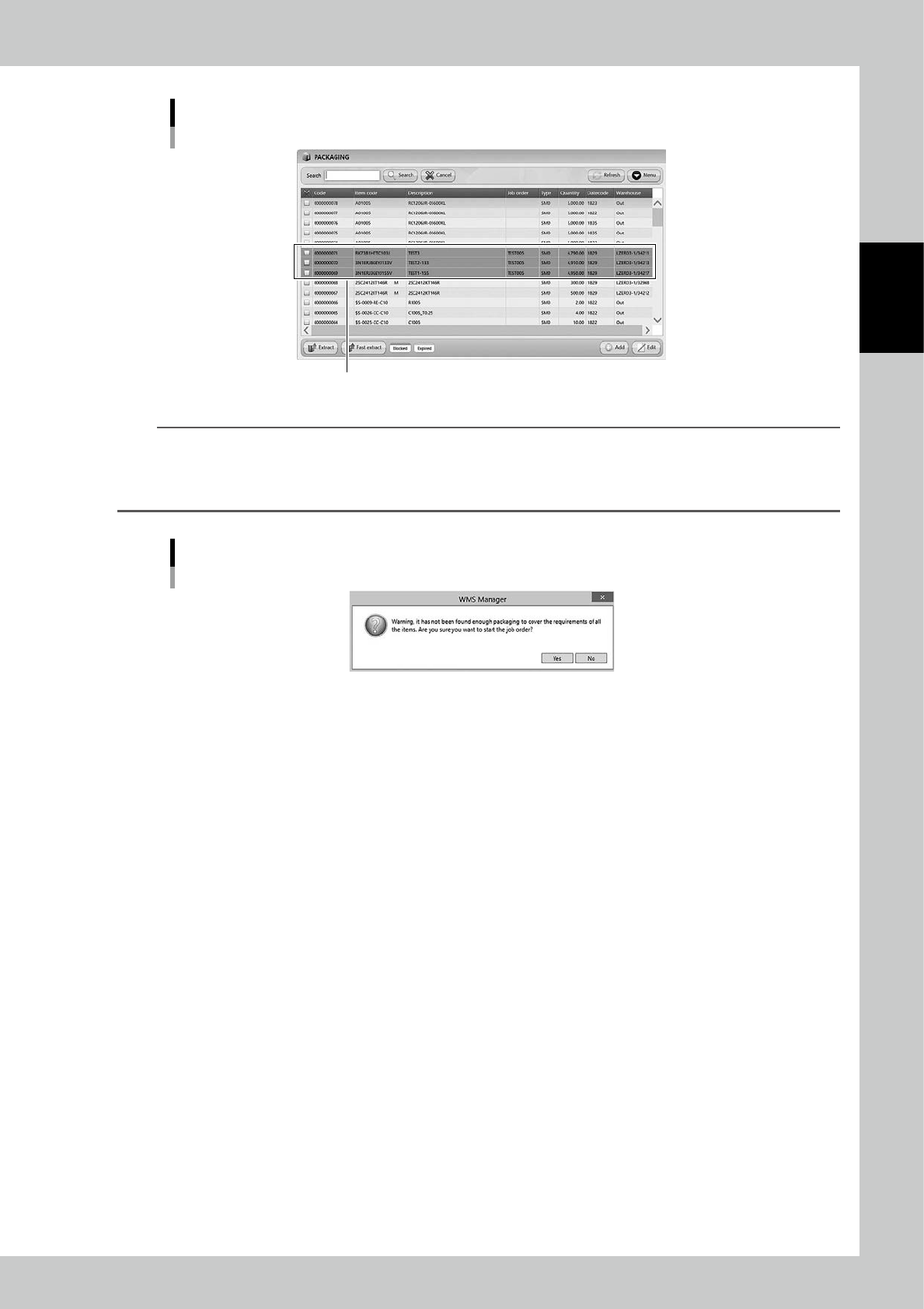
Reserve the packagings
Packagings are reserved with colored pink
24281-KMS-00
TIP
It is possible to approve the machine to unload the packagings even if there are no enough quantities of items in
step3.
The message "Warning: it had not been found enough packaging to cover the requirements of all the items…"
appears. Read the message and select [Yes] if OK.
Warning message of no enough packagings
24282-KMS-00
5
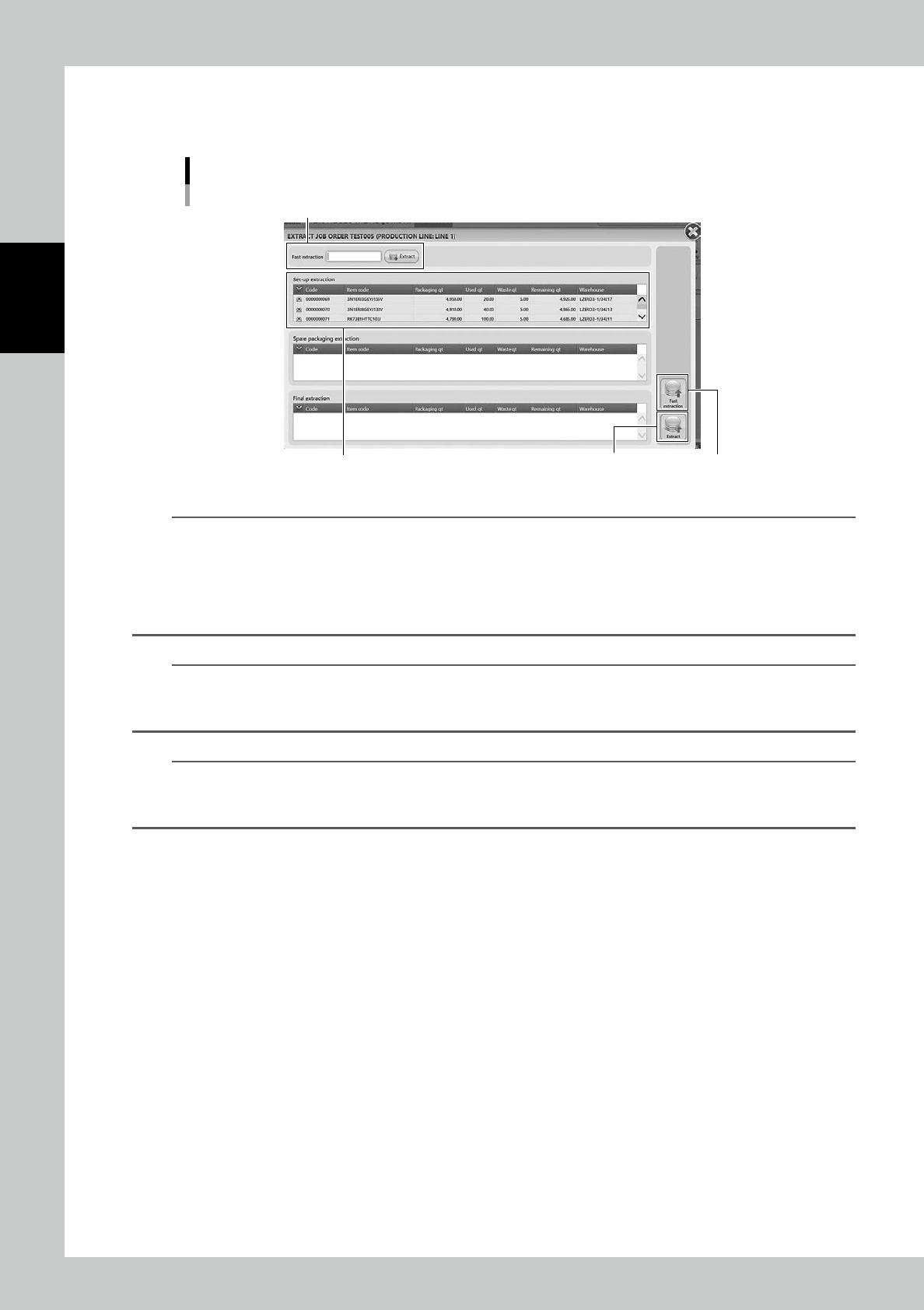
Press [Extract] button.
Press [Extra
ct
] button to display "EXTRACT" screen.
2-70
2
Operation
6
Unload the packagings.
Press [Extract] in "EXTRACT" screen, then the packagings are unloaded onto Loading/Unloading area.
EXTRACT JOB ORDER screen
Set-up extraction for initial unloading
“Fast extraction” bar
[Fast extraction] button[Extract] button
24283-KMS-00
n
NOTE
If the machine unloads many packagings, the packagings are divided three groups, "1: [Set-up extraction]", "2: [Spare
packing extraction]", and "3: [Final extraction]".
Then the packagings are unloaded in order of 1 to 3. 1: [Set-up extraction group] prioritizes to supply items on a
mounter to start its production.
Therefore, for example, even if 10 packagings are required, they can be divided into like 1st group with one packag-
ing and 2nd group with nine packagings.
n
NOTE
Pressing [Extract] button starts unloading packagings, but if a production requires a packaging earlier than them,
input its packaging code into "Fast Extraction" bar, or select the packaging and press [Fast extraction] at bottom right
in the screen, then the packaging is unloaded earlier than the others.
n
NOTE
Once unloading packagings completes, "EXTRACT" screen automatically closes, then "MANAGE" screens appears
back.
Once packagings are unloaded, they are released from reserved.
2-71
2
Operation
n
[Add] button and [Release] button
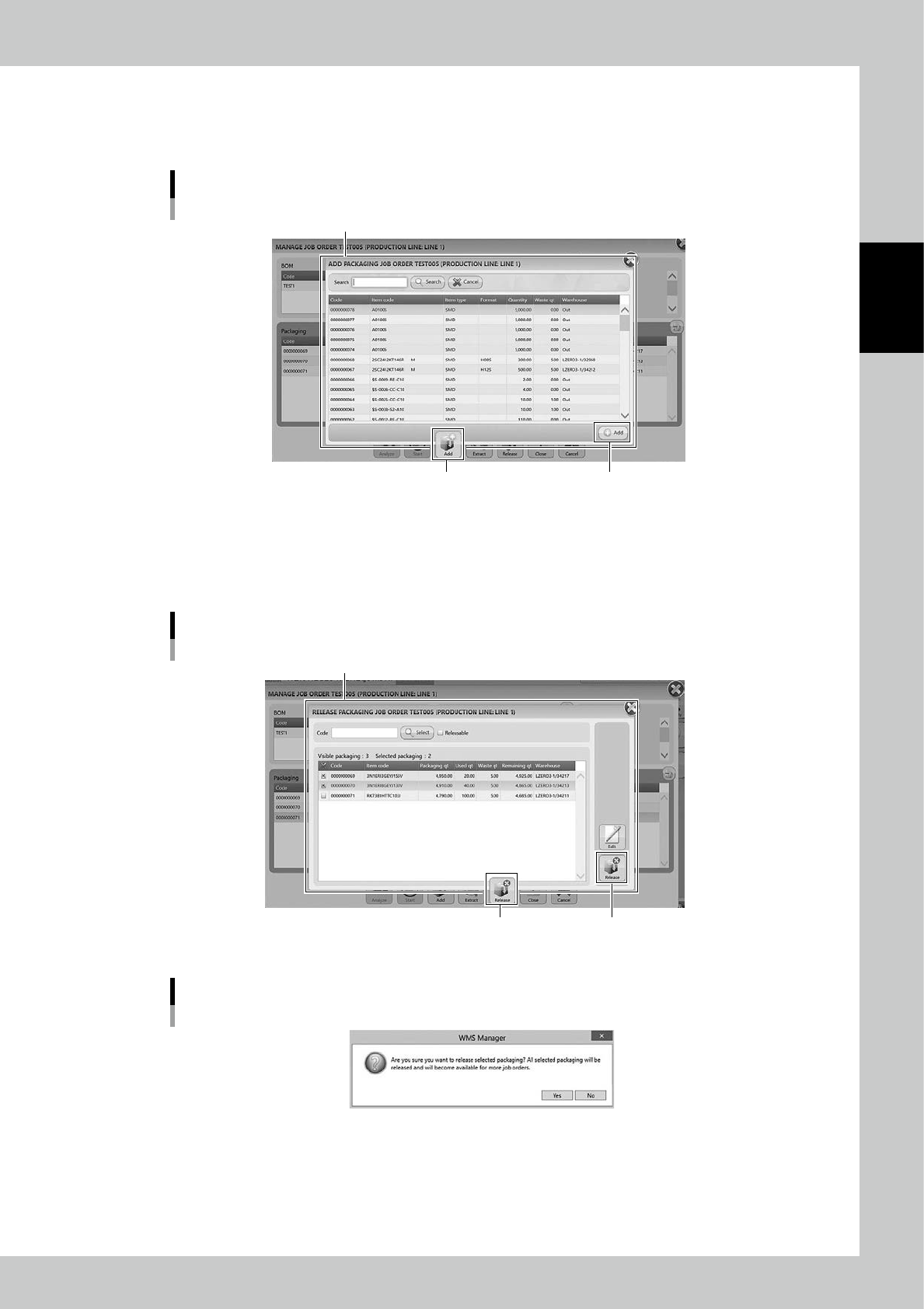
Press [Add] button at bottom in "Manage" screen then "ADD PACKAGING" screen appears.
Select the required packaging and press [Add] button, then the packaging to be unloaded are registered additionaly.
ADD PACKAGING screen
“ADD PACKAGING” screen
[Add] button[Add] button
24282-KMS-00
Press [Release] in "MANAGE" screen, then "RELASE PACKAGING" screen appears.
Select packagings and press [Release] at bottom right, then the message "Are you sure you want to release selected
packaging?" appears. Select [Yes], then the selected packagings are released from packagings which are pllanned to be
unloaded.
RELEASE PACKAGING screen
“RELEASE PACKAGING” screen
[Release] button[Release] button
24285-KMS-00
Message screen
24276-KMS-00
7
Start the production with the unloaded packagings.
Set the unloaded packagings on the mounter, then start the production.