YST15_Users_E.pdf - 第53页
2-25 2 Operation TIP [Remove] button, which is displayed only for engineer authority. Select an item and press [Remove], then the item is removed.Items which are removed once are not able to be registered again, and the …
2-24
2
Operation
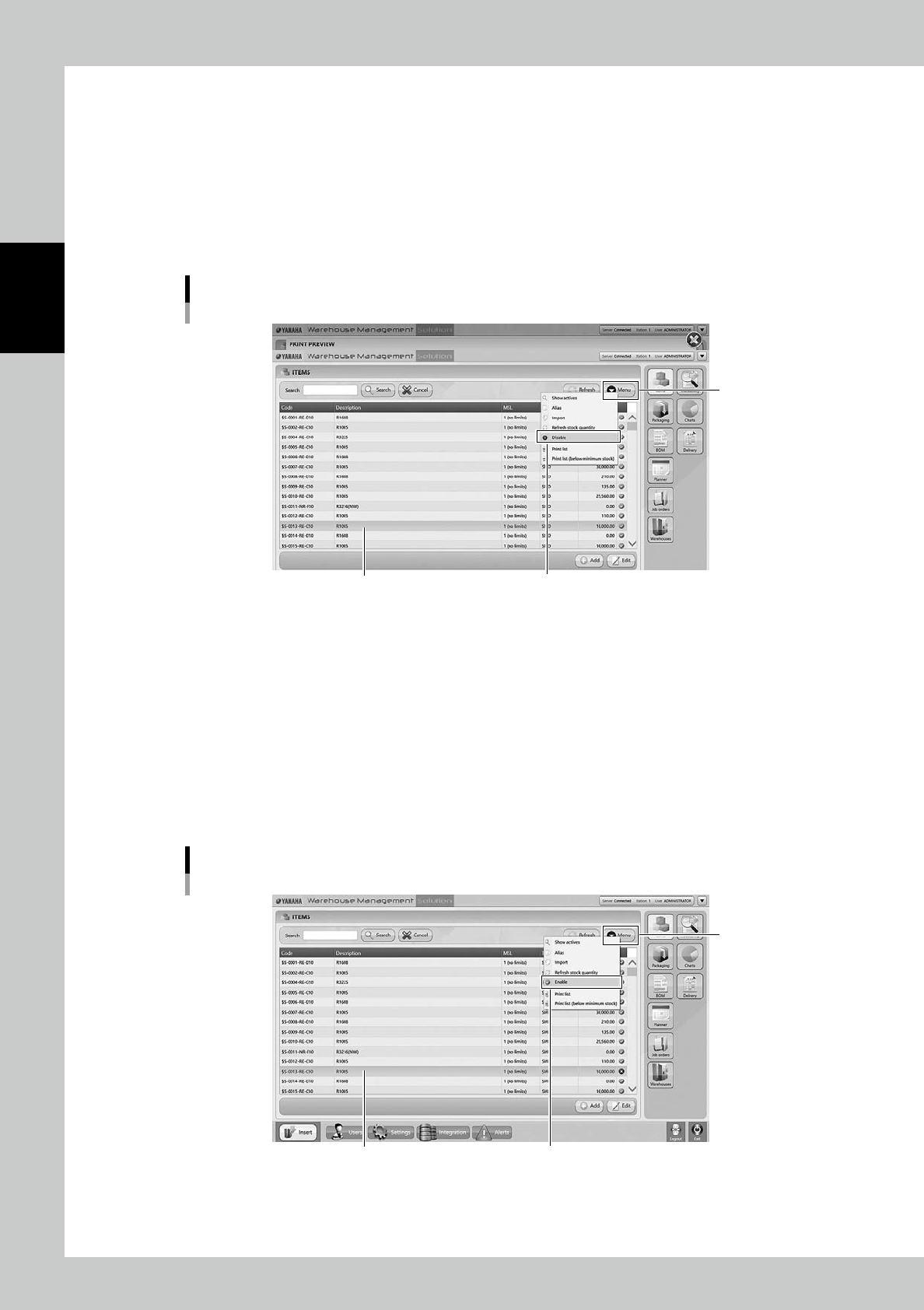
3.2.4 Disable and remove items
Set "Disable"on items so that the machine can't unload the items.
1
Select the item.
Select the item to be disabled.
2
Select "Disable".
Select "Disable" in Menu, then the selected item becomes disabled and hidden from the list.
Disable setting for items
Select the item
“Disable”
[Menu] button
24221-KMS-00
n
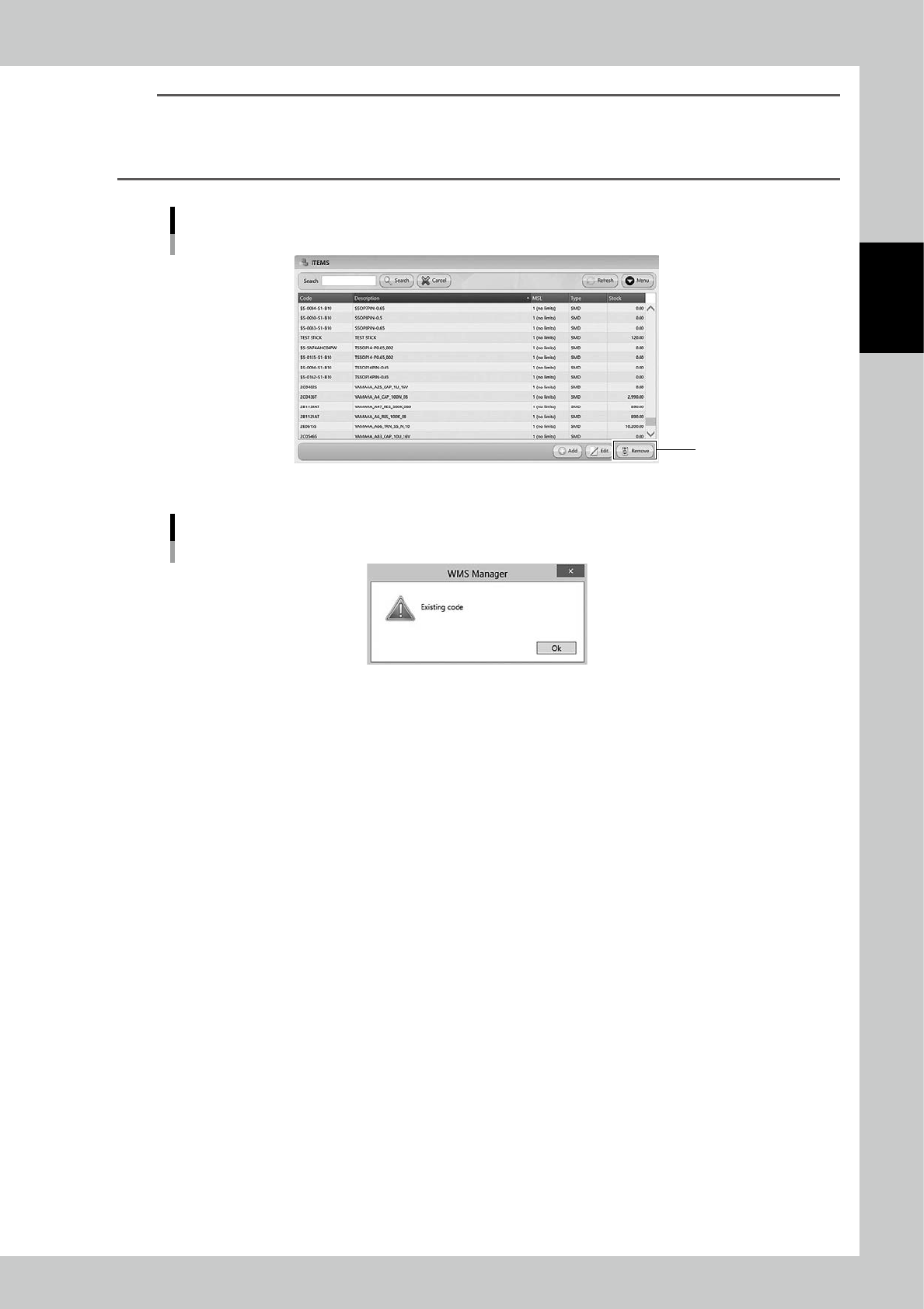
The case it is required to use the disabled item.
1
Show all items.
Select "Show All" in Menu, then all items including disabled items are displayed.
2
Select the item.
Select the required item.
3
Select "Enable".
Select "Enable" in Menu, then the selected item becomes enabled.
Enable setting for items
Select the item
“Enable”
[Menu] button
24222-KMS-00
2-25
2
Operation
TIP
[Remove] button, which is displayed only for engineer authority.
Select an item and press [Remove], then the item is removed.Items which are removed once are not able to be
registered again, and the histories of them are also removed in traceability.
DO NOT remove any registered items basically.
[Remove] button
[Remove] button
24223-KMS-00
Existing Code
24224-KMS-00
2-26
2
Operation
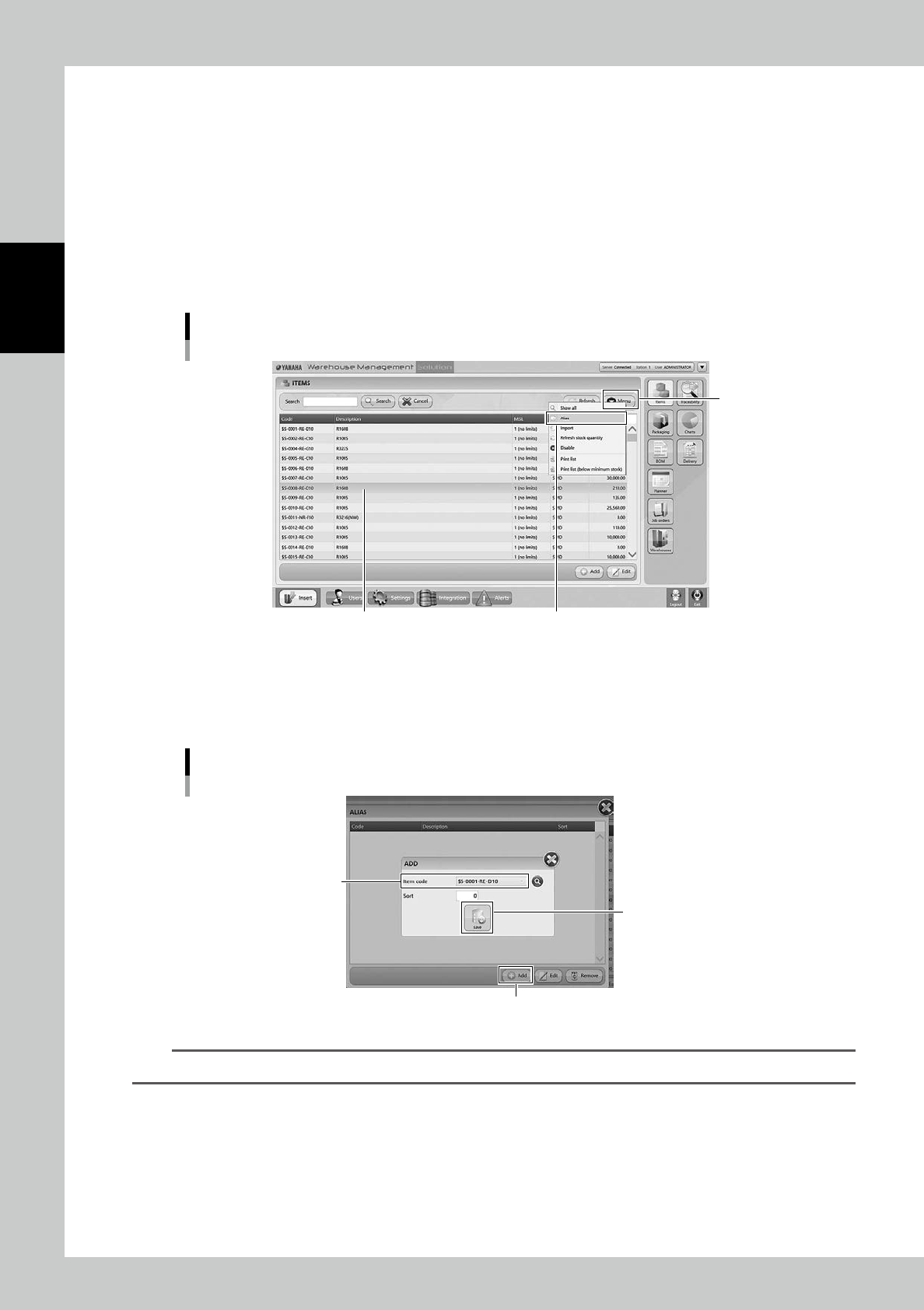
3.2.5 Make a setting of Alias
Alias setting is the function that some items can be used alternatively for the other items if there are no enough
quantities of them. If "Alias" is ticked at registration of Job Order or Planner, the items registered for an item
can be unloaded as its alias.
1
Select the item.
Select the item used mainly.
2
Select "Alias".
Select "Alias" in Menu, then "ALIAS" screen appears.
"ALIAS" screen
Select the item
“Alias”
[Menu] button
24225-KMS-00
3
Select the items.
Press [Add], then select an item to be set as the alias in "Item Code".
Press [Save] button to register the item as the alias.
"ALIAS" screen
[Add] button
[Save] button
“Item code”
24226-KMS-00
TIP
Select the item in "ALIAS" screen and press [Remove] button, then the alias setting of the item is removed.