YST15_Users_E.pdf - 第84页
2-56 2 Operation TIP [Remove] button [Remove] button is displayed only for engineer authority. Select a BOM and press [Remove], then the BOM is removed. BOMs which are removed once are not able to be registered again, an…
2-55
2
Operation
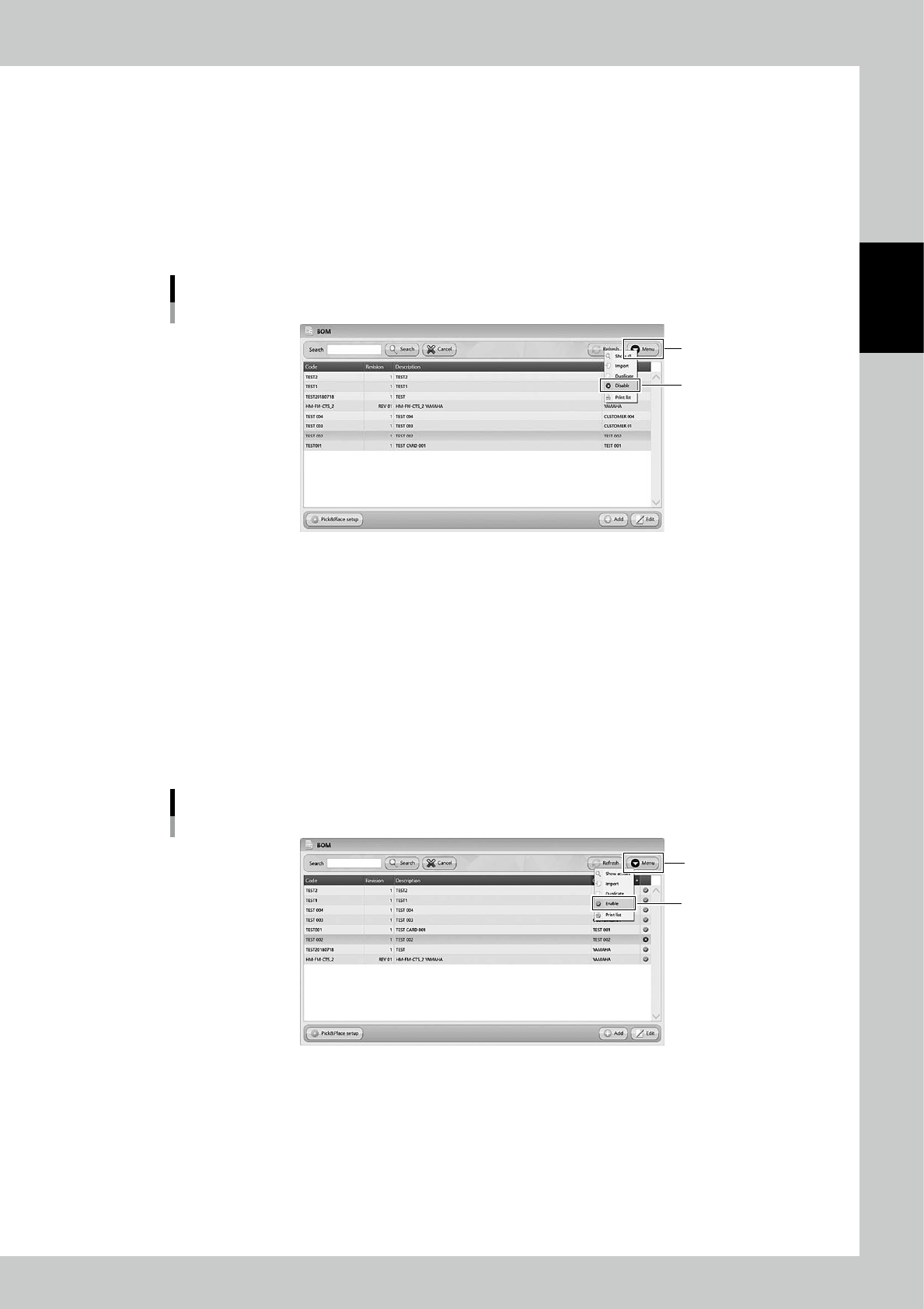
3.5.4 Disable and remove BOMs
Setting "Disable" on BOMs prevents the machine from unloading some packagings.
1
Select the BOM.
Select the BOM to be disabled.
2
Select "Disable".
Select "Disable" in Menu, then the selected BOM becomes "Disable" and hidden from the list.
Disable setting for BOMs
“Disable”
[Menu] button
24261-KMS-00
n
The case it is required to use the disabled BOM.
1
Display all the BOMs.
Select "Show All" in Menu, then all the BOMS including disabled BOMs are displayed.
2
Select the BOM.
Select the required BOM.
3
Select "Enable"
Select "Enable" in Menu, then the selected BOM becomes enabled.
Enable setting for BOMs
“Enable”
[Menu] button
24262-KMS-00

2-56
2
Operation
TIP
[Remove] button
[Remove] button is displayed only for engineer authority.
Select a BOM and press [Remove], then the BOM is removed.
BOMs which are removed once are not able to be registered again, and the histories of them are also removed in
traceability.
DO NOT remove any registered BOMs basically.
[Remove] button
[Remove] button
24263-KMS-00
2-57
2
Operation
3.6 Job Orders
Job Orders list the types of the packagings and their quantities required for the planned quantities of the
products.
YST15 is able to unload multiple packagings based on Job orders.
3.6.1 JOB ORDERS screen
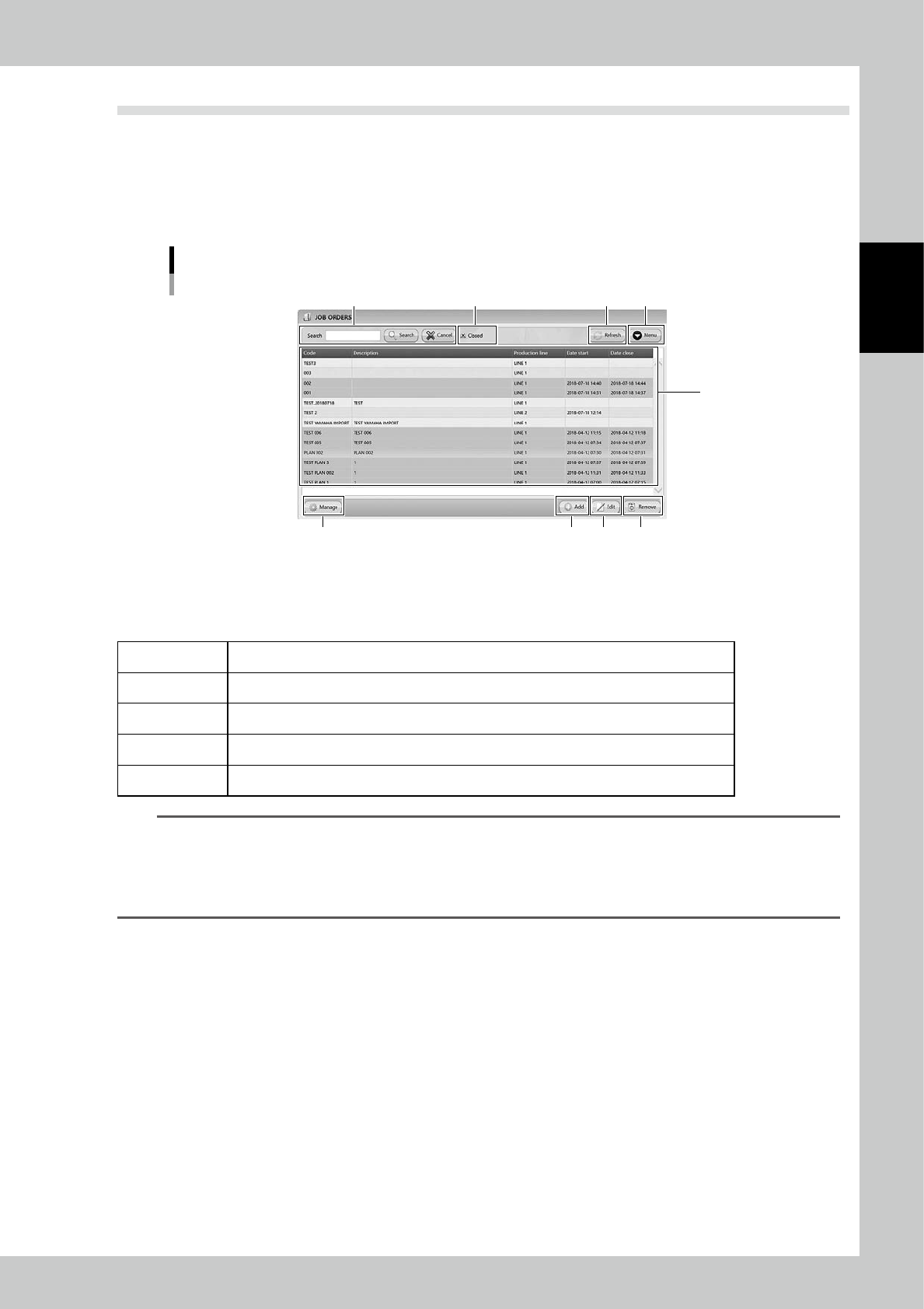
"JOB ORDERS" screen
1
2 5
6 7 8 9
4
3
24264-KMS-00
1. Job order list
Registered job orders are listed. Pressing a content in the top line sorts them.
The details of contents are described in the following page, too.
Code Job order names.
Description Details of job orders.
Production Line Information of the production line.
Date Start Dates when the packagings are unloaded based on the job orders.
Date close Dates when the job orders close.
TIP
Job orders are colored depending on their status.
Light gray Before the production starts.
Green The production started but before completes.
Gray The production completed.
Orange Currently selected.
2. Search bar
Able to search based on Code or Description. Pressing [Search] button with words starts searching related packagings.
Pressing [Cancel] button stop searching.
3. "Closed" check box
Check this check box to show all job orders including those completed.
4. [Refresh] button
Able to update "Job orders" screen information manually.