YST15_Users_E.pdf - 第102页
2-74 2 Operation 3.7 Planner PLANNER is a supporting function for Job orders. Before a job order analyzes a production feasibility , this function judges the production feasibility based on packagings stored in YST15. 3.…
2-73
2
Operation
0
Close the job order.
Press [CLOSE] button to close the job order.
n
NOTE
Closing a job order with ticking check boxes of some packagings disables them.
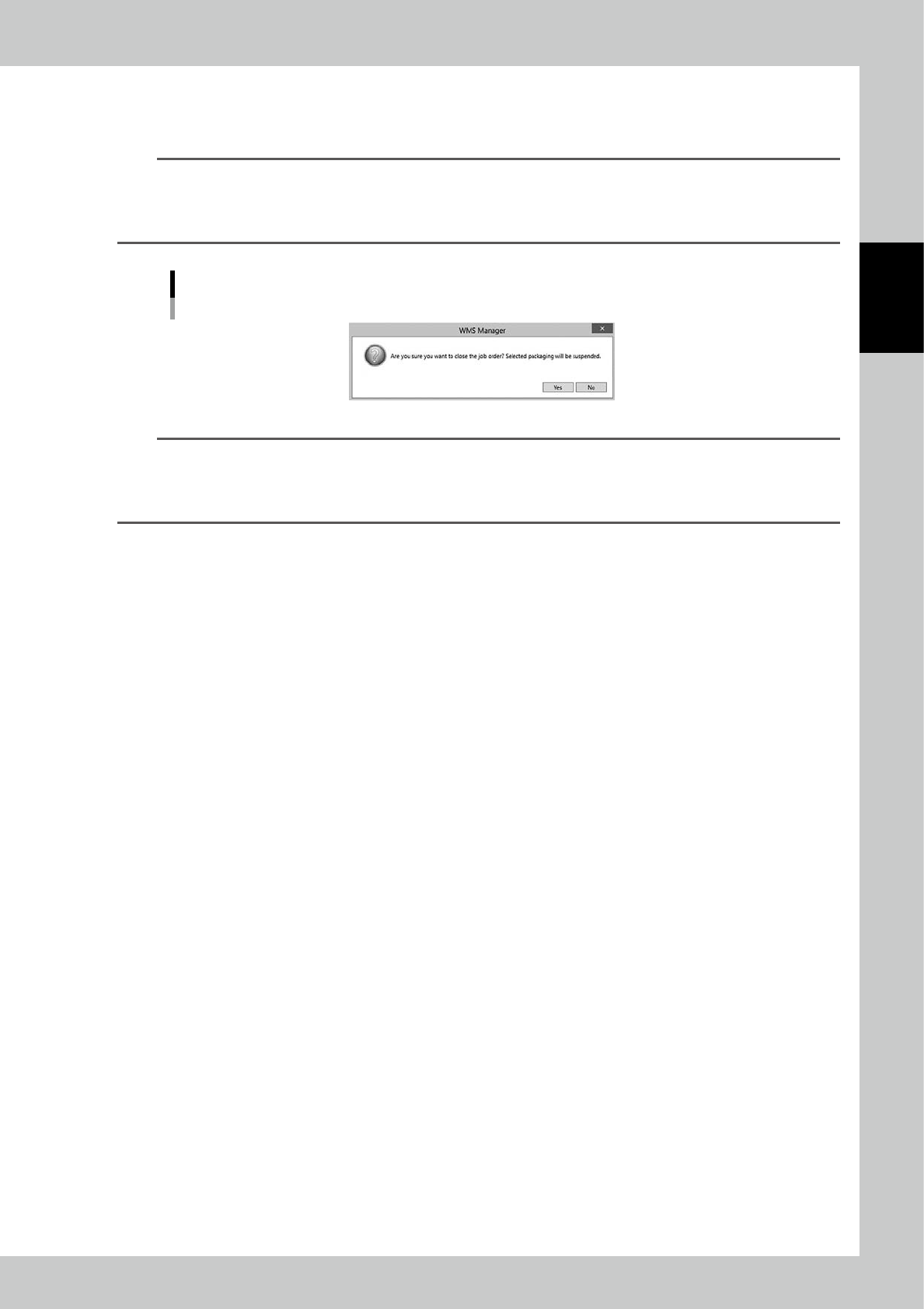
The message "Are you sure you want to close the job order? Selected packaging will be suspended." appears.
Confirm the message, then select [Yes]. Basically, tick the check boxes for only the empty packagings and close the
job order.
Warning at CLOSE
24289-KMS-00
TIP
Even before unloading packagings, it is possible to close job orders.
For example, it can be considered that packagings are unloaded by hands without WMS MANAGER control when the
machine gets in trouble.
Basically, close job orders after the packagings are unloaded.
2-74
2
Operation
3.7 Planner
PLANNER is a supporting function for Job orders.
Before a job order analyzes a production feasibility, this function judges the production feasibility based on
packagings stored in YST15.
3.7.1 PLANNNER screen
Input BOMs and the product quantities to create job orders, same as "JOB ORDERS" screen.
n
NOTE
Job orders which are created in "PLANNER" screen are transferred to be used in "JOB ORDERS" screen.
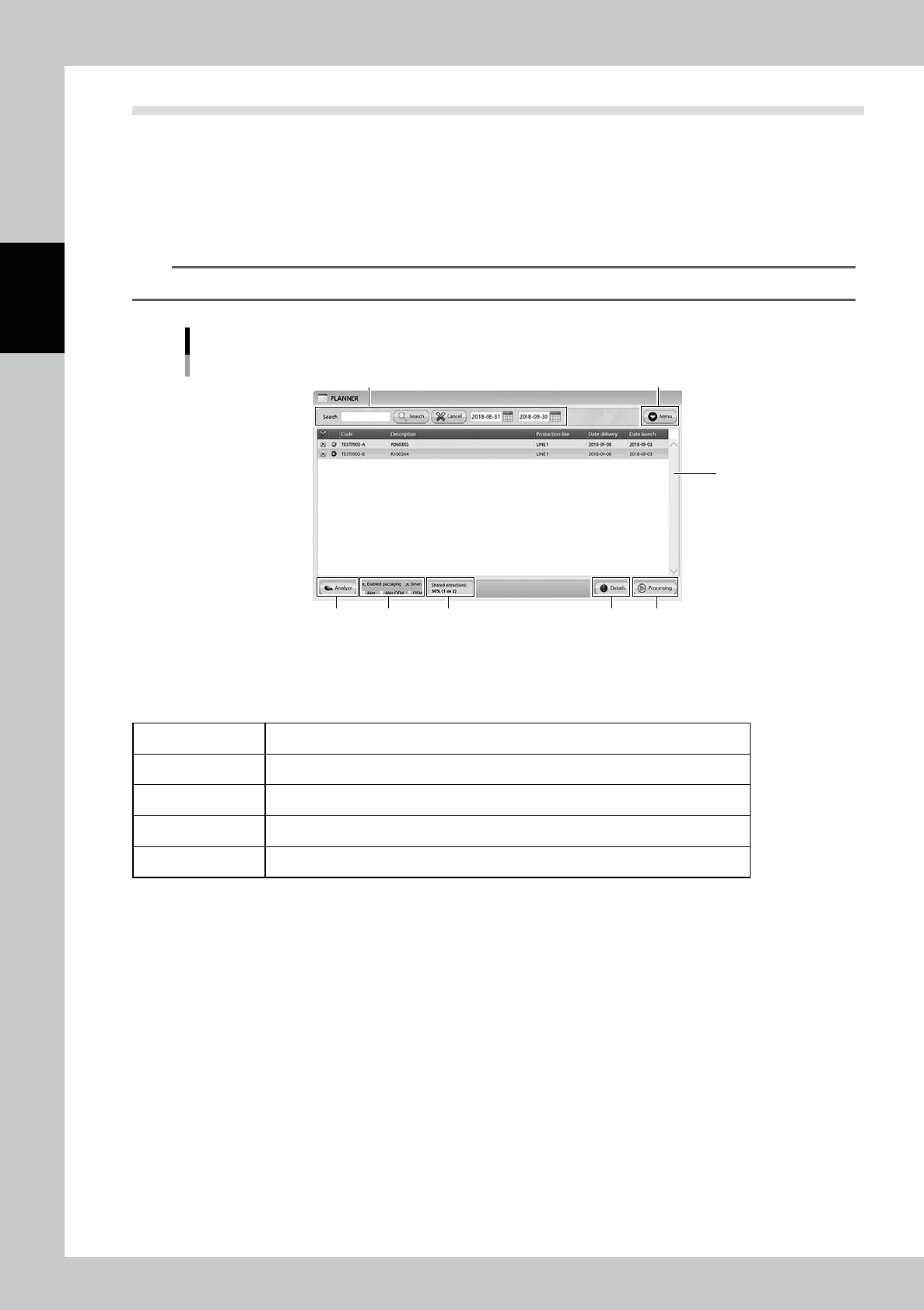
"PLANNER" screen
1
2 3
4 5 6 7 8
24290-KMS-00
1. JOB ORDERS list
Registered job orders are listed. Pressing a content in the top line sorts them.
Basically the contents are same as "3.6 Job Orders". The details of contents are described in the following page, too.
Code Job order names.
Description Details of job orders.
Production Line Information of the production line.
Date delivery Dates when the product boards are delivered to customers.
Date launch Dates when the product boards start to be produced.
2. Search bar
Able to search based on Code or Description. Pressing [Search] button with words starts searching related packagings.
Pressing [Cancel] button stop searching.
Able to specified the duration by a calendar on right.
2-75
2
Operation
3. [Menu] button
Able to go to each function.
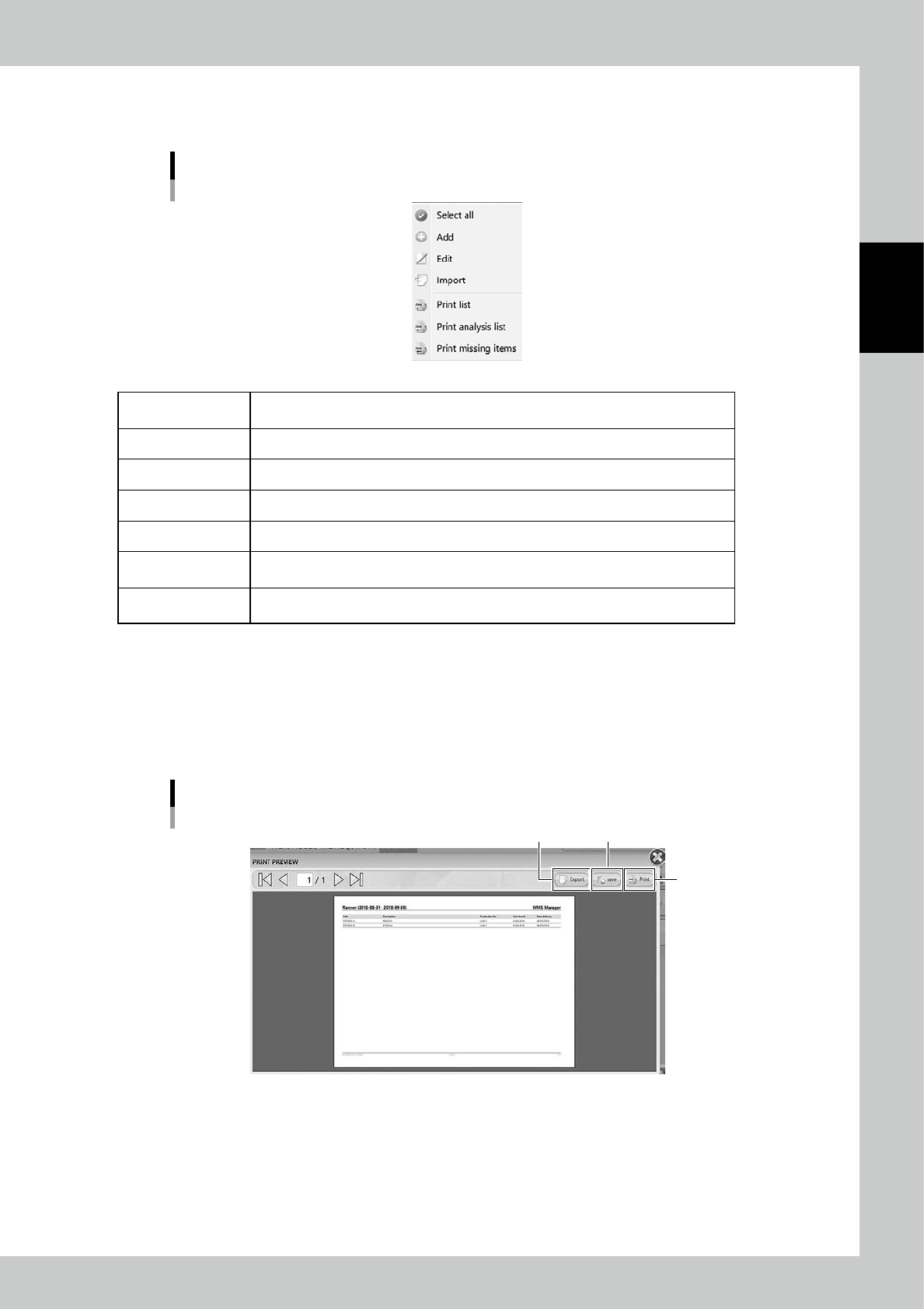
Menu list
24291-KMS-00
Select all
Able to select all the job orders in the list. All the check boxes at left end of job orders
are ticked.
Add Create a job order additionally.
Edit Edit a registered job order.
Import Create a job order by importing the file.
Print list All job orders to be analyzed here are listed.
Print analysis list
The job orders to be analyzed here and all items to be used are listed after production
analysis.
Print missing items
The job orders to be analyzed here and all items which are not enough quantities are
listed after production analysis.
n
Print list
Select the job orders, and select "Print list" in Menu. Then, job orders are listed in "Print Preview" screen.
Press [Save] button to save the list in pdf format, press [Export] button to save the list in XML format.
If the machine is connected to a printer through an external network, pressing [Print] button prints the list.
"Print analysis list" and "Print missing list" are checked after production analysis. See "3.7.4 Analyze in PLANNNER" for
details.
“PRINT PREVIEW” screen
[Export] button [Save] button
[Print] button
24292-KMS-00