YST15_Users_E.pdf - 第99页
2-71 2 Operation n [Add] button and [Release] button Press [Add] button at bottom in "Manage" screen then "ADD P ACKA GING" screen appears. Select the required packaging and press [Add] button, then t…
2-70
2
Operation
6
Unload the packagings.
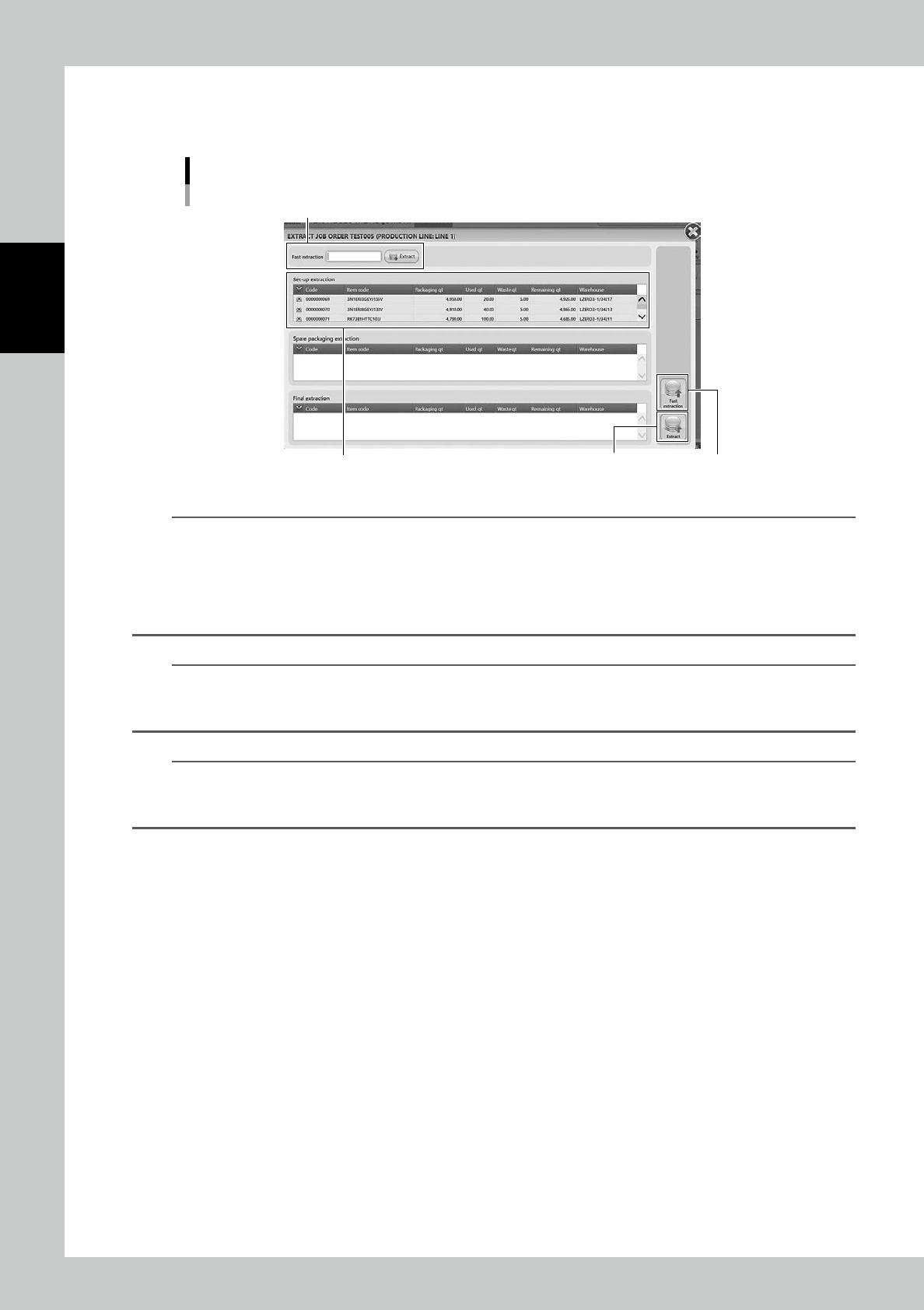
Press [Extract] in "EXTRACT" screen, then the packagings are unloaded onto Loading/Unloading area.
EXTRACT JOB ORDER screen
Set-up extraction for initial unloading
“Fast extraction” bar
[Fast extraction] button[Extract] button
24283-KMS-00
n
NOTE
If the machine unloads many packagings, the packagings are divided three groups, "1: [Set-up extraction]", "2: [Spare
packing extraction]", and "3: [Final extraction]".
Then the packagings are unloaded in order of 1 to 3. 1: [Set-up extraction group] prioritizes to supply items on a
mounter to start its production.
Therefore, for example, even if 10 packagings are required, they can be divided into like 1st group with one packag-
ing and 2nd group with nine packagings.
n
NOTE
Pressing [Extract] button starts unloading packagings, but if a production requires a packaging earlier than them,
input its packaging code into "Fast Extraction" bar, or select the packaging and press [Fast extraction] at bottom right
in the screen, then the packaging is unloaded earlier than the others.
n
NOTE
Once unloading packagings completes, "EXTRACT" screen automatically closes, then "MANAGE" screens appears
back.
Once packagings are unloaded, they are released from reserved.
2-71
2
Operation
n
[Add] button and [Release] button
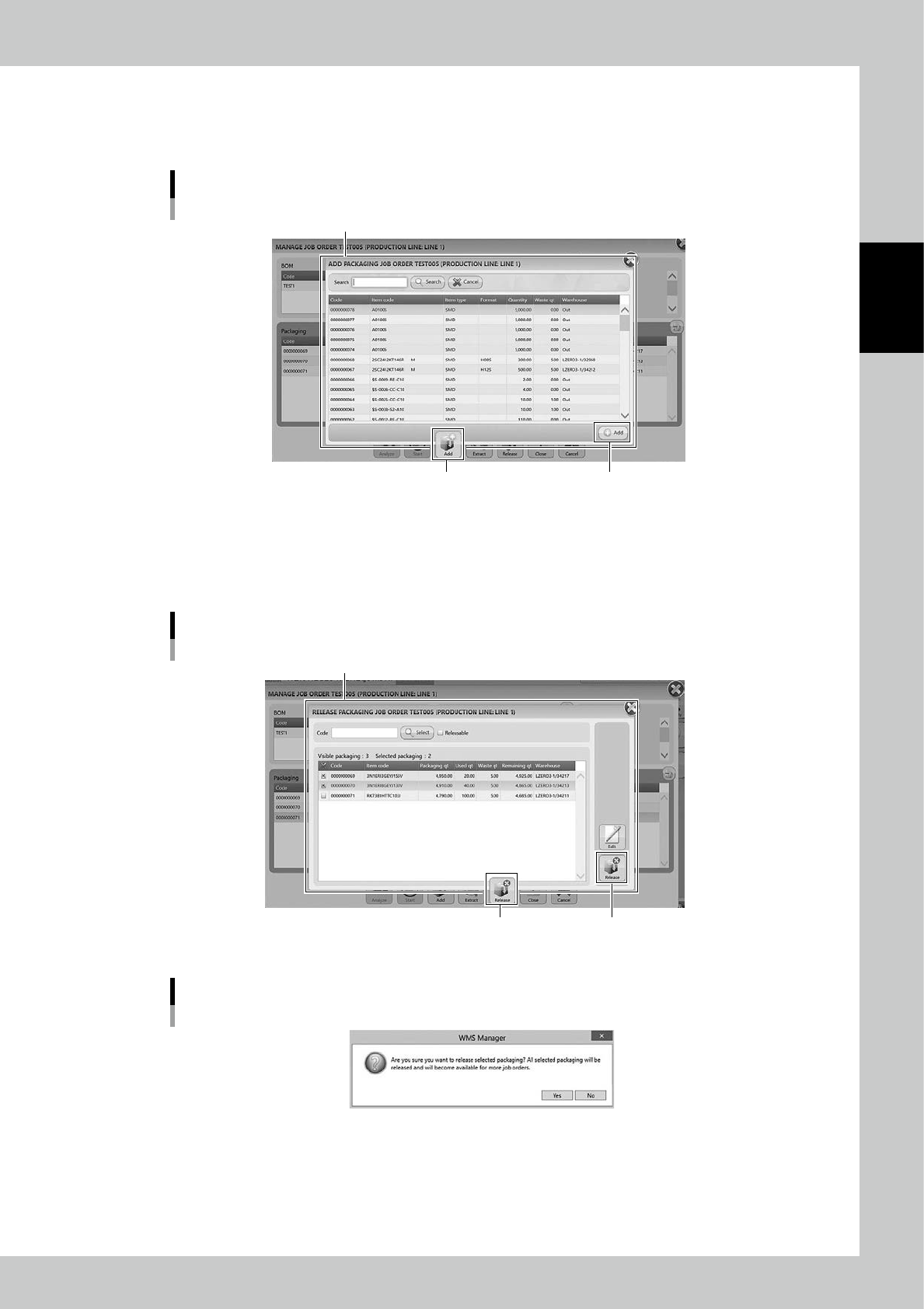
Press [Add] button at bottom in "Manage" screen then "ADD PACKAGING" screen appears.
Select the required packaging and press [Add] button, then the packaging to be unloaded are registered additionaly.
ADD PACKAGING screen
“ADD PACKAGING” screen
[Add] button[Add] button
24282-KMS-00
Press [Release] in "MANAGE" screen, then "RELASE PACKAGING" screen appears.
Select packagings and press [Release] at bottom right, then the message "Are you sure you want to release selected
packaging?" appears. Select [Yes], then the selected packagings are released from packagings which are pllanned to be
unloaded.
RELEASE PACKAGING screen
“RELEASE PACKAGING” screen
[Release] button[Release] button
24285-KMS-00
Message screen
24276-KMS-00
7
Start the production with the unloaded packagings.
Set the unloaded packagings on the mounter, then start the production.
2-72
2
Operation
8
Open "CLOSE" screen.
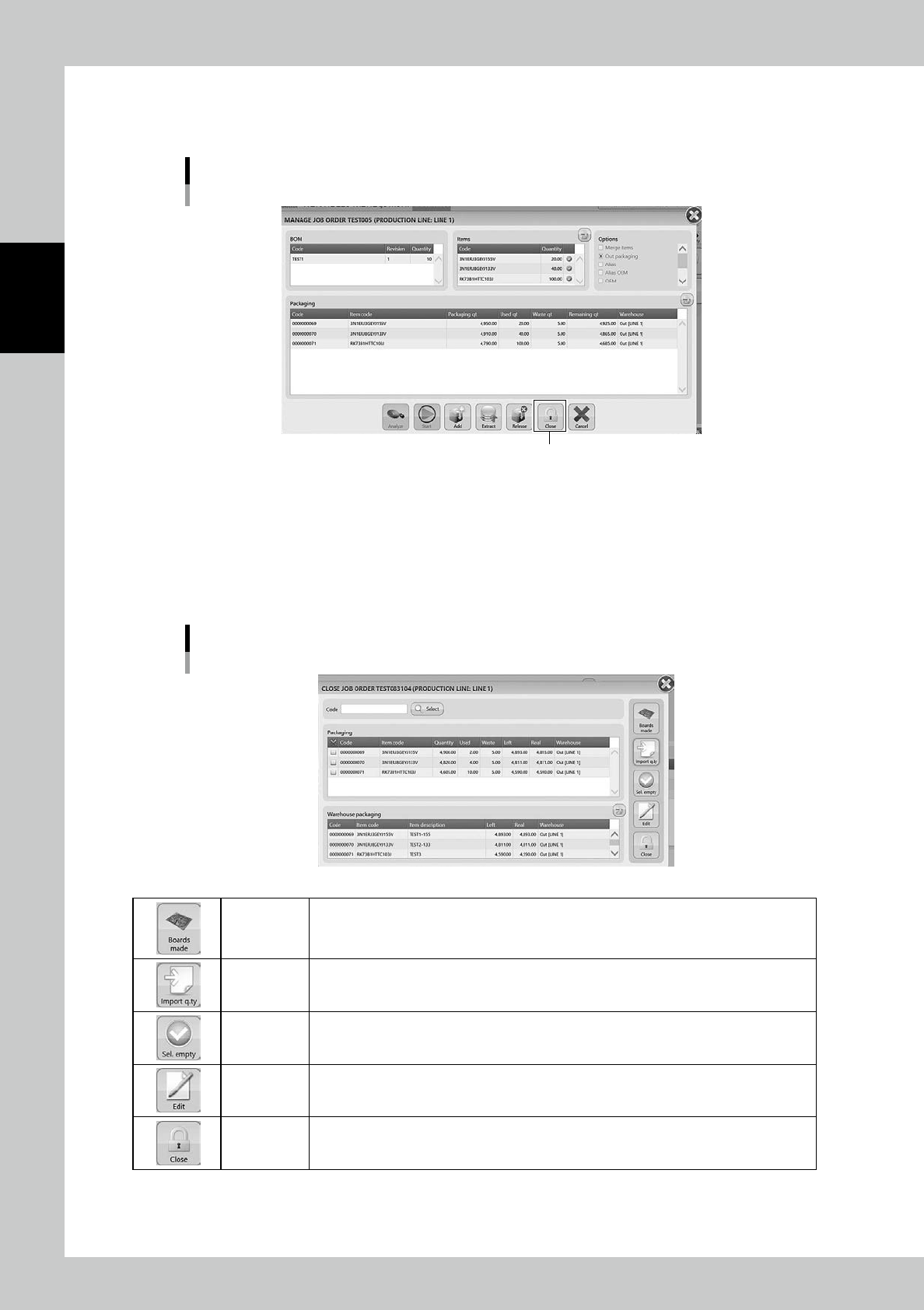
Press [Close] button in "MANAGE" screen.
[CLOSE] button
[Close] button
24287-KMS-00
9
Count the remaining items.
1. There are such as [Boards made] button, [Import q.ty] button, and [Edit] button in "CLOSE" screen.
The remaining quantities of the packagings are managed here.
2. If some reels are empty, press [Sel. Empty] button to select them automatically, then press [CLOSE]
button.
CLOSE JOB ORDER screen
24288-KMS-00
Boards made
Able to input the actual quantities of the produced boards if their quantities are less than the
plan.
Import q.ty
Able to import the exact quantities of the items used in the production line.
(If there is no list, input "Left" value as "Real".
Sel. empty
Able to select all the empty packagings. The check boxes at left end of the packagings are
ticked.
Edit
Able to edit the packaging information such as used quantity by selecting the packaging and
pressing this.
Close
Able to make the job order closed and close "CLOSE" screen.
Once closing the job order, "Real" is filled with "Left" value.