YST15_Users_E.pdf - 第77页
2-49 2 Operation 4 Select the items for the BOM. 1. Select the item, which are required for the prod uct, in Items table in middle of the screen, then press [Arrow] button. 2. "SET QUANTITY" screen appears, the…
2-48
2
Operation
3.5.2 Register a BOM manually
Registering a BOM is described.
1
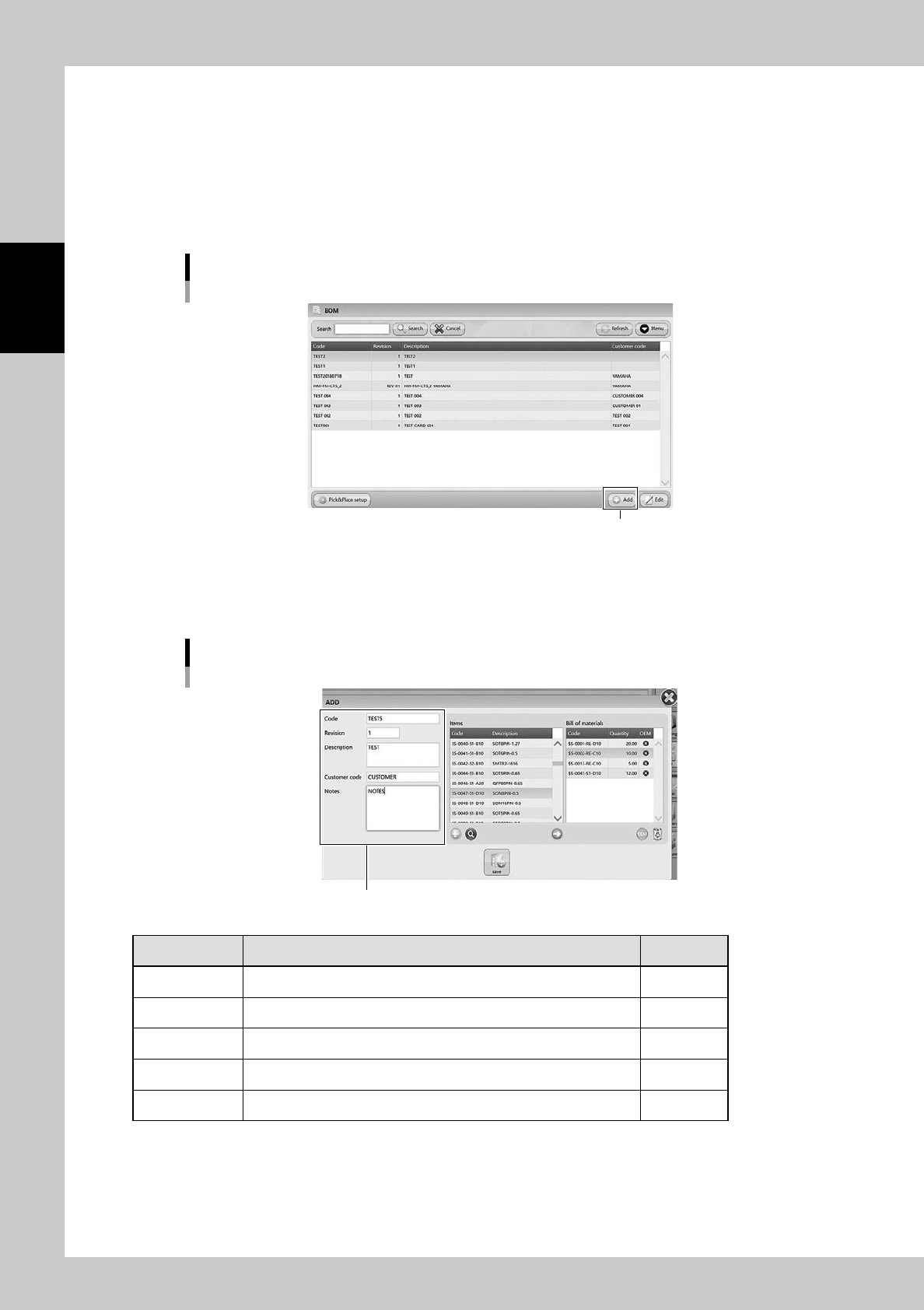
Open "BOM" screen.
2
Open the BOM registration screen.
Press [Add] button at bottom right to open the BOM registration screen.
"BOM" screen
[Add] button
24251-KMS-00
3
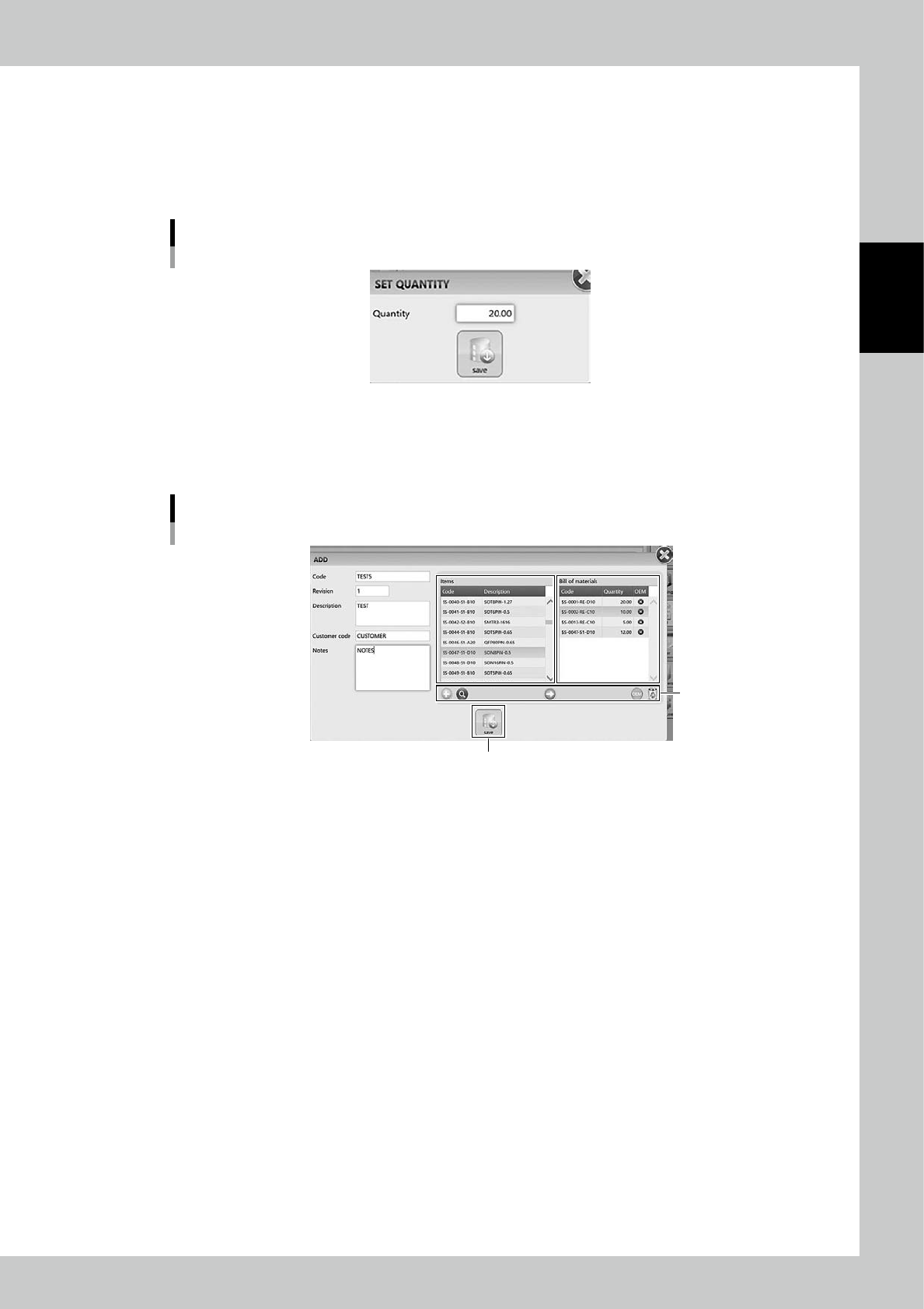
Input necessary contents.
Input necessary contents in left side. The mandatory content is Code.
BOM registration screen
Input contents
24252-KMS-00
Content Description Mandatory
Code Input the BOM name, normally its product board name. Yes
Revision If the BOM is revised, input the information about it. -
Description Input the detail of the BOM. -
Customer code Input the customer code or information about the product. -
Notes Note. -
2-49
2
Operation
4
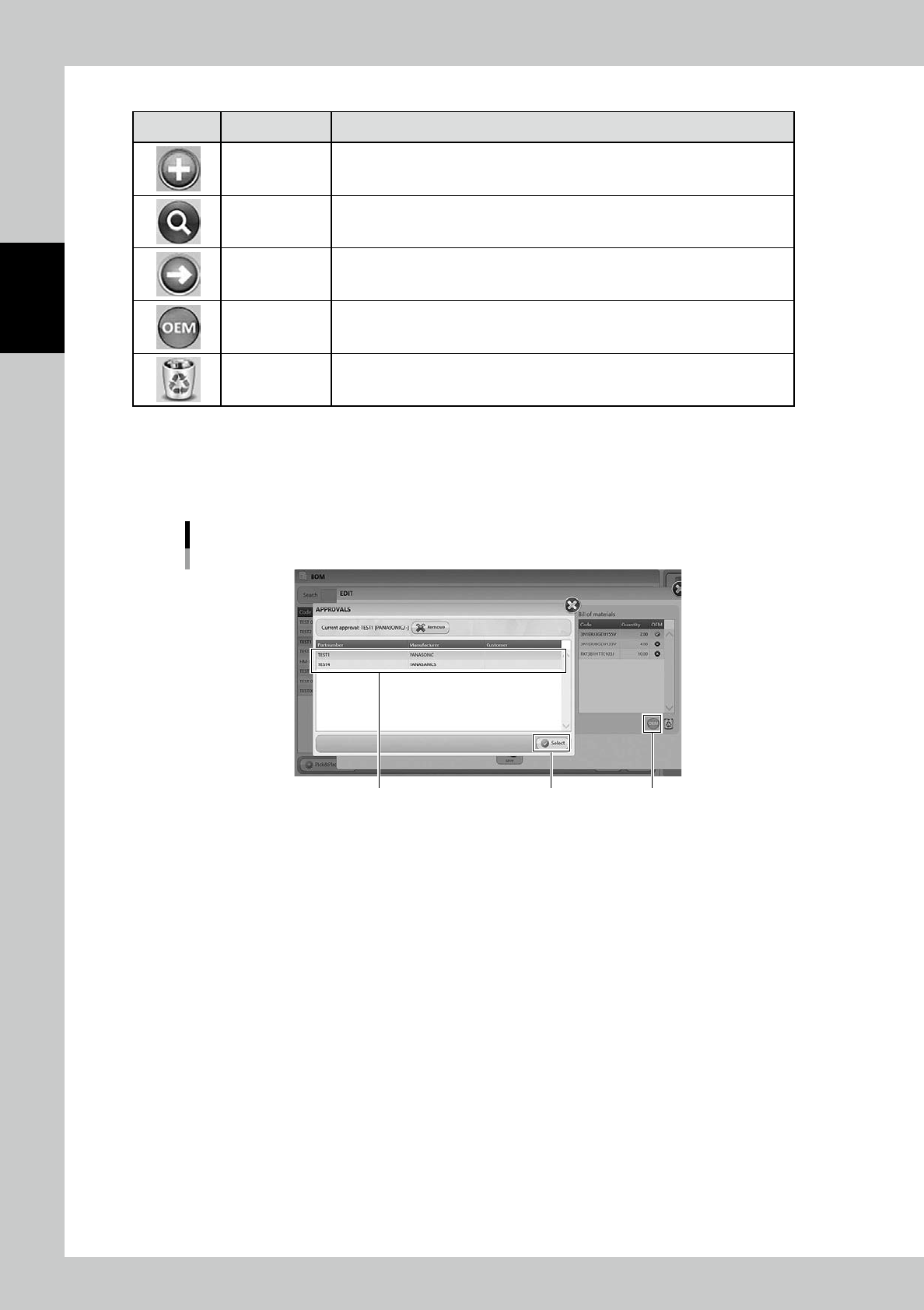
Select the items for the BOM.
1. Select the item, which are required for the product, in Items table in middle of the screen, then press
[Arrow] button.
2. "SET QUANTITY" screen appears, then input the quantity of the item required for one board of the
product.
"SET QUANTITY" screen
24253-KMS-00
3. Press [Save] button, then the selected item and its quantity are registered in "Bill of materials" table in
right of the screen.
4. Repeat 1 to 3 to register all the items required for the product.
BOM registration screen 2
[Save] button
Buttons
24254-KMS-00
5
Press [Save] to register the BOM.
2-50
2
Operation
n
Functions of buttons
Icon Button name Description
Add button
Items which are not in "Items" table can be newly registered by this button.
See "3.2.2 Register an item manually" for the process for registering items.
Zoom button Able to zoom in "Items" table.
Arrow button Able to register the selected item into "Bill of materials" table.
OEM button
OEM: Original Equipment Manufacturer
Able to make a limit of manufacturer of items. See below for the details.
Remove button Remove the items registered in "Bill of materials" table.
• [OEM] button
Select the item in "Bill of materials" and press [OEM] button, then "OEM-APPROVALS" screen appears.
The manufacturer of the selected item can be specified in this screen.
Select a specified manufacturer and press [Select] button, then the manufacturer is specified as OEM item for Job orders.
"OEM - APPROVAL" screen
[Select] button [OEM] buttonSelect Manufacturer
24255-KMS-00