YST15_Users_E.pdf - 第113页
2-85 2 Operation Normally , a packaging uses 2 to 4 cells together to be stored in as shown in examples belo w . 32947 32936 77 66 55 Cell examples to store packagings Y ellow : H8S - 7inch reel for 8 mm reel Green : Pac…
2-84
2
Operation
3.8 Warehouses
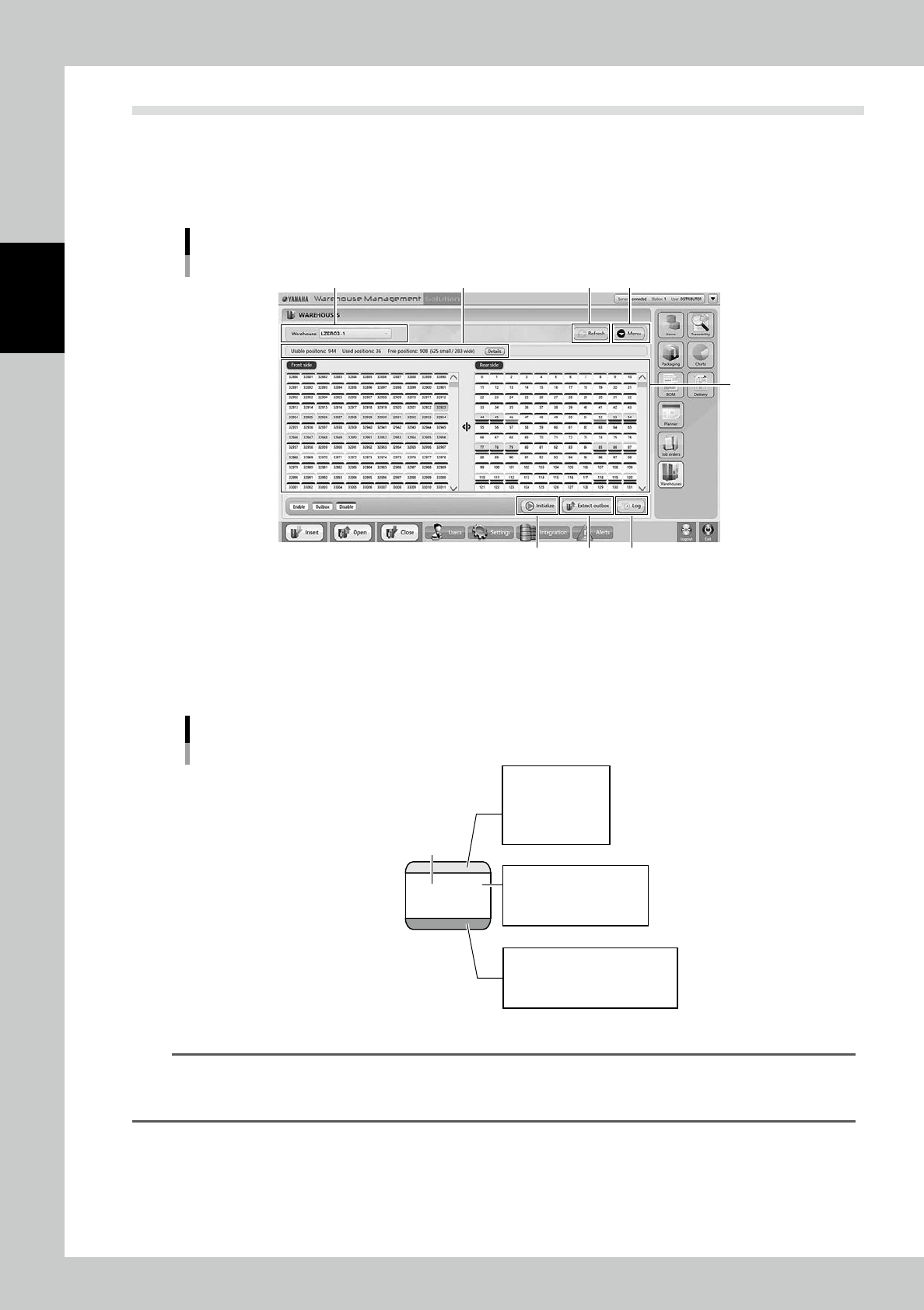
"WAREHOUSES" displays the storage status of packagings in front and rear shelves in YST15.
Initialization can be performed only in this screen.
3.8.1 WAREHOUSE screen
"WAREHOUSES" screen
1
2 3 4
6 7 8
5
242A4-KMS-00
1. Shelf status display
The cells where packagings exist are colored green on the back ground.
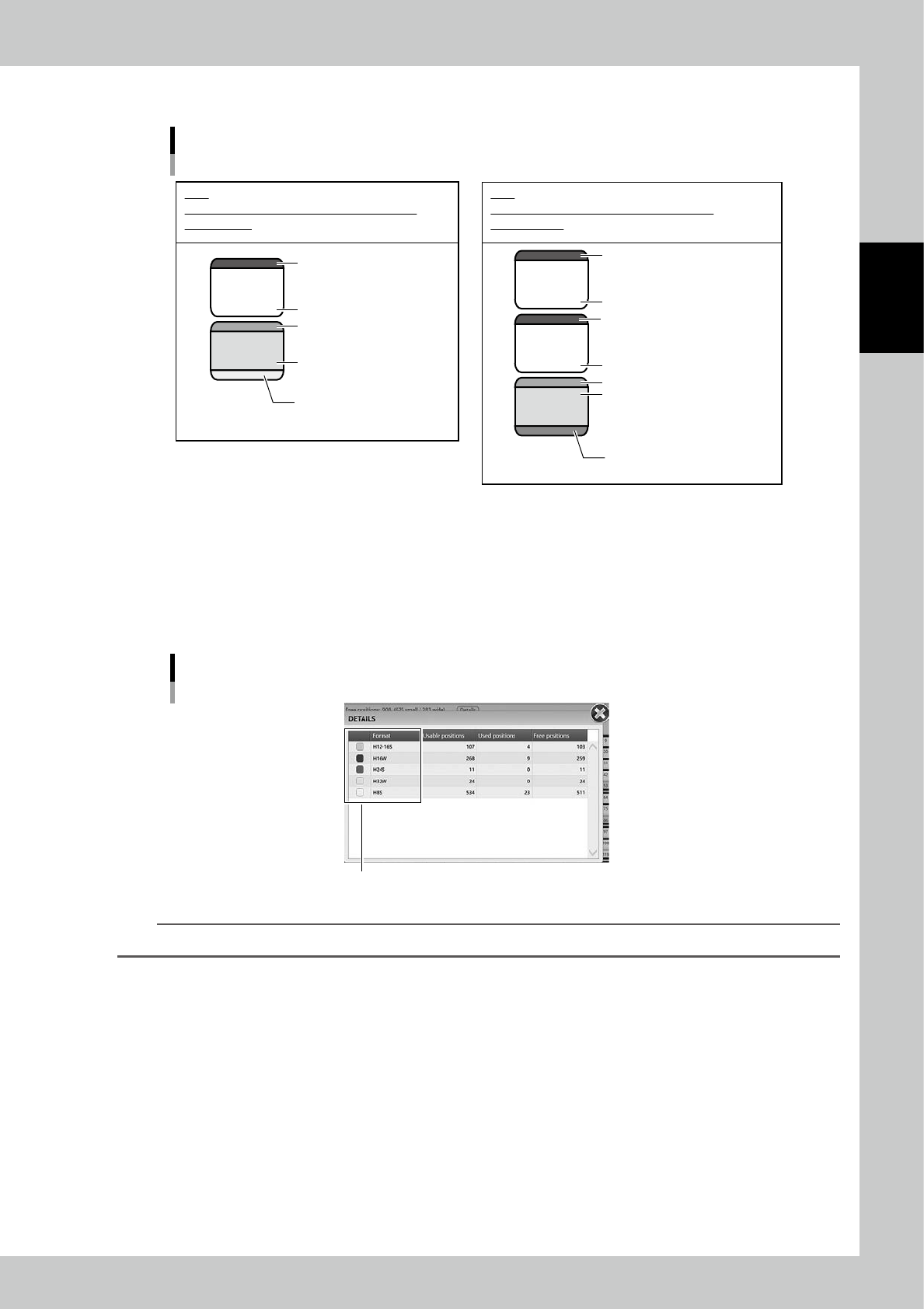
The available packaging size for each cell is configured in advance, the colors of the lower parts of cells indicate their
packaging sizes.
The colors of the upper parts of cells indicate whether the cell is enable or disable.
32947
Cell color classification
Number : cell number
Enable : Green
Disable : Red
Outbox : Blue
Unusable : Gray
The color depends on the
packaging size
No shelf plate : White
Packaging exists : Green
No packaging exists : White
Selected : Orange
23222-KMS-00
TIP
"Outbox" is the cell where an unknown packaging whose bar code can't be scanned is temporarily placed.
Normally, the packaging in outbox is unloaded back to Loading/Unloading area after the other packagings are
loaded.
2-85
2
Operation
Normally, a packaging uses 2 to 4 cells together to be stored in as shown in examples below.
32947
32936
77
66
55
Cell examples to store packagings
Yellow : H8S - 7inch reel
for 8 mm reel
Green : Packaging exist
Green : Enable
White : no shelf
Gray : Unusable
e.g.1
32947 and 32936 are used to store a 7inch-reel
for 8mm tape.
Purple : H16W - 15inch-reel
for 16mm
Green : Packaging exist
Green : Enable
White : no shelf
Gray : Unusable
Gray : Unusable
White : no shelf
e.g.2
77, 66, and 55 are used to store a 15inch-reel
for 16mm tape.
23223-KMS-00
2. Switch Machines
If there are multiple YST15s are connected, switch the machine to be displayed.
3. Storage status
The storage status is displayed with the values.
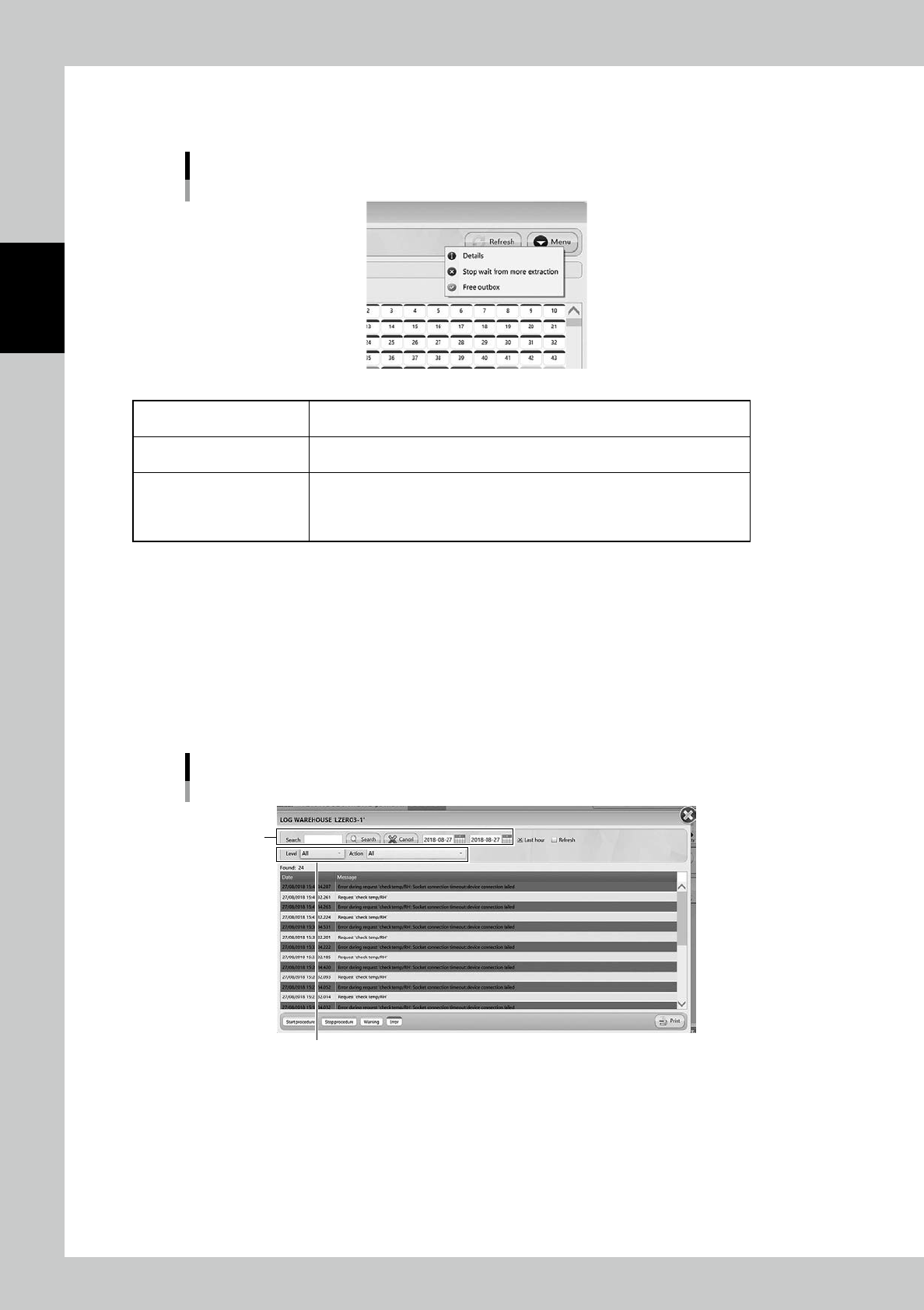
Pressing [Details] button shows the detailed quantity for each packaging size.
Details of the storage status of each packaging size.
Colors of lower parts of cells in "Warehouse"
242A5-KMS-00
TIP
The colors at left end of "DETAILS" screen are the colors of lower parts of cells.
4. [Refresh] button
Especially in the case there are multiple YST15s, when packagings are loaded or unloaded, the storage status is updated
by this button.
2-86
2
Operation
5. [Menu] button
Able to select each function.
[Menu] button
242A6-KMS-00
Details
Select a cell where a packaging is stored, and select this menu, then the details
of the packagings appear.
Stop wait from more extraction
Able to stop unloading packaging after the packaging which is being unloaded at
that time completes.
Free outbox
Able to unload a packaging in Outbox by clicking the Outbox cell and selecting
"Free outbox".
For example, this is used in the case the packagings are taken out from Outbox
manually without WMS.
6. [Initialize] button
Able to perform initialization.
7. [Extract Outbox] button
Able to return packagings in Outboxes if there are packaging in them.
For example, this is used in the case packagings are left in Outbox due to some errors.
8. [Log] button
Errors and operation logs are displayed.
Search menu can search for words and date period, and it can sort by Level (Standard/Warning/Error), and Action type.
"LOG WAREHOUSE" screen
Sort by Level and Action
Search menu
242A7-KMS-00