YST15_Users_E.pdf - 第75页
2-47 2 Operation 5. [Add] button Able to register a new BOM. 6. [Edit] button Able to edit a registered BOM. 7. [Remove] button, which is displayed only for engineer authority . Able to remove registered BOMs, but BOMs w…
2-46
2
Operation
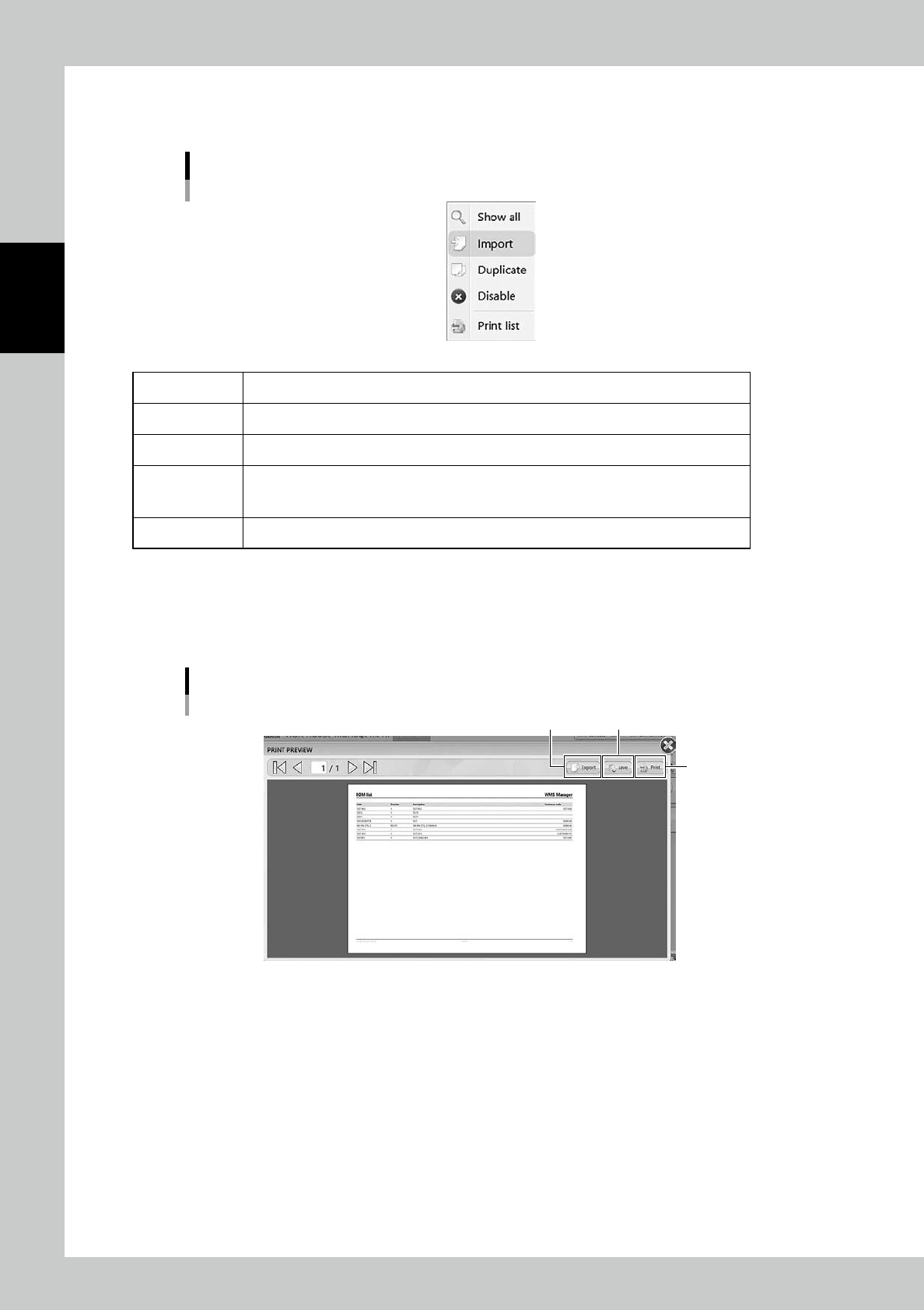
4. [Menu] button
Able to go to each function.
Menu list
24249-KMS-00
Show All All BOMs are displayed.
Import Able to register BOM by its import file such as txt and csv format.
Duplicate Copy a BOM and register new BOM same as the copied one.
Disable/Enable
Able to set the selected BOM not to be used.
Job orders can't select the BOMs which are disabled here.
The disabled BOMs become useful by setting back to Enable.
Printlist BOMs are listed.
n
Print List
Select [Print list], then BOMs are listed in "PRINT PREVIEW" screen.
Press [Save] button to save the list in pdf format, press [Export] button to save the list in XML format.
If the machine is connected to a printer through an external network, pressing [Print] button prints the list.
“PRINT PREVIEW” screen
[Export] button [Save] button
[Print] button
24250-KMS-00

2-47
2
Operation
5. [Add] button
Able to register a new BOM.
6. [Edit] button
Able to edit a registered BOM.
7. [Remove] button, which is displayed only for engineer authority.
Able to remove registered BOMs, but BOMs which are removed once are not able to be registered again, and the
histories of them are also removed in traceability.
c
CAUTION
DO NOT remove any registered BOMs basically. Use "Disable" in Menu for useless BOMs.
8. [Pick & Place Setting] button
Able to display [Pick & Place] button which is used for operation with external system.
2-48
2
Operation
3.5.2 Register a BOM manually
Registering a BOM is described.
1
Open "BOM" screen.
2
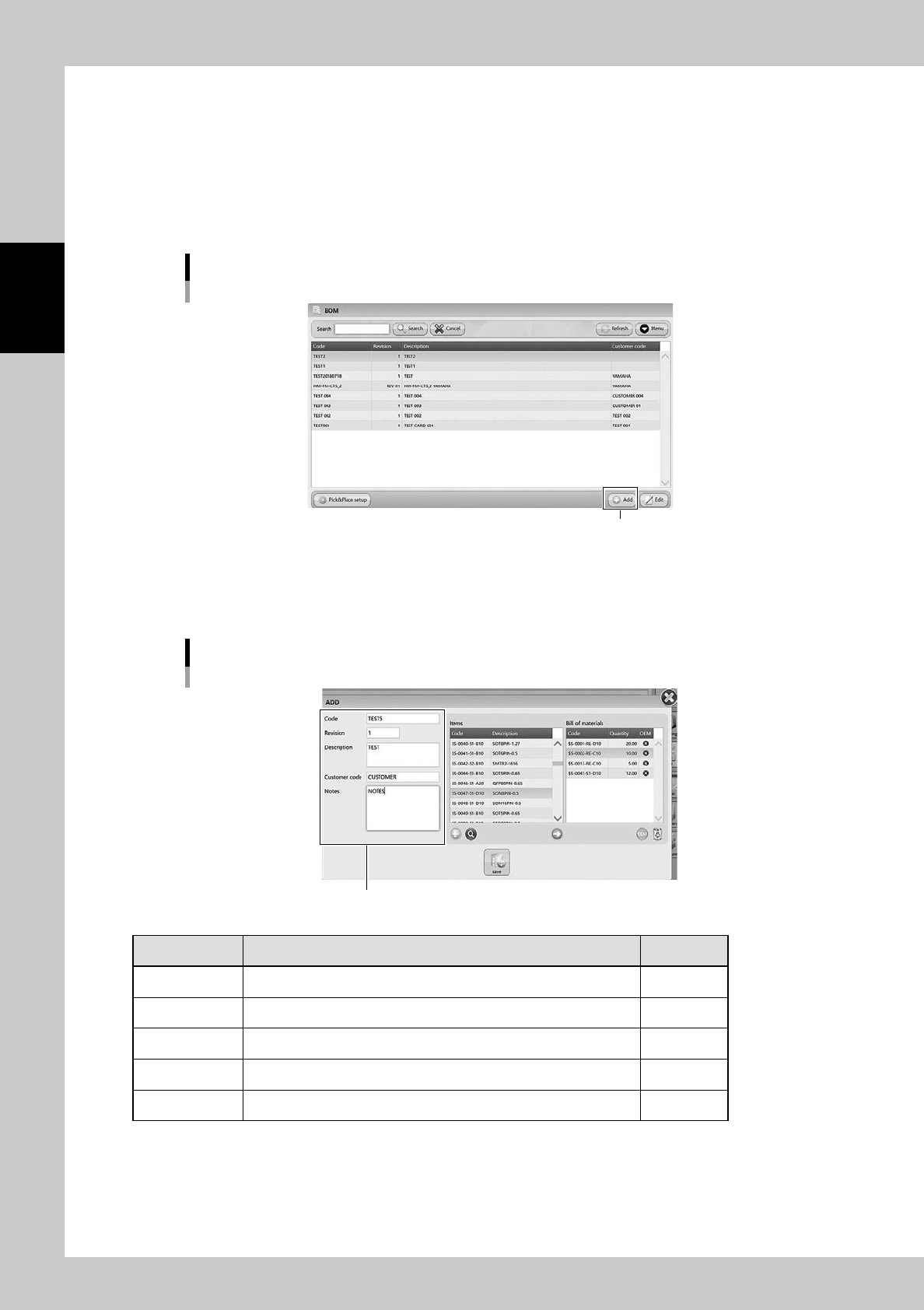
Open the BOM registration screen.
Press [Add] button at bottom right to open the BOM registration screen.
"BOM" screen
[Add] button
24251-KMS-00
3
Input necessary contents.
Input necessary contents in left side. The mandatory content is Code.
BOM registration screen
Input contents
24252-KMS-00
Content Description Mandatory
Code Input the BOM name, normally its product board name. Yes
Revision If the BOM is revised, input the information about it. -
Description Input the detail of the BOM. -
Customer code Input the customer code or information about the product. -
Notes Note. -