YST15_Users_E.pdf - 第60页
2-32 2 Operation 3.3.2 Register a packaging manually Registering a packaging one b y one is described. 1 Open "P A CKA GING" screen. 2 Open the packaging registr ation screen. Press [Add] button at bottom right…

2-31
2
Operation
7. [Add] button
Able to register a new packaging
8. [Edit] button
Able to edit a registered packaging.
9. [Remove] button, which is displayed only for engineer authority.
Able to remove registered packagings, but packagings which are removed once are not able to be registered again, and
the histories of them are also removed in traceability.
c
CAUTION
DO NOT remove any registered packagings basically. Use "Disable" in Menu for useless packagings.
2-32
2
Operation
3.3.2 Register a packaging manually
Registering a packaging one by one is described.
1
Open "PACKAGING" screen.
2
Open the packaging registration screen.
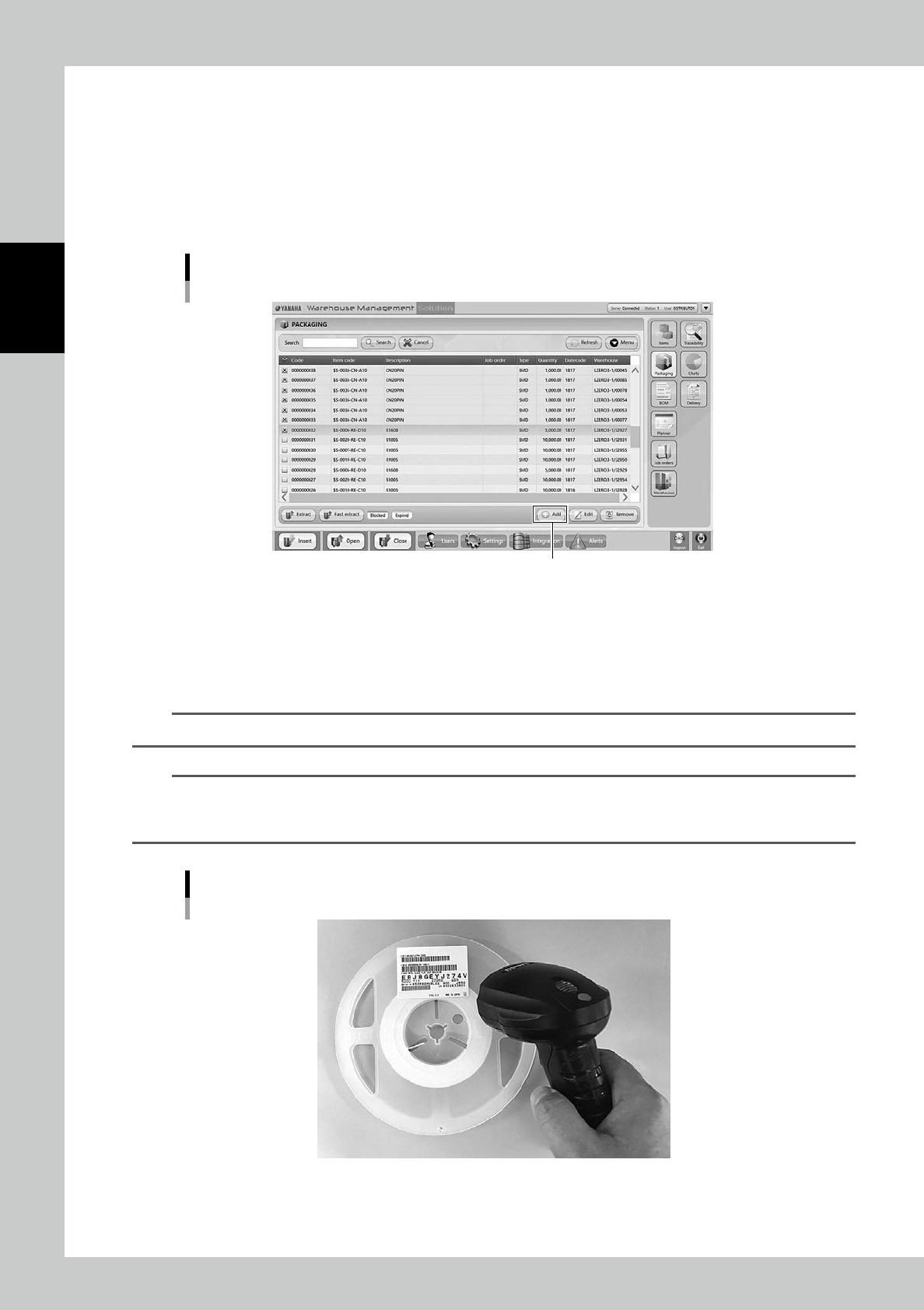
Press [Add] button at bottom right to open the packaging registration screen.
"PACKAGING" screen
[Add] button
24234-KMS-00
3
Input necessary contents.
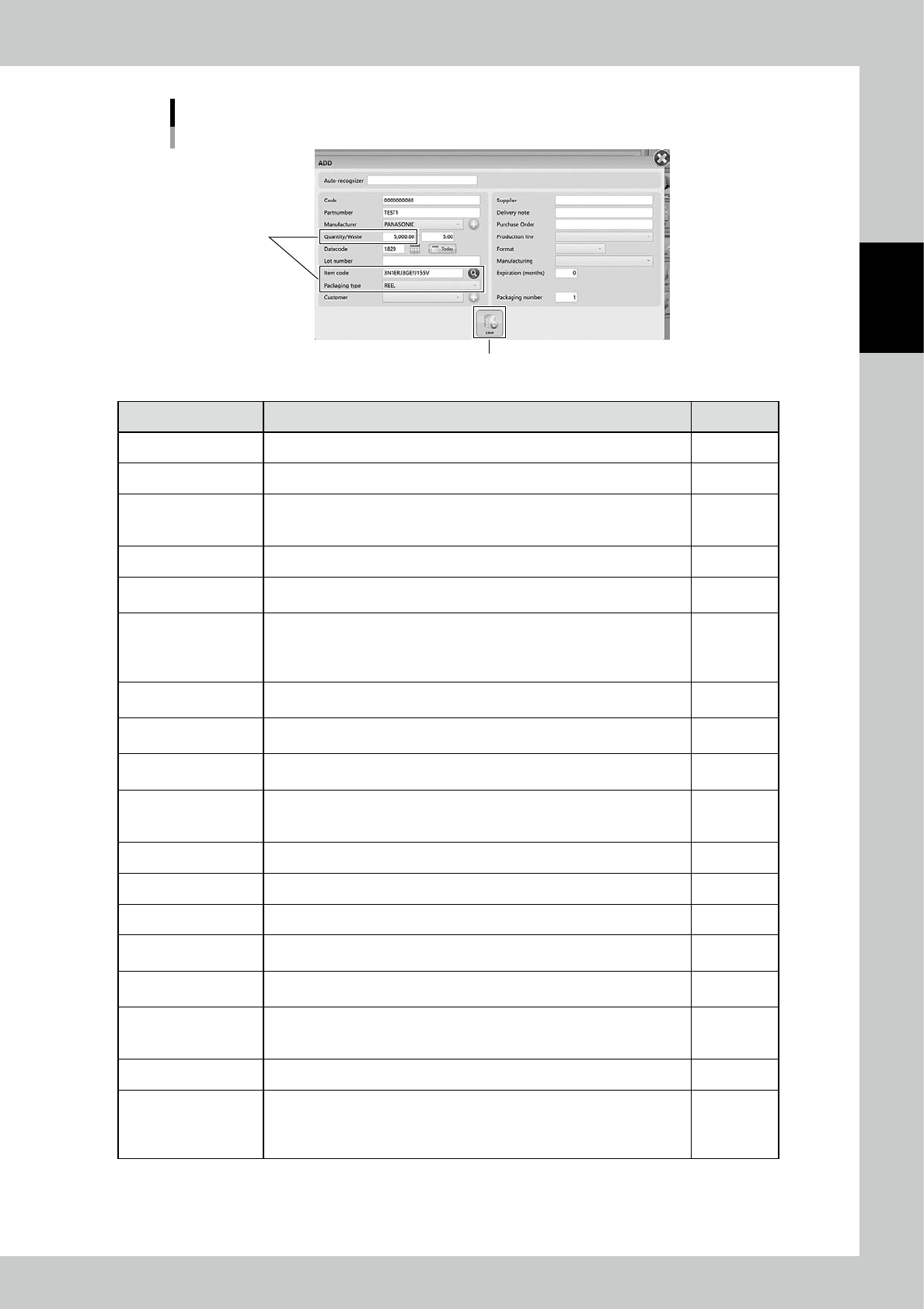
Input necessary contents. The mandatory contents are Quantity, Item code, Packaging type, and
Format.
Lot number, Partnumber, Manufacturer, and Datecode are mandatory in some cases.
n
NOTE
Put the mouse cursor on a input column and read the bar code of the packaging, then the value of it is input.
n
NOTE
Once "ADD" screen appears, the mouse cursor is initially at "Auto-recognizer".
If the prefix setting of bar codes are configured, reading bar codes in "Auto-recognizer" inputs some contents auto-
matically.
Input contents by reading bar code
23211-KMS-00
2-33
2
Operation
Packaging registration screen
[Save] button
Mandatory contents
24235-KMS-00
Content Description Mandatory
*Code A packaging code to be managed in YST15. It is automatically given. YES
*
Partnumber Input the unique code of the packaging. some cases
Manufacturer
Input the manufacturer of the packaging.
Manufactures can be selected in pull-down list.
If the desired manufacturer isn't in pull-down, press "+" to add new one.
some cases
Quantity Input the remaining quantity of the packaging. Yes
Waste
Input the quantity of the items which are not used for product but are wasted,
such as the items which are disposed when a reel is set on a feeder.
-
Datecode
Input the manufacture date of the packaging.
For example, "1829" means 29th week of 2018.
It is possible to directly input the date, to press [Calendar] button to select the
date, or to press [Today] button to input today.
some cases
Lot number
The lot number of the packaging.
If the item is set on "Mandatory lot number", this must be input.
some cases
Item code
The item codes, which are registered in "ITEM" screen, including in the
packagings.
Yes
Packaging type
Select Reel or Tray depending on the packaging type.
Stick components can not be stored in YST15.
Yes
Customer
Input the customer information of the product using the packaging.
Customers can be selected in pull-down list. If the desired customer isn't in
pull-down, press "+" to add new one.
-
Supplier Input the supplier of the packagings. -
Delivery node Input the delivery note for the customer. -
Purchase order Input the purchase order by the customer. -
Prodction Line
Select the production line which is going to use the packaging in pull-down
list.
-
Format
Select the packaging size in pull-down list.
See "
n
Format" below for details.
some cases
Manufacturing
If the production which uses the packaging is a sub contractor, select
"Subcontract" in pull-down list.
If it is a prime contractor, select "Full contract".
some cases
Expiration(months) Input the expiration period of the packaging. -
Packaging number
This is used for the multiple packagings which have the same part number
and the same lot.
If there are three same reels, input "3" here to register three packagings with
consecutive number.
-
*
It is automatically given in [Add].