YST15_Users_E.pdf - 第92页
2-64 2 Operation 4 Pr ess [Open] button to create the job order . TIP For example, a job order , which includes three types of BOMs, is registered by importing the following file. e.g. Job order which includes three types…
2-63
2
Operation
• The file format of txt or csv
Line 1 JOB ORDER CODE
Line 2 JOB ORDER DESCRIPTION
Line 3 PRODCTION LINE
Line 4 MANUFACTURING
Line 5 and later BOM CODE{SEPARATOR}QUANTITY{SEPARATOR}
• The file format of XML
<?xml version="1.0" encoding="UTF-8" ?>
<job_order>
<code>JOB ORDER CODE</code>
<description>JOB ORDER DESCRIPTION</description>
<production_line>PRODUCTION LINE</production_line>
<manufacturing>MANUFACTURING</manufacturing>
<bom_list>
<bom>
<code>BOM CODE</code>
<qty>QUANTITY</qty>
</bom>
...
</bom_list>
</job_order>
The file format of XML
23219-KMS-00
3
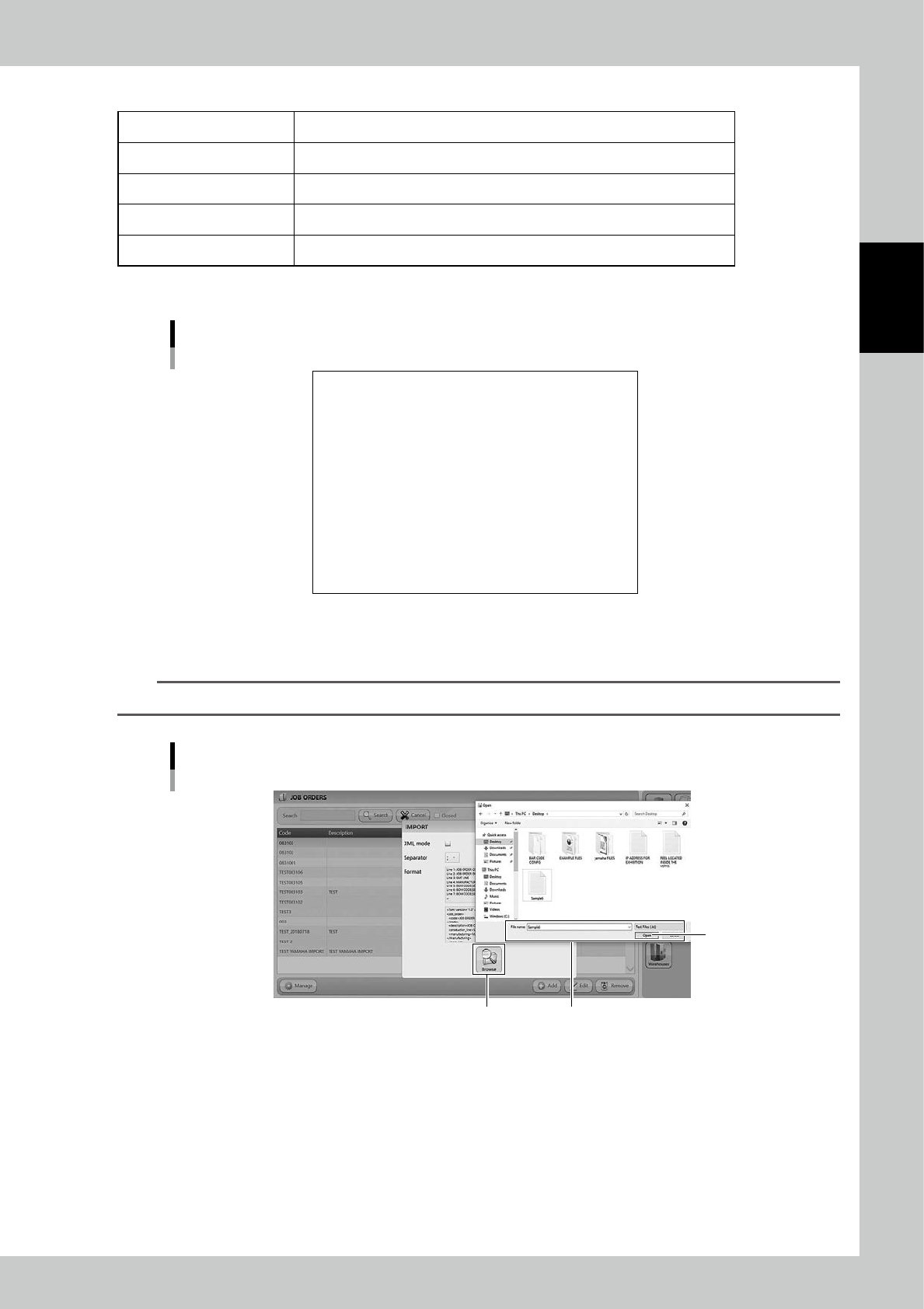
Press [Browse] button and select the import file.
n
NOTE
Select the file format from txt, csv or xml depending on the import file.
Select the file
Select the file
[Open] button
[Browse] button
24274-KMS-00
2-64
2
Operation
4
Press [Open] button to create the job order.
TIP
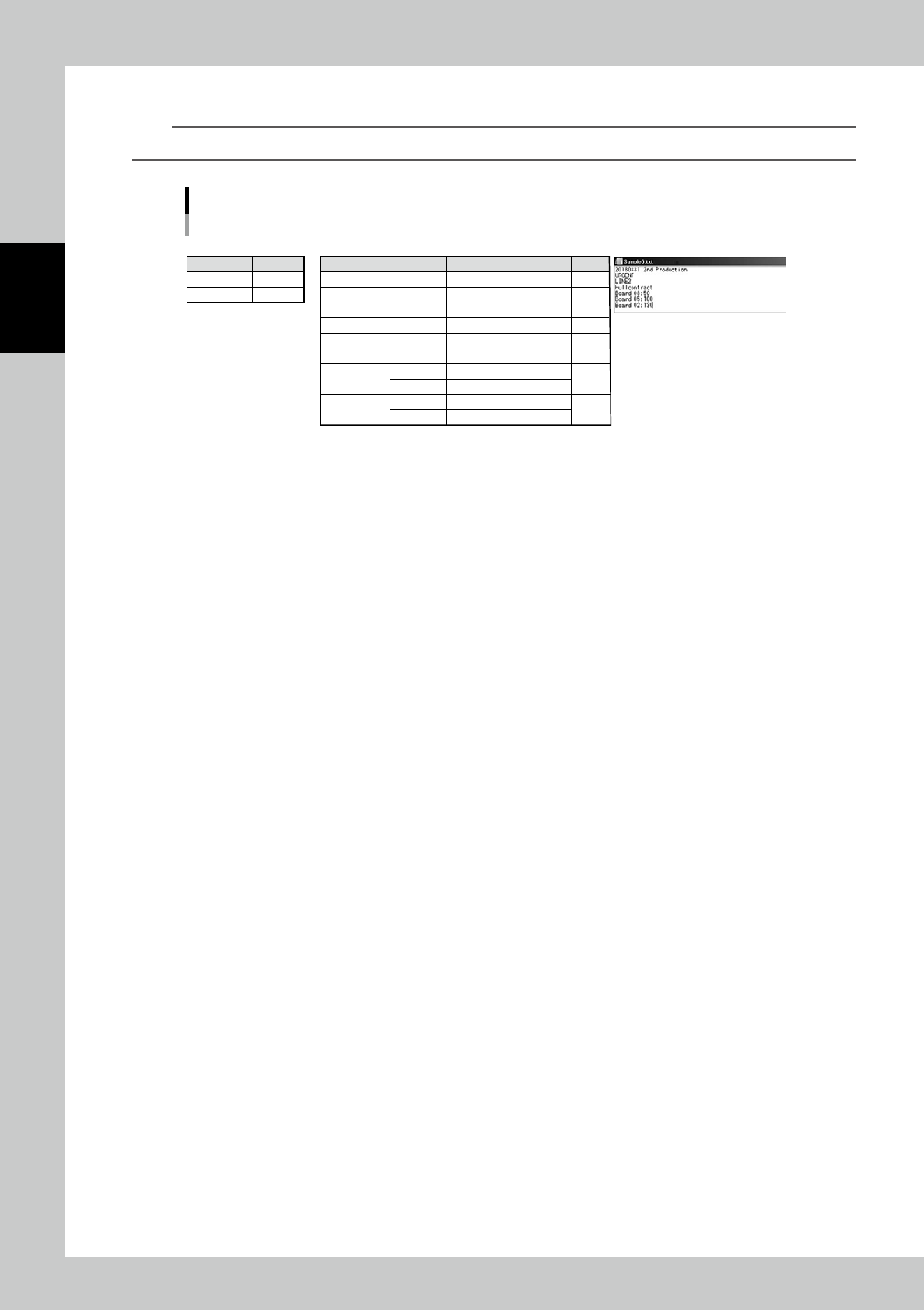
For example, a job order, which includes three types of BOMs, is registered by importing the following file.
e.g. Job order which includes three types of BOMs is registered by importing the following file.
• Setting in "IMPORT" screen
• Job order to be created • Import file in txt format
Contents
XML files
Separator
Contents
N/A
;
Contents
Code
DESCRIPTION
PRODCTION LINE
MANUFACTURING
"BOM
information1"
"BOM
information2"
"BOM
information3"
BOM Code
Quantity
BOM Code
Quantity
BOM Code
Quantity
Setting
20180831 2nd Production
URGENT
LINE2
Fullcontract
Board 08
50
Board 05
100
Board 02
130
Line
Line1
Line2
Line3
Line4
Line5
Line6
Line7
23220-KMS-00
2-65
2
Operation
3.6.4 Unload packagings by a job order
The following work flow is the procedure to unload packagings by a job order.
First, judge the production feasibility about the selected job order based on the stock in YST15.
Then, start the job order to unload the packagings.
Finally, after the production, closing the job order manages the quantities of packagings with reducing the
quantities of those which are used in the production.
Work flow
Create the job order based on the BOMs and the Production plan.
1. [Analyze] Analyze the production feasibility
by the stock of the machine.
2. [Start] Start the job order
3. [Extract] Unload the packagings
4. Production
5. [Close] Close the job order
23221-KMS-00
1
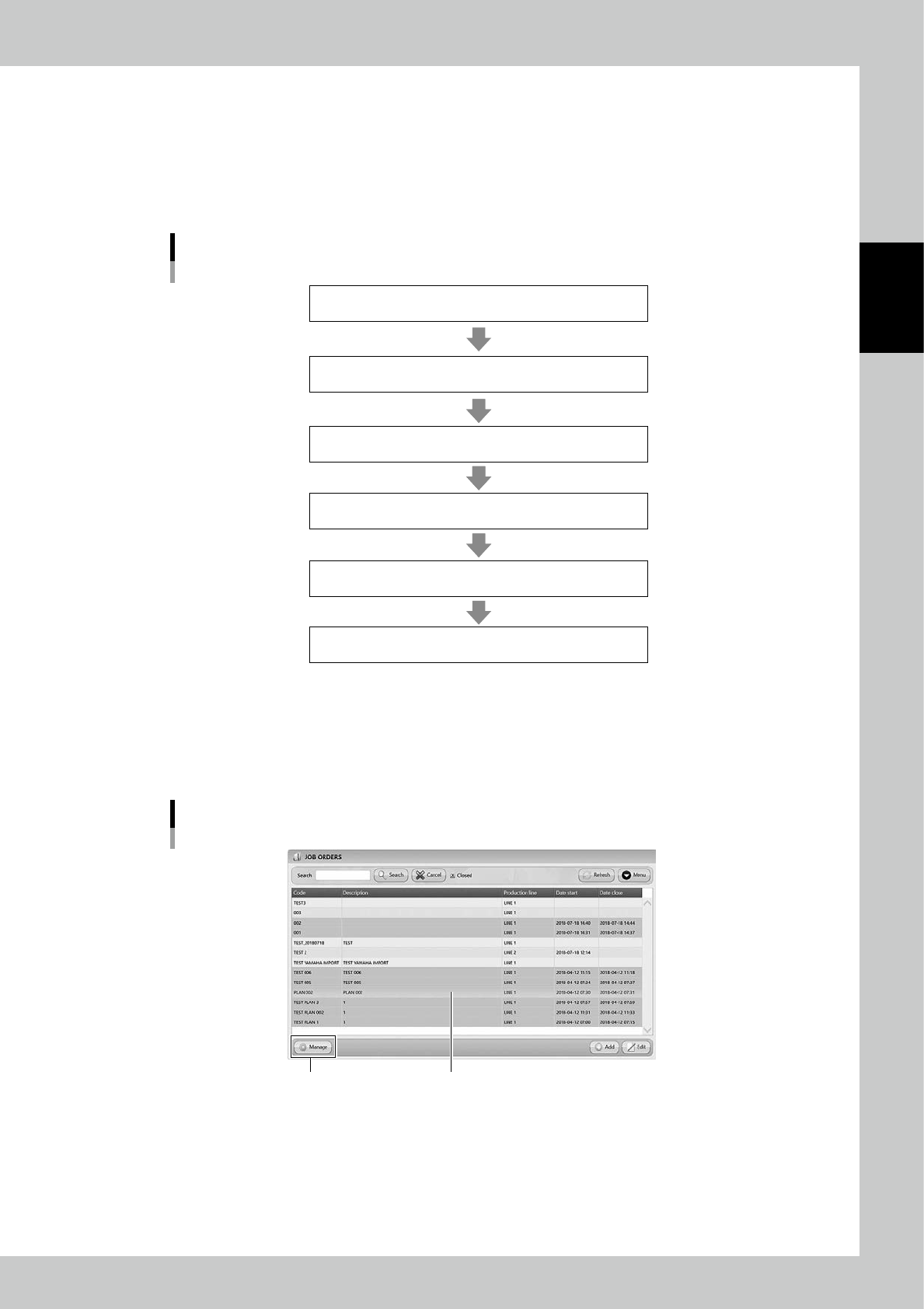
Open "MANAGE" screen.
1. Select the job order.
2. Press [Manage] at bottom lefr to open "MANAGE" screen.
"JOB ORDERS" screen
[Manage] button
Select the job order
24275-KMS-00