YST15_Users_E.pdf - 第58页
2-30 2 Operation n Print List / Print not busy List Select [Print list] / [Print not busy in line list] , then packagings are listed in "PRINT PREVIEW" screen. Press [Sav e] button to sav es the list in pdf for…
2-29
2
Operation
n
Manage Expired
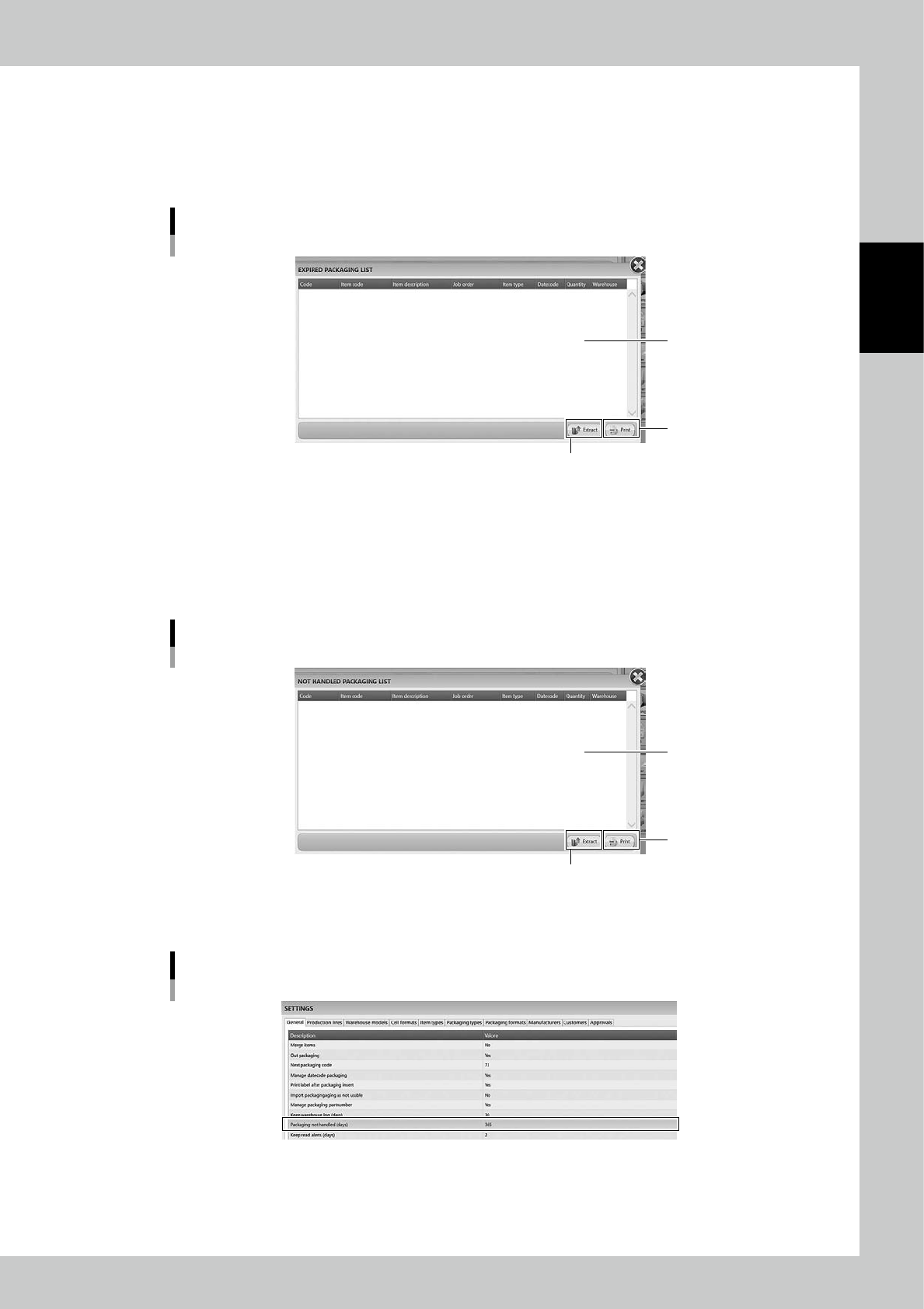
Select "Manage Expired", then "EXPIRED PACKAGING LIST" is displayed.
Select a packaging and press [Extract], then the selected packaging is unloaded.
Pressing [Print] button lists the expired packagings in "PRINT PREVIEW" screen.
Data can be saved in PDF or XML format. The details are described in the section below named "Print".
"EXPIRED PACKAGING LIST" screen
List
[Print] button
[Extract] button
24229-KMS-00
n
Manage not handled
Select "Manage not handled", then "NOT HANDLED PACKAGIMG LIST" is displayed.
Select a packaging and press [Extract], then the selected packaging is unloaded.
Pressing [Print] button lists the packaging of "not handled", then the list can be saved in PDF/XML format.
The details are described in the section below named "Print".
"NOT HANDLED PACKAGING LIST" screen
List
[Print] button
[Extract] button
24230-KMS-00
TIP
Setting of "not handled" duration in SETTING screen
24231-KMS-00
2-30
2
Operation
n
Print List / Print not busy List
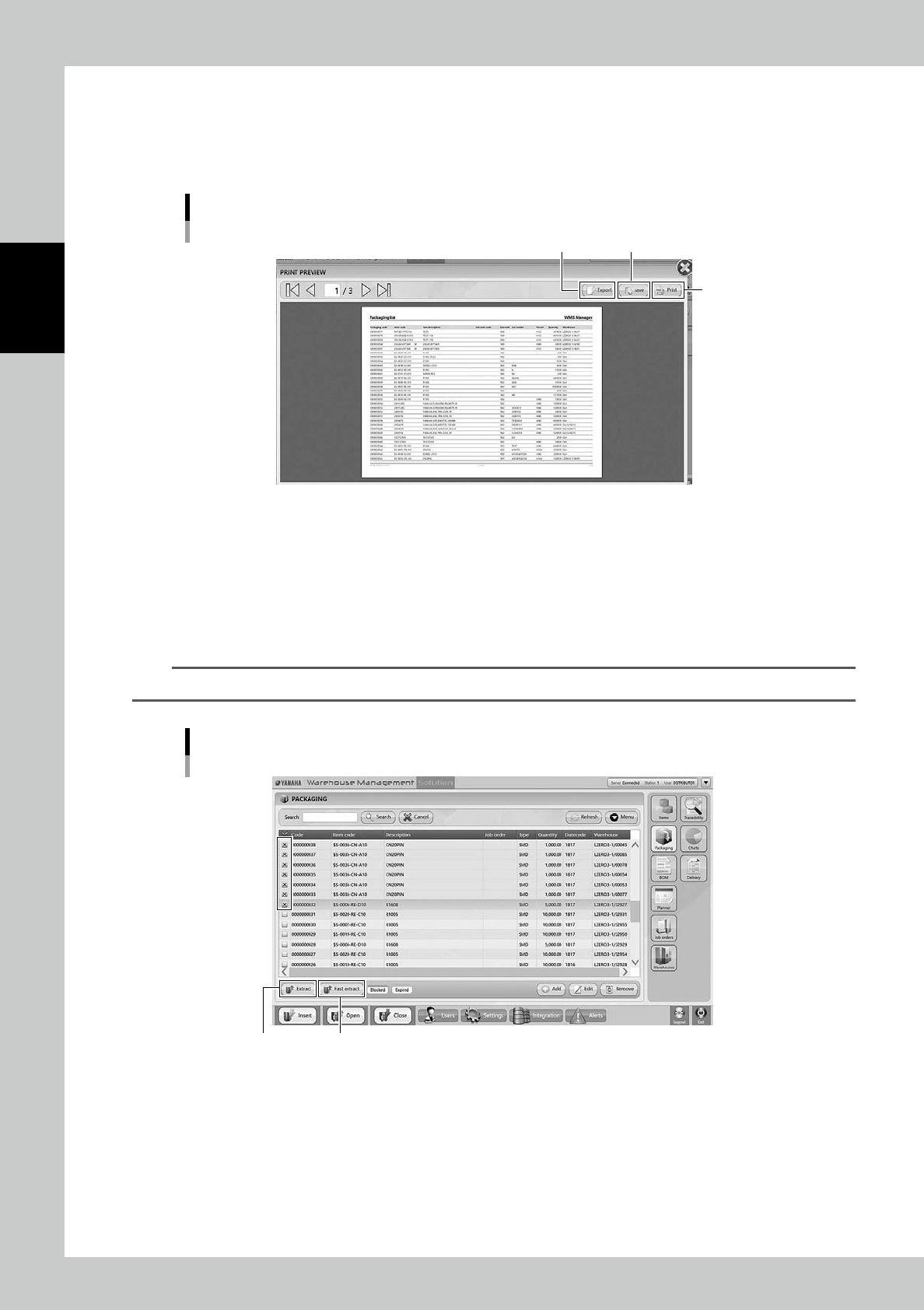
Select [Print list] / [Print not busy in line list] , then packagings are listed in "PRINT PREVIEW" screen.
Press [Save] button to saves the list in pdf format, press [Export] to button saves the list in XML format.
If the machine is connected to a printer through an external network, pressing [Print] button prints the list.
"PRINT PREVIEW" screen
[Print] button
[Save] button[Export] button
24232-KMS-00
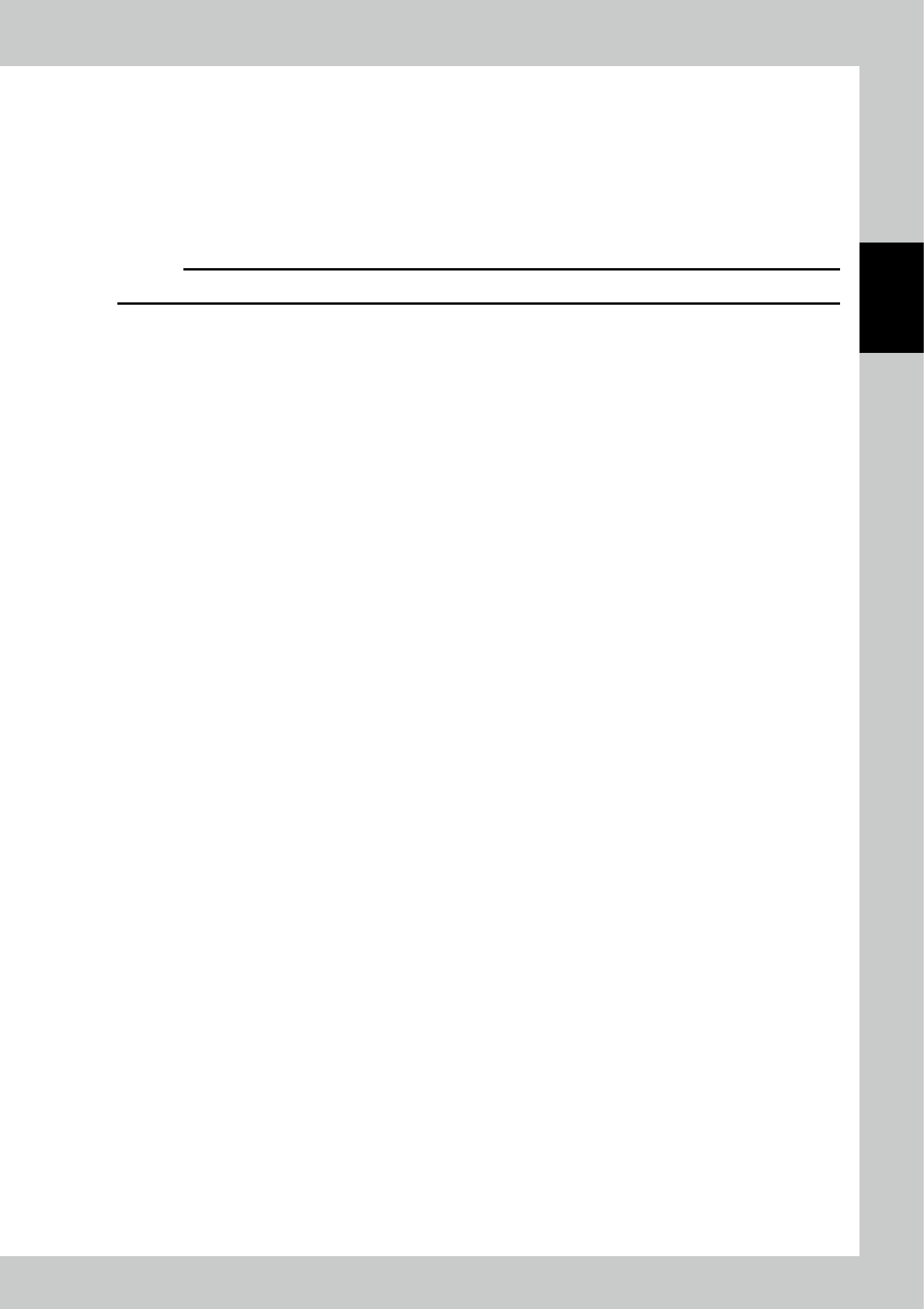
5. [Extract] button
Tick the check boxes at left end of the packagings which require to be unloaded, and press [Extract] button, then the
ticked packagings are unloaded.
6. [Fast extract] button
If a certain packaging requires to be unloaded as soon as possible while the machine is unloading other packagings,
press this button with ticking the packaging so that the desired packaging can be unloaded earlier than the others.
n
NOTE
The packaging unloaded with [Fast extract] is placed at the lowest shelf of Loading/Unloading area.
"PACKAGING" screen
[Fast extract] button[Extract] button
24233-KMS-00
2-31
2
Operation
7. [Add] button
Able to register a new packaging
8. [Edit] button
Able to edit a registered packaging.
9. [Remove] button, which is displayed only for engineer authority.
Able to remove registered packagings, but packagings which are removed once are not able to be registered again, and
the histories of them are also removed in traceability.
c
CAUTION
DO NOT remove any registered packagings basically. Use "Disable" in Menu for useless packagings.