YST15_Users_E.pdf - 第106页
2-78 2 Operation 3.7.3 Create a job order by impor t function in PLANNER Creating a job order b y importing the file in PLANNER is described.Step 2 and later are same as "3.6.3 Create a job order by import function&…
2-77
2
Operation
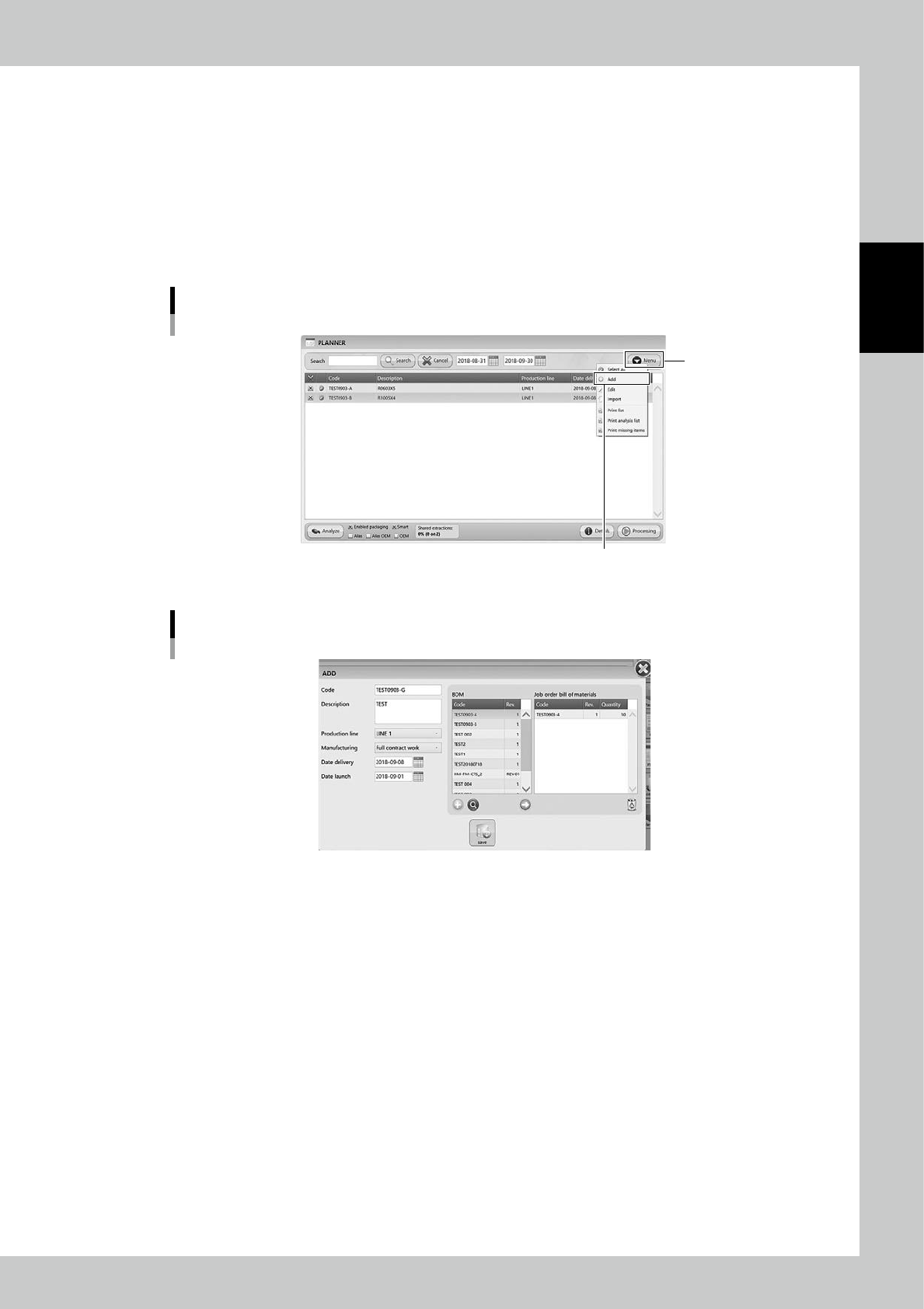
3.7.2 Create a job order in PLANNER
Creating a job order in PLANNER is described.Step 3 and later are same as "3.6.2 Create a job order manually"
1
Open "PLANNNER" screen.
2
The job order creating screen appears.
3
The following procedure is same as "3.6.2 Create a job order manually".
Input necessary contents.
"PLANNER" screen
“Add”
[Menu] button
24293-KMS-00
Job order creating screen
24294-KMS-00
2-78
2
Operation
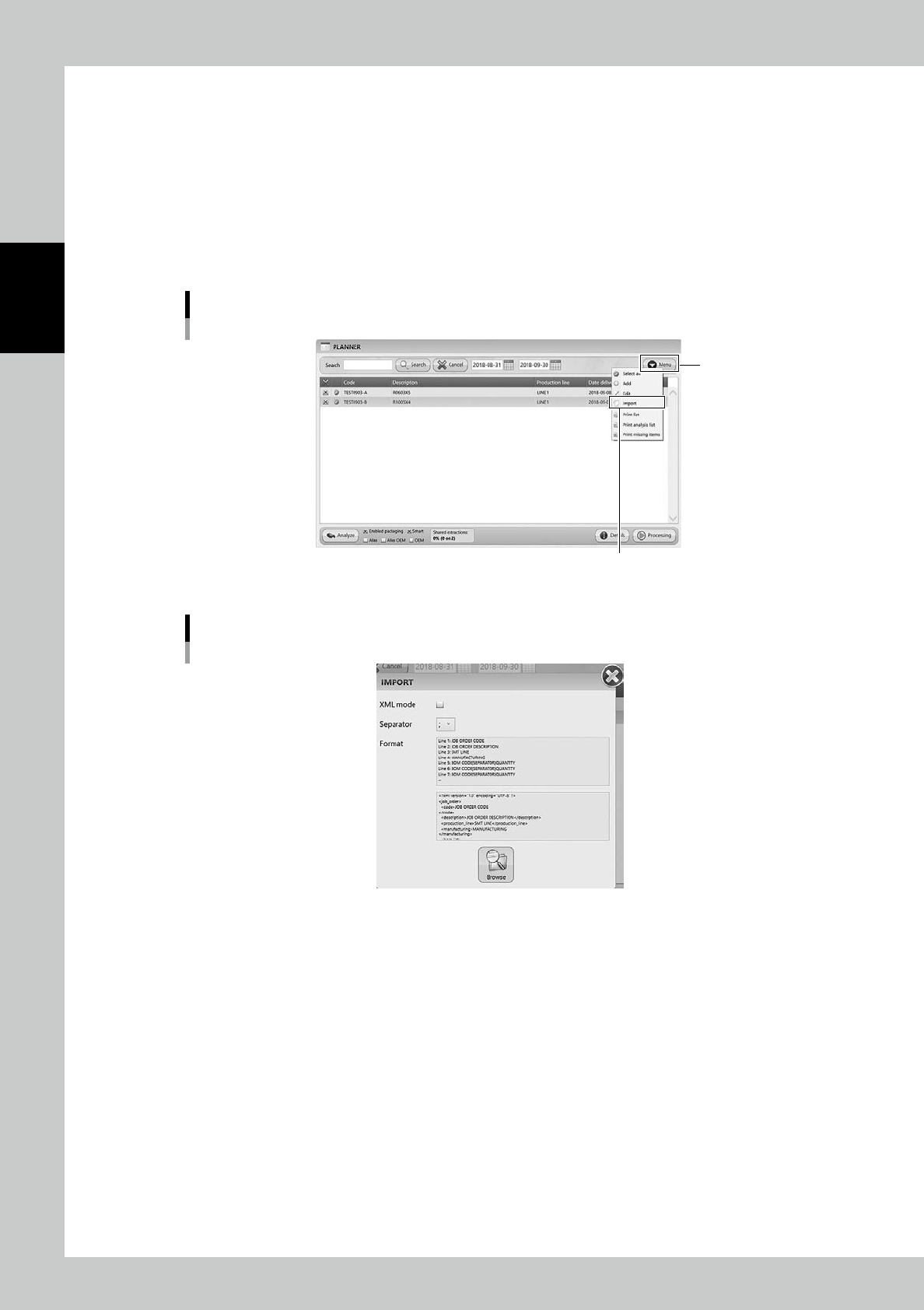
3.7.3 Create a job order by import function in PLANNER
Creating a job order by importing the file in PLANNER is described.Step 2 and later are same as "3.6.3 Create a
job order by import function"
1
Open "Import" screen.
Select "Import" in Menu, then "IMPORT" screen appears.
2
The following procedure is same as "3.6.3 Create a job order by import function".
Input necessary contents.
"PLANNER" screen
“Import”
[Menu] button
24295-KMS-00
"IMPORT" screen
24296-KMS-00
2-79
2
Operation
3.7.4 Analyze in PLANNNER
The created job orders are judged about their production feasibility in PLANNER based on the stock in the
machine.
1
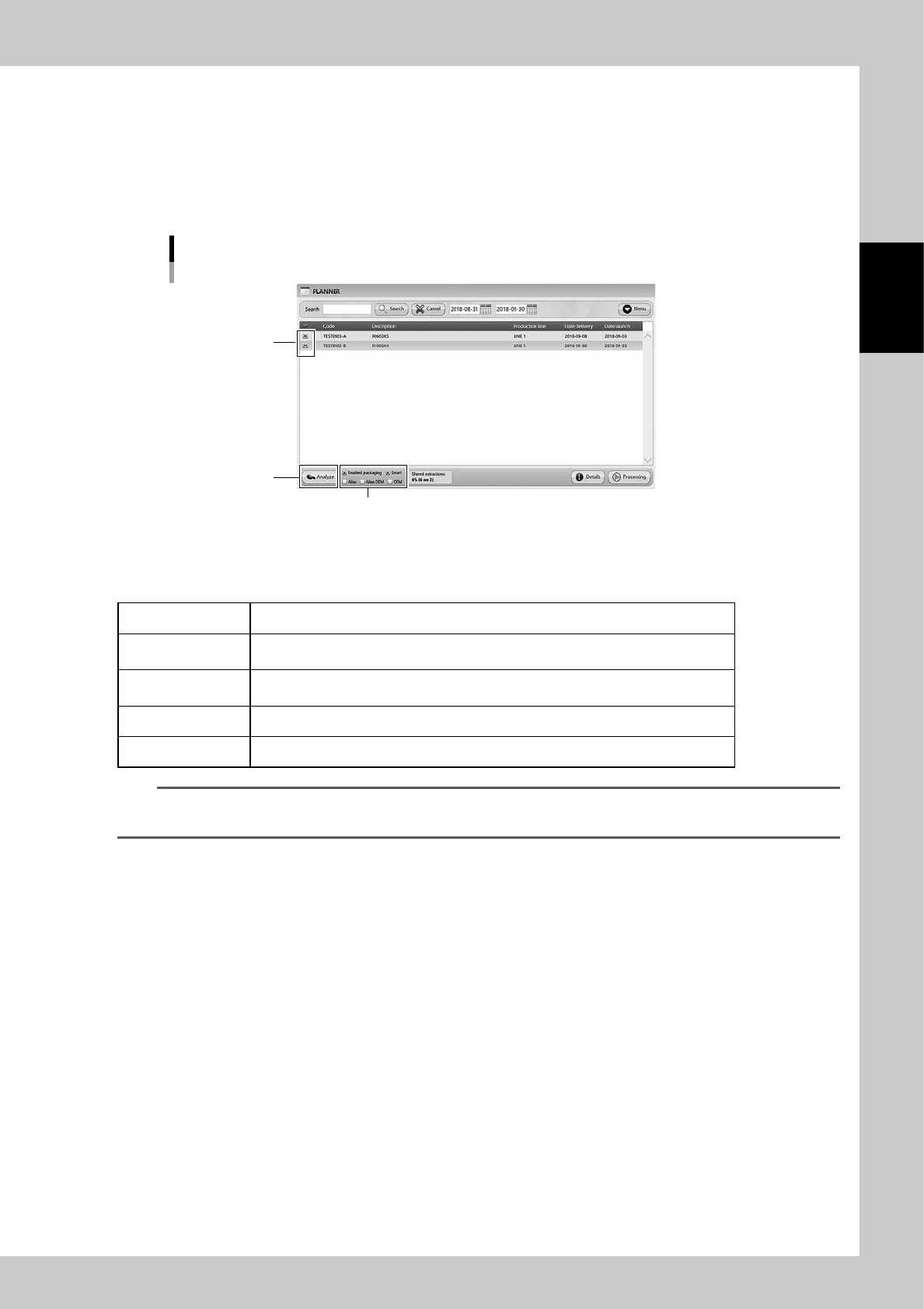
Select job orders to be analyzed.
Tick the check boxes at left end of the job orders to be analyzed.
"PLANNER" screen
[Analyze] button
Analysis options
Tick the check boxes
24297-KMS-00
2
Select the analysis option.
Tick the boxes for the necessary analysis options at bottom.
Enabled packaging This is ticked as default. Ticking it allows the analysis to use only "Enable" packagings.
SMART
This is ticked as default.
Ticking it allows the analysis to use packagings blocked for the other job orders.
Alias
Ticking it allows the analysis to use alias items, which are registered in "3.3.2 Register a
packaging manually" if there are no enough quantities of required items.
Alias OEM Ticking it means ticking "Alias" and "OEM" combined.
OEM Ticking it specifies the manufacturer set in "3.5.2 Register a BOM manually".
TIP
• "Enabled Packaging" and "Smart" are ticked as default.
• It is impossible to tick "OEM2 or "Alias" or "Alias OEM" simultaneously.
3
Perform production analysis.
Press [Analyze] button, then the message "Analysis could take several minutes. Do you want to pro-
ceed?" appears.Check the message and press [Yes], then the analysis starts.