YST15_Users_E.pdf - 第88页
2-60 2 Operation TIP Production Line Production line is registered in "SETTINGS" screen. Select the line name of the factory, then press[Add] to register it. Register Production line [Add] button [Save] button …
2-59
2
Operation
3.6.2 Create a job order manually
Creating a job order is described.
1
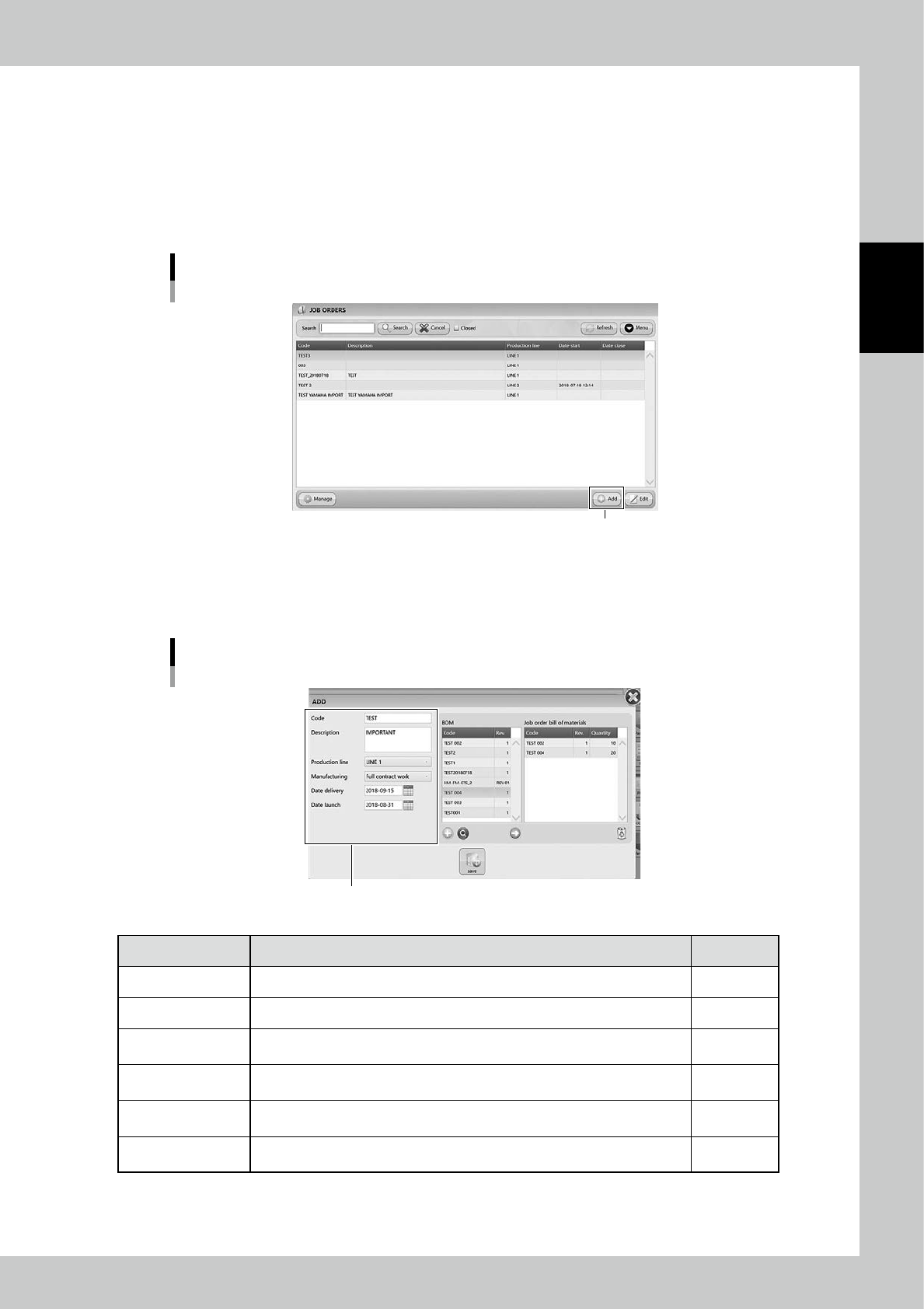
Open "JOB ORDERS" screen.
2
The job order creating screen appears.
Press [Add] button at bottom right to open the job order creating screen.
"JOB ORDERS" screen
[Add] button
24267-KMS-00
3
Input necessary contents.
Input necessary content in left side. The mandatory content is Code.
JOB ORDER creating screen
Input necessary contents
24268-KMS-00
Content Description Mandatory
Code Input the job order name. Yes
Description Input the detail of the job order. -
Production Line
Select the production line, where the packagings in the job order are used, from
pull-down list.
-
Manufacturing
If the production associated with the job order is sub contractor, select
"Subcontract" in pull-down list. If it is prime contractor, select "Full contract".
-
Date Delivery
Press the calendar button to select the delivery date of the products which are
produced by the job order.
-
Date Launch
Press the calendar button to select the launch date of the products which are
going to be produced by the job order.
-
2-60
2
Operation
TIP
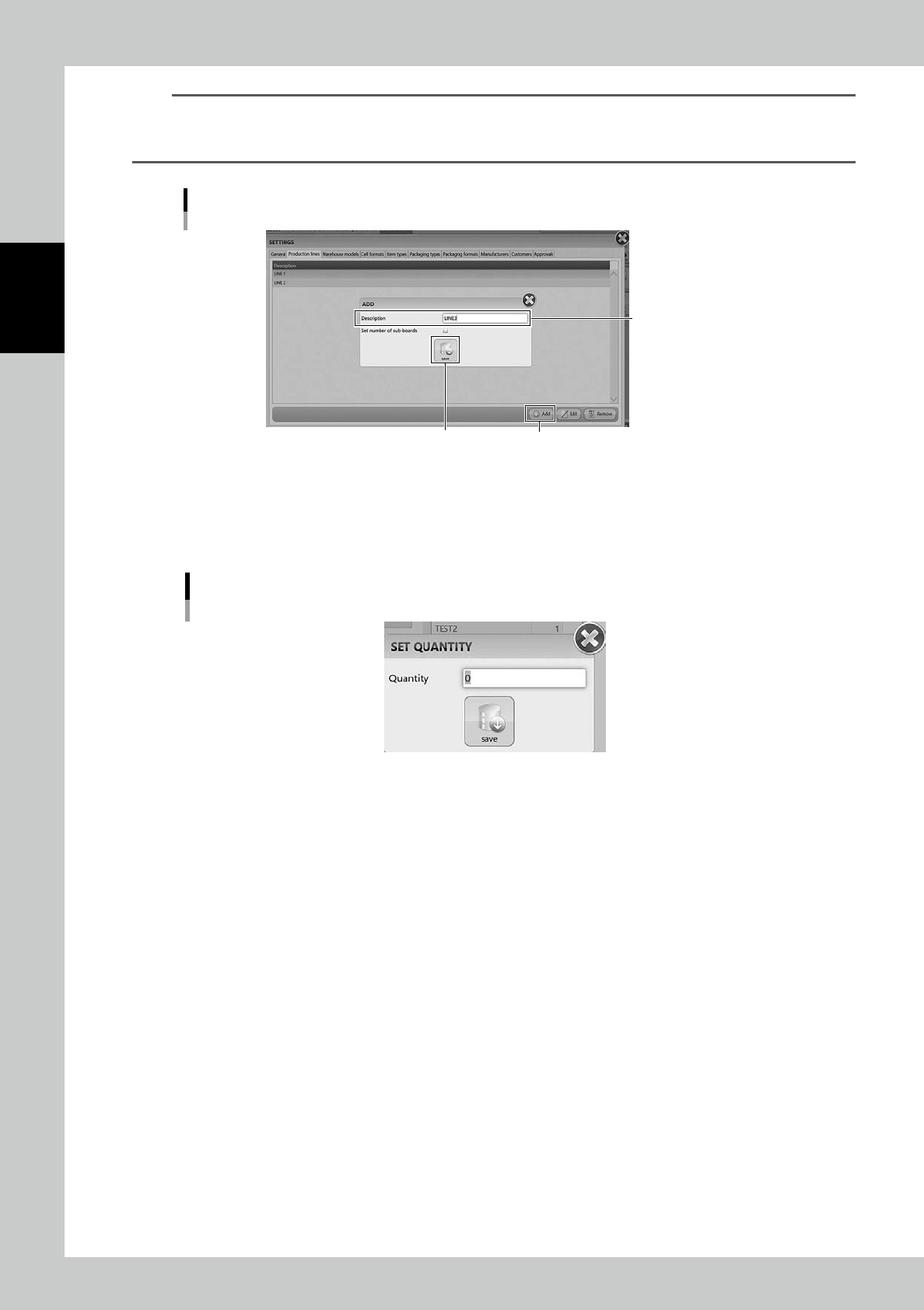
Production Line
Production line is registered in "SETTINGS" screen.
Select the line name of the factory, then press[Add] to register it.
Register Production line
[Add] button[Save] button
Input the line name
24271-KMS-00
4
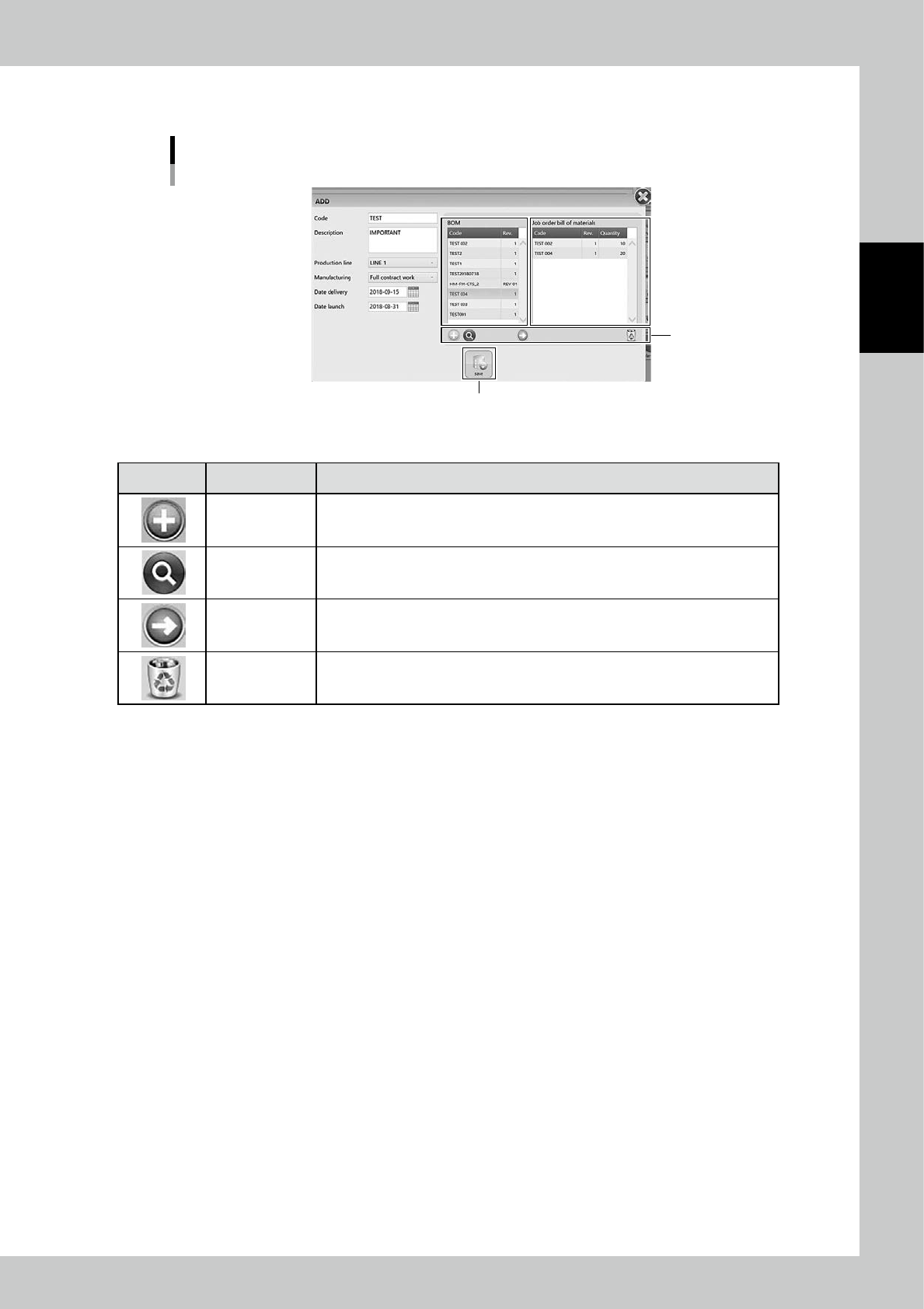
Select the BOMs to be registered in the job order.
1. Select the BOM to be registered in the job order, then press [Arrow] button.
2. "SET QUANTITY" screen appears, then input the production quantity of the product by the BOM.
"SET QUANTITY" screen
24269-KMS-00
3. Press [save] button to register the BOM and its quantity into "Job order bill of materials" table at right
of the screen.
4. Repeat 1 to 3 to register all the BOMs required for the job order.
2-61
2
Operation
5
Press [Save] button to create the job order.
JOB ORDER creating screen 2
[Save] button
Buttons
24270-KMS-00
n
Functions of buttons
Icon Button name Description
Add button
BOMs which are not in "BOM" table can be newly registered in this screen.
See "3.5 BOM" for the process for registering BOMs.
Zoom button Able to zoom in "BOM" table.
Arrow button Able to register the selected BOM into "Job order bill of materials" table.
Remove button Remove the BOM registered in "Job order bill of materials" table.