YST15_Users_E.pdf - 第94页
2-66 2 Operation "MANAGE" screen "BOM" table Analysis options "Packaging " table "Items" table 24276-KMS-00 BOM table BOMs registered in the job otder and the product quantities of…
2-65
2
Operation
3.6.4 Unload packagings by a job order
The following work flow is the procedure to unload packagings by a job order.
First, judge the production feasibility about the selected job order based on the stock in YST15.
Then, start the job order to unload the packagings.
Finally, after the production, closing the job order manages the quantities of packagings with reducing the
quantities of those which are used in the production.
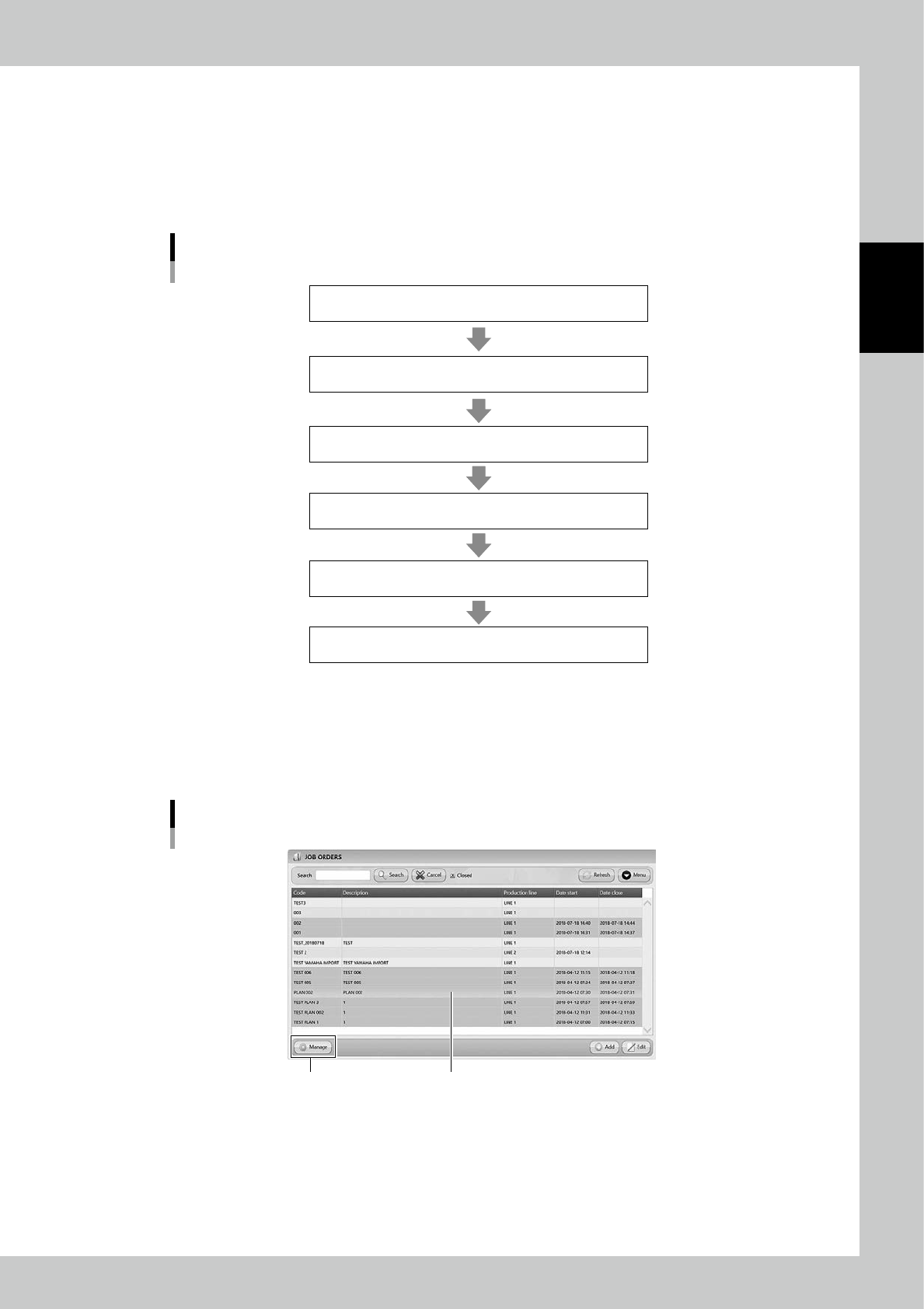
Work flow
Create the job order based on the BOMs and the Production plan.
1. [Analyze] Analyze the production feasibility
by the stock of the machine.
2. [Start] Start the job order
3. [Extract] Unload the packagings
4. Production
5. [Close] Close the job order
23221-KMS-00
1
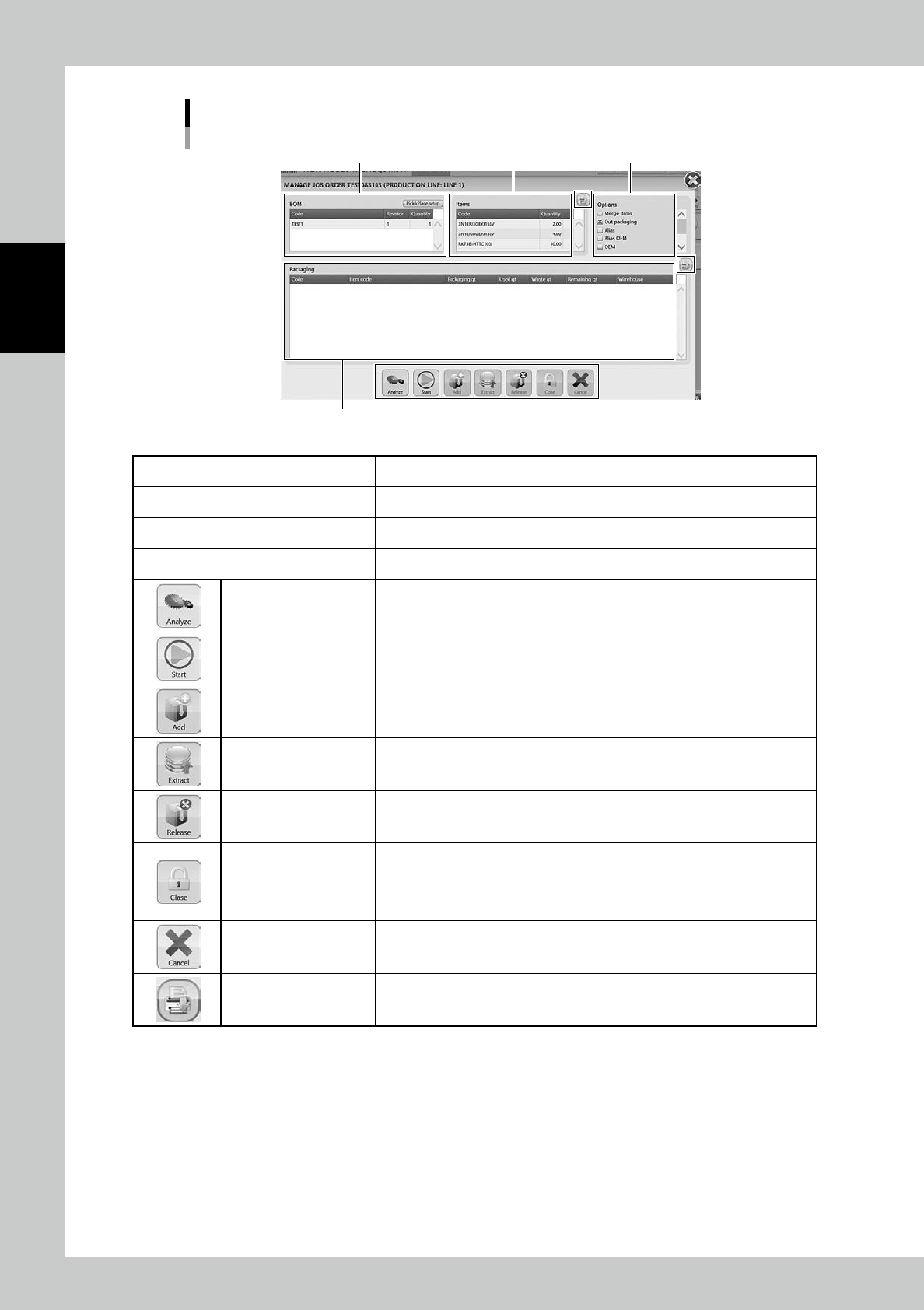
Open "MANAGE" screen.
1. Select the job order.
2. Press [Manage] at bottom lefr to open "MANAGE" screen.
"JOB ORDERS" screen
[Manage] button
Select the job order
24275-KMS-00
2-66
2
Operation
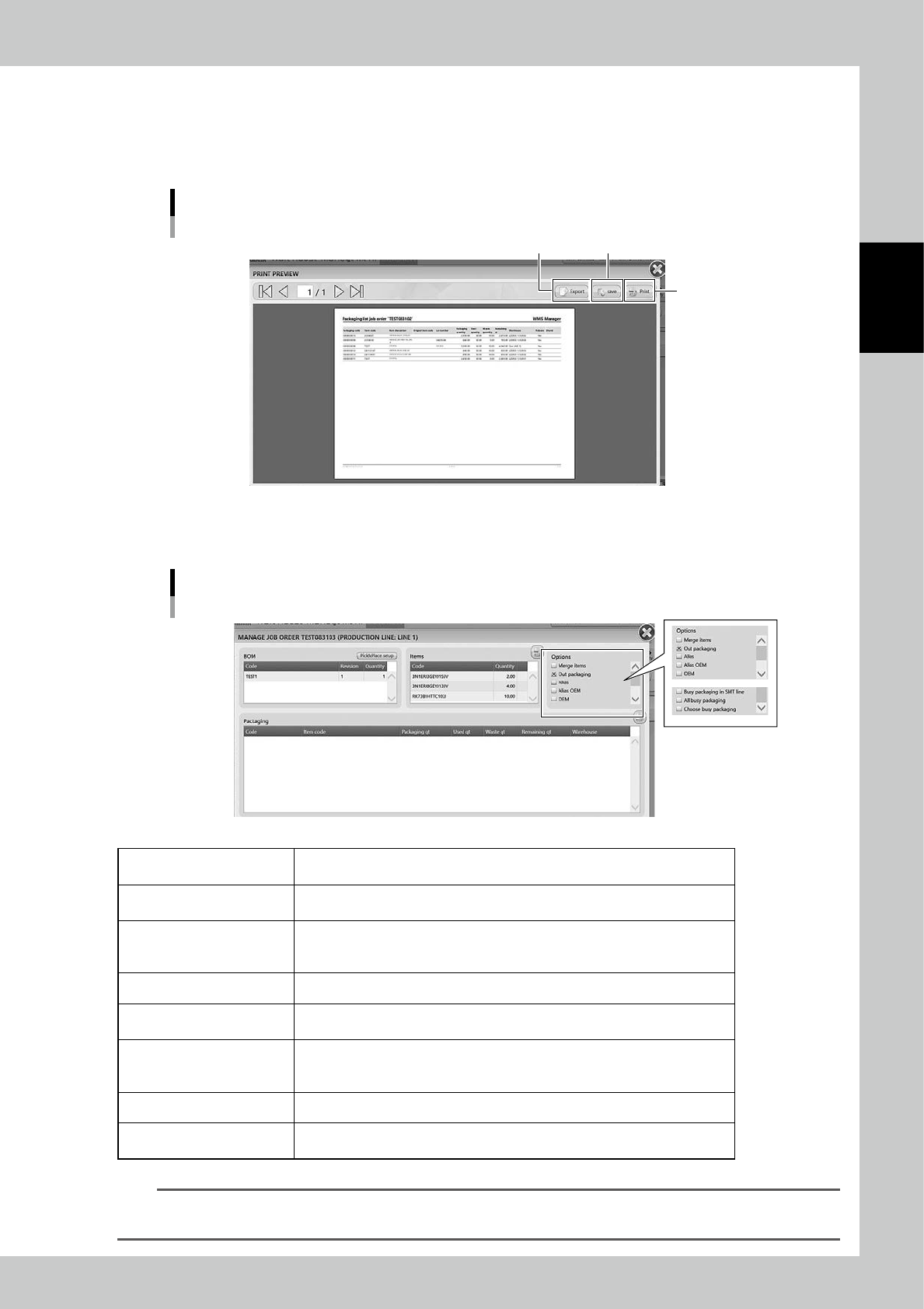
"MANAGE" screen
"BOM" table Analysis options
"Packaging " table
"Items" table
24276-KMS-00
BOM table BOMs registered in the job otder and the product quantities of the prudocts.
Items table Items and their quantities registered in BOMs.
Analysis options Specify the analysis options. See the following step for details.
Packaging table Packagings to be unloaded. This is empty before analyze.
Analyze
Able to analyze the production feasibility based on the selected job order and
the stock in the machine.
Start
Able to approve the machine to get ready to unload the packagings. Pressing
start enables the five buttons on right.
Add Able to register packagings additionaly.
Extract Able to unload the packagings in "Packaging" table.
Release Able to disable unloading the selected packagings in "Packaging" table.
Close
Able to close the job order.
Do it after the unloaded items are used for the production.
Closing the job order manages the quantities of packagings with reducing the
quantities of those which are used in the production.
Cancel Able to cancel the approval to unload packagings.
Print List The items or the packagings are listed in "PRINT PREVIEW" screen.
2-67
2
Operation
n
Print List
Press [Print List] button in "Item" table or "Packaging" table to list items or packagings.
Press [Save] button to save the list in pdf format, press [Export] button to save the list in XML format.
If the machine is connected to a printer through an external network, pressing [Print] button prints the list.
"PRINT PREVIEW" screen
[Export] button [Save] button
[Print] button
24277-KMS-00
2
Select the analysis options.
"MANAGE" screen
24278-KMS-00
Merge Items
If items are registered in mutilpe BOMs, ticking this makes the packagings of the
items in common.
Out packaging
If registered packagings are out of the machine, ticking this makes them able to
be involved in analysis. This is ticked as default.
Alias
If there are no enough quantities of items in the machine, ticking this lets the
machine search the alternative items, which are registered as "Alias" in "3.2.2
Register an item manually".
Alias OEM Ticking this enables "Alias" and "OEM" combined.
OEM
Ticking this specifies the manufacturer of the items which are registered in
"3.5.2 Register a BOM manually".
Busy packaging in SMT Line
If there are no enough quantities of items in the machine, ticking this makes the
packagings, which are registered in job orders in process, able to be involved in
analysis.
All busy packaging Ticking this makes all packagings in process able to be involved in analysis.
Choose busy packaging
Ticking this lists all packagings in process. Select the packagings to be involved
in analysis.
n
NOTE
• "Out Packaging" is ticked as default.z
• It is impossible to tick "OEM", "Alias", or "Alias OEM" simultaneously.