00198829-01_SM_X-Series-S_Hxxxx_EN.pdf - 第67页
4 Electrics and control system 4.2 BoxPC Service Manual SIPLACE X-Series S (from Hxxxx) 01/2021 67 Overview Fig.73: BoxPC in machine 1. BoxPC The BoxPC is located behind the cover, between locations 1 and 2. Fig.74: Bo…
4 Electrics and control system
4.2 BoxPC
66 Service Manual SIPLACE X-Series S (from Hxxxx) 01/2021
4.2 BoxPC
4.2.1 Replacing the Control Computer BoxPC
NOTICE
Microsoft Windows 10 / Microsoft Windows Server from 2012R2
From R19-2, the ASM line software only supports Microsoft Windows 10 and Microsoft Win-
dows Server from 2012R2.
► For more information, read the technical information [DE:TI2019‑10D05]
[EN:TI2019‑10E05].
Parts, equipment and tools
PC type Spare part
Station computer Control computer BoxPC-427D i3 2xPCIe W10 [03114177-xx]
Option for 3D coplan BoxPC ABP402-A CPU1020E 2xPCI SSD (iBase) [03120423‑xx] (re-
places: BoxPC 627C [03094731‑xx])
CAUTION
Additional hardware for the BoxPC
The BoxPC is supplied without the following parts. If required, these must be removed from
the old BoxPC and fitted in the new one or ordered as new parts:
Spare part SIPLACE X-Series S from Hxxxx
GigE interface
(cameras)
GigE Ethernet adapter PCI-E I350T4V2BLK [03135985‑xx] (replaces:
[03105575‑xx])
RAM See Replacing the RAM in the BoxPC
Ethernet adapter Permanently installed.
If a 3D coplan or a barcode scanner is installed, you also need a LAN card
in the station computer:
●
LAN card PCI-Express 2x gigabit LAN [03198999‑xx] (replaces
[03118416‑xx])
●
Installation manual for the operating system
NOTICE
Removal/installation of coplanarity computer
To replace the coplanarity computer, read the assembly instructions:
► Assembly instructions "SIPLACE X‑Series S 3D-Sensor Coplanar-
ity" [DEEN:00197395‑xx]
4 Electrics and control system
4.2 BoxPC
Service Manual SIPLACE X-Series S (from Hxxxx) 01/2021 67
Overview
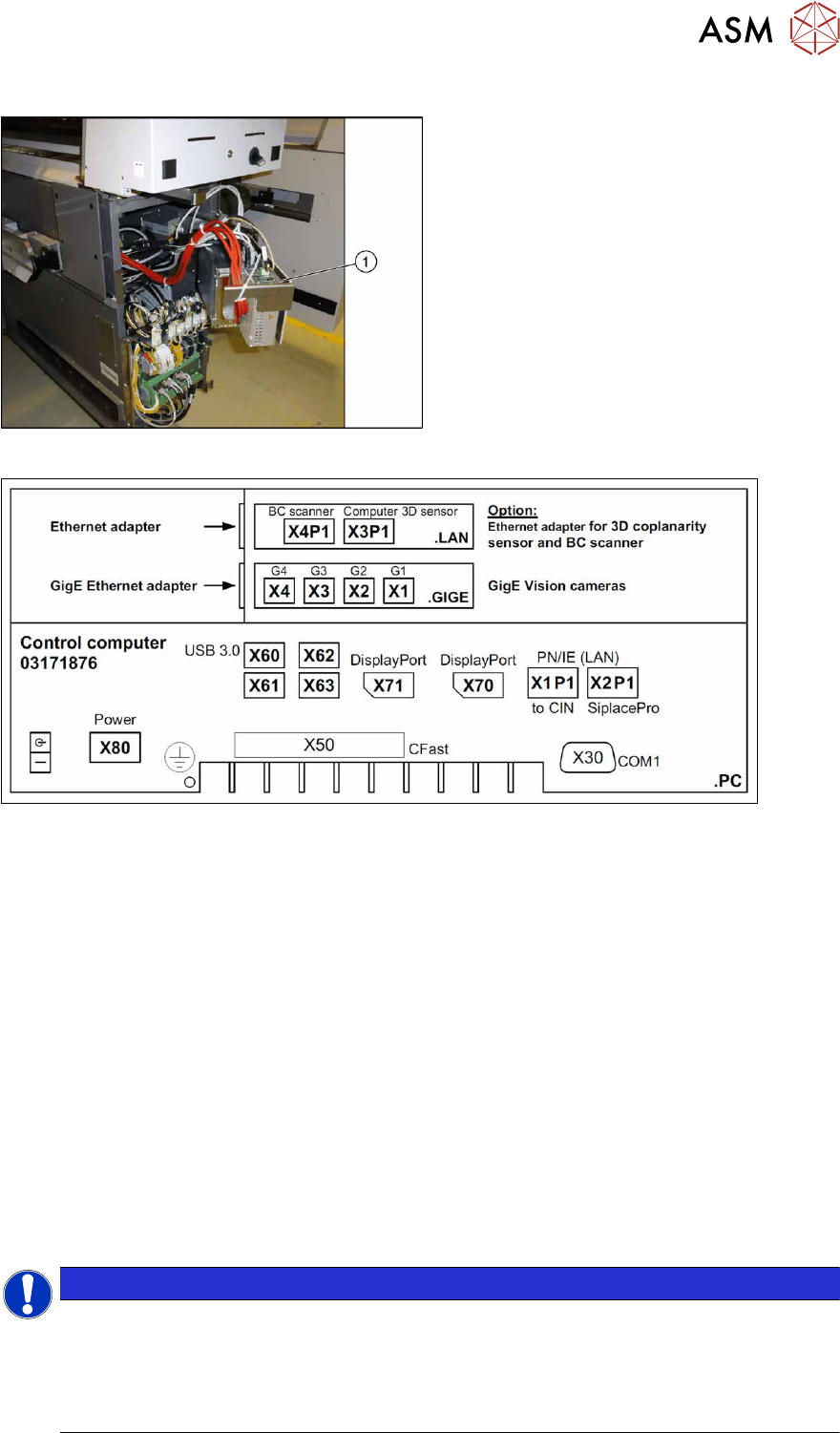
Fig.73: BoxPC in machine
1. BoxPC
The BoxPC is located behind the cover,
between locations 1 and 2.
Fig.74: BoxPC 427D – connections
Removal
► Back up the machine data.
► Switch off the machine, disconnect it from the power supply and secure it to prevent
unauthorized reactivation.
1.2 "Preparatory work..." [}16]
► Unplug all press-fit connections to the BoxPC. If necessary, mark their positions to make clear
assignment easier later on.
► Loosen the screws fastening the Box PC and remove it from the machine.
Installation
Follow the removal instructions in reverse order for installation. Also observe the following instructions:
► If parts are missing in the new BoxPC (e.g. ethernet adapter, memory extension), take these
from the old BoxPC and use them in the new one.
4.2.4 "Replacing the RAM in the BoxPC" [}70]
4.2.2 "Replacing the GigE Ethernet Adapter" [}68]
4.2.3 "Replacing the LAN card" [}69]
NOTICE
Installing the BoxPC
► The BoxPC needs to be installed after it has been fitted. Read the relevant installation guide.
► BIOS update and setting images are no longer included on the station software CD.
The CDs for the BIOS settings are only available via the SIPLACE Software Download
Center (SDC).
4 Electrics and control system
4.2 BoxPC
68 Service Manual SIPLACE X-Series S (from Hxxxx) 01/2021
4.2.2 Replacing the GigE Ethernet Adapter
Parts, equipment and tools
●
GigE ethernet adapter PCI-E I340-T4 [03105575‑xx]
●
GigE-Ethernet-Adapter PCI-E I350 T2 V2 BLK [03115569‑xx]
NOTICE
If an older version of the card [03105575‑xx] is replaced with a newer version
[03115569‑xx], this will need to be configured using a script (see respective technical in-
formation, still in progress on publication of this document).
Overview
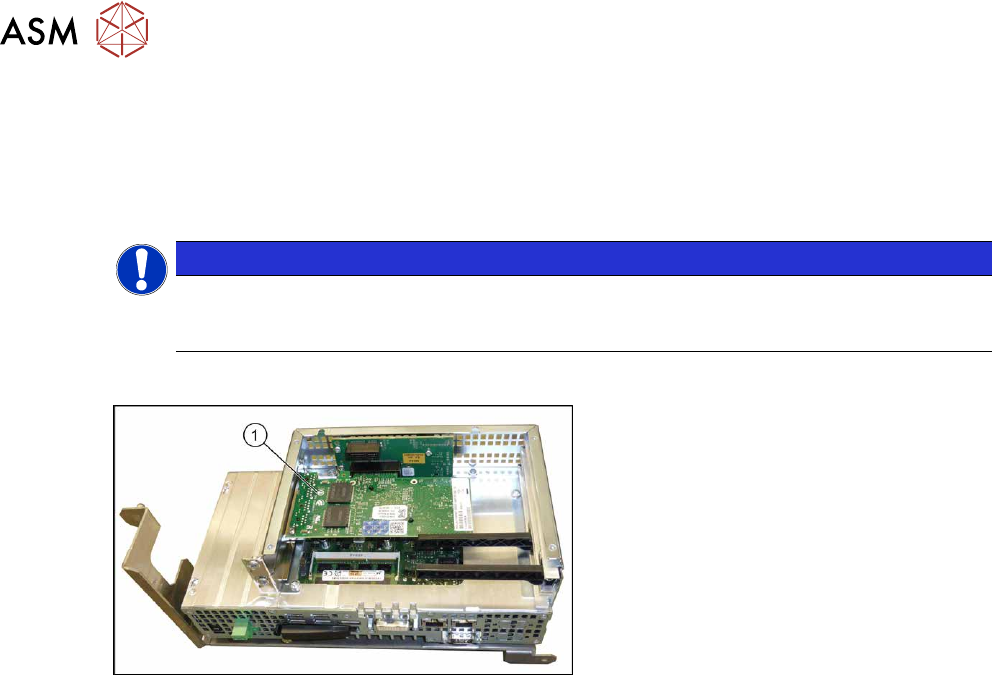
Fig.75: GigE Ethernet adapter in the BoxPC 427D
1. GigE ethernet adapter
Removal
► Switch off the machine, disconnect it from the power supply and secure it to prevent
unauthorized reactivation.
1.2 "Preparatory work..." [}16]
► Dismantle and remove the BoxPC from the machine.
► Remove the screws fastening the cover of the BoxPC and open the cover.
► Remove the screw fastening the Ethernet adapter and remove the Ethernet adapter.
Installation
Follow the removal instructions in reverse order for installation. Also observe the following instruc-
tions:
► Make sure that the plug-in card is correctly fitted into its slot.