LCX_UserManual_en_08_1.pdf - 第114页
Instrument functions R&S ® LCX Series 1 14 User Manual 1 179.2260.02 ─ 08 Remote command: HANDler:CONFig:PATH on page 216 8.8.5.4 Binning measurement settings When you have enabled the binning measurement, the R&…
Instrument functions
R&S
®
LCX Series
113User Manual 1179.2260.02 ─ 08
Table 8-2: Pin assignment
Pin Signal Direction Pin Signal Direction
1 - 8 Digital output sig-
nals 1 to 8.
The digital outputs
are active low.
OUT 11 - 13 GND OUT
9 Trigger signal input.
The falling edge of
an externally
applied signal ini-
tiates the trigger.
IN 14 + 3.3 V OUT
10 Digital input IN 15 + 12 V OUT
8.8.5.3 Binning settings
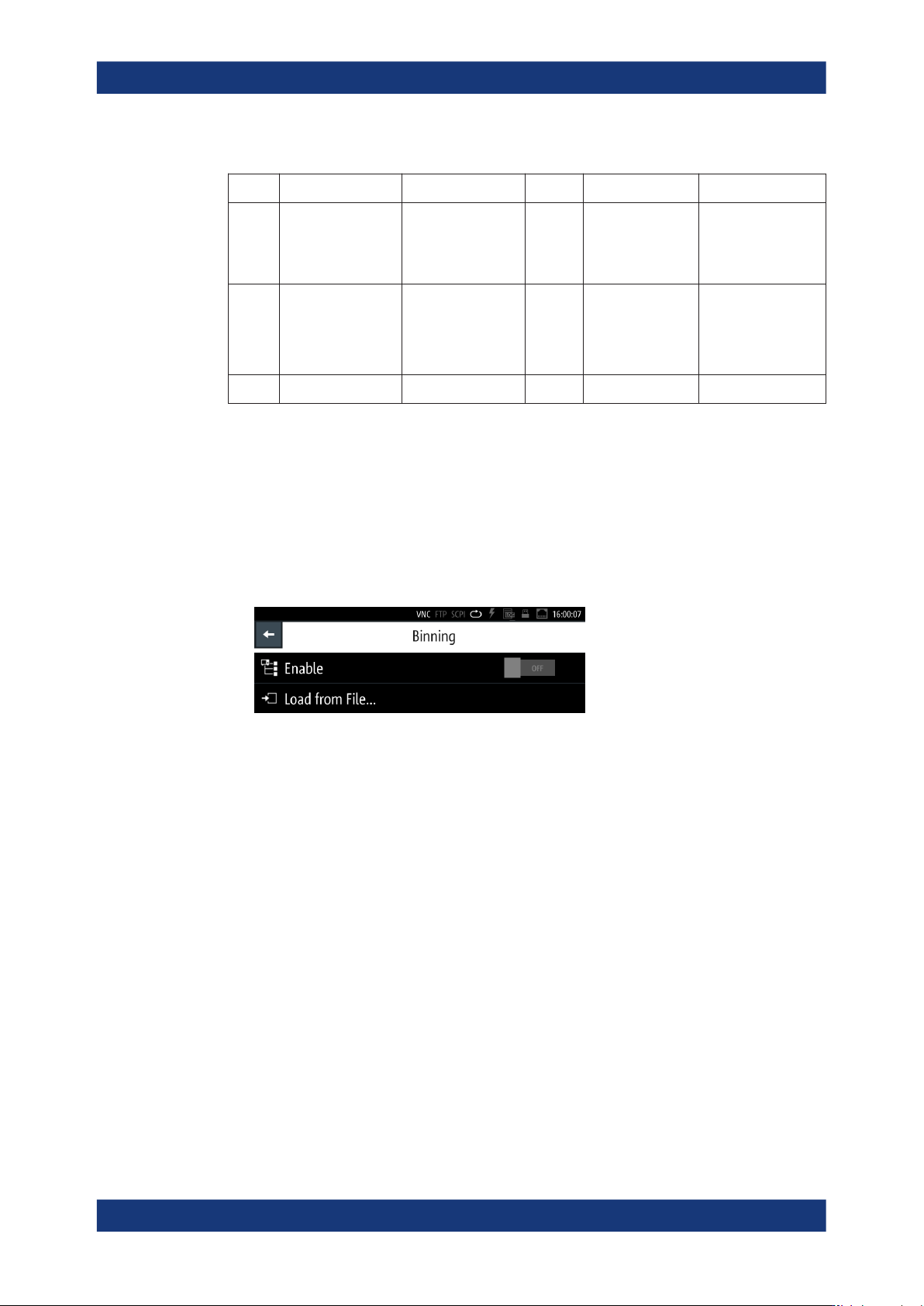
In the "Binning" menu, you can upload the binning file, and start the measurement.
Access:
1. Press the [settings] key at the front panel.
2. In the "Functions" tab, select "Binning".
Figure 8-27: Binning menu
In the initial softkey menu, you can load the binning file and activate the measure-
ment.
During the process, the main screen indicates the parameters related to the mea-
surement, and access to the bin configuration.
The required remote commands are described in Section 11.12, "HANDler subsystem",
on page 214.
Enabled....................................................................................................................... 113
Load From File............................................................................................................ 113
Enabled
Enables the sorting function.
The measurement starts with a trigger signal.
Remote command:
HANDler[:STATe] on page 216
Load From File
Accesses the file manager function to upload the binning configuration file.
Specific instrument functions
Instrument functions
R&S
®
LCX Series
114User Manual 1179.2260.02 ─ 08
Remote command:
HANDler:CONFig:PATH on page 216
8.8.5.4 Binning measurement settings
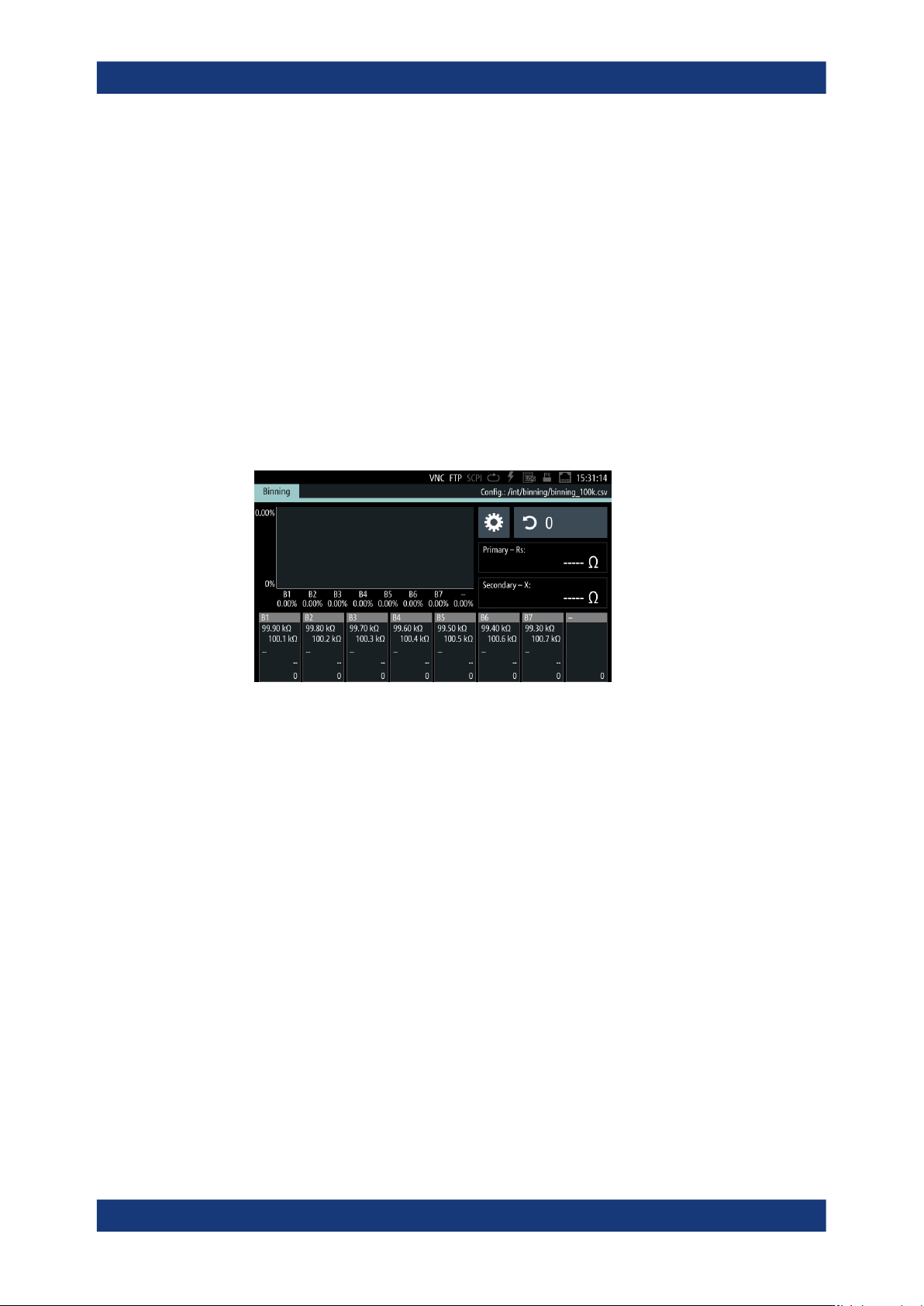
When you have enabled the binning measurement, the R&S LCX shows the binning
specific measurement results window on the screen.
Access:
1. Press the [settings] key at the front panel.
2. In the "Functions" tab, select "Binning".
3. Load the corresponding binning file as described in "Configuring a binning file"
on page 116 and "Loading the binning file" on page 117.
Figure 8-28: Binning measurement results window
This view shows the configuration parameters of the measurement and the bins for
sorting the measured components. A bar graph displays the distribution of the
measurement results graphically.
You can access the settings or reset the counter on the screen directly.
Binning.........................................................................................................................114
Settings softkey........................................................................................................... 115
<filename>...................................................................................................................115
Counter........................................................................................................................115
Primary - <param>.......................................................................................................115
Secondary - <param>..................................................................................................115
Bins..............................................................................................................................115
└ EOM..............................................................................................................115
└ OUT...............................................................................................................115
└ --....................................................................................................................115
└ B1 to B6 (B8).................................................................................................115
Histogram.................................................................................................................... 115
Binning
Indicates the measurement mode.
Specific instrument functions

Instrument functions
R&S
®
LCX Series
115User Manual 1179.2260.02 ─ 08
Settings softkey
The
(settings) softkey returns to the binning menu, see Section 8.8.5.3, "Binning set-
tings", on page 113.
<filename>
Indicates the binning *csv the measurement is based on.
Counter
Indicates the number of measurements executed.
The R&S LCX increases the number with each trigger signal received and derives the
statistics from the results and the number of measurements.
You can reset the counter at any time directly on the touchscreen.
Remote command:
HANDler:BIN:STATistic? on page 215
HANDler:BIN:STATistic:COUNt? on page 215
HANDler:BIN:STATistic:RESet on page 216
Primary - <param>
Indicates the latest measurement value for the first sorting characteristic.
Secondary - <param>
Indicates the latest measurement value for the second sorting characteristic.
Bins
Indicates the configured bins, including the range of each category, and the number of
measured values that fit into one of the categories. After each measurement, the
R&S LCX highlights the corresponding bin and also assigns a signal at the correspond-
ing pin of the digital output.
EOM ← Bins
Highlighted in red indicates the end of each individual measurement.
OUT ← Bins
Highlighted in red indicates that the measured values of the component do not fit in
any of the configured categories.
-- ← Bins
Unconfigured bin and thus not used for the measurement.
B1 to B6 (B8) ← Bins
Highlights when the measured values of the component fit in one of the configured cat-
egories.
Note: If you have configured the additional signals "Out of Bin" or "End of Measure-
ment", you can only define the remaining number of categories.
Histogram
Displays the percentage distribution over the bins.
Specific instrument functions