LCX_UserManual_en_08_1.pdf - 第125页
General instrument functions R&S ® LCX Series 125 User Manual 1 179.2260.02 ─ 08 9.1.5 Data and file types The R&S LCX distinguishes the files according to their extensions; each type of file is assigned a specif…
General instrument functions
R&S
®
LCX Series
124User Manual 1179.2260.02 ─ 08
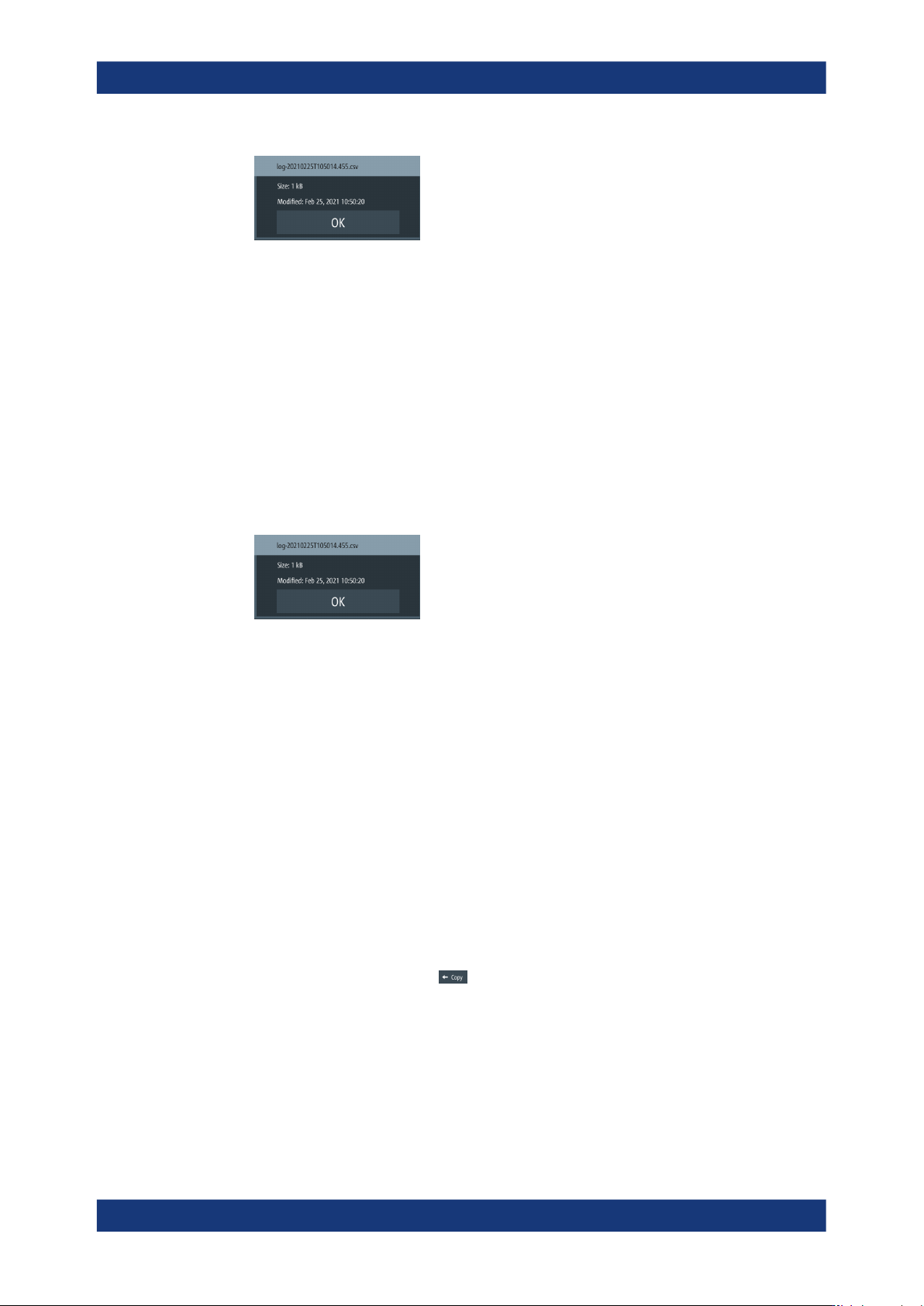
Figure 9-3: File information
Retrieving device documentation
You can retrieve the R&S LCX Open Source Acknowledgment documentation from the
instrument documentation folder /int/documentation.
To view information on the selected file:
1. Select [settings] > "Device" > "File Manager".
2. Select the directory.
3. Tap and hold the file of interest.
The R&S LCX shows the metadata of the selected file.
Figure 9-4: File information
Retrieving device documentation
You can retrieve the R&S LCX OSA documentation directly from the instrument.
To view the OSA document:
1. Connect a USB memory stick to the USB B connector at the front panel of the
instrument.
2. To access the file manager, select [settings] > "Device" > "File Manager".
3. In the file manager dialog, select the /int/documentation documentation
folder.
The R&S LCX displays the available files in the documentation folder.
4. Select the file that you want to copy.
5.
Copy the selected file with to the USB memory stick.
Note: If a file with a similar filename exists already, the R&S LCX displays a file
system error and aborts the copy process.
Delete the existing file, then you can copy the file from the R&S LCX to the USB
flash drive.
Now you can view the document on a PC.
File and data management
General instrument functions
R&S
®
LCX Series
125User Manual 1179.2260.02 ─ 08
9.1.5 Data and file types
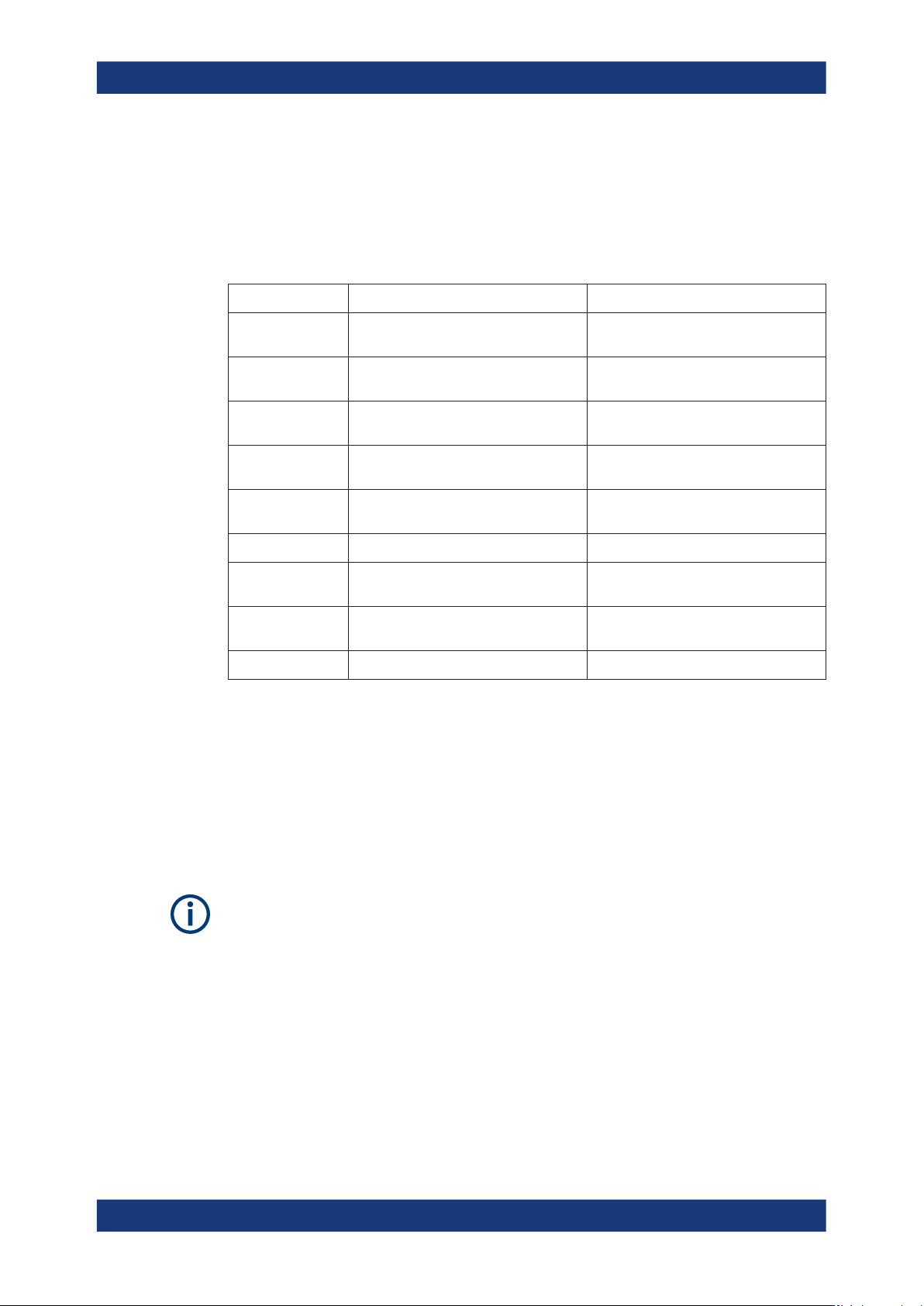
The R&S LCX distinguishes the files according to their extensions; each type of file is
assigned a specific file content and also a specific file extension. The extension is pre-
defined, e.g. you can save and load files with logging data only as *.csv files.
Table 9-1: Overview of data and file types
Data type File extension Description
Binning
*.csv
See Section 8.8.5, "Binning",
on page 110
Documentation
*.pdf
Getting Started manual, and OSA (Open
Source Acknowledgment).
Logging
*.csv
See Section 8.8.3, "Logging",
on page 101
Screenshot
*.png
See Section 9.4, "Screenshot",
on page 128
Settings
*.savrcl
See Section 9.12, "Save/recall",
on page 142
Service
*.rsd
Device information
*.rsd
See Section 9.10, "Device information",
on page 138
Firmware
*.rsu
See Section 9.11, "Update device",
on page 140
Licenses
*.xml
See Section 9.9, "Licenses", on page 135
9.2 Interfaces
The R&S LCX provides a LAN, a USB and, optionally a GPIB (IEC/IEEE) bus interface
for controlling the instrument remotely.
In the "Interfaces" menu, you can access the settings dialogs for configuring the gen-
eral network environment and specific identification parameters of the instrument.
The following description introduces the access to the interface settings. For detailed
information on connection, protocols and additional configurations, see Section 10,
"Network operation and remote control", on page 149. This section also covers the set-
ting parameter descriptions and step-by-step instructions for setting up remote control
for each interface.
9.2.1 Interface settings
Access:
1. Press the [settings] key at the front panel.
Interfaces
General instrument functions
R&S
®
LCX Series
126User Manual 1179.2260.02 ─ 08
2. In the "Device" tab, select "Interfaces".
3. Select the corresponding menu item.
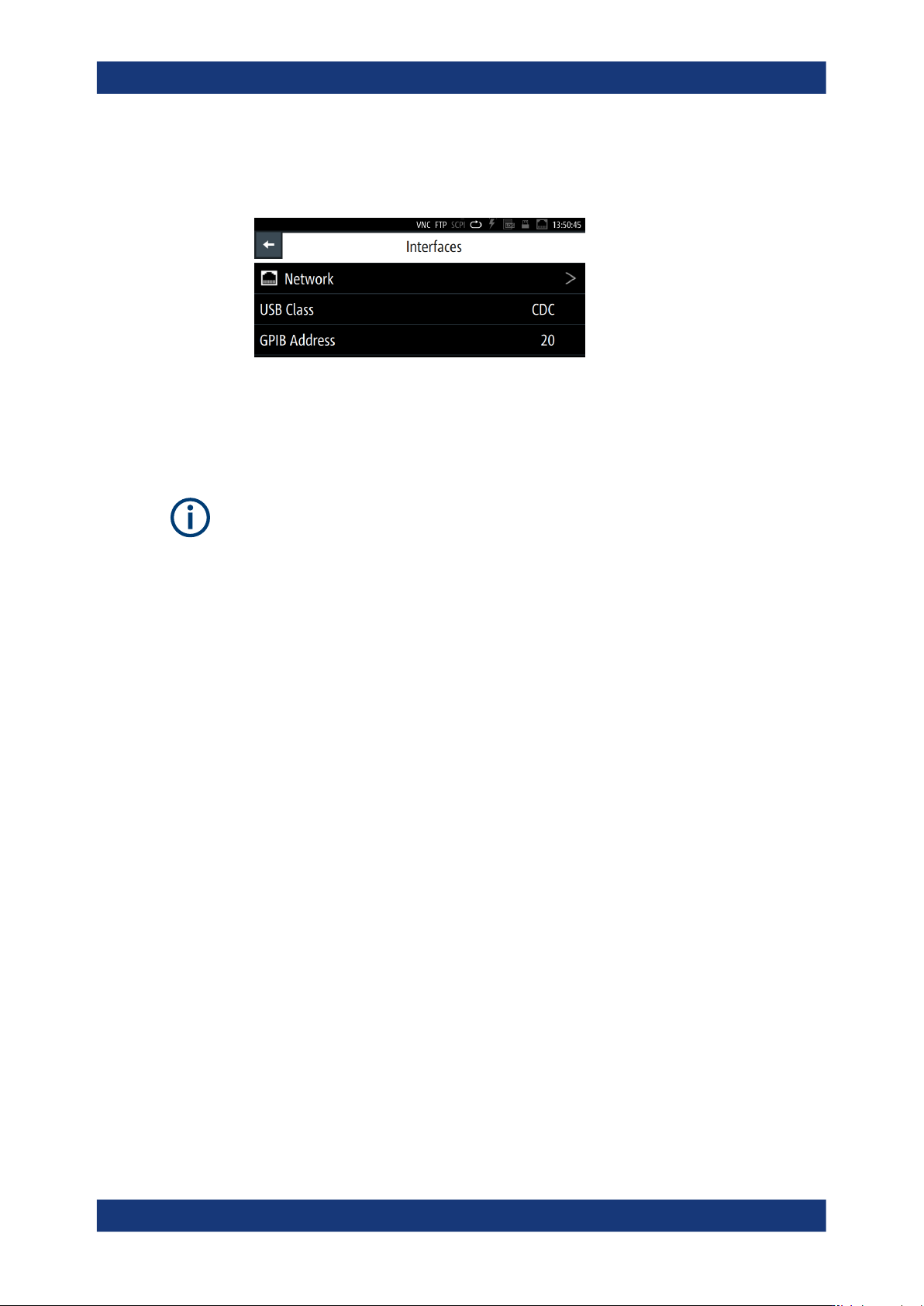
Figure 9-5: Interfaces menu
In the "Interfaces" menu, you can access the settings dialogs for configuring the
general network environment and specific identification parameters of the instru-
ment.
As the settings for the dedicated interfaces relate closely to the remote control environ-
ment, see the description in Section 10.3, "Remote access settings", on page 159.
Network
Opens the "Network" connection dialog to configure the Ethernet connection.
USB Class
Opens a selection dialog to set the communication protocol for the USB interface, see
Section 10.3.5, "USB settings", on page 166.
About: see Section 10.2.2, "USB interface", on page 154.
How to: see Section 10.5, "Adjusting interface addresses", on page 169
GPIB Address
Option: R&S NG-B105 GPIB (IEC 625/IEE 488) bus interface
Opens an on-screen keypad for setting the channel address of the address GPIB bus
interface, see Section 10.3.6, "GPIB settings", on page 167.
About: see Section 10.2.3, "GPIB interface (IEC/IEEE bus interface)", on page 155
How to: see Section 10.5, "Adjusting interface addresses", on page 169.
9.2.2 Configuring interfaces
As the information on how to establish and configure a remote control connection
relates closely to the remote control environment, see:
●
Section 10.4, "Connecting the R&S LCX for remote access", on page 167
●
Section 10.5, "Adjusting interface addresses", on page 169
Interfaces