LCX_UserManual_en_08_1.pdf - 第148页
General instrument functions R&S ® LCX Series 148 User Manual 1 179.2260.02 ─ 08 a) Select the corresponding softkey . Figure 9-18: Brightness editor b) Shift the scrollbar to the right, or to the left, e.g. to set &…
General instrument functions
R&S
®
LCX Series
147User Manual 1179.2260.02 ─ 08
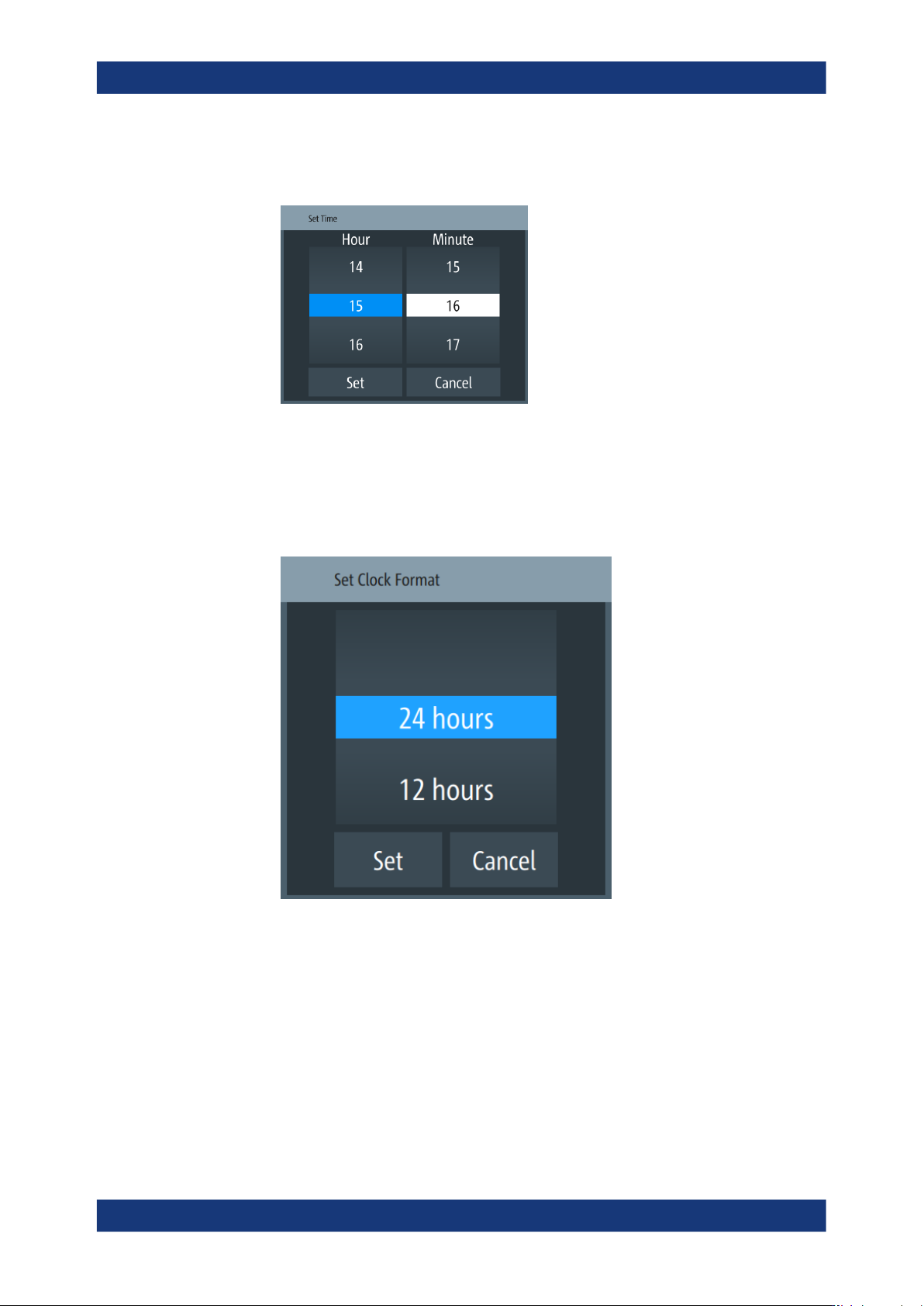
a) Select the "Set Time" softkey.
An on-screen editor with clock entries opens.
Figure 9-16: Time editor
b) Select "Hour" and "Minute".
c) Confirm your entry.
5. To change the clock format:
a) Select "Change Clock Format"
Figure 9-17: Clock format editor
b) Set the format and confirm.
Customizing the appearance
To adjust the brightness of the display and front panel keys:
1. Press the [settings] key at the front panel.
2. In the "Device" tab, select "Appearance".
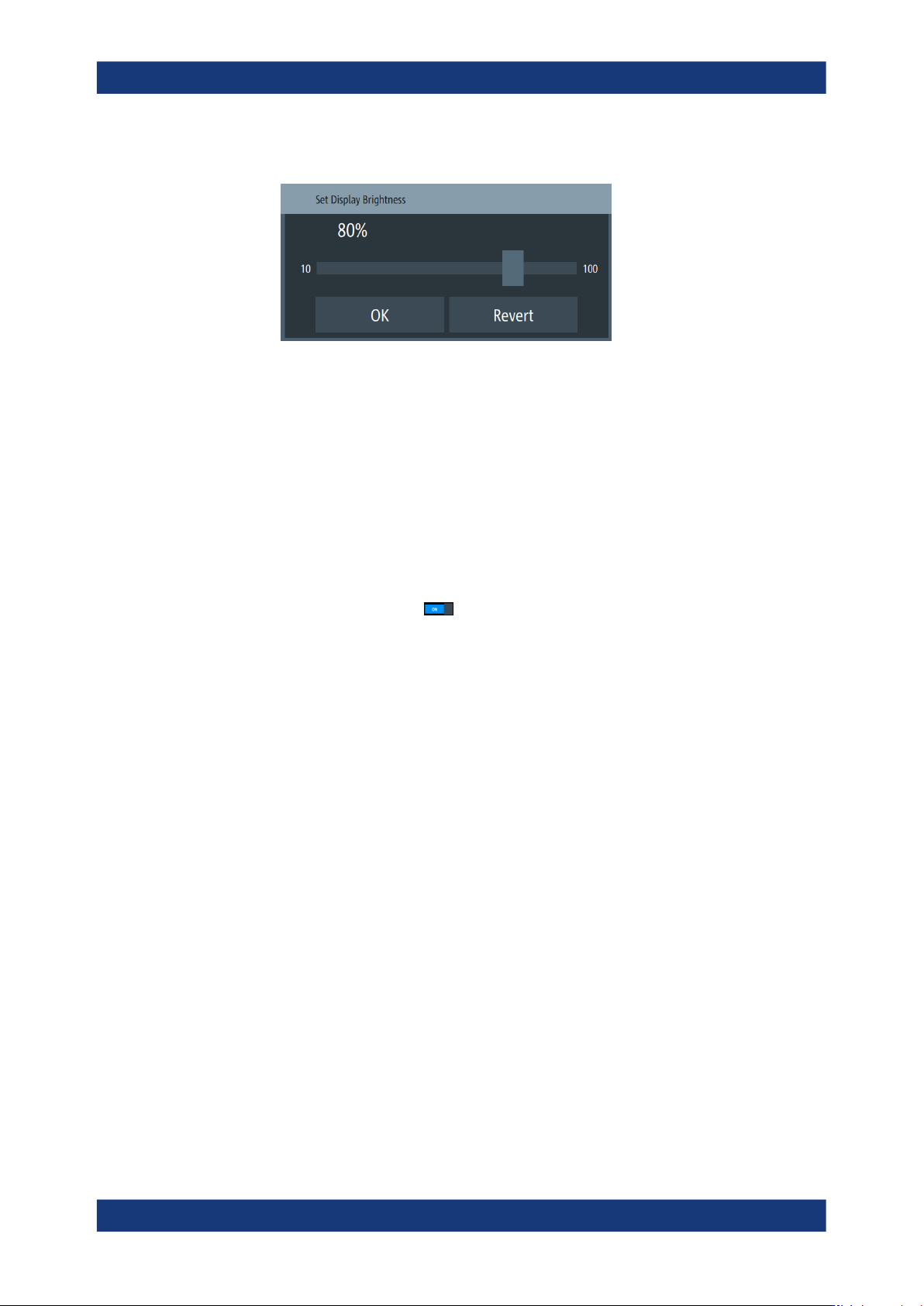
3. To change the brightness:
Customizing general instrument settings
General instrument functions
R&S
®
LCX Series
148User Manual 1179.2260.02 ─ 08
a) Select the corresponding softkey.
Figure 9-18: Brightness editor
b) Shift the scrollbar to the right, or to the left, e.g. to set "50%".
c) Confirm with "OK".
4. Close the appearance dialog with "OK".
Customizing the sound settings
To activate a beep on error:
1. Press the [settings] key at the front panel.
2. In the "Device" tab, select "Sound".
3.
Activate the beeper with
.
The R&S LCX generates a beep on error and warnings, see Section 9.8, "Sound",
on page 134.
Customizing general instrument settings
Network operation and remote control
R&S
®
LCX Series
149User Manual 1179.2260.02 ─ 08
10 Network operation and remote control
As an alternative to the interactive operation directly at the instrument, you can operate
the R&S LCX also from a remote control location, for example a controller PC.
The various interfaces provide flexible access to the instrument, such as remote con-
trol, remote operation or remote file access. These remote access modes are funda-
mentally different, although they are often considered interchangeable, as described in
Overview of remote access modes.
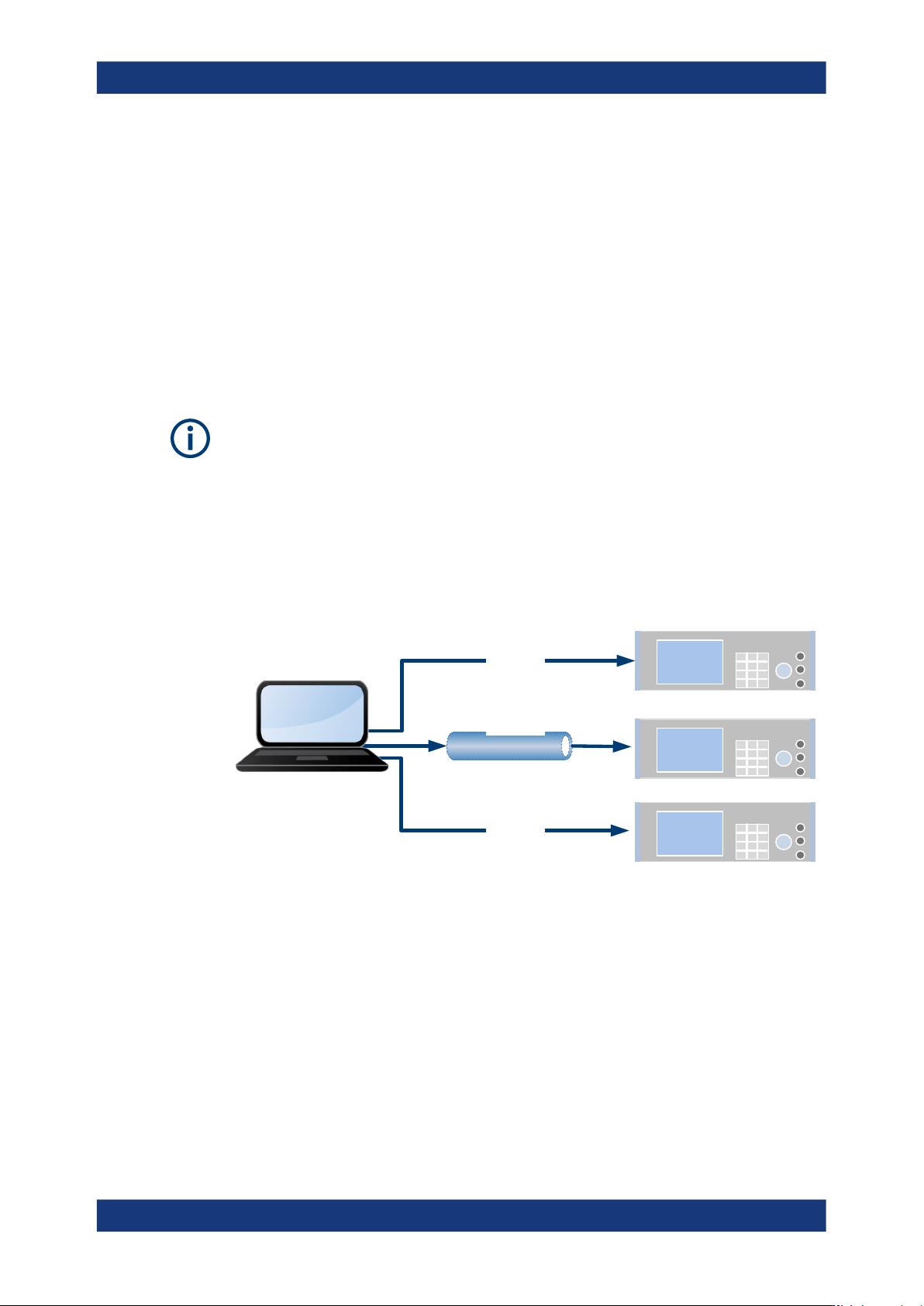
Figure 10-1 shows the possibilities of the physical connection (interfaces) for remote
access.
The following descriptions provide information required for operating the R&S LCX
remotely. The information applies to all applications and operating modes supported by
the instrument. Definitions specified in the SCPI standard are not provided.
For basic knowledge on remote control operation and additional information, see the
following documents available from the Rohde & Schwarz website:
●
Remote control via SCPI
●
1MA171: How to use Rohde & Schwarz Instruments in MATLAB
●
1SL374: How to communicate with R&S devices using VISA
Ethernet
VXI-11
Socket
GPIB
USBTMC
VNC
ftp
USB
LAN
CDC
R&S Instrument
R&S Instrument
R&S Instrument
Controller
Application
Program
Figure 10-1: Supported remote connections
● Overview of remote access modes.......................................................................150
● Remote control interfaces and protocols...............................................................151
● Remote access settings........................................................................................159
● Connecting the R&S LCX for remote access........................................................167
● Adjusting interface addresses...............................................................................169
● Operating the R&S LCX remotely......................................................................... 173