LCX_UserManual_en_08_1.pdf - 第178页
Network operation and remote control R&S ® LCX Series 178 User Manual 1 179.2260.02 ─ 08 9. T urn "DHCP & Auto IP". The R&S LCX indicates the IP address that you can use for accessing the instru- me…

Network operation and remote control
R&S
®
LCX Series
177User Manual 1179.2260.02 ─ 08
4. Confirm with enter.
An icon of the LCR meter appears on the VNC viewer window.
5. Select the icon to open the remote desktop of the instrument.
The R&S LCX is ready for remote operation.
You can use all functions similar to manual operation. The operation works on the
touch-sensitive screen, and also when you select the keys of the front panel.
6. To operate the R&S LCX:
a) Select a parameter on the screen
b) Enter the value using the on-screen keyboard.
c) Select a front panel key to activate the corresponding function.
d) Select the [rotary knob].
e) Drag the knob to the right or left to select a parameter, or to increase or
decrease a value, etc.
Stopping the remote desktop operation
You can terminate remote access operation anytime without affecting ongoing pro-
cesses and measurements.
1. Close the VNC client application.
Note: If the connection is interrupted accidentally, e.g. by a reboot of the instru-
ment, the VNC client does not re-establish the connection automatically.
2. To reconnect, proceed as described above.
10.6.2 Accessing the file system of the R&S LCX using FTP
Enabling the FTP service for remote access
For remote access over FTP, you must connect the controller PC and the R&S LCX in
a LAN, see "Establishing the LAN connection" on page 24.
To enable the service on the R&S LCX:
1. Press the [settings] key at the front panel.
2. In the device settings menu, select "Interfaces".
3. Select "Network".
4. Select "FTP".
5. If necessary, configure the FTP port address, see "Assigning the FTP port address
manually" on page 171.
6.
Return
to the "Network" settings menu.
7.
Turn
"FTP".
8. Select "LAN".
Operating the R&S
LCX remotely
Network operation and remote control
R&S
®
LCX Series
178User Manual 1179.2260.02 ─ 08
9.
Turn "DHCP & Auto IP".
The R&S LCX indicates the IP address that you can use for accessing the instru-
ments file system over the FTP protocol, see Accessing the file system remotely
over a file explorer.
Accessing the file system remotely over a file explorer
Prerequisite: the controller PC and the R&S LCX are connected in a LAN, see "Estab-
lishing the LAN connection" on page 24.
For FTP access, you need a URI address string and you must enter the user name
and password of the instrument. For security reasons, we recommend that you assign
a dedicated user-specific password in the "FTP Remote-Access" dialog before con-
necting to the instrument. See Section 10.3.4, "FTP settings", on page 164.
This example refers to an application on a Windows client.
To enable the FTP file transfer connection, follow the instructions as given under Ena-
bling the FTP service for remote access.
1. Open a file explorer on the controller PC, e.g. the Windows Explorer, or the Internet
Explorer.
2. To connect to the FTP server, enter the FTP address string of the R&S LCX in the
address bar.
The address string follows the syntax:
ftp://<ip address or hostname>[:port], e.g.
ftp://192.168.0.128:5678
A "Log On As" dialog opens that prompts you to enter the user name and pass-
word of the instrument.
Note: If you use a port number different from the default port 21, you must add this
number to the address string, e.g. ftp://192.168.0.128:5678.
Tip: As an alternative, you can add the login credentials directly in the address
string:
ftp://<user name>:<password>@<ip address or hostname>[:port],
e.g. ftp://LCR200:<password>@192.168.0.128:5678
3. Confirm with enter.
The file system of your LCR meter appears.
You can browse the content of the internal and externally connected USB memory
device, and upload and download files as known from file manager functions.
Mounting the FTP connection for quick access
For quick access to the instrument without logging in, you can assign the FTP remote
network address connection to the file explorer:
This example refers to the file manager application on a Windows client.
Operating the R&S
LCX remotely
Network operation and remote control
R&S
®
LCX Series
179User Manual 1179.2260.02 ─ 08
To mount the FTP network address string to the file explorer:
1. Open the file explorer on the controller PC.
2. Connect to the R&S LCX file system as described in Accessing the file system
remotely over a file explorer.
3. Select the computer name directory of your controller PC, e.g. "This PC".
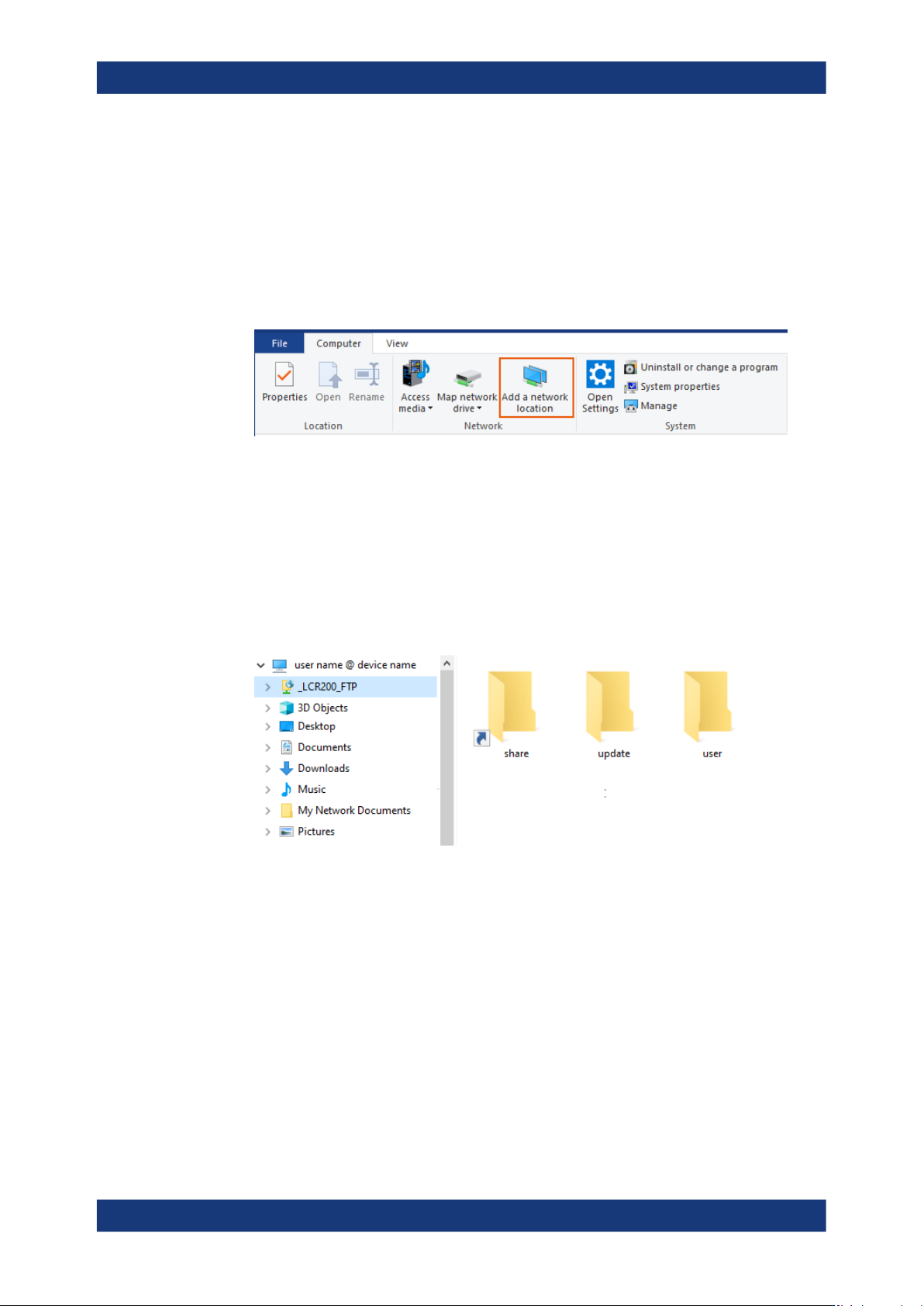
4. In the ribbon bar of the "Computer" tab, select "Add a network location".
The "Add Network Location" wizard opens.
5. Follow the steps of the wizard:
a) Select "Choose a custom network location".
b) In step "Specify the location of your web site", enter the FTP address string,
e.g. ftp://LCR200:<password>@192.168.0.128:5678.
c) Assign a user name for the directory, e.g. _LCR200_FTP, if necessary.
d) For immediate access, enable the "Open this network location ...." checkbox.
e) Confirm with "Finish".
The available file directories of the instrument appear under the mounted directory
in the navigation tree. You can browse in the instruments file system and upload or
download files.
Note: The address string in the example contains the login credentials and thus
directly accesses the instrument's file system when reconnecting.
To protect the instrument from unauthorized access, you can also set up only the
FTP network address, and thus explicitly require the login for each connection.
Stopping the remote FTP file access
To terminate FTP file access:
1.
NOTICE! Risk of data loss. Terminating FTP file access during file transfer can
impact a file and lead to data loss. Also, when the connection to the controller PC
is interrupted accidentally.
Operating the R&S
LCX remotely