LCX_UserManual_en_08_1.pdf - 第123页
General instrument functions R&S ® LCX Series 123 User Manual 1 179.2260.02 ─ 08 Figure 9-2: File manager dialog The "File Manager" dialog shows a navigator of the memory directories, and you can copy or de…

General instrument functions
R&S
®
LCX Series
122User Manual 1179.2260.02 ─ 08
Filenames
The R&S LCX assigns generic filenames to internally created files, composed of an
identification of the function, if applicable, and a time stamp. For user-specific files, you
can assign a dedicated filename. You can compose a filename of any length, with all
characters allowed, i.e. letters, numbers and, with some exceptions, also special char-
acters. The instrument blocks unauthorized characters in the on-screen keyboard auto-
matically.
File extensions
The R&S LCX distinguishes the file extensions according to the specific file content.
The file extensions are predefined, see Section 9.1.5, "Data and file types",
on page 125.
File handling
To access files and the file system of the R&S LCX or to use the general file manage-
ment functions such as copying and moving data, see Section 9.1.3, "File manager
settings", on page 122.
To transfer files from and to the instrument or to exchange files, use one of the follow-
ing alternatives:
●
Connect a memory stick to one of the USB A interfaces. The instrument recognizes
automatically a connected memory stick and assigns the /USB1A/... drive to it.
●
Connect the R&S LCX to a LAN, see Section 10, "Network operation and remote
control", on page 149.
An instrument connected to a LAN supports the standard file transfer method (ftp
protocol) from a remote client. Using the remote file transfer, you can access
operational files, settings, documents, log files and the contents on the USB mem-
ory, see "Remote file access (FTP)" on page 151.
File contents
To keep the file size small and to speed up processing times, the R&S LCX does not
save the entire instrument settings, but rather the settings that differ from the preset
state.
9.1.3 File manager settings
With the "File Manager" functions, you can exchange files between the internal and an
external memory, provided you have connected a USB memory device.
Access:
1. Press the [settings] key at the front panel.
2. In the "Device" tab, select "File Manager".
File and data management
General instrument functions
R&S
®
LCX Series
123User Manual 1179.2260.02 ─ 08
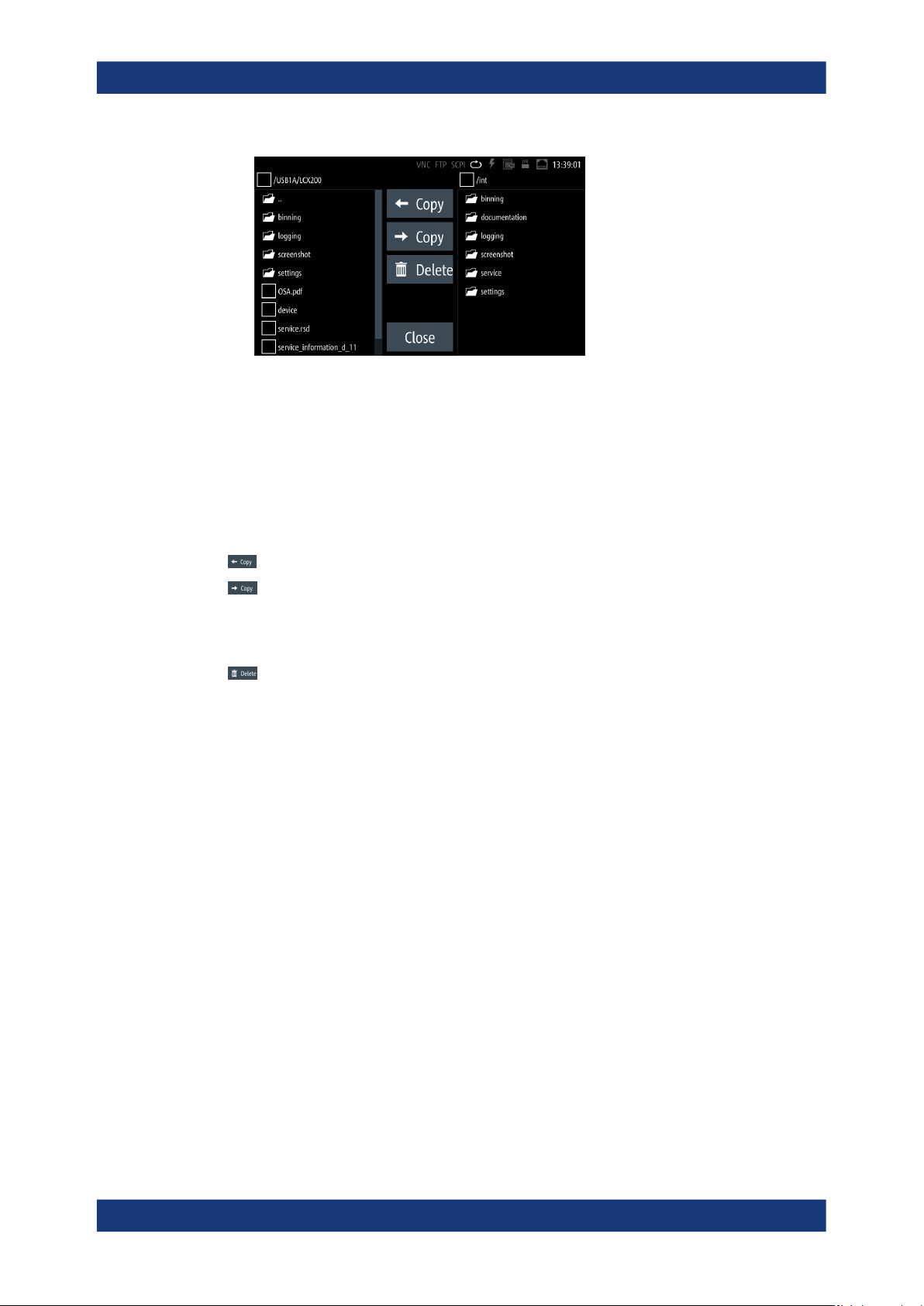
Figure 9-2: File manager dialog
The "File Manager" dialog shows a navigator of the memory directories, and you
can copy or delete files, as known from common file explorers. The functions provi-
ded are self-explanatory in conjunction with the softkeys labeled accordingly.
How to: see Section 9.1.4, "Using the file manager", on page 123.
Copy
Copies selected files to a destination directory.
Copy from internal memory to USB.
Copy from USB to internal memory.
Delete
Removes selected files from the directory.
Deletes the selected file.
Remote command:
DATA:LIST? on page 198
DATA:DELete on page 198
9.1.4 Using the file manager
We assume that the functions provided in the file manager dialog are known. Hence
this section only shows specific functions that are not recognizable at first glance.
Retrieving file information
To view information on the selected file:
1. Select [settings] > "Device" > "File Manager".
2. Select the directory.
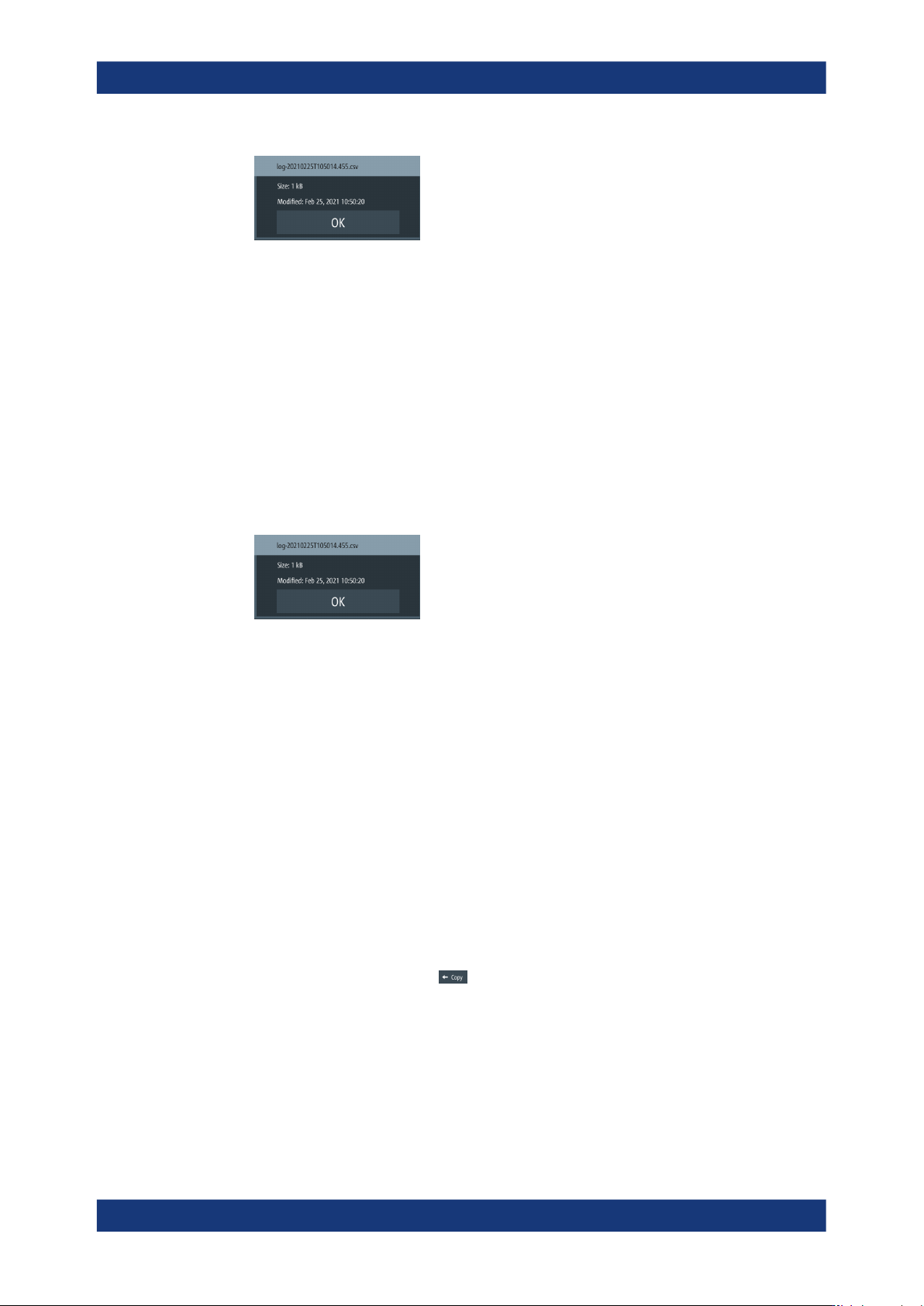
3. Tap and hold the file of interest.
The R&S LCX shows the metadata of the selected file.
File and data management
General instrument functions
R&S
®
LCX Series
124User Manual 1179.2260.02 ─ 08
Figure 9-3: File information
Retrieving device documentation
You can retrieve the R&S LCX Open Source Acknowledgment documentation from the
instrument documentation folder /int/documentation.
To view information on the selected file:
1. Select [settings] > "Device" > "File Manager".
2. Select the directory.
3. Tap and hold the file of interest.
The R&S LCX shows the metadata of the selected file.
Figure 9-4: File information
Retrieving device documentation
You can retrieve the R&S LCX OSA documentation directly from the instrument.
To view the OSA document:
1. Connect a USB memory stick to the USB B connector at the front panel of the
instrument.
2. To access the file manager, select [settings] > "Device" > "File Manager".
3. In the file manager dialog, select the /int/documentation documentation
folder.
The R&S LCX displays the available files in the documentation folder.
4. Select the file that you want to copy.
5.
Copy the selected file with to the USB memory stick.
Note: If a file with a similar filename exists already, the R&S LCX displays a file
system error and aborts the copy process.
Delete the existing file, then you can copy the file from the R&S LCX to the USB
flash drive.
Now you can view the document on a PC.
File and data management