LCX_UserManual_en_08_1.pdf - 第134页
General instrument functions R&S ® LCX Series 134 User Manual 1 179.2260.02 ─ 08 Figure 9-10: Appearance settings menu The appearance menu provides access to on-screen editors for adjusting the brightness of the scre…
General instrument functions
R&S
®
LCX Series
133User Manual 1179.2260.02 ─ 08
Access:
1. Press the [settings] key at the front panel.
2. In the "Device" tab, select "Date & Time".
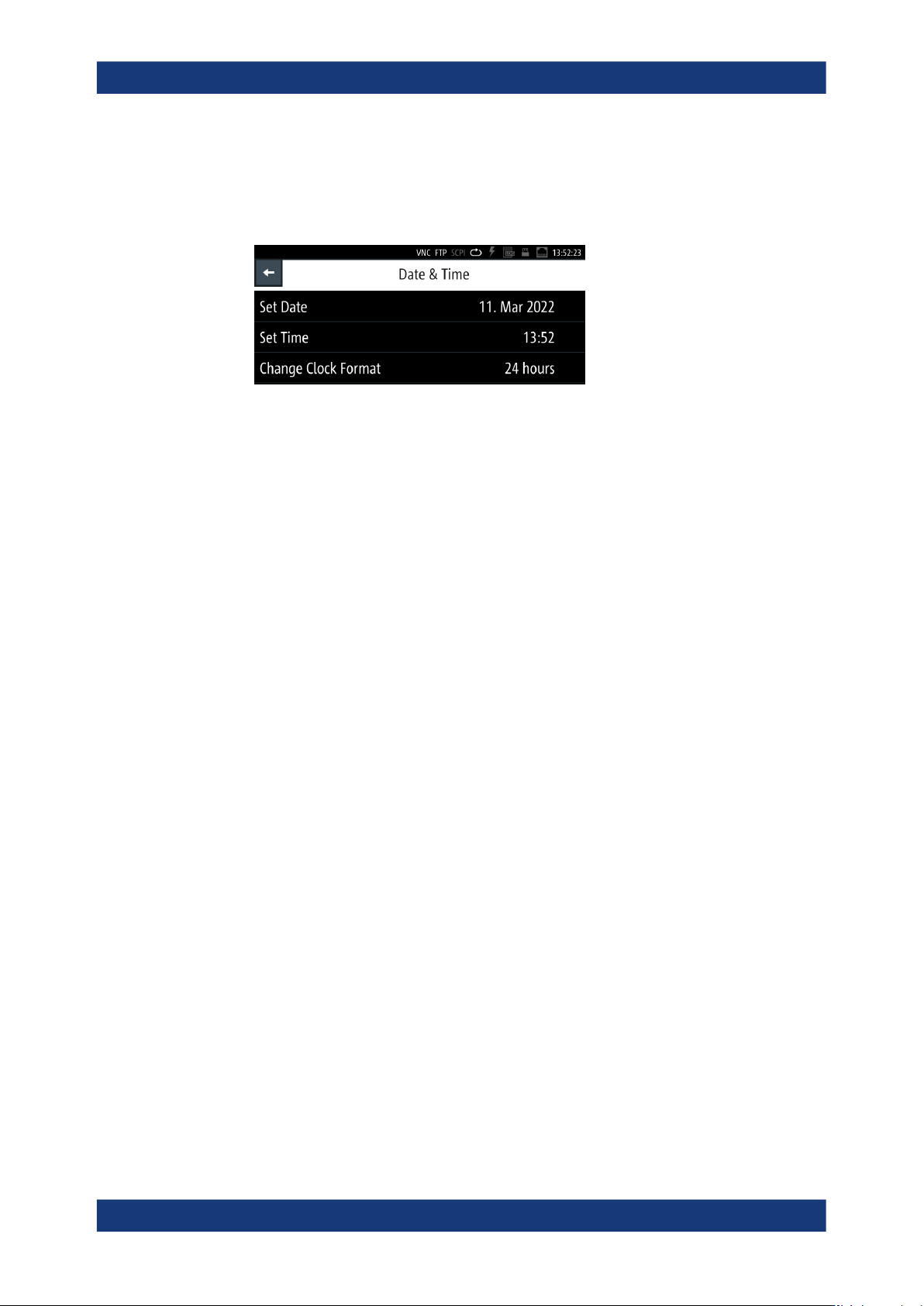
Figure 9-9: Date and time settings menu
The "Date & Time" menu provides access to dialogs and editors for setting the cor-
responding parameters. Initially, the R&S LCX indicates the date and time setting
of the operating system. You can update or modify this setting individually.
The required remote commands are described in Section 11.18, "SYSTem subsys-
tem", on page 231.
How to: see "Setting date and time" on page 146.
Set Date
Sets the date in the format [yyyy.mm.dd].
Remote command:
SYSTem:DATE on page 239
Set Time
Sets the time in the format [hh.mm.ss].
Remote command:
SYSTem:TIME on page 241
Change Clock Format
Sets the hour display of a day.
You can switch between "24 hours"and "48 hours" display.
9.7 Appearance
The R&S LCX enables you to customize the appearance of the screen and the front
panel keys.
Access:
1. Press the [settings] key at the front panel.
2. In the "Device" tab, select "Appearance".
Appearance
General instrument functions
R&S
®
LCX Series
134User Manual 1179.2260.02 ─ 08
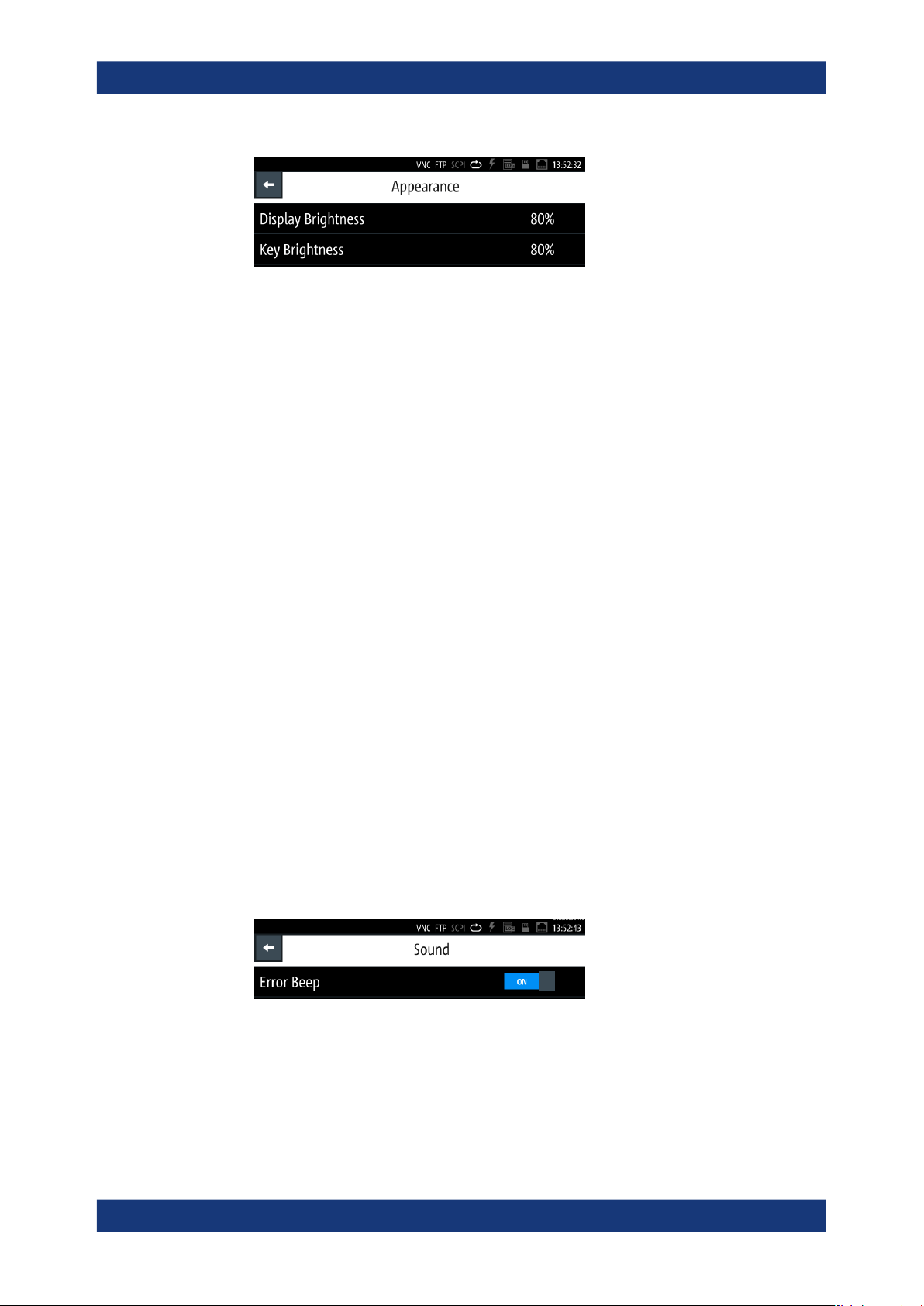
Figure 9-10: Appearance settings menu
The appearance menu provides access to on-screen editors for adjusting the
brightness of the screen and front panel keys.
The required remote commands are described in Section 11.9, "DISPLay subsys-
tem", on page 202 and Section 11.18, "SYSTem subsystem", on page 231.
How to: see "Customizing the appearance" on page 147.
Display Brightness...................................................................................................... 134
Key Brightness............................................................................................................134
Display Brightness
Sets the brightness of the display in percent.
Remote command:
DISPlay:BRIGhtness on page 204
Key Brightness
Sets the intensity of the key illumination in percent.
Remote command:
SYSTem:KEY:BRIGhtness on page 240
9.8 Sound
The R&S LCX provides the option for issuing an acoustic signal if there is an error.
Access:
1. Press the [settings] key at the front panel.
2. In the "Device" tab, select "Sound".
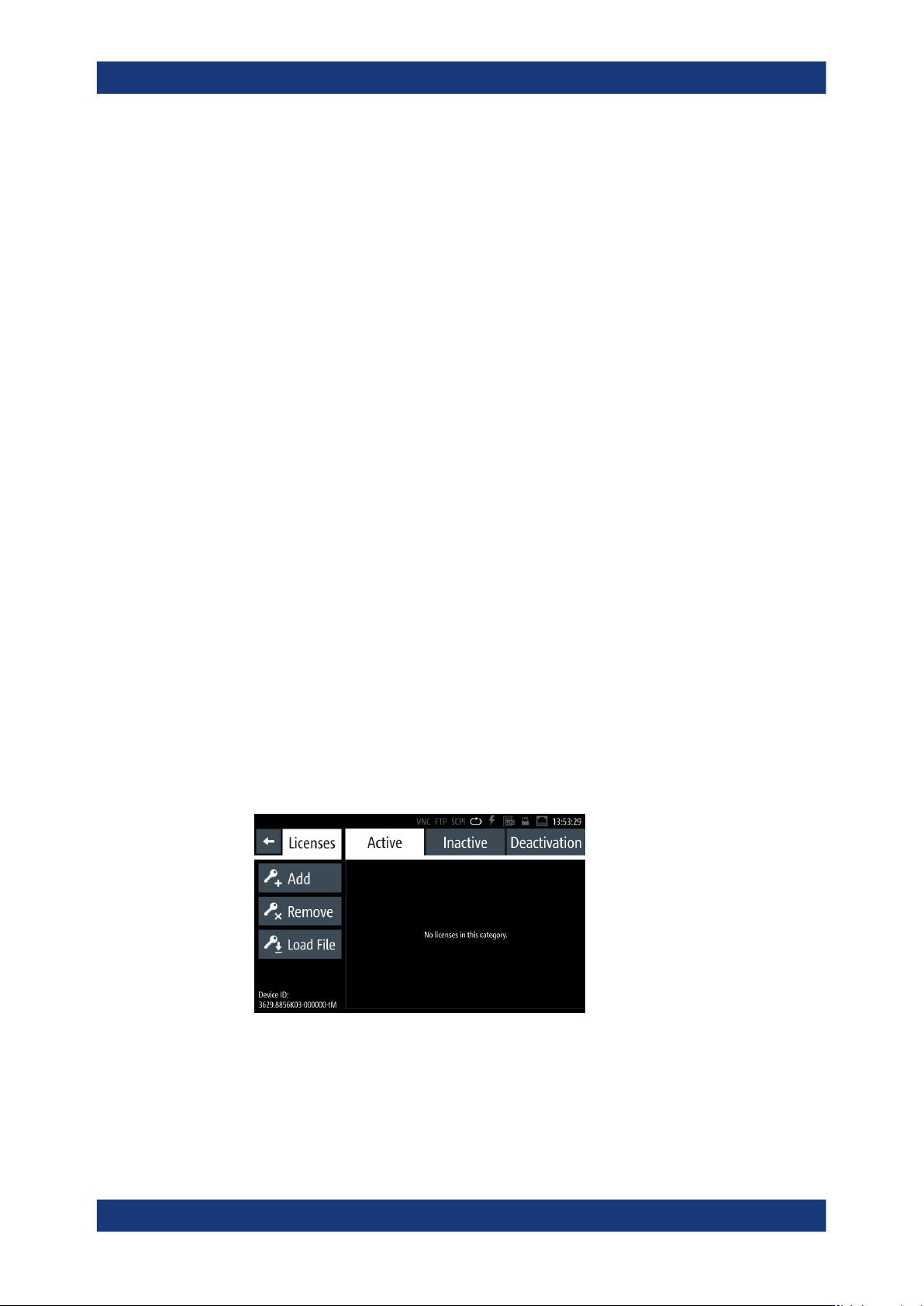
Figure 9-11: Sound settings menu
In the "Sound Settings" dialog, you can set an alert.
The required remote commands are described in Section 11.18, "SYSTem subsys-
tem", on page 231.
Sound
General instrument functions
R&S
®
LCX Series
135User Manual 1179.2260.02 ─ 08
How to: see "Customizing the sound settings" on page 148.
Error Beep...................................................................................................................135
Error Beep
Generates an acoustic signal when an error occurs.
"On"
Beeps on error.
"Off"
No beep.
Remote command:
SYSTem:BEEPer:WARNing:STATe on page 236
SYSTem:BEEPer:WARNing[:IMMediate] on page 236
SYSTem:BEEPer[:COMPlete]:STATe on page 236
SYSTem:BEEPer[:COMPlete][:IMMediate] on page 236
9.9 Licenses
The R&S LCX provides options that you can purchase and activate. An option is ready
to operate after it is enabled with a License key supplied with the option. The license
key is delivered as a file or on paper.
9.9.1 Licenses settings
The "Licenses" manager function enables you to activate an option with a license key
you can install either from an *.xml file, or enter manually.
Access:
1. Press the [settings] key at the front panel.
2. In the "Device" tab, select "Licenses".
Figure 9-12: Licenses dialog
The licenses dialog provides all information on installed licenses and their current
activity state:
● "Active" displays options that are currently activate in the instrument.
● "Inactive" displays options that are installed but currently not active.
Licenses