LCX_UserManual_en_08_1.pdf - 第172页
Network operation and remote control R&S ® LCX Series 172 User Manual 1 179.2260.02 ─ 08 c) Confirm with . The R&S LCX changes the FTP port address accordingly . Note: The FTP address settings are retained by an …

Network operation and remote control
R&S
®
LCX Series
171User Manual 1179.2260.02 ─ 08
3.
Turn VNC.
4. Select "VNC Port".
An on-screen keypad opens.
5. Enter the port number.
6.
Confirm with
.
The R&S LCX changes the VNC port address accordingly.
Note: The VNC address settings are retained by an instrument preset, and also
when you recall previously saved instrument settings, see Section 9.12, "Save/
recall", on page 142.
However, a factory reset presets the VNC address to the default value, see "Reset-
ting the instrument to the initial factory settings" on page 145.
Assigning the FTP port address manually
Using an FTP application, the remote controller addresses the R&S LCX instrument
with the port address. The R&S LCX has the factory-set address 21, but you can adjust
it manually according to your network environment. It is assumed that you have estab-
lished the connection, see "Establishing the LAN connection" on page 24.
To set the FTP access settings manually:
1. Press the [settings] key at the front panel.
2. In the device settings menu, select "Interfaces" > "Network" > "FTP".
Note: You can modify the settings only when FTP is deactivated.
3.
Turn
"FTP".
4. Select "Port".
An on-screen keypad opens.
5. Enter the port number.
6. If necessary, assign an individual user name:
Initially, the assigned user name is the <instrument name>, e.g., "LCR200".
a) Select "User name".
b) Enter the user name, e.g., MyLCR Meter1. You can specify any sequence with
at least 1 letter and 1 digit.
c)
Confirm with .
7.
NOTICE! The password is required when you use the FTP function the first time,
and after changing the port and user name.
To change or confirm the password:
Initially, the assigned password is the <serial number> of the instrument, see the
label at the rear panel.
a) Select "Password".
b) Enter the password.
You can specify any sequence with at least one letter and one digit.
Adjusting interface addresses

Network operation and remote control
R&S
®
LCX Series
172User Manual 1179.2260.02 ─ 08
c)
Confirm with .
The R&S LCX changes the FTP port address accordingly.
Note: The FTP address settings are retained by an instrument preset, and also
when you recall previously saved instrument settings, see Section 9.12, "Save/
recall", on page 142.
However, a factory reset presets the FTP address to the default value, see "Reset-
ting the instrument to the initial factory settings" on page 145.
Assigning the SCPI raw port and hostname manually
To assign the socket port and the instrument name manually:
1. Access: see 159
2. Select "SCPI Raw Port".
The R&S LCX opens an on-screen keypad to enter the port number.
3. Enter the port number, e.g., 5025.
4.
Confirm with .
5. Proceed the same way to enter the hostname, e.g. LCX200-01.
Assigning the IP address manually on the controller PC
► Obtain the necessary information from your network administrator. If you use more
than one LAN connector, you need separate address information for each connec-
tor.
For information on how to configure the LAN settings, refer to the documentation of
the operating system the PC uses.
Selecting the USB communication class protocol
A USB connection requires the VISA library to be installed. VISA detects and config-
ures the R&S instrument automatically when the USB connection is established. You
do not have to enter an address string or install a separate driver. It is assumed that
you have connected controller PC and the instrument, see "Establishing a USB remote
control connection" on page 168.
To install the driver and select the USB class:
1. Press the [settings] key at the front panel.
2. In the device settings menu, select "Interfaces" > "USB Class".
A selection dialog opens.
3. Select the communication protocol for the USB interface, e.g. "CDC".
4. Confirm your selection.
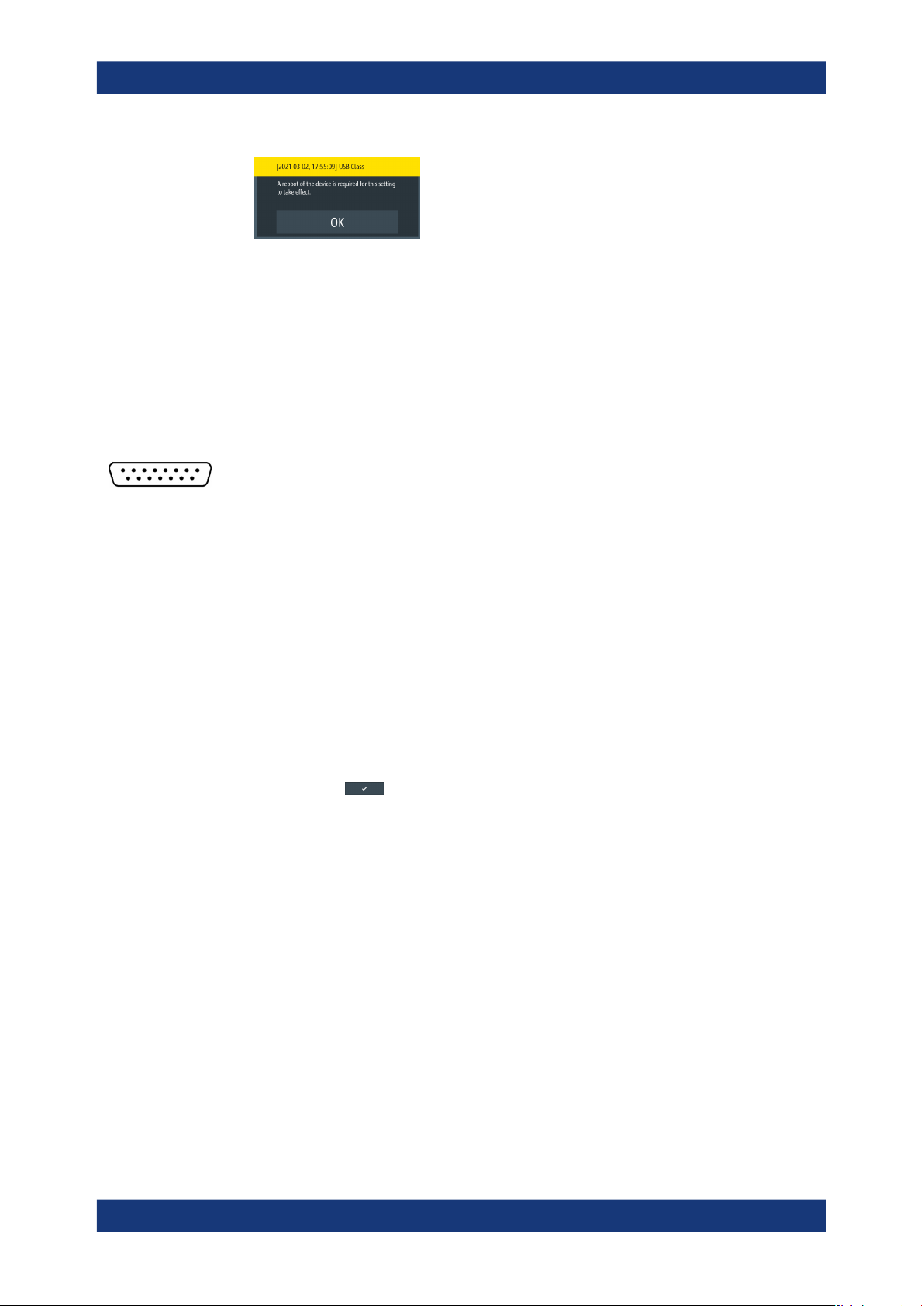
If you have changed the USB class, the R&S LCX displays a message that
prompts you to reboot.
Adjusting interface addresses
Network operation and remote control
R&S
®
LCX Series
173User Manual 1179.2260.02 ─ 08
The instrument must reboot to load the corresponding protocol driver.
5. To proceed, you have the following options:
a) Confirm with "OK".
The R&S LCX reboots and activates the connection. It indicates the selected
USB interface port in the device status bar on top of the screen.
b) If you want to undo your selection, tap any point of the screen outside the mes-
sage.
The message disappears and you can correct your selection.
Assigning the GPIB address manually
Option: R&S NG-B105 GPIB (IEC 625/IEE 488) bus interface
The controller addresses the instrument within the GPIB bus channel, providing
addresses from 0 to 30. The R&S LCX has the factory-set address 20, but you can
adjust it manually according to your network environment. It is assumed that you have
established the connection, see "Establishing the GPIB remote control connection"
on page 168.
To select and enter the GPIB manually:
1. To access the setting, the [settings] key at the front panel.
2. In the device settings menu, select "Interfaces" > "GPIB Address".
An on-screen keypad opens.
3. Enter the channel number.
4.
Confirm with .
The R&S LCX changes the GPIB address accordingly.
Note: The address is maintained after a reset of the instrument settings.
10.6 Operating the R&S LCX remotely
When you switch on the instrument, it is always in manual operation state (local state).
You can operate it using the controls on the front panel. To operate the instrument from
a remote location, see the following possibilities, how to set up remote control connec-
tions over the available interfaces.
Prerequisites to proceed with the following instructions are:
●
You have set up the connection between the R&S LCX and the controller, see Sec-
tion 10.4, "Connecting the R&S LCX for remote access", on page 167.
●
The instrument and the controller are turned on and ready for operation.
Operating the R&S
LCX remotely