LCX_UserManual_en_08_1.pdf - 第44页
Getting started R&S ® LCX Series 44 User Manual 1 179.2260.02 ─ 08 Figure 4-12: Example of a menu ● Selection editors Figure 4-13: Example of selection editor for measurement parameter pairs When opened, a generic la…
Getting started
R&S
®
LCX Series
43User Manual 1179.2260.02 ─ 08
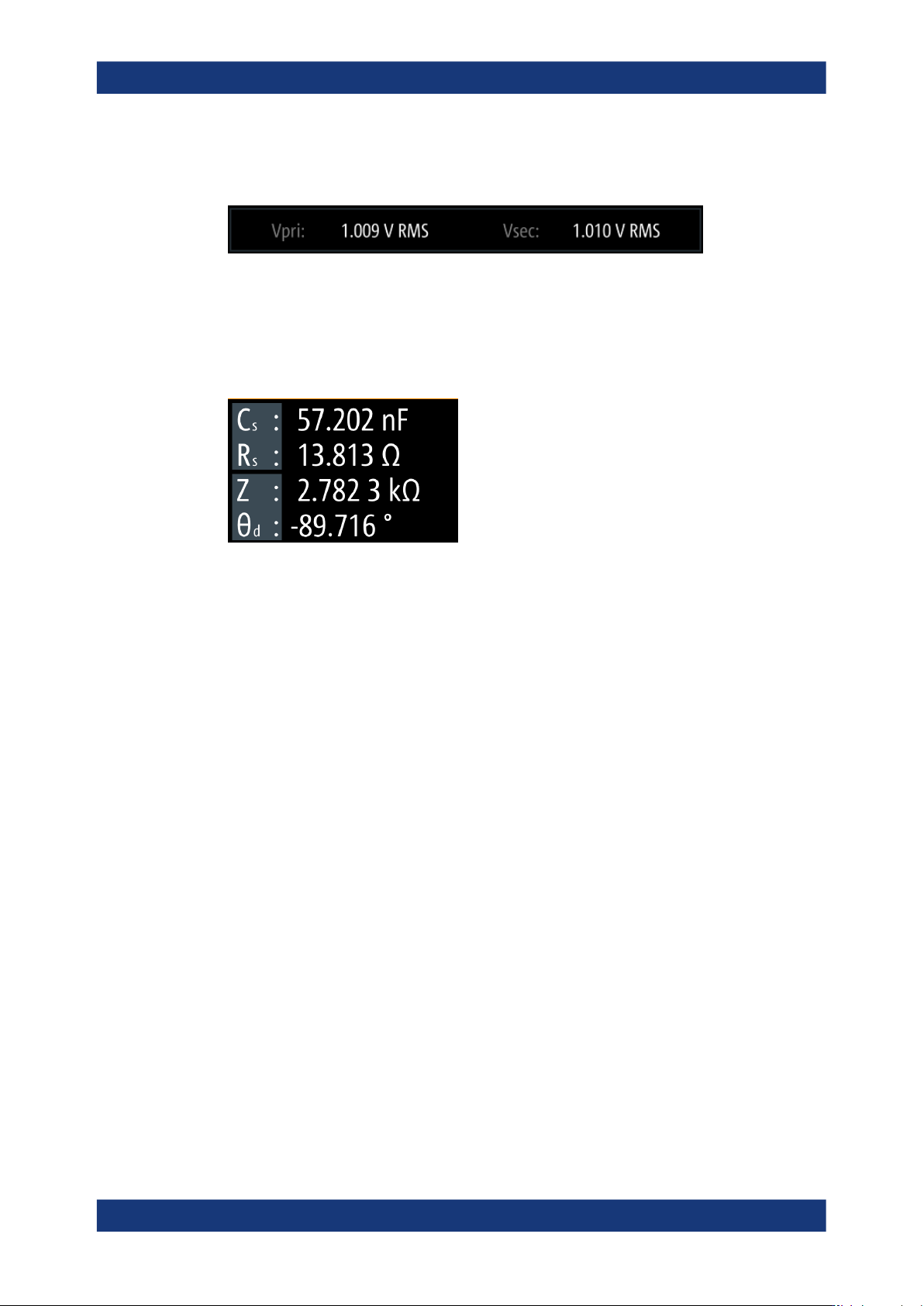
The test signal monitor displays voltage and current results and the measurement
accuracy.
Figure 4-10: Test signal monitor of transformer measurements
For transformer measurements, the test signal monitor displays the transformer induc-
tance of the primary "Vpri" and secondary "Vsec" winding.
Measurement parameters and results
Figure 4-11: Measurement results window
The initial screen shows the basic parameters capacitance "C
s
" and serial resistance
"R
s
", the impedance "Z" and phase angle "Θ
d
". On the right, the R&S LCX displays the
measurement readings.
You can select parameters different from default by tapping the parameter softkeys.
How to: see "Measuring a resistor" on page 36
The parameter softkeys open an on-screen selection list for selecting parameters other
than displayed.
Additional display characteristics
The following section provides a short insight on the indication of the screen in general,
and significant elements that you see under specific modes, in dialogs or settings.
●
Appearance of active elements
– Active elements like On/Off switches, state buttons have a blue background.
– Selected elements are framed or highlighted orange.
– Inactive elements are gray.
●
Menus and dialogs
Both menus and dialogs appear similar, and contain selection lists.
Throughout this manual, a list of functions that lead you to the settings of this func-
tion is referred to as menu. The term dialog refers to the views that cover the
parameters of a certain function. Some dialogs are divided into tabs with logically
grouped parameters.
Instrument control
Getting started
R&S
®
LCX Series
44User Manual 1179.2260.02 ─ 08
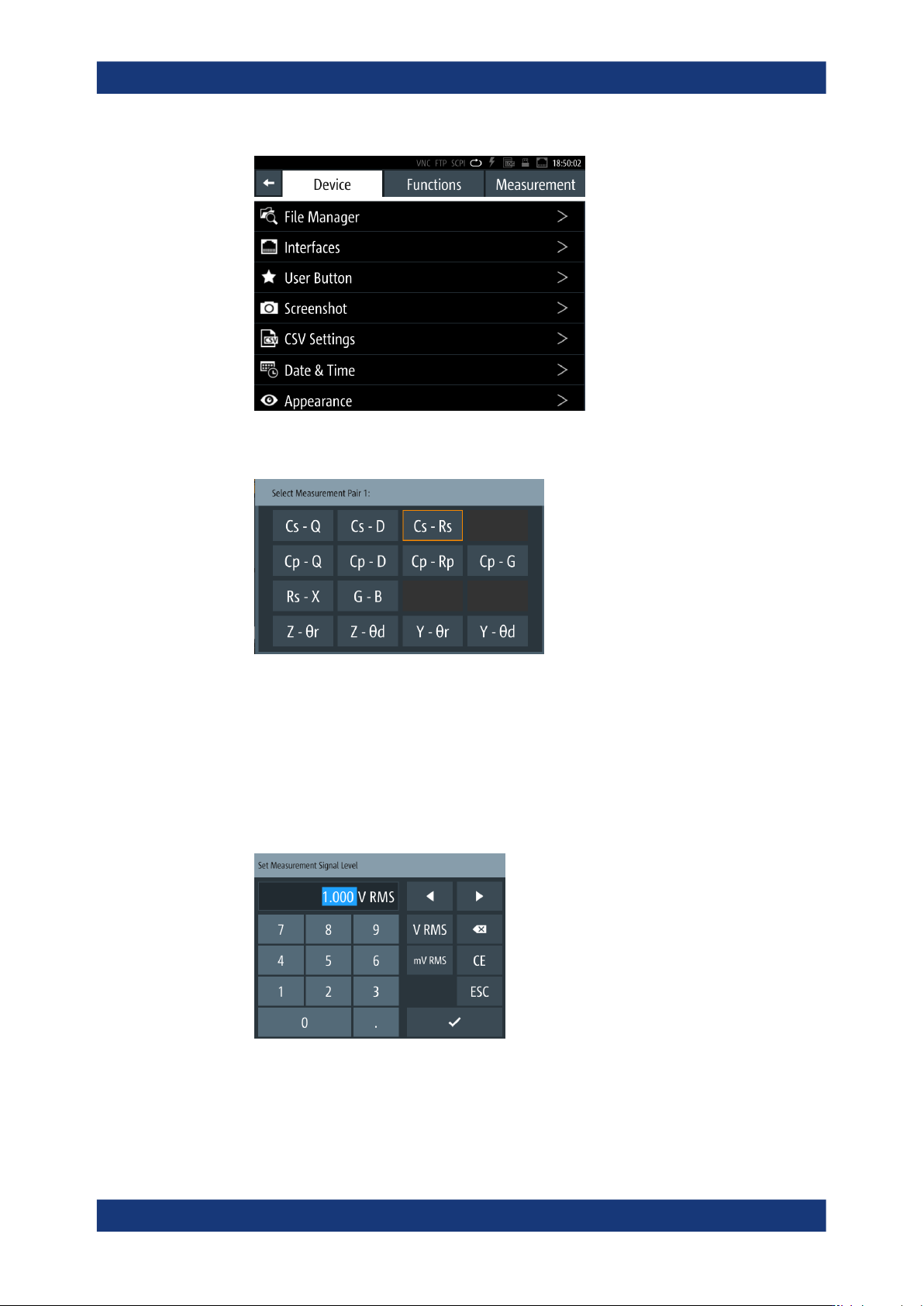
Figure 4-12: Example of a menu
●
Selection editors
Figure 4-13: Example of selection editor for measurement parameter pairs
When opened, a generic label in the header of the editor window shows the param-
eter for selection. Each editor lists the available values and buttons to confirm the
selection.
●
On-screen keypads
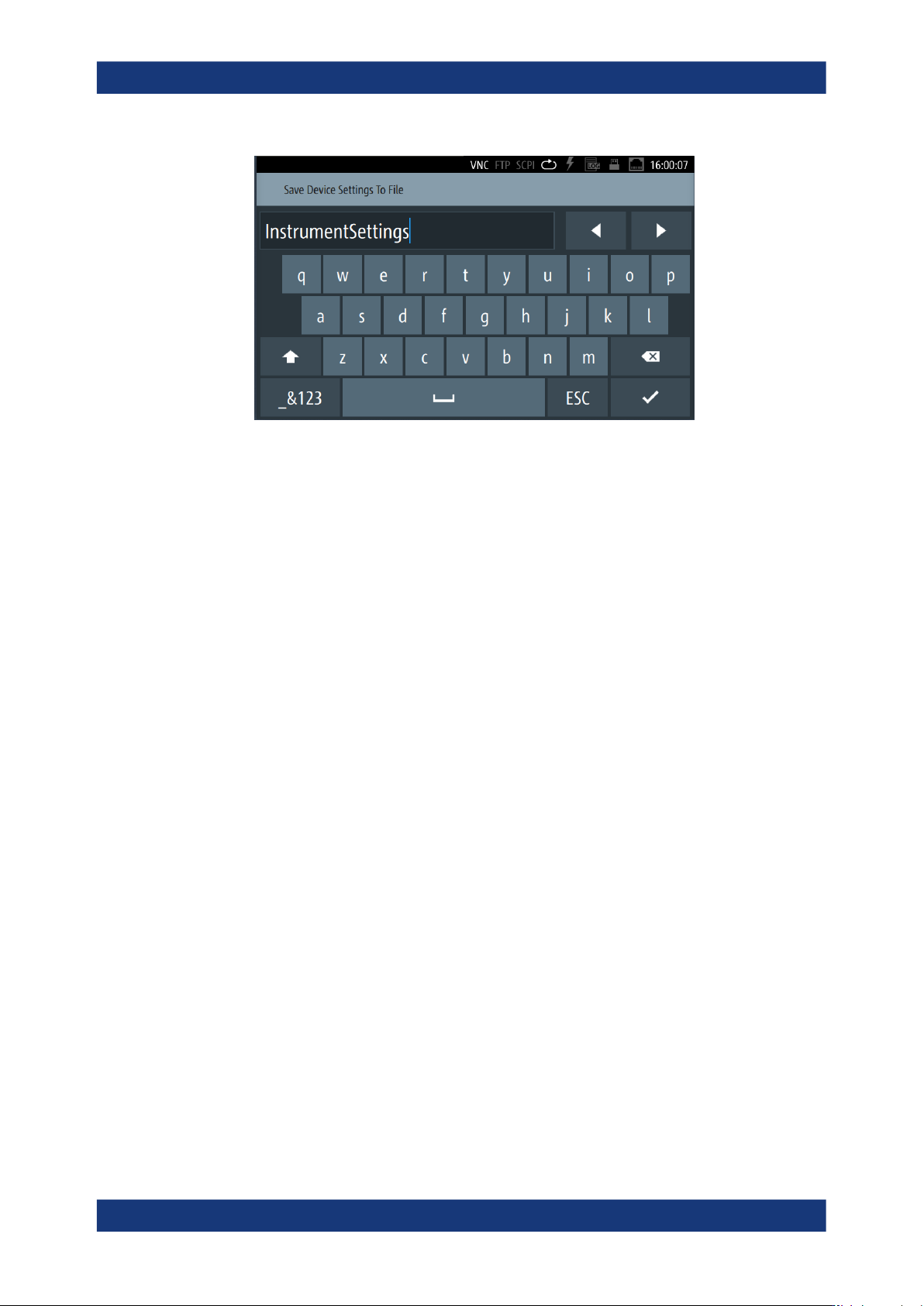
As an additional means of interacting with the instrument, either a numerical or
alphanumerical on-screen keypad appears when you activate an entry field (see
Section 4.4.2.3, "Entering data", on page 46).
Figure 4-14: Numeric on-screen keypad
Instrument control
Getting started
R&S
®
LCX Series
45User Manual 1179.2260.02 ─ 08
Figure 4-15: Alphanumeric on-screen keyboard
●
Info dialogs
An "Info dialog" appears when an event generates a message. The generically
assigned header shows the affected topic. The message describes the event, and
short instructions lead you through the next steps.
●
Scrollbar
Appears when the list of selection parameters exceeds the size of the screen.
Touch and swipe on the screen to scroll up and down.
●
Progress indicator
Indicates a currently running process. If a process takes some time, a progress bar
shows the current state.
4.4.2.2 Accessing the functionality
All functionalities are provided in dialogs, menus, editors or keypads, as known from
computer programs. You can control the instrument intuitively with the touchscreen.
This section provides an overview of the accessing methods.
Apart from the main menus "Measurement" and "Device", we use the term "dialog" to
refer to all editable windows.
You can access the instrument's functions and settings by using one of the following
controls:
●
System and function keys at the front panel of the instrument
●
Interactive softkeys on the touchscreen, underlined in gray
To open the main menus
To open the two main menus:
1. Press the [settings] at the front panel.
2. Select (tap) the corresponding tab on the screen.
The selection leads you either to a settings parameter directly, or to a dedicated
dialog.
Instrument control