LCX_UserManual_en_08_1.pdf - 第164页
Network operation and remote control R&S ® LCX Series 164 User Manual 1 179.2260.02 ─ 08 2. In the device settings menu, select "Interfaces". 3. Select "Network". 4. Select "VNC". Figure…

Network operation and remote control
R&S
®
LCX Series
163User Manual 1179.2260.02 ─ 08
Remote command:
SYSTem:COMMunicate:LAN:ADDRess on page 237
Subnet Mask
Displays the bit group of the subnet in the host identifier.
To assign the subnet mask manually, set DHCP & Auto-IP > Off.
How to: see "Assigning the LAN interface addresses manually" on page 169.
Remote command:
SYSTem:COMMunicate:LAN:SMASk on page 238
Gateway
Displays the gateway address.
This address identifies the router on the same network as the instrument that is used to
forward traffic to destinations beyond the local network.
To assign the subnet mask manually, set DHCP & Auto-IP > Off.
How to: see "Assigning the LAN interface addresses manually" on page 169.
Remote command:
SYSTem:COMMunicate:LAN:DGATeway on page 237
Apply Configuration
Applies the modified settings.
Reset LAN Conection
Terminates the network connection of the instrument and sets it up again.
You can use this function to fix network problems.
Note: This function restarts only the connection of the instrument to the network. It
does not impact the network itself.
How to: see "Assigning the LAN interface addresses manually" on page 169.
Remote command:
SYSTem:COMMunicate:LAN:RESet on page 238
MAC Address
Indicates the MAC address, a unique identifier of the network adapter in the R&S LCX.
Remote command:
SYSTem:COMMunicate:LAN:MAC? on page 238
10.3.3 VNC settings
Using a VNC client tool on a computer, you can control the R&S LCX remotely. Estab-
lish a connection between the computer and R&S LCX in the network, see "Establish-
ing the LAN connection" on page 24.
Access:
1. Press the [settings] key at the front panel.
Remote access settings
Network operation and remote control
R&S
®
LCX Series
164User Manual 1179.2260.02 ─ 08
2. In the device settings menu, select "Interfaces".
3. Select "Network".
4. Select "VNC".
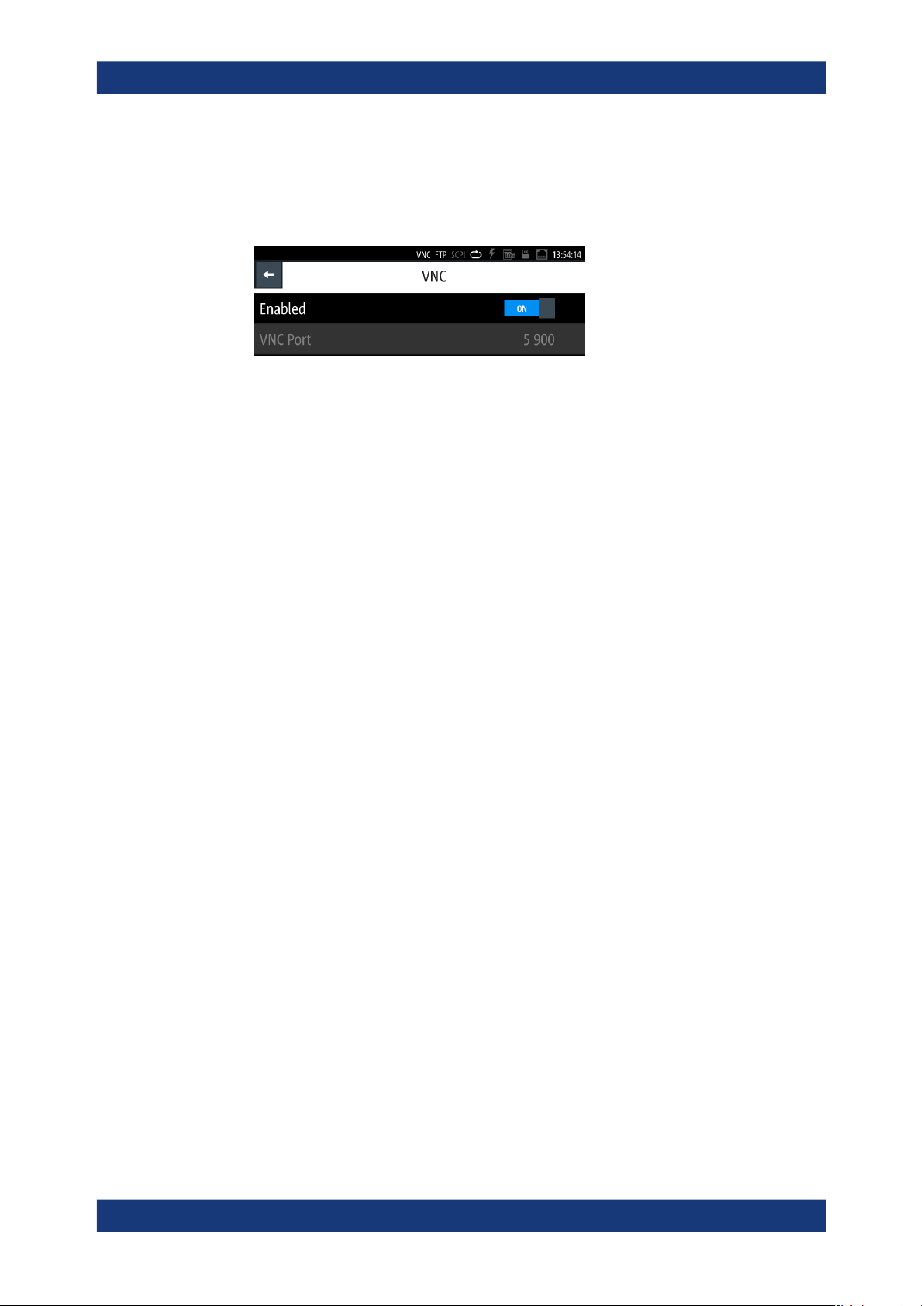
Figure 10-5: VNC settings dialog
The "VNC" dialog enables you to assign a port address for accessing the R&S LCX
over VNC and activate the access.
The remote commands required to configure the network remotely are described in
Section 11.18, "SYSTem subsystem", on page 231.
How to: "Assigning the LAN interface addresses manually" on page 169.
Enabled
Activates remote access over the VNC port.
Remote command:
SYSTem:COMMunicate:NETWork:VNC[:STATe] on page 239
VNC Port
Sets the port number for remote control using a VNC client tool.
How to: see "Assigning the VNC port manually" on page 170.
Remote command:
SYSTem:COMMunicate:NETWork:VNC:PORT on page 238
10.3.4 FTP settings
The file transfer protocol (FTP) provides remote access to the file system of an instru-
ment over LAN.
FTP supports the following operations:
●
Upload files from the remote PC (host) to the instrument.
●
Download files from the instrument to the host.
●
Browse the file system on the instrument remotely.
Establish a connection between the computer and R&S LCX in the network, see
"Establishing the LAN connection" on page 24.
Using an FTP client application on a computer, you can access the internal memory or
a connected USB memory stick of the R&S LCX. The connection enables you to trans-
fer files with operating data, saved device settings, measurement data files or docu-
ments from or to the device.
Remote access settings
Network operation and remote control
R&S
®
LCX Series
165User Manual 1179.2260.02 ─ 08
The file access (access-transparency) depends on the used FTP client. Therefore, it
can be necessary that you have to download a file before you can access or modify it.
Access:
1. Press the [settings] key at the front panel.
2. In the device settings menu, select "Interfaces".
3. Select "Network".
4. Select "FTP".
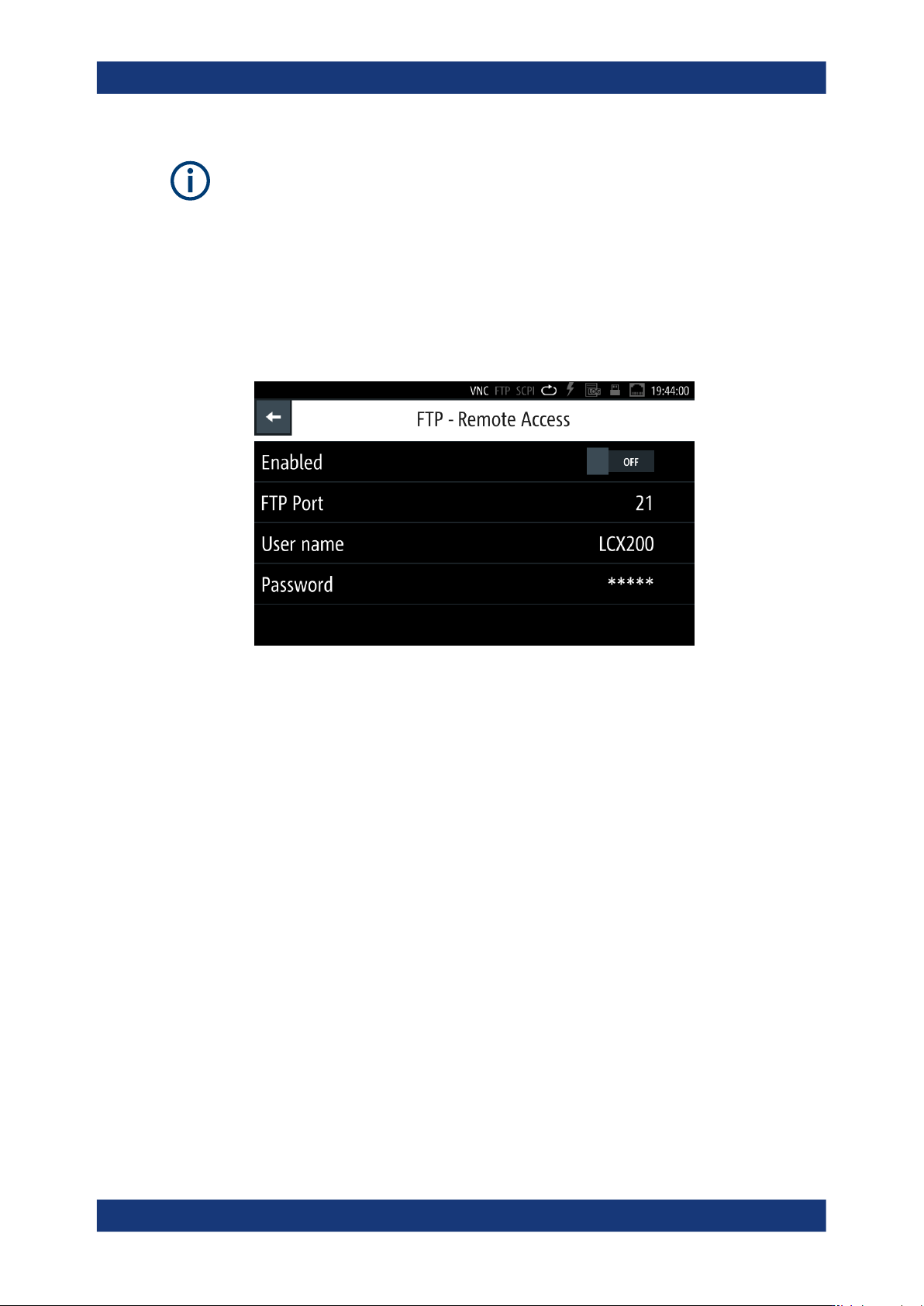
Figure 10-6: FTP settings dialog
For accessing the R&S LCX over FTP, you must assign a port address, a user
name and password to activate the connection.
How to: see "Assigning the VNC port manually" on page 170.
Settings
Enabled.......................................................................................................................165
FTP Port......................................................................................................................165
User name...................................................................................................................166
Password.................................................................................................................... 166
Enabled
Activates remote access over the FTP port.
FTP Port
Sets the port number for remote access, using an FTP client application.
The R&S LCX uses port 21 by default, but you can use any port address in the range
of 100 to 65635.
How to: see "Assigning the FTP port address manually" on page 171.
Remote access settings