LCX_UserManual_en_08_1.pdf - 第143页
General instrument functions R&S ® LCX Series 143 User Manual 1 179.2260.02 ─ 08 Figure 9-14: Save/Recall menu The "Save/Recall" menu provides access to dialogs and editors for managing and saving instrumen…

General instrument functions
R&S
®
LCX Series
142User Manual 1179.2260.02 ─ 08
The R&S LCX scans the USB memory device for software file types. It indicates
the versions of the currently installed and the latest available firmware, including
date and build information.
8. Select the software version you want to install.
9. Select "Update".
The software update starts.
Note: Interrupting the power supply during the firmware update only causes the
update to fail. After the update, the R&S LCX automatically reboots and confirms
with "Success" or "Failed".
However, we recommend that you do not power off the instrument until the update
is completed.
When completed, the R&S LCX confirms that it is ready for operation.
9.12 Save/recall
The "Save/Recall" function enables you to save a certain configuration in a file and
reload it for later reuse.
On power-on, the R&S LCX starts up in the configuration you used before switching
off. It saves the configuration, including autosaved settings in the internal memory
automatically.
With a USB flash drive connected, you can save a file on either the internal memory or
the USB flash drive, with "Internal" as default setting. Without USB connected, the
R&S LCX saves the file internally in the file path /int/settings.
9.12.1 Save/recall settings
With the "Save/Recall Device Settings" functions, you can save the complete instru-
ment settings in files, and reload the settings for reuse.
Access:
1. Press the [settings] key at the front panel.
2. In the "Device" tab, select "Save/Recall Device Settings".
Save/recall
General instrument functions
R&S
®
LCX Series
143User Manual 1179.2260.02 ─ 08
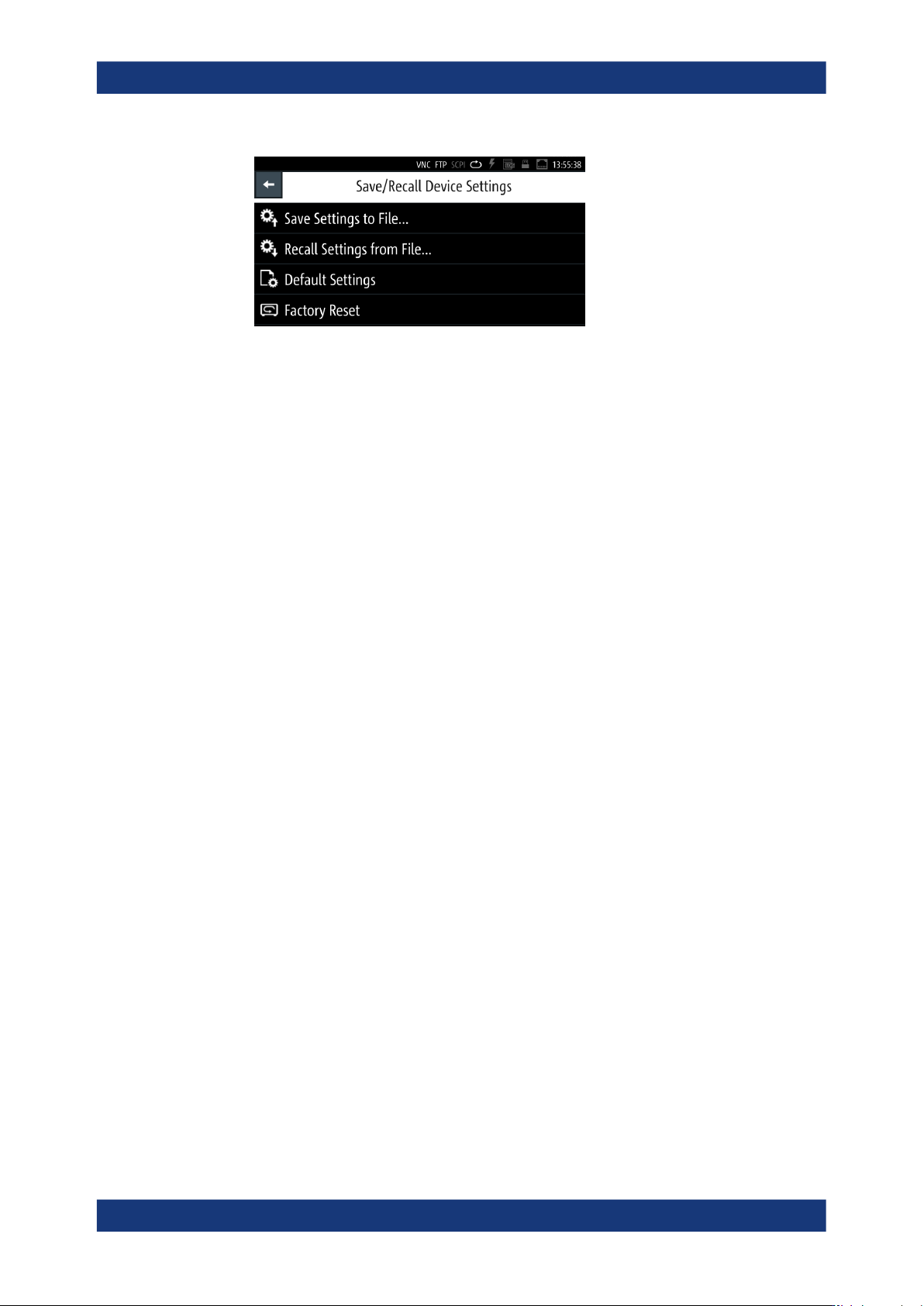
Figure 9-14: Save/Recall menu
The "Save/Recall" menu provides access to dialogs and editors for managing and
saving instrument settings.
The required remote commands are described in Section 11.3, "Common com-
mands", on page 182.
How to: see Section 9.12.2, "Using the save/recall function", on page 144
Settings
Save Settings to file.................................................................................................... 143
Recall Settings from file.............................................................................................. 143
Default Settings...........................................................................................................143
Factory Reset..............................................................................................................143
Save Settings to file...
Saves the current instrument settings under the defined filename.
The R&S LCX opens a file manager window and enables you to replace an existing file
or create a file user-definable filename.
Remote command:
*SAV on page 184
Recall Settings from file...
Reloads a previously saved instrument configuration.
Remote command:
DATA:LIST? on page 198
*RCL on page 184
Default Settings
Resets all user-specific parameters and data to default. The reset function does not
affect general instrument settings.
Remote command:
*RST on page 184
Factory Reset
Resets the instrument to the initial factory settings.
Save/recall

General instrument functions
R&S
®
LCX Series
144User Manual 1179.2260.02 ─ 08
9.12.2 Using the save/recall function
You can save the current instrument settings to a file, and load these settings in one
step again, e.g. to repeat tests with the same settings.
Saving instrument settings
To save the current instrument settings in a file:
1. Press the [settings] key at the front panel.
2. In the "Device" tab, select "Save/Recall Device Settings".
3. Select "Save Settings to File...".
If you have connected an external USB memory device, the R&S LCX opens a
selection editor.
a) Select the memory location, you want to save the settings file.
b) Confirm your selection.
The R&S LCX opens a file selection dialog where you can choose an existing file,
or create a file.
Note: With no USB connected, the instrument leads you to the internal settings
directory directly.
4. To select an existing file:
a) In the file directory window, select the file.
b) Confirm with "Save".
5. To create a settings file:
a) Select the filename entry field.
b) In the on-screen keyboard, enter the filename.
c)
When completed, confirm your entry
.
The R&S LCX saves the current instrument settings.
Recalling instrument settings
To load a settings configuration from a file, proceed the same way:
1. Select [settings] > "Device" > "Save/Recall Device Settings".
2. Select "Recall Settings to File...".
The R&S LCX leads you to the memory location to select the file.
3. Confirm you selection with "Load".
The R&S LCX applies the loaded settings.
Recalling default instrument settings
You can reset all instrument settings to factory default values, without affecting your
specific system settings.
Save/recall