LCX_UserManual_en_08_1.pdf - 第46页
Getting started R&S ® LCX Series 46 User Manual 1 179.2260.02 ─ 08 T o open a dialog T o open one of the dialogs, or editors, you have several options: 1. Press the corresponding hardkey at the front panel, e.g. the …
Getting started
R&S
®
LCX Series
45User Manual 1179.2260.02 ─ 08
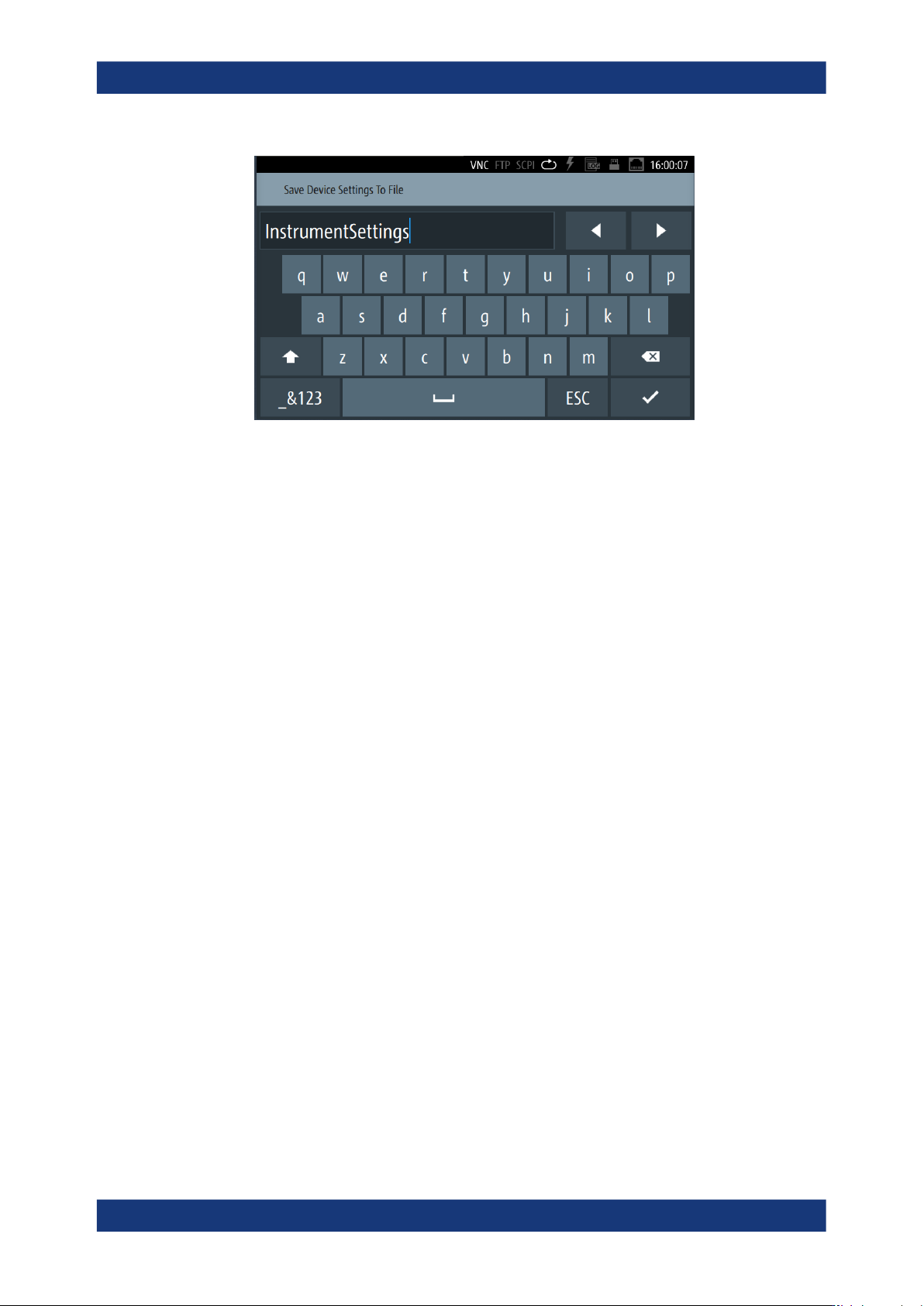
Figure 4-15: Alphanumeric on-screen keyboard
●
Info dialogs
An "Info dialog" appears when an event generates a message. The generically
assigned header shows the affected topic. The message describes the event, and
short instructions lead you through the next steps.
●
Scrollbar
Appears when the list of selection parameters exceeds the size of the screen.
Touch and swipe on the screen to scroll up and down.
●
Progress indicator
Indicates a currently running process. If a process takes some time, a progress bar
shows the current state.
4.4.2.2 Accessing the functionality
All functionalities are provided in dialogs, menus, editors or keypads, as known from
computer programs. You can control the instrument intuitively with the touchscreen.
This section provides an overview of the accessing methods.
Apart from the main menus "Measurement" and "Device", we use the term "dialog" to
refer to all editable windows.
You can access the instrument's functions and settings by using one of the following
controls:
●
System and function keys at the front panel of the instrument
●
Interactive softkeys on the touchscreen, underlined in gray
To open the main menus
To open the two main menus:
1. Press the [settings] at the front panel.
2. Select (tap) the corresponding tab on the screen.
The selection leads you either to a settings parameter directly, or to a dedicated
dialog.
Instrument control

Getting started
R&S
®
LCX Series
46User Manual 1179.2260.02 ─ 08
To open a dialog
To open one of the dialogs, or editors, you have several options:
1. Press the corresponding hardkey at the front panel, e.g. the [Freq.] key.
2. Select (tap) a softkey on the screen, e.g. "Frequency:"
To close a dialog
1. To return to the home screen, press the [home] key.
2. To return to a previous dialog, the R&S LCX provides several softkeys:
● Softkeys that prompt you to confirm your selection, e.g., "Select" or "Ok"
●
The
(back) softkey in the left upper corner of a dialog
● Softkeys that prompt you to confirm your selection, as e.g. "Select" or "Ok"
automatically close a dialog.
● The [Back] key or the [rotary knob] at the front panel
To select a parameter
If many parameters are available, they are often provided in a list:
1. If necessary, scroll through the list.
Tip: You do not need the focus exactly on the bar, touch and swipe the list.
2. As an alternative, you can use the [rotary knob]:
a) Turn the knob to select the parameter.
b) Press the knob to confirm your selection.
4.4.2.3 Entering data
Some parameters have their own key at the front panel.
For data input in dialogs, the instrument provides on-screen keypads for entering
numeric and alphanumeric values. Thus, you can always set the parameters using the
touchscreen, or the navigation controls at the front panel.
To correct an entry
1. To delete an entry, set the cursor to the right of the entry you want to delete. To
select the position:
a) Select (tap) it in the entry field directly.
b) Use the cursor softkeys of the on-screen keypad.
c) Use the [◀], or [▶] keys at the front panel.
2. On the on-screen keypad, select "Clear".
Deletes the entry to the left of the cursor.
3. Enter your correction.
Instrument control

Getting started
R&S
®
LCX Series
47User Manual 1179.2260.02 ─ 08
To complete the entry
To confirm the entry:
►
On the on-screen keyboard, select (confirm).
To abort the entry
► On the on-screen keypad, select "ESC".
The dialog closes without changing the settings.
Pressing the [rotary knob] also cancels the action and returns to the previous
screen.
Entering numeric parameters
To enter values with the on-screen keypad
For numeric settings, the instrument displays the numeric keypad. The units specified
correspond to the units of the parameter.
1. Enter the numeric value.
2. Select the unit button to complete the entry.
The unit is added to the entry.
3.
If the parameter does not require a unit, confirm the entered value with .
To enter values by using the front panel controls
You can also control the R&S LCX with the front panel controls, e.g. if you have locked
the touchscreen.
See Section 9.3.2, "Using the user button function", on page 128.
1. Select the corresponding settings hardkey at the front panel, e.g. select [Freq.].
The on-screen keypad opens.
2. Press the [rotary knob].
The R&S LCX changes to edit mode, and returns to the home screen.
3. Turn the [rotary knob] to select the corresponding entry field (framed orange).
4. To enter a value, e.g. the frequency, use the controls as follows:
a) Pressing the [rotary knob] enables the entry field for editing.
b) Turning the knob decreases or increases the currently selected digit (highligh-
ted in blue).
c) Pressing the button again switches to the next digit.
Alternatively, you can use the [◀] or [▶] keys.
5. To enter a selection editor, e.g. to change a measurement parameter indicated in
the result window:
a) Turn the [rotary knob] to select the parameter (softkey on the screen).
Instrument control