LCX_UserManual_en_08_1.pdf - 第165页
Network operation and remote control R&S ® LCX Series 165 User Manual 1 179.2260.02 ─ 08 The file access (access-transparency) depends on the used FTP client. Therefore, it can be necessary that you have to download …
Network operation and remote control
R&S
®
LCX Series
164User Manual 1179.2260.02 ─ 08
2. In the device settings menu, select "Interfaces".
3. Select "Network".
4. Select "VNC".
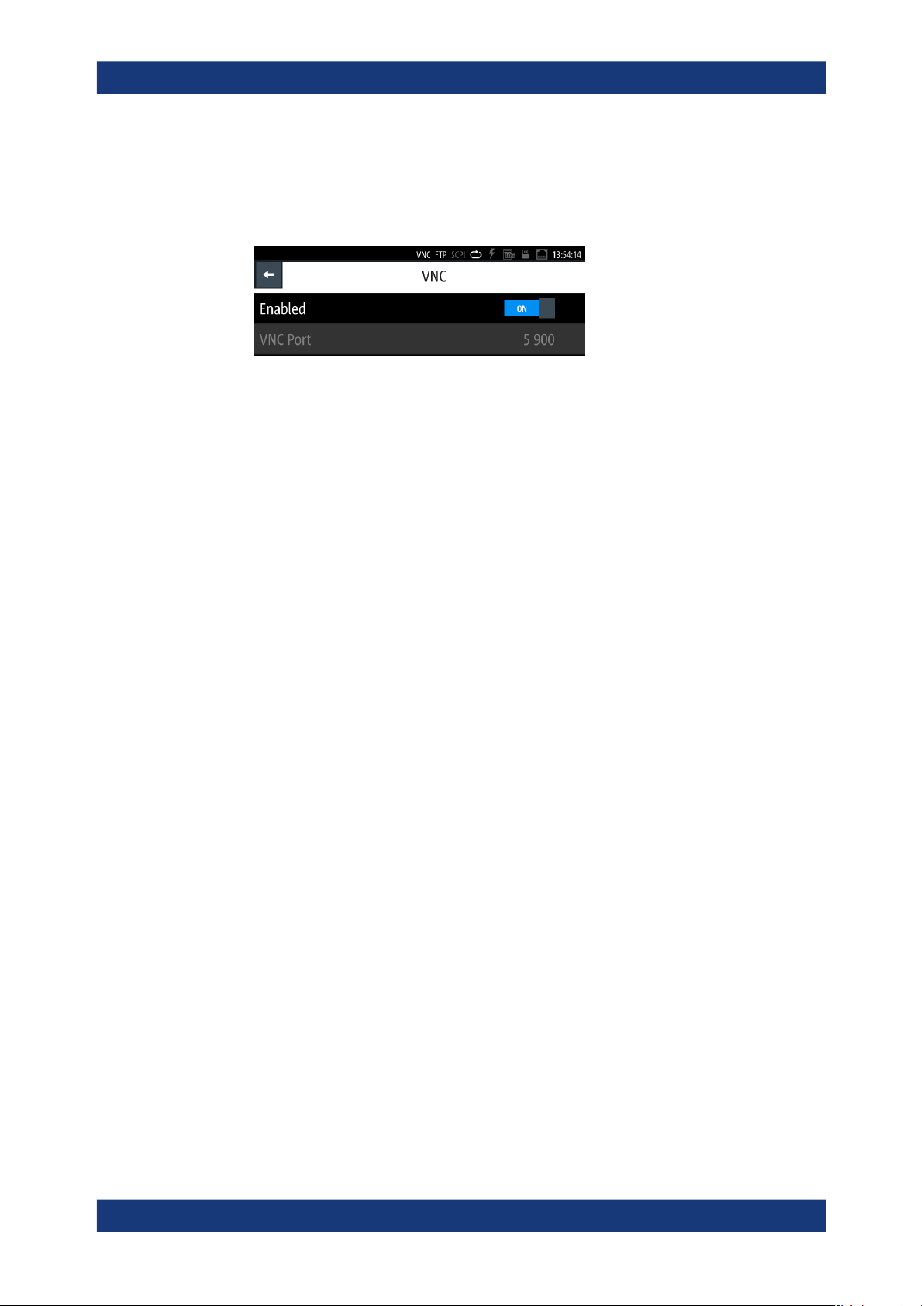
Figure 10-5: VNC settings dialog
The "VNC" dialog enables you to assign a port address for accessing the R&S LCX
over VNC and activate the access.
The remote commands required to configure the network remotely are described in
Section 11.18, "SYSTem subsystem", on page 231.
How to: "Assigning the LAN interface addresses manually" on page 169.
Enabled
Activates remote access over the VNC port.
Remote command:
SYSTem:COMMunicate:NETWork:VNC[:STATe] on page 239
VNC Port
Sets the port number for remote control using a VNC client tool.
How to: see "Assigning the VNC port manually" on page 170.
Remote command:
SYSTem:COMMunicate:NETWork:VNC:PORT on page 238
10.3.4 FTP settings
The file transfer protocol (FTP) provides remote access to the file system of an instru-
ment over LAN.
FTP supports the following operations:
●
Upload files from the remote PC (host) to the instrument.
●
Download files from the instrument to the host.
●
Browse the file system on the instrument remotely.
Establish a connection between the computer and R&S LCX in the network, see
"Establishing the LAN connection" on page 24.
Using an FTP client application on a computer, you can access the internal memory or
a connected USB memory stick of the R&S LCX. The connection enables you to trans-
fer files with operating data, saved device settings, measurement data files or docu-
ments from or to the device.
Remote access settings
Network operation and remote control
R&S
®
LCX Series
165User Manual 1179.2260.02 ─ 08
The file access (access-transparency) depends on the used FTP client. Therefore, it
can be necessary that you have to download a file before you can access or modify it.
Access:
1. Press the [settings] key at the front panel.
2. In the device settings menu, select "Interfaces".
3. Select "Network".
4. Select "FTP".
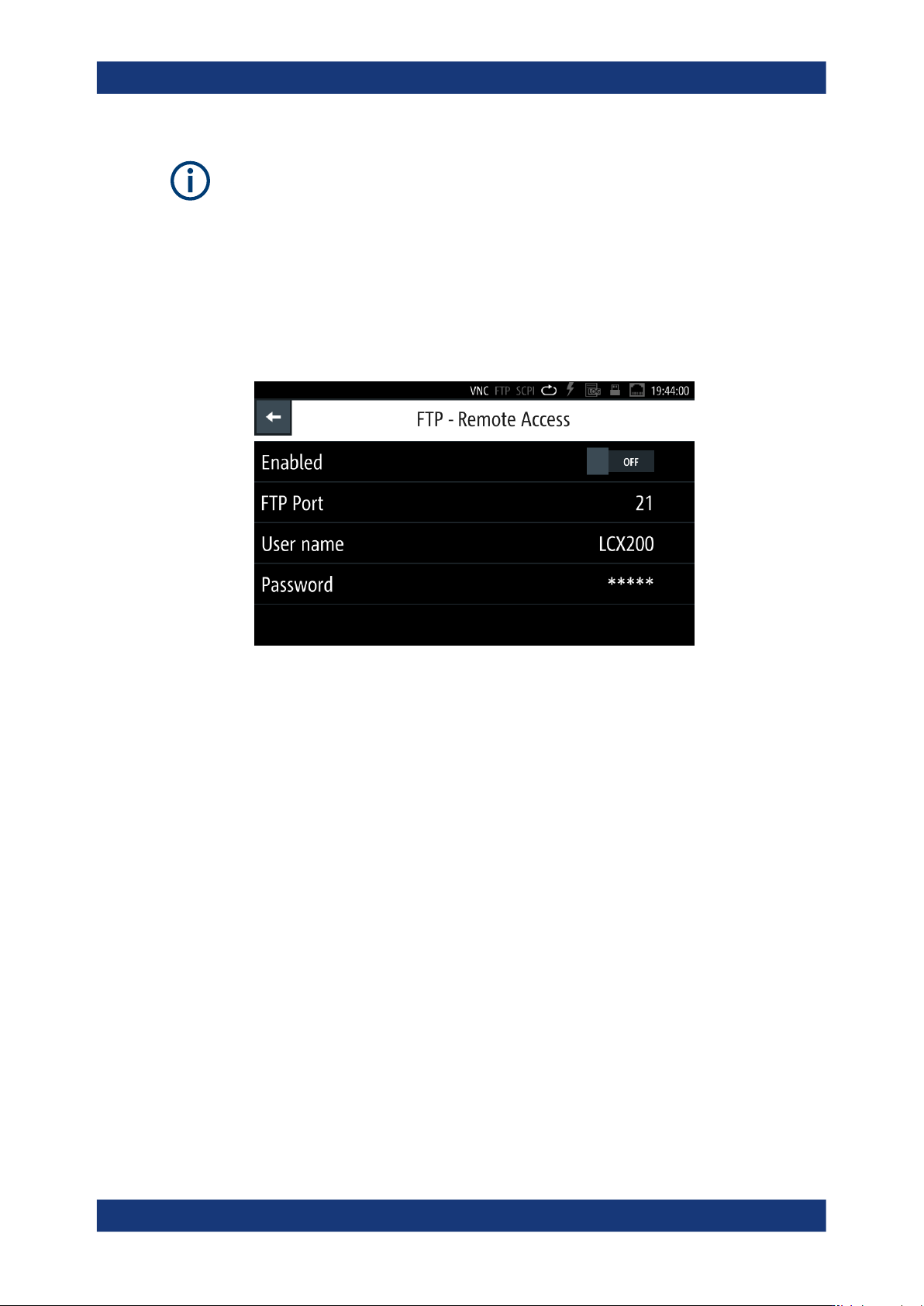
Figure 10-6: FTP settings dialog
For accessing the R&S LCX over FTP, you must assign a port address, a user
name and password to activate the connection.
How to: see "Assigning the VNC port manually" on page 170.
Settings
Enabled.......................................................................................................................165
FTP Port......................................................................................................................165
User name...................................................................................................................166
Password.................................................................................................................... 166
Enabled
Activates remote access over the FTP port.
FTP Port
Sets the port number for remote access, using an FTP client application.
The R&S LCX uses port 21 by default, but you can use any port address in the range
of 100 to 65635.
How to: see "Assigning the FTP port address manually" on page 171.
Remote access settings
Network operation and remote control
R&S
®
LCX Series
166User Manual 1179.2260.02 ─ 08
User name
Sets a user name for the FTP connection.
The user name consists of the instrument name by default, e.g. LCX200. To assign a
user-specific name, you can set any sequence with at least 1 letter and 1 digit.
How to: see "Assigning the FTP port address manually" on page 171.
Password
Sets a password for the FTP connection.
The password is a string of characters to verify the identity for authentication. By
default, the password for FTP access corresponds to the serial number of your instru-
ment.
Note: We recommend that you assign a dedicated user-specific password. You can set
any character sequence with at least 1 letter and 1 digit.
How to: see "Assigning the FTP port address manually" on page 171.
10.3.5 USB settings
For remote control over USB, you can address the R&S LCX over the USB TMC class,
or the virtual COM port CDC (VCP).
Access:
1. Press the [settings] key at the front panel.
2. In the device settings menu, select "Interfaces".
3. Select "USB Class".
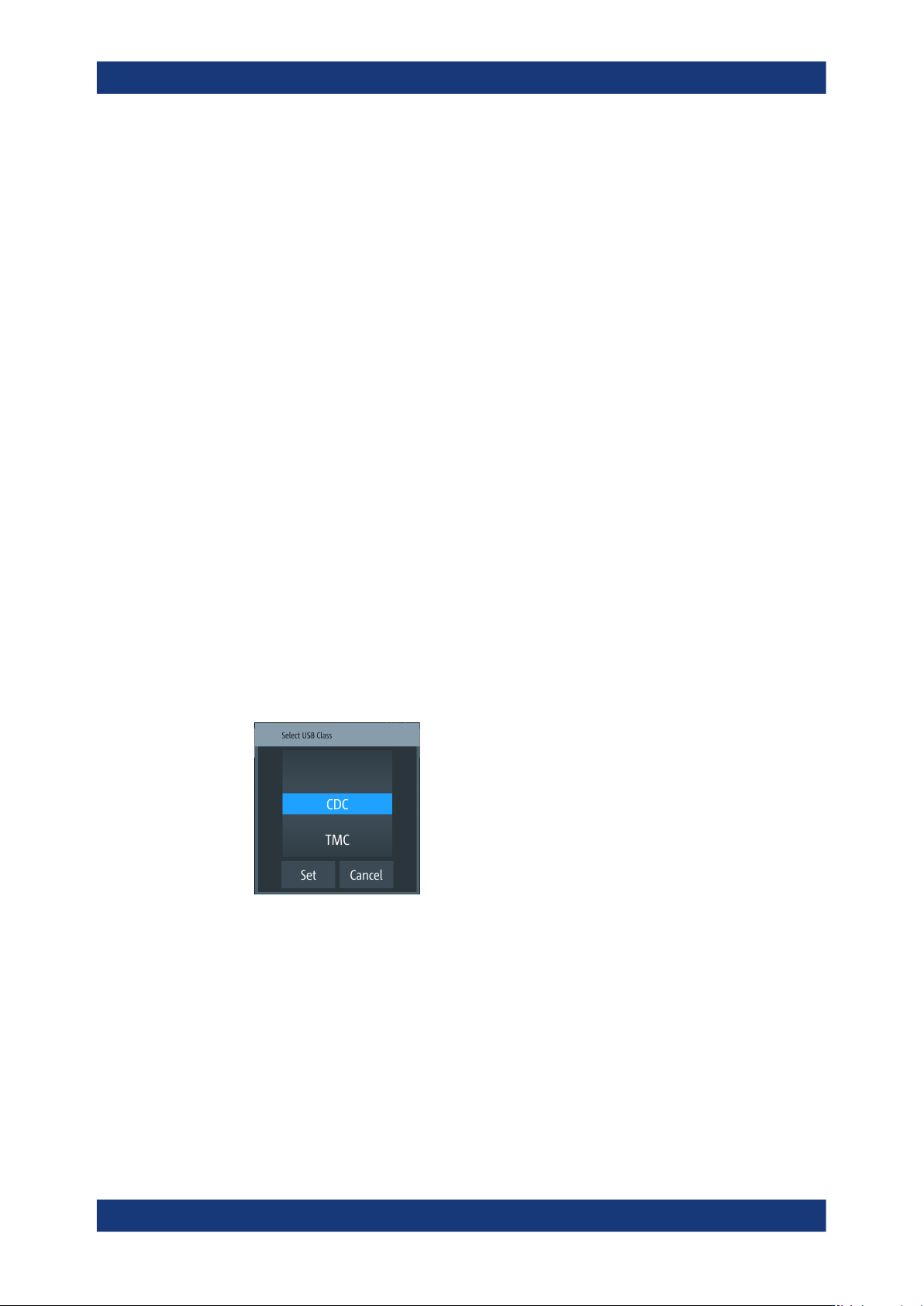
Figure 10-7: USB class selection editor
The R&S LCX activates the connection and indicates the selected USB interface
port on top of the display.
USB Class
Selects the communication class protocol.
The R&S LCX supports CDC and TMC communication, see Section 10.2.2, "USB
interface", on page 154.
Remote access settings