LCX_UserManual_en_08_1.pdf - 第145页
General instrument functions R&S ® LCX Series 145 User Manual 1 179.2260.02 ─ 08 T o reset the instrument to factory default settings: 1. Select [settings] > "Device" > "Save/Recall Device Settin…

General instrument functions
R&S
®
LCX Series
144User Manual 1179.2260.02 ─ 08
9.12.2 Using the save/recall function
You can save the current instrument settings to a file, and load these settings in one
step again, e.g. to repeat tests with the same settings.
Saving instrument settings
To save the current instrument settings in a file:
1. Press the [settings] key at the front panel.
2. In the "Device" tab, select "Save/Recall Device Settings".
3. Select "Save Settings to File...".
If you have connected an external USB memory device, the R&S LCX opens a
selection editor.
a) Select the memory location, you want to save the settings file.
b) Confirm your selection.
The R&S LCX opens a file selection dialog where you can choose an existing file,
or create a file.
Note: With no USB connected, the instrument leads you to the internal settings
directory directly.
4. To select an existing file:
a) In the file directory window, select the file.
b) Confirm with "Save".
5. To create a settings file:
a) Select the filename entry field.
b) In the on-screen keyboard, enter the filename.
c)
When completed, confirm your entry
.
The R&S LCX saves the current instrument settings.
Recalling instrument settings
To load a settings configuration from a file, proceed the same way:
1. Select [settings] > "Device" > "Save/Recall Device Settings".
2. Select "Recall Settings to File...".
The R&S LCX leads you to the memory location to select the file.
3. Confirm you selection with "Load".
The R&S LCX applies the loaded settings.
Recalling default instrument settings
You can reset all instrument settings to factory default values, without affecting your
specific system settings.
Save/recall
General instrument functions
R&S
®
LCX Series
145User Manual 1179.2260.02 ─ 08
To reset the instrument to factory default settings:
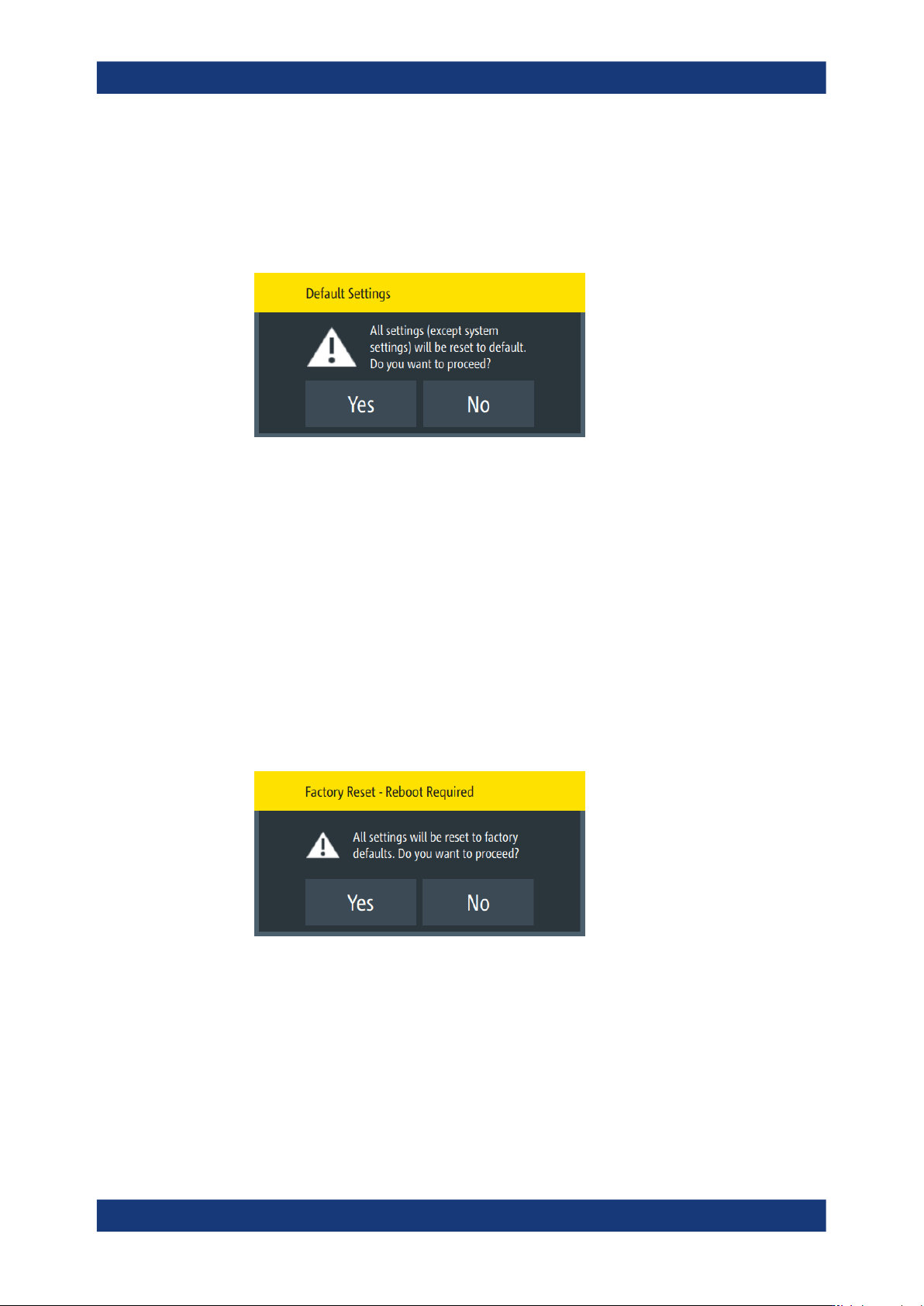
1. Select [settings] > "Device" > "Save/Recall Device Settings".
2. Select "Default Settings".
The R&S LCX displays a message that prompts you to confirm.
If confirmed, the R&S LCX resets current instrument settings to factory default.
3. When completed, a confirming message pops up.
4. Confirm to complete the process.
Resetting the instrument to the initial factory settings
You can reset all instrument settings, including the system settings to the factory
default values. In addition, the factory reset can delete all files saved in the internal
memory.
To execute a factory reset, proceed the same way:
1. Select [settings] > "Device" > "Save/Recall Device Settings".
2. Select "Factory Reset".
The R&S LCX displays a message that prompts you to confirm.
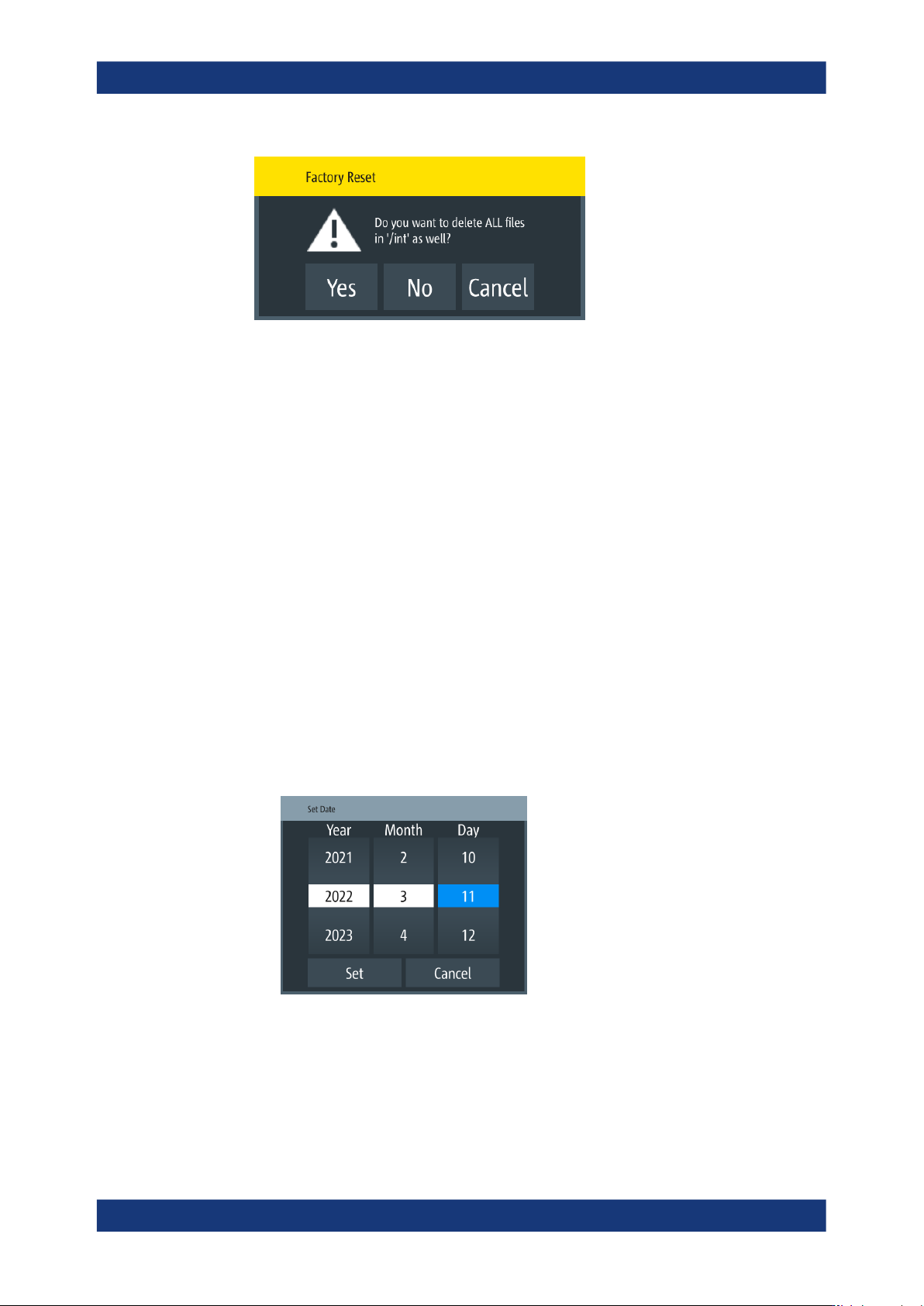
3. If confirmed, a second message provides to delete all internally saved files.
Save/recall
General instrument functions
R&S
®
LCX Series
146User Manual 1179.2260.02 ─ 08
4. Confirm the prompt accordingly.
The R&S LCX resets all instrument settings to factory default and shuts down.
5. Press the [power] to restart the instrument.
9.13 Customizing general instrument settings
The R&S LCX enables you to set the instrument internal clock and calender, or to cus-
tomize the brightness of the screen display and the front panel keys. In addition, you
can activate an acoustic sound for specific occurrences.
Setting date and time
To set the instrument internal calender and clock:
1. Press the [settings] key at the front panel.
2. In the "Device" tab, select "Date & Time".
3. To set the date:
a) Select the "Set Date" softkey.
An on-screen editor with calender entries opens.
Figure 9-15: Date editor
b) Select year, month and date.
c) Confirm your entry with "Set".
4. To set the time:
Customizing general instrument settings