LCX_UserManual_en_08_1.pdf - 第147页
General instrument functions R&S ® LCX Series 147 User Manual 1 179.2260.02 ─ 08 a) Select the "Set T ime" softkey . An on-screen editor with clock entries opens. Figure 9-16: Time editor b) Select "Ho…
General instrument functions
R&S
®
LCX Series
146User Manual 1179.2260.02 ─ 08
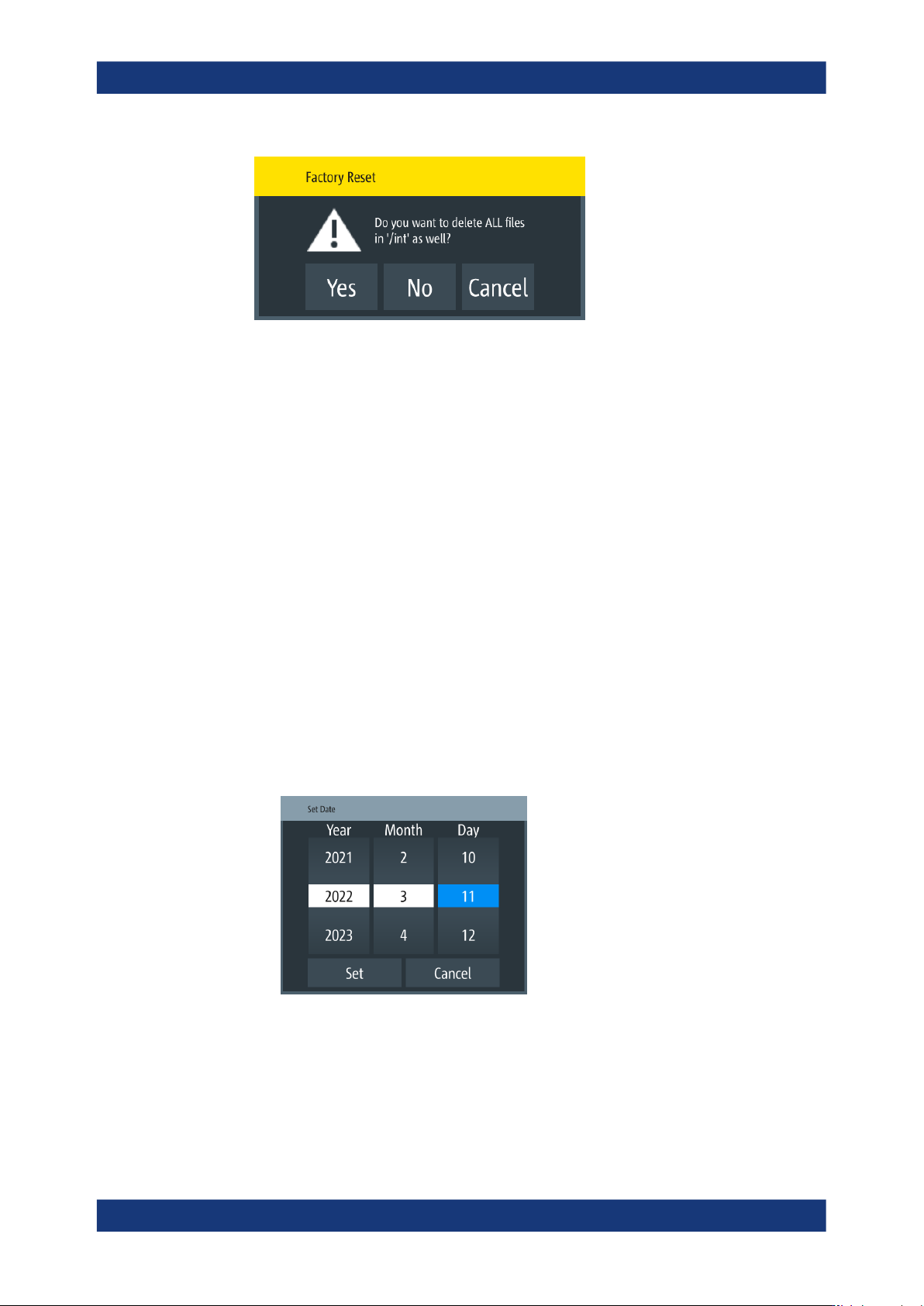
4. Confirm the prompt accordingly.
The R&S LCX resets all instrument settings to factory default and shuts down.
5. Press the [power] to restart the instrument.
9.13 Customizing general instrument settings
The R&S LCX enables you to set the instrument internal clock and calender, or to cus-
tomize the brightness of the screen display and the front panel keys. In addition, you
can activate an acoustic sound for specific occurrences.
Setting date and time
To set the instrument internal calender and clock:
1. Press the [settings] key at the front panel.
2. In the "Device" tab, select "Date & Time".
3. To set the date:
a) Select the "Set Date" softkey.
An on-screen editor with calender entries opens.
Figure 9-15: Date editor
b) Select year, month and date.
c) Confirm your entry with "Set".
4. To set the time:
Customizing general instrument settings
General instrument functions
R&S
®
LCX Series
147User Manual 1179.2260.02 ─ 08
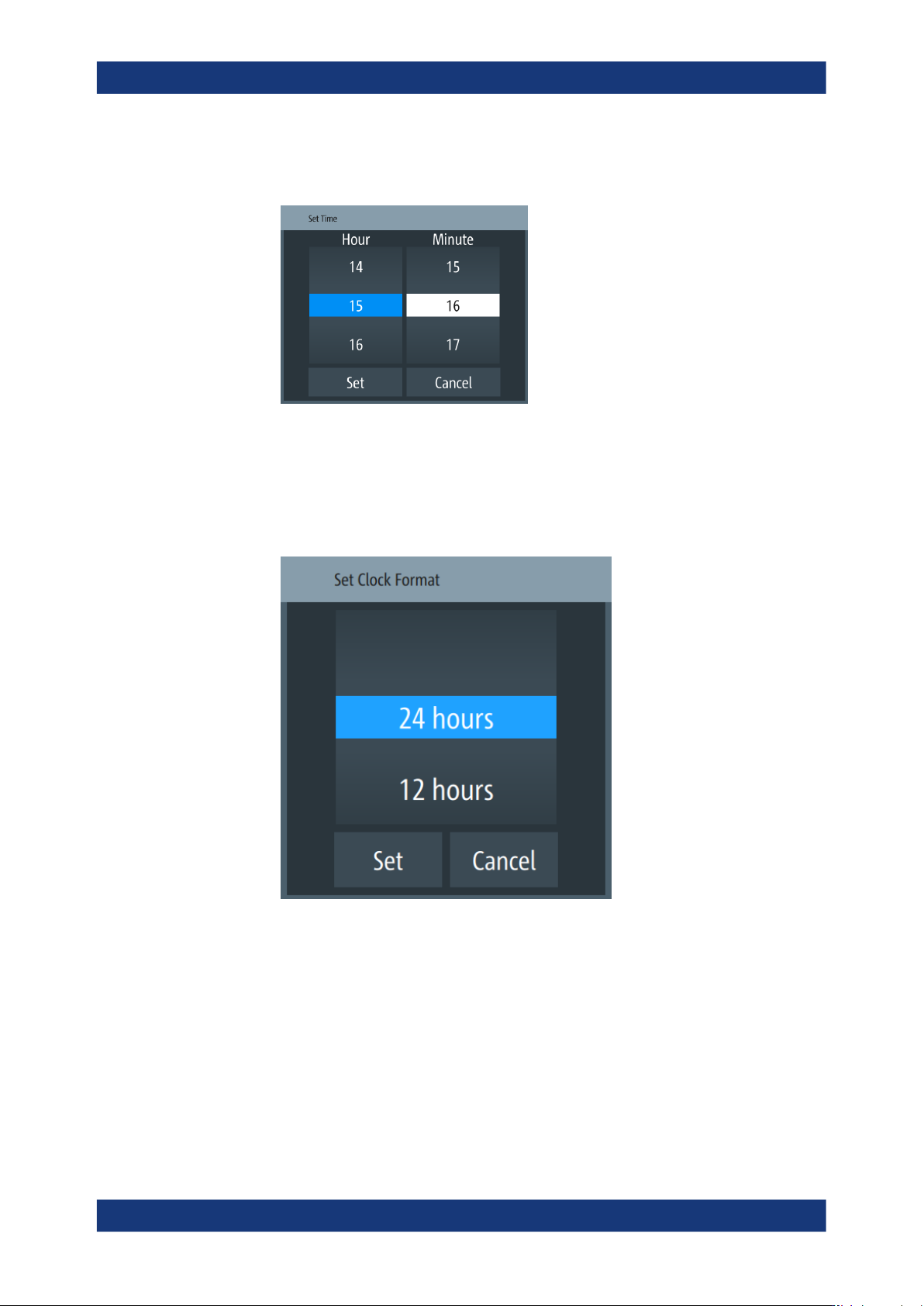
a) Select the "Set Time" softkey.
An on-screen editor with clock entries opens.
Figure 9-16: Time editor
b) Select "Hour" and "Minute".
c) Confirm your entry.
5. To change the clock format:
a) Select "Change Clock Format"
Figure 9-17: Clock format editor
b) Set the format and confirm.
Customizing the appearance
To adjust the brightness of the display and front panel keys:
1. Press the [settings] key at the front panel.
2. In the "Device" tab, select "Appearance".
3. To change the brightness:
Customizing general instrument settings

General instrument functions
R&S
®
LCX Series
148User Manual 1179.2260.02 ─ 08
a) Select the corresponding softkey.
Figure 9-18: Brightness editor
b) Shift the scrollbar to the right, or to the left, e.g. to set "50%".
c) Confirm with "OK".
4. Close the appearance dialog with "OK".
Customizing the sound settings
To activate a beep on error:
1. Press the [settings] key at the front panel.
2. In the "Device" tab, select "Sound".
3.
Activate the beeper with
.
The R&S LCX generates a beep on error and warnings, see Section 9.8, "Sound",
on page 134.
Customizing general instrument settings