LCX_UserManual_en_08_1.pdf - 第141页
General instrument functions R&S ® LCX Series 141 User Manual 1 179.2260.02 ─ 08 2. In the "Device" tab, select "Update Device". The update device dialog provides access to the memory to upload th…

General instrument functions
R&S
®
LCX Series
140User Manual 1179.2260.02 ─ 08
To open the device information file
1. Create a device information file.
How to: "To create a device information file" on page 139.
2. Save the device information file on a USB memory device.
How to: see "To export a device information file" on page 139.
3. Upload the file on a PC.
Note: The actual file format is gzip. Therefore, it is necessary to rename the file to
open it.
4. Rename the file to service.gz.
5. Extract the file.
6. Open the file using a text editor.
The file shows the stored device information in xml format.
9.11 Update device
The update functionality enables you to update the firmware of the instrument. Using
the USB interface at the front panel, you can provide the installation file for the update.
Required equipment
●
Software:
Software update file RS_LCRxxx_Software_<version>.zip
We recommend that you use the latest software version, available on the product
page at www.rohde-schwarz.com/firmware/lcr.
●
Hardware:
USB memory stick with enough free space to save the update file.
The memory stick does not need to be bootable and previous data on the stick is
not affected. Several update files can reside on the stick in parallel. During update
procedure, the stick is not modified by the instrument.
How to: see Section 9.11.2, "Updating the instrument software", on page 141
9.11.1 Update device settings
With the update functionality, you can install a new version of the instrument software.
To provide the update, use a USB memory stick for file transfer.
Access:
1. Press the [settings] key at the front panel.
Update device
General instrument functions
R&S
®
LCX Series
141User Manual 1179.2260.02 ─ 08
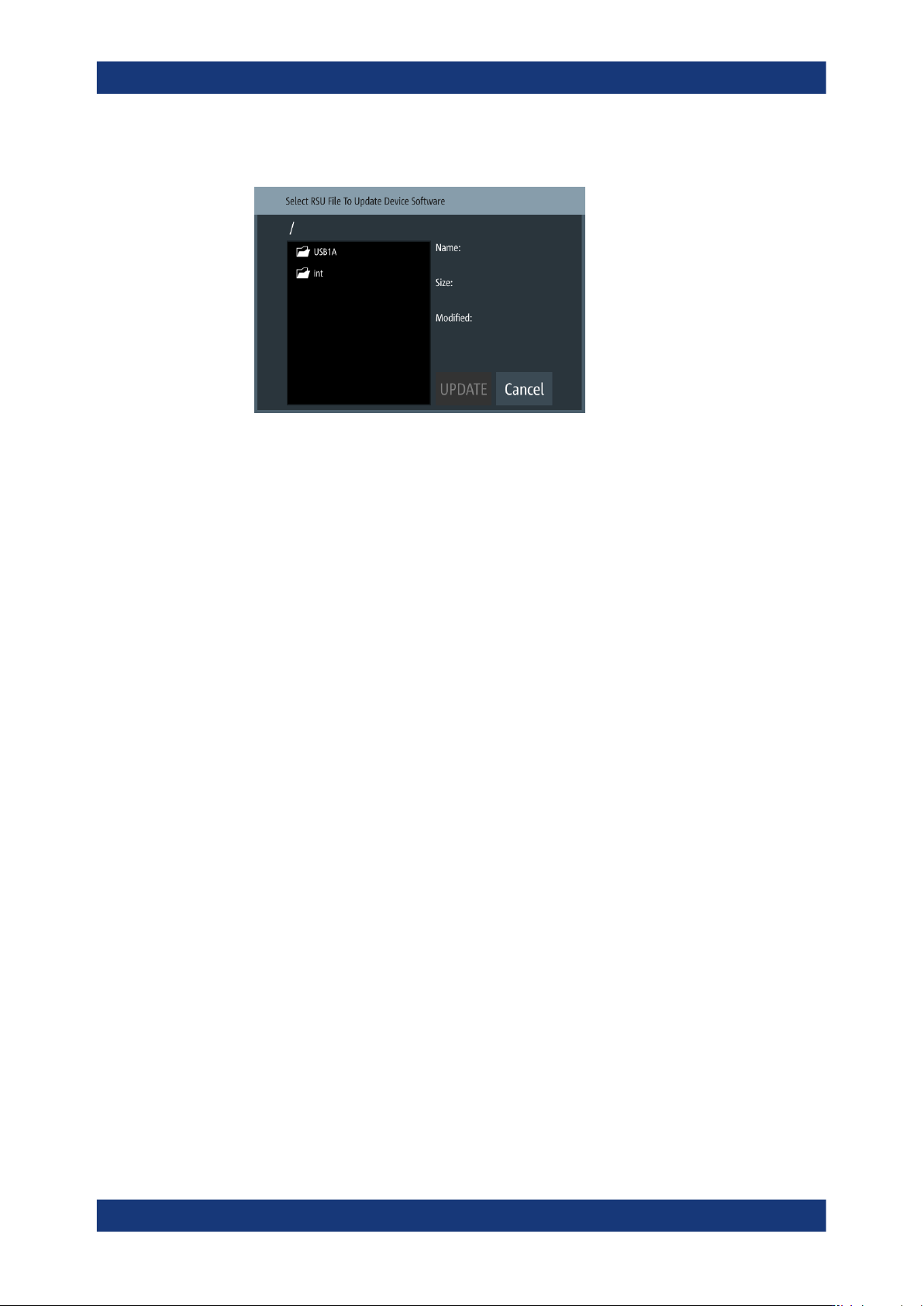
2. In the "Device" tab, select "Update Device".
The update device dialog provides access to the memory to upload the instrument
software file. The file manager dialog enables you to select the file directory and
provides information on the currently installed software version.
UPDATE......................................................................................................................141
UPDATE
Starts the software update.
9.11.2 Updating the instrument software
The following instructions show how to proceed for updating the instrument software
version on the instrument.
Updating the instrument software
We recommend that you use the latest software version available on the product page
at www.rohde-schwarz.com/firmware/lcx.
To install a new software version:
1. Download the latest version of the R&S LCX software from the Rohde & Schwarz
website.
2. Unpack the compressed software *.zip file if it does not unpack during download
automatically.
3. Save the file in the root directory of the USB memory stick.
4. Connect the USB memory stick to the USB interface at the front panel of the
R&S LCX.
5. Press the [settings] key at the front panel.
6. In the "Device" tab, select "Update Device".
7. Select the "USB1A" memory.
Update device

General instrument functions
R&S
®
LCX Series
142User Manual 1179.2260.02 ─ 08
The R&S LCX scans the USB memory device for software file types. It indicates
the versions of the currently installed and the latest available firmware, including
date and build information.
8. Select the software version you want to install.
9. Select "Update".
The software update starts.
Note: Interrupting the power supply during the firmware update only causes the
update to fail. After the update, the R&S LCX automatically reboots and confirms
with "Success" or "Failed".
However, we recommend that you do not power off the instrument until the update
is completed.
When completed, the R&S LCX confirms that it is ready for operation.
9.12 Save/recall
The "Save/Recall" function enables you to save a certain configuration in a file and
reload it for later reuse.
On power-on, the R&S LCX starts up in the configuration you used before switching
off. It saves the configuration, including autosaved settings in the internal memory
automatically.
With a USB flash drive connected, you can save a file on either the internal memory or
the USB flash drive, with "Internal" as default setting. Without USB connected, the
R&S LCX saves the file internally in the file path /int/settings.
9.12.1 Save/recall settings
With the "Save/Recall Device Settings" functions, you can save the complete instru-
ment settings in files, and reload the settings for reuse.
Access:
1. Press the [settings] key at the front panel.
2. In the "Device" tab, select "Save/Recall Device Settings".
Save/recall