LCX_UserManual_en_08_1.pdf - 第136页
General instrument functions R&S ® LCX Series 136 User Manual 1 179.2260.02 ─ 08 ● "Deactivation" displays options whose licenses have expired or which have been removed. With the softkeys on the left, you …
General instrument functions
R&S
®
LCX Series
135User Manual 1179.2260.02 ─ 08
How to: see "Customizing the sound settings" on page 148.
Error Beep...................................................................................................................135
Error Beep
Generates an acoustic signal when an error occurs.
"On"
Beeps on error.
"Off"
No beep.
Remote command:
SYSTem:BEEPer:WARNing:STATe on page 236
SYSTem:BEEPer:WARNing[:IMMediate] on page 236
SYSTem:BEEPer[:COMPlete]:STATe on page 236
SYSTem:BEEPer[:COMPlete][:IMMediate] on page 236
9.9 Licenses
The R&S LCX provides options that you can purchase and activate. An option is ready
to operate after it is enabled with a License key supplied with the option. The license
key is delivered as a file or on paper.
9.9.1 Licenses settings
The "Licenses" manager function enables you to activate an option with a license key
you can install either from an *.xml file, or enter manually.
Access:
1. Press the [settings] key at the front panel.
2. In the "Device" tab, select "Licenses".
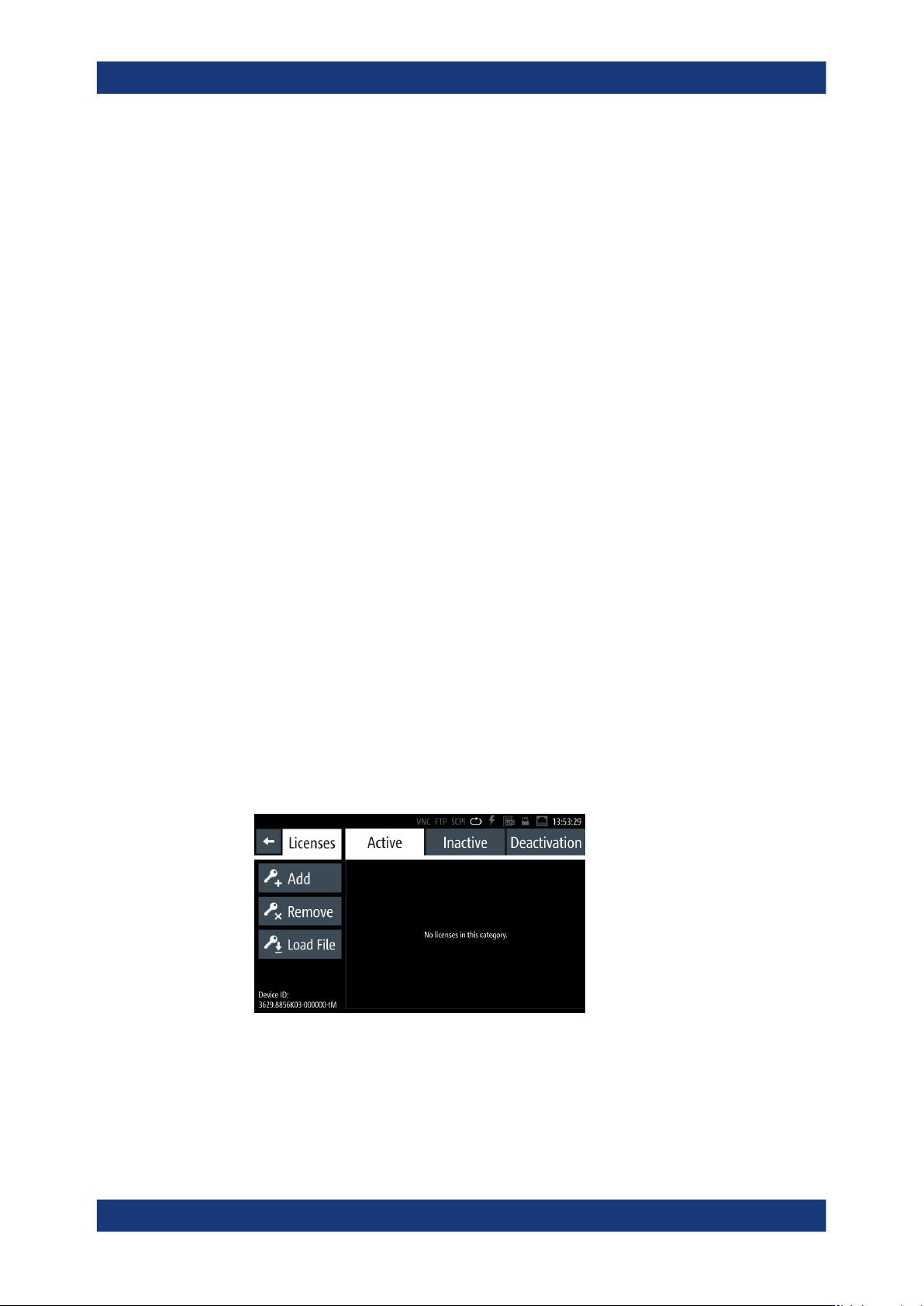
Figure 9-12: Licenses dialog
The licenses dialog provides all information on installed licenses and their current
activity state:
● "Active" displays options that are currently activate in the instrument.
● "Inactive" displays options that are installed but currently not active.
Licenses

General instrument functions
R&S
®
LCX Series
136User Manual 1179.2260.02 ─ 08
● "Deactivation" displays options whose licenses have expired or which have
been removed.
With the softkeys on the left, you can register a new option, and activate or deacti-
vate registered options.
How to: see Section 9.9.2, "Managing licenses", on page 136.
Add / Remove
Opens an on-screen keypad to enter the license key manually.
Enables you to register a new option.
Enables you to remove a registered option.
Load File
Opens a file manager window to load a license key file, e.g. from a connected USB
memory device.
9.9.2 Managing licenses
An option is ready for operation after it is enabled with an activation code, referred to
as a license key. To activate an option and to unlock the features that are bound to the
option, you need to reboot the R&S LCX.
The following examples guide you through the steps of registering or deactivating
licenses.
Loading the license key from a file
To install an XML file, proceed as follows:
1. On a PC, copy the *.xml file containing the license key to a USB memory stick.
2. Connect the USB flash drive to the USB B connector at the front panel of the
instrument.
3. To access the license manager dialog, select settings > "Device" > "Licenses".
4. Select "Load File" to load the license file from the USB flash drive.
The R&S LCX applies the license key. It displays a message "Devicekey is instal-
led".
Note: For the license to take effect, the R&S LCX must reboot.
5. Switch the instrument off and on again using the On/Standby key.
The instrument restarts and activates the option and its features. It lists the option
in the "Active" window.
Inserting the license key manually
To enter the license key manually:
1. Get the sheet with the license key.
2. To access the license manager dialog, select [settings] > "Device" > "Licenses".
Licenses
General instrument functions
R&S
®
LCX Series
137User Manual 1179.2260.02 ─ 08
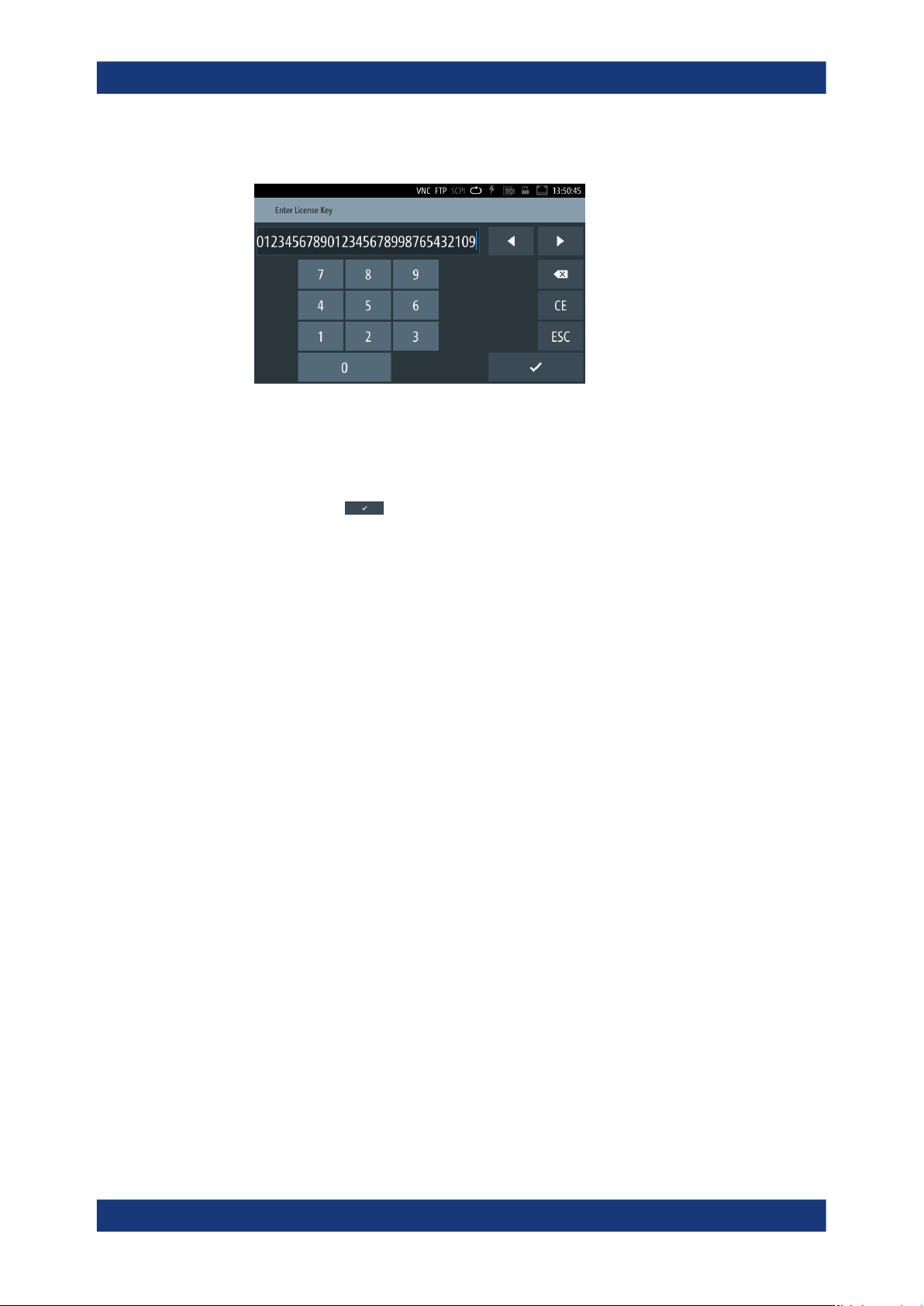
3. Select "Add" to open the "Enter License Key" keypad.
Figure 9-13: License key on-screen keypad
4. Enter the key (30-digits) of the option in the entry box.
5. Review your input carefully.
6.
Confirm with
.
The R&S LCX applies the license key. It displays a message "Devicekey is instal-
led".
Note: For the license to take effect, the R&S LCX must reboot.
7. Switch the instrument off and on again using the On/Standby key.
The instrument restarts and activates the option and its features. It lists the option
in the "Active" window.
Removing a license key
To remove a registered option, you must also enter the license key. You can load the
license key either from the *.xml file or enter it manually.
1. To upload the key from the *.xml file, proceed as described in "Loading the
license key from a file" on page 136.
2. To remove the option manually, select "Remove" in the license dialog.
The R&S LCX displays the "Enter Deactivation Key" on-screen keypad.
3. To enter the license key, proceed the same way as described in "Inserting the
license key manually" on page 136.
The instrument uninstalls the license and displays the message "Devicekey is
removed". It deactivates the option displays it in the "Deactivation" window.
4. For the deactivation to take effect, restart the R&S LCX.
The instrument restarts and lists the deactivated in the "Deactivation" window.
Licenses