YSi-SP_Ope_E.pdf - 第106页
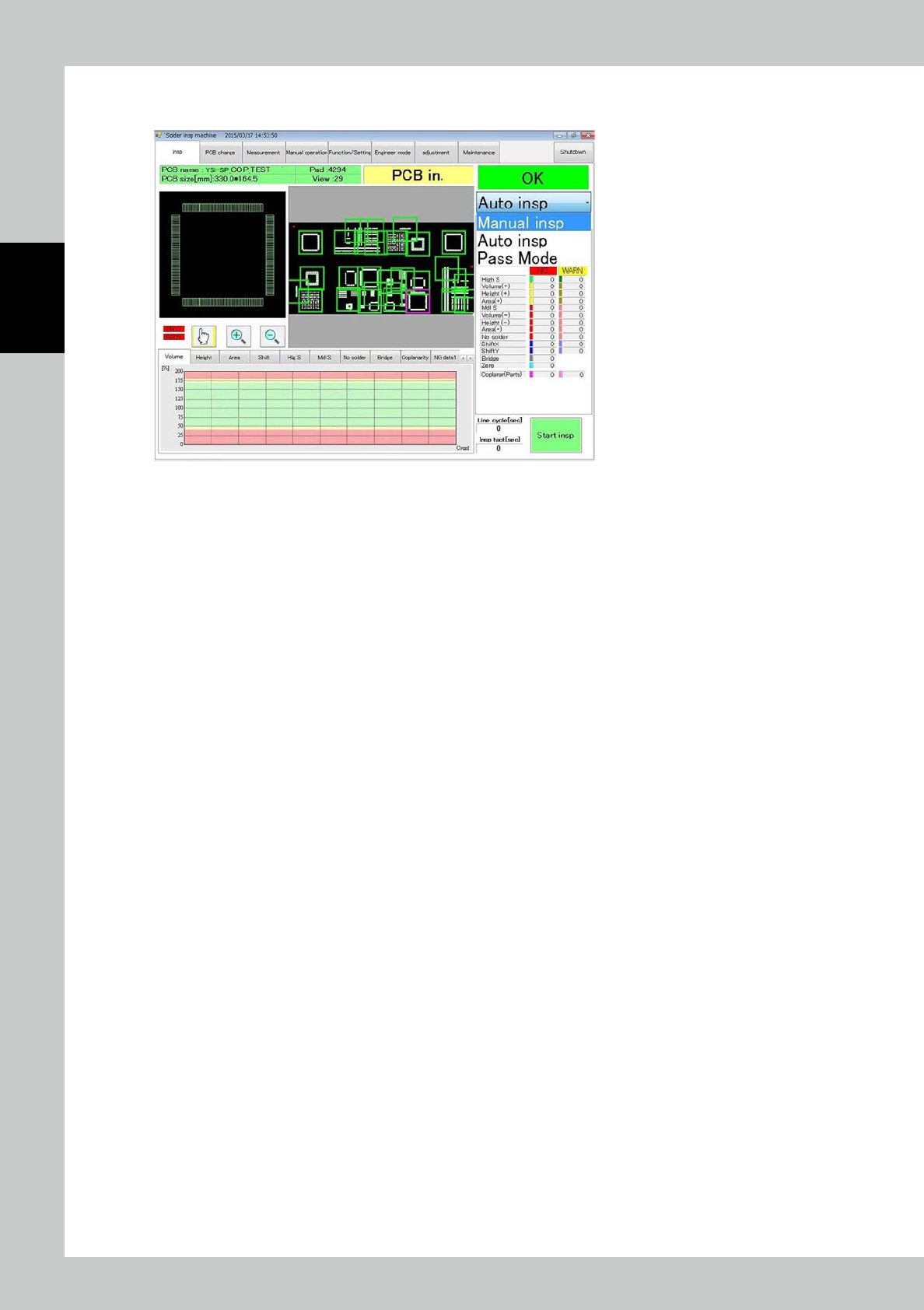
2-69 2 Operation 4.2 Editing PCB Data Edit the created inspection program. T o edit the inspection program, y ou must log in at the engineer privilege. T ouc h the engineer mode tab on the main menu to open the engineer …
2-68
2
Operation
Click on the [Next>>] button.
The PCB type is automatically switched and the system becomes ready for inspection.
24297-KMN-00
2-69
2
Operation
4.2 Editing PCB Data
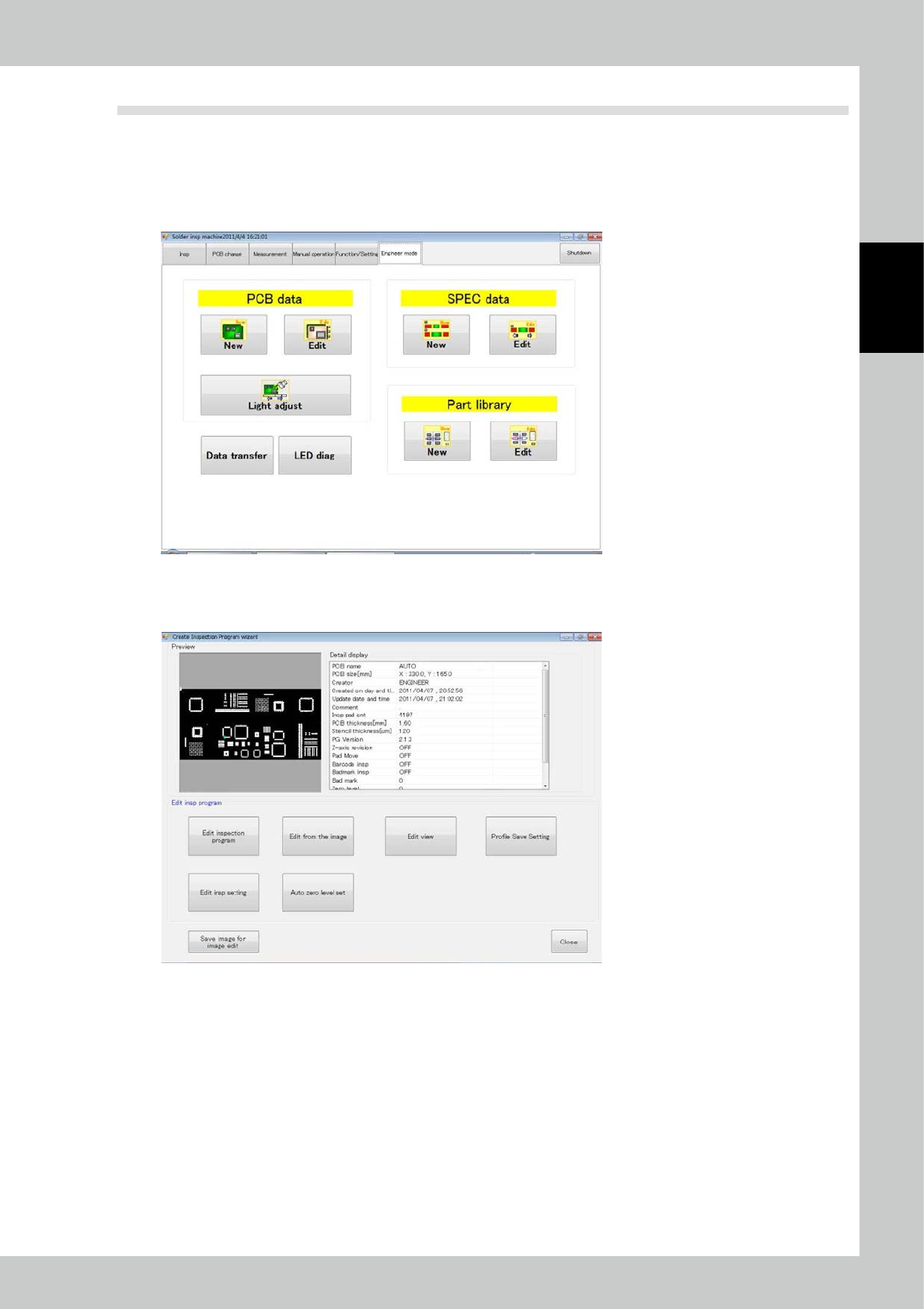
Edit the created inspection program.
To edit the inspection program, you must log in at the engineer privilege.
Touch the engineer mode tab on the main menu to open the engineer mode screen.
Select [Edit] or [Light Adjust] for the PCB data to edit the program.
24298-KMN-00
1. To edit data other than the light intensity, touch the [Edit] button.
2. Select details of editing according to the editing wizard.
24299-KMN-00
2-70
2
Operation
4.2.1 Image Editing
Edit inspection pads, zero level and fiducial marks.
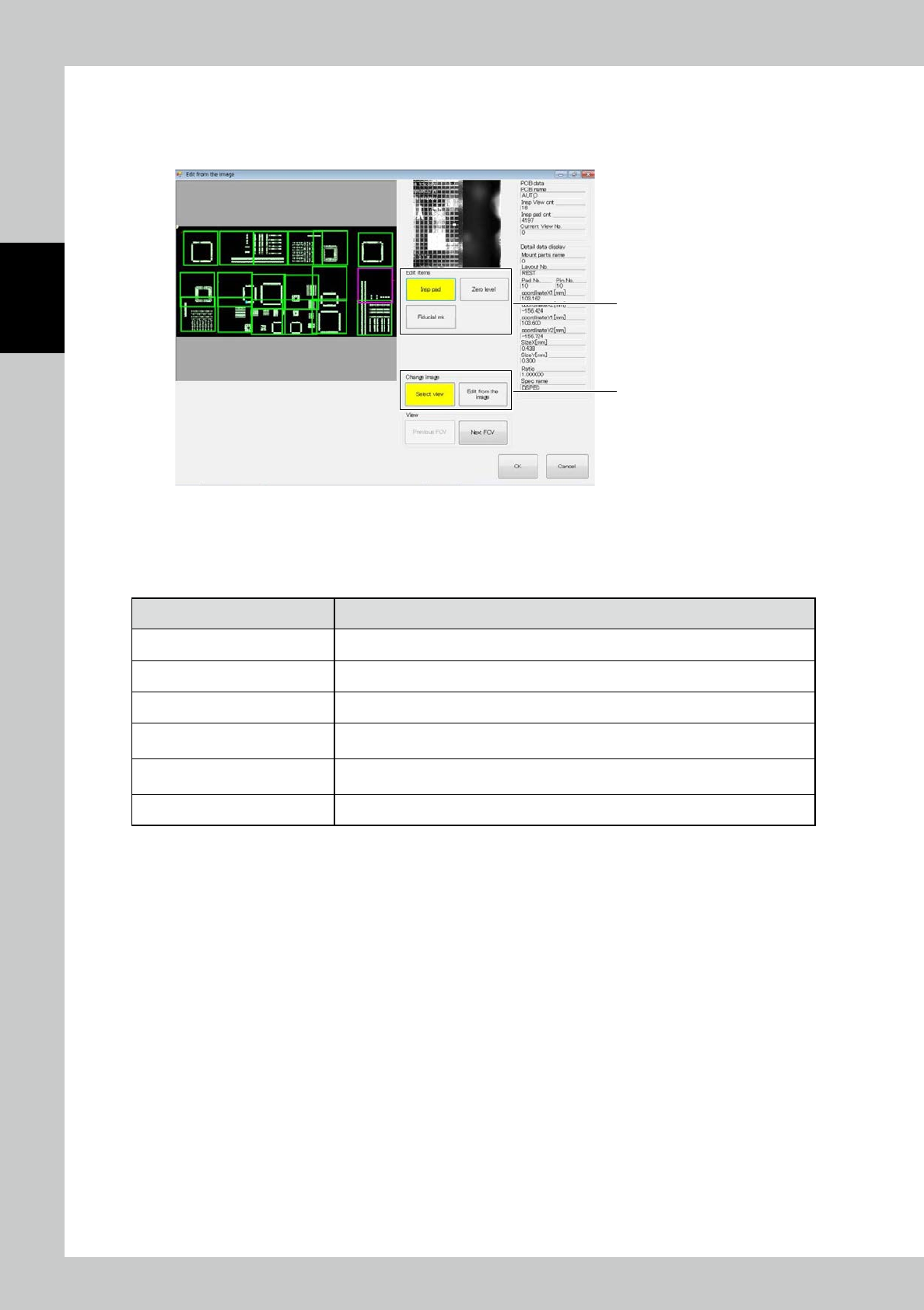
1. Touch the [edit] button to open the screen shown below.
3
2
242A0-KMN-00
2. Select the editing item among the [Insp pad], [Zero level] and [Fiducial mk] buttons.
3. Select the desired editing operation. The displayed options vary according to the button selected in step 2.
■
Description of screen
Name Function
Image The image of the whole PCB and the image of the selected field of view are displayed.
PCB data The data about the selected PCB is displayed.
Detail data The detail data about the selected pad is displayed.
[Select view] button
The image of the whole PCB is displayed on the left side in a large size. This function is
useful to view the entire PCB or select the field of view.
[Edit from the image] button
The image of the field of view is displayed on the left side in a large size. This function
is useful to finely adjust the pad or zero level.
[Previous FOV] / [Next FOV] button Move the selected field of view to a previous or next one.