YSi-SP_Ope_E.pdf - 第142页
3-7 3 Optional Functions 1.6 If There Is a 2D Code Read Error A read error may be caused in the follo wing cases. • There is dust on the 2D code. • The 2D code is c hipped. • The coordinates are wrong. • The light amount…
3-6
3
Optional Functions
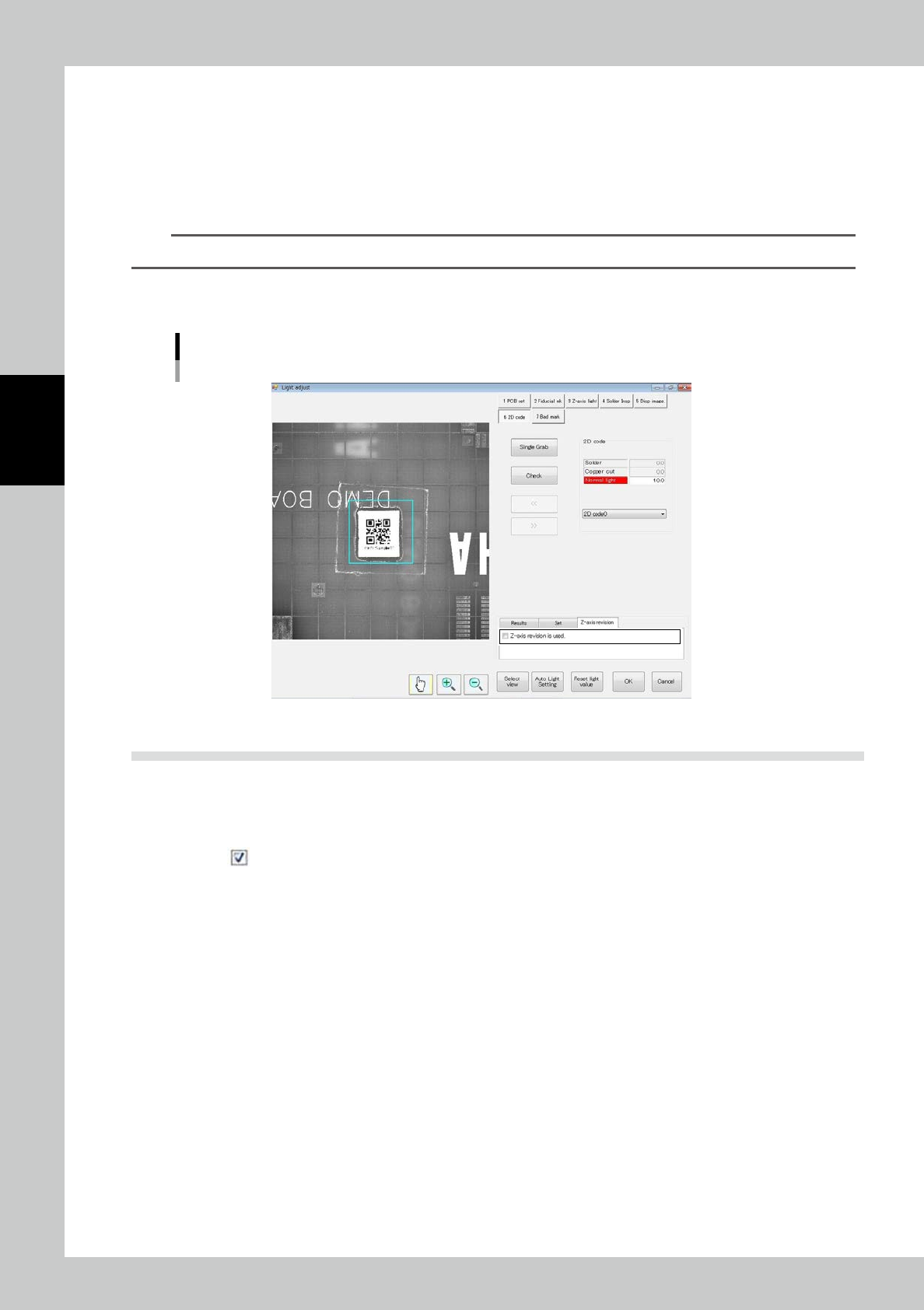
5. Registering Z axis revision
At happened below trouble due to PCB warping, Z axis adjust function improve scanning precision.
• 2D code image is smudgy
• Often happen 2D code scanning error
[Launch Z axis revision]
Select the tab of <Z axis revision>, and marking check mark on <Z axis revision is used>.
TIP
At using Z axis revision, it is effected cycle time due to adjust PCB warping.
[Stop Z axis revision]
Select the tab of <Z axis revision>, and uncheck <Z axis revision is used>.
Z axis adjustment screen
24307-KMN-00
1.5 Skipping 2D Code Inspection
The condition for skipping 2D code inspection is shown below.
[Method for skipping 2D code inspection]
1. Remove from "2D Code Insp" on the Function/Setting screen.
3-7
3
Optional Functions
1.6 If There Is a 2D Code Read Error
A read error may be caused in the following cases.
• There is dust on the 2D code.
• The 2D code is chipped.
• The coordinates are wrong.
• The light amount is incorrect.
• The 2D code is not in the designated 2D code format.
[Remedy upon an error]
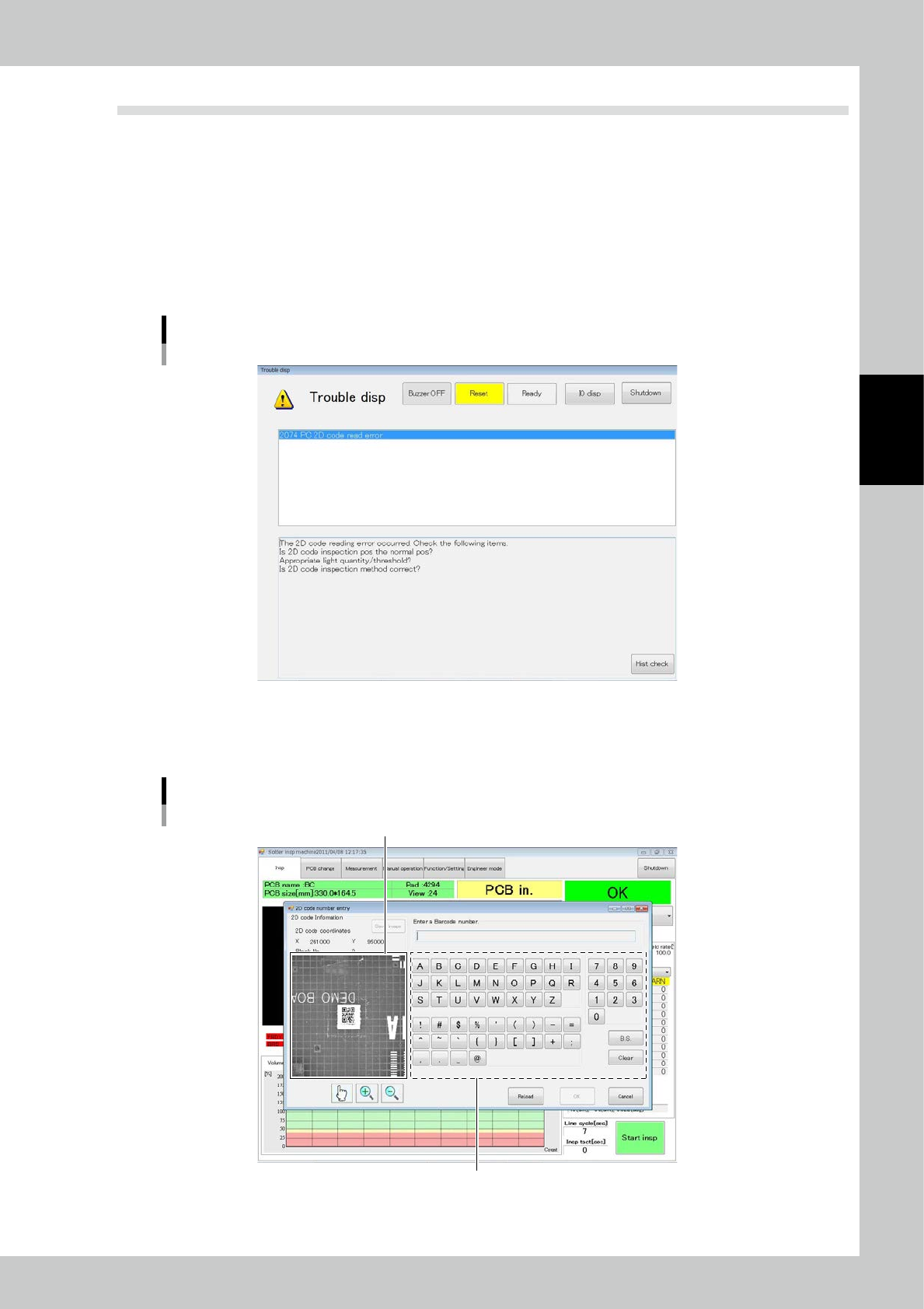
1. A buzzer sounds and the following error message is displayed and inspection is stopped.
2D code read error screen
24308-KMN-00
2. Touch the [RESET] button.
3. If the reading error does not improve after light intensity adjustment, adjust detail settings.
The reading characteristics can be improved.
Enlarged view of 2D code
Keypad for 2D code registration
Reset
24309-KMN-00
3-8
3
Optional Functions
[In case of manual entry]
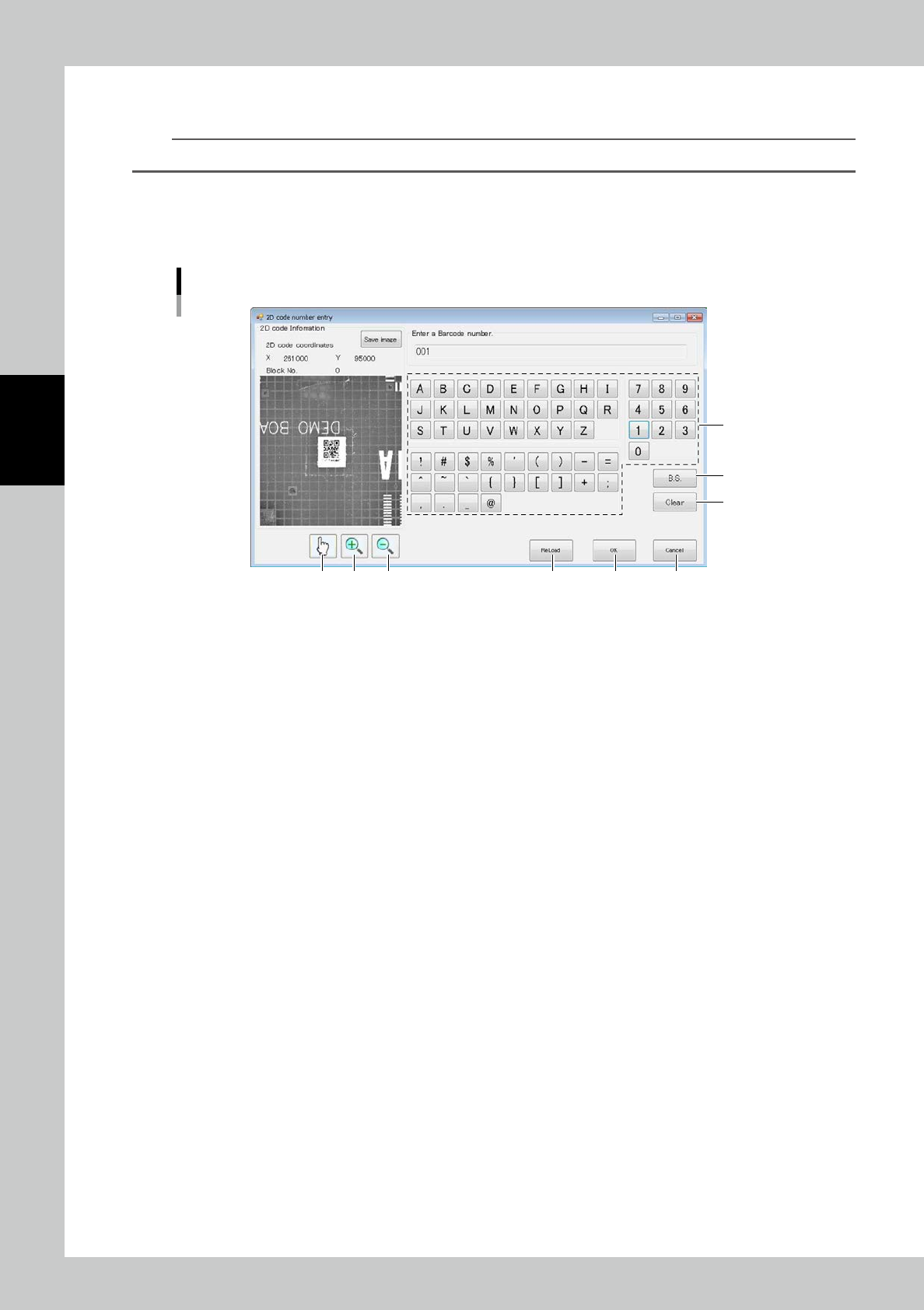
1. Touch letters or numbers in area 1 to enter the 2D code manually.
TIP
You can use the keyboard located in front of the main body to enter.
An enlarged view of the 2D code is displayed on the right side pane of the screen (Fig. 24309-KMN-00). If the description
of the 2D code is written, enter the 2D code manually while looking at the raw image.
If the description of the 2D code is not written, imagine the 2D code according to the previous and following PCBs to
enter the 2D code.
6987 5 4
3
2
1
2D code manual entry form
24311-KMN-00
2. Touch [B.S.] 2 to delete the right most character of the entered 2D code.
3. Touch [Clear] 3 to delete all the entered 2D code.
4. Enter the 2D code 4 and touch [OK] to settle the entered data.
5. Touch [Reload] 5 to refrain from manual entry and inspect again. Light amount adjustment may be effective for
reloading.
6. Touch [Cancel] to cancel the process.
7 Cancel the zoom-in/out mode.
8 Start the zoom-in mode.
9 Start the zoom-out mode.
[To inspect again with the inspection machine]
Touch [Reload] on the manual entry screen (Fig.24311-KMN-00) to return to the regular inspection screen.