YSi-SP_Ope_E.pdf - 第59页
2-22 2 Operation 3.3 PCB Change Items displa yed on the PCB change screen and functions are described. T he PCB list is displa yed at the top of the screen. Select the desired one. Or you can use arro w buttons or search…
2-21
2
Operation
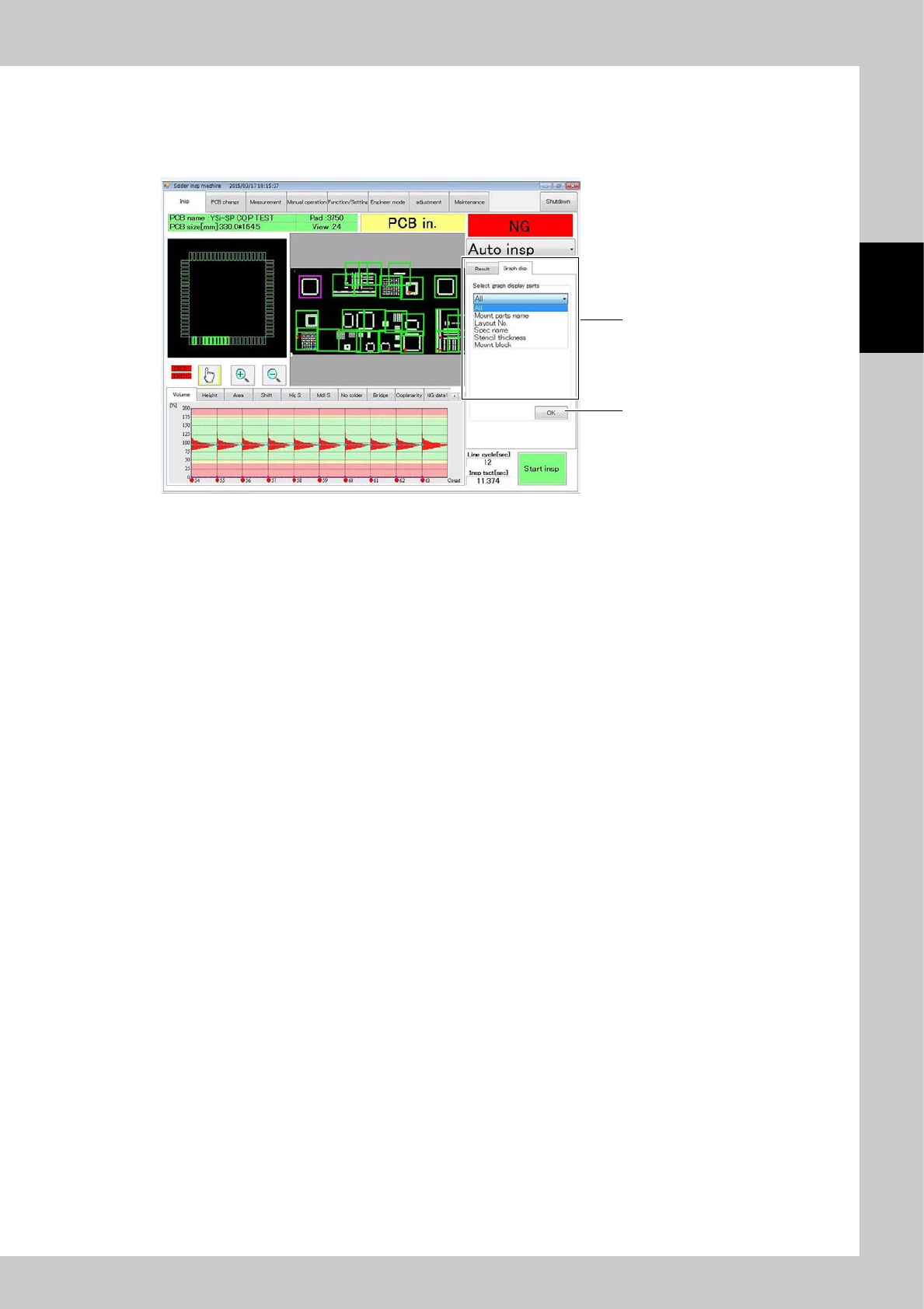
To change the graph view, you can select the Graph Disp tab as shown below.
The graph is drawn according to the selected data.
1. Select the part from the list.
2. Press OK to update the graph view according to selection.
2
1
24222-KMN-00
2-22
2
Operation
3.3 PCB Change
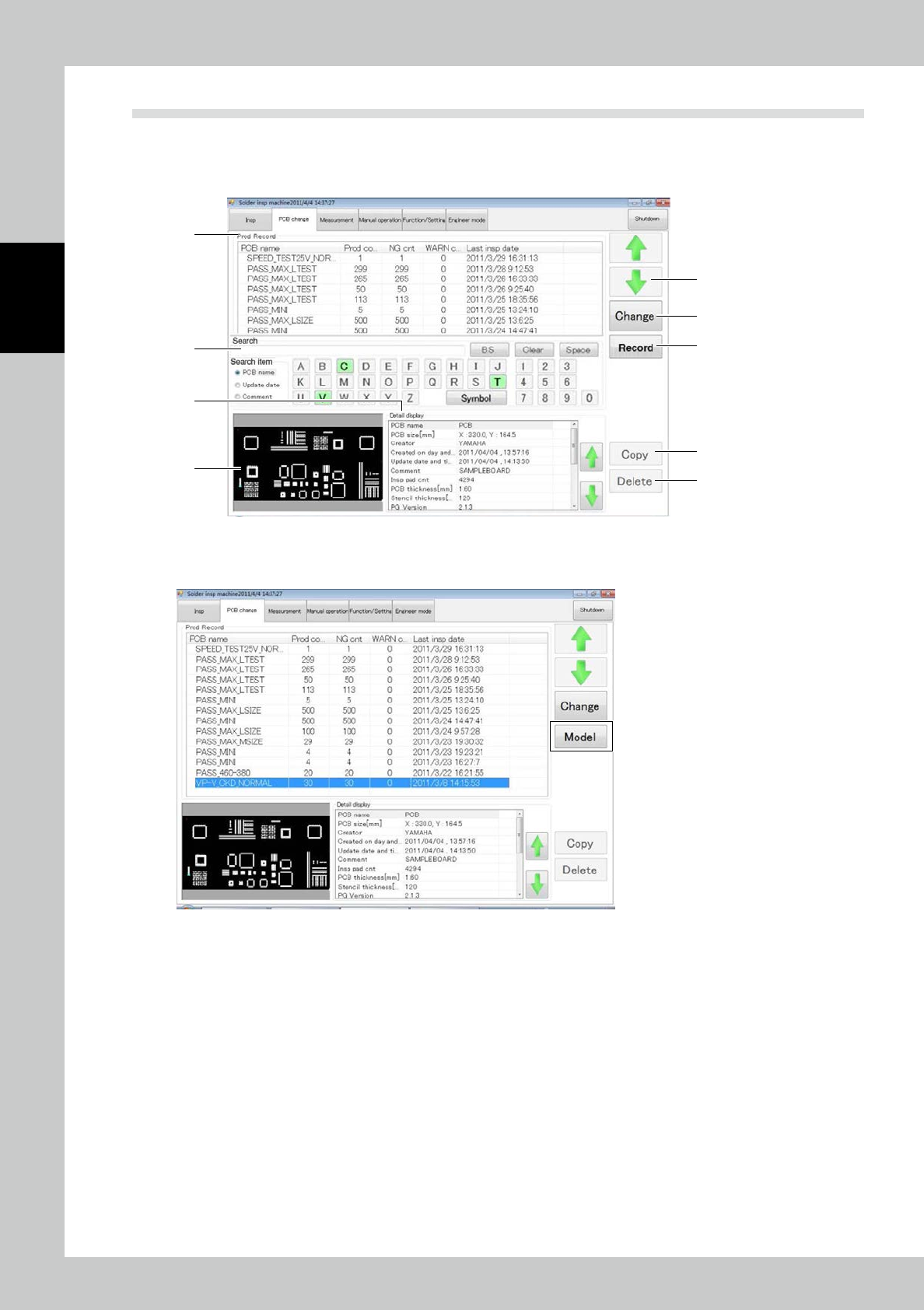
Items displayed on the PCB change screen and functions are described. The PCB list is displayed at the top of
the screen. Select the desired one. Or you can use arrow buttons or search function to select. After selecting
the desired PCB, touch the [Change] button.
1
3
5
9
8
6
7
4
2
24223-KMN-00
Press the [Record] button. The screen shown below is displayed. Press the [Model] button to change back to
the [Record] button and return to the original selection screen.
24224-KMN-00
2-23
2
Operation
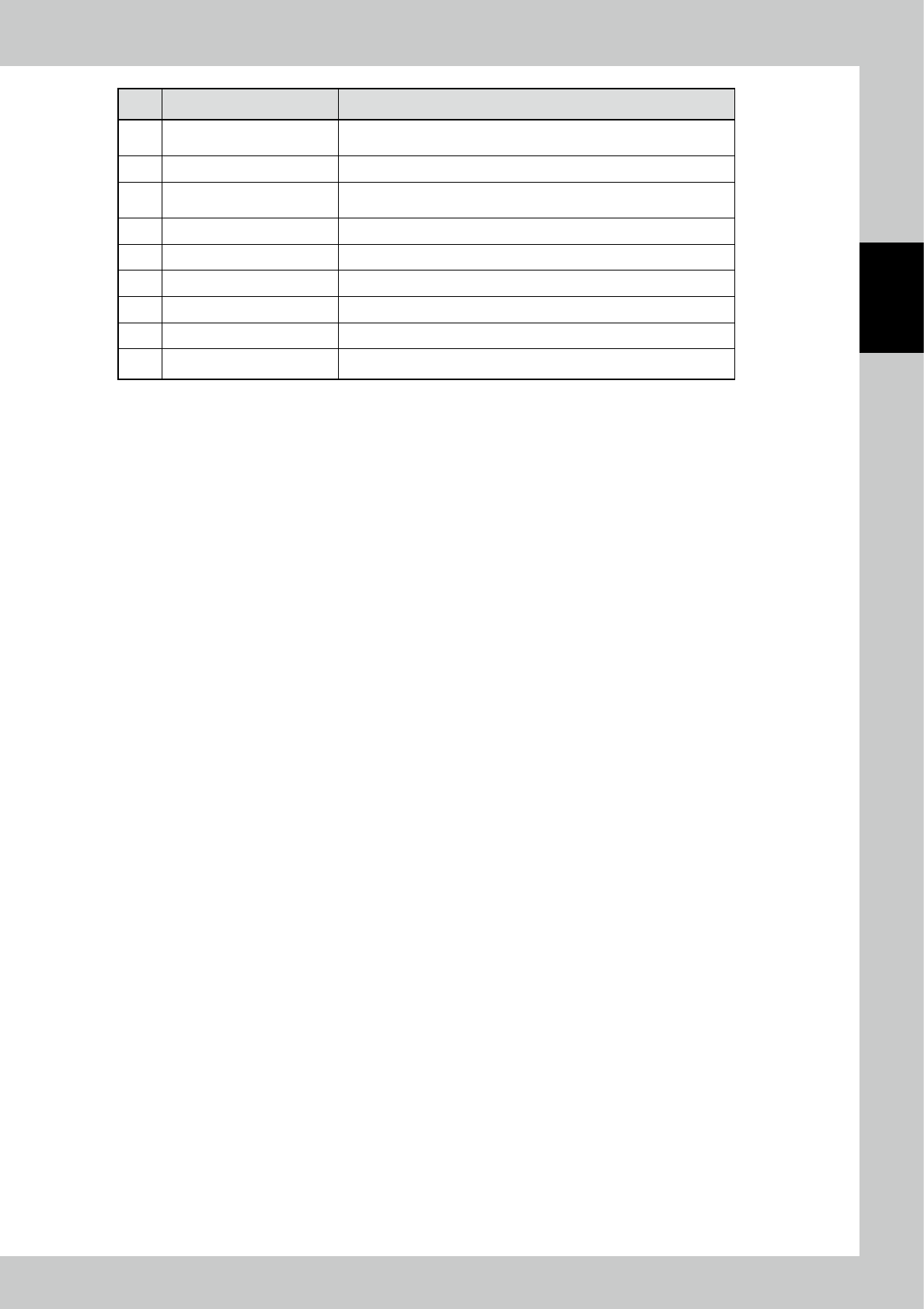
No Name Description of displayed item and functions
1 PCB (inspection program) list
A list of registered PCBs (inspection programs) is displayed. Select the
PCB to be inspected.
2 [
➡
]/[
➡
] button You can use arrow buttons to move the cursor to select.
3 Search function
You can touch the letter or number button, which corresponds to the
first character of the PCB name, at the touch panel to search.
4 Detail data The detail data about the selected PCB is displayed.
5 Preview A preview of the selected PCB is displayed.
6 [Change] button After selecting the desired PCB, touch this button.
7 [Record] button A program can be selected from the production record.
8 [Copy] button Create a copy of the selected inspection program.
9 [Delete] button Delete the selected program.