YSi-SP_Ope_E.pdf - 第72页
2-35 2 Operation 3.5 Manual Operation Items displa yed on the manual operation screen and functions are described. On the manual operation screen, you can manually tr ansfer the PCB or switch the PCB clamp. T ouch the [X…
2-34
2
Operation
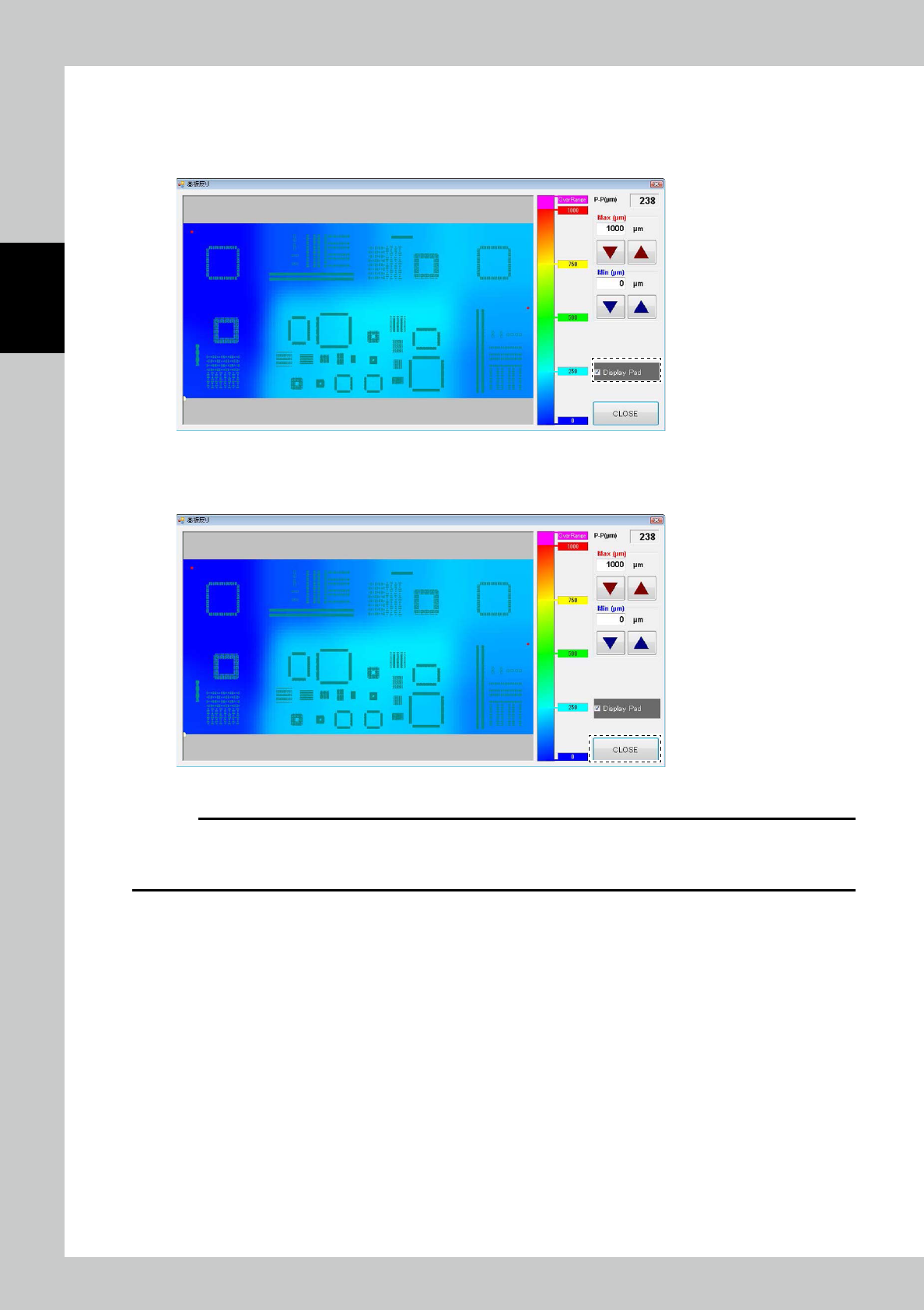
9. Pad displaying function
This is the function of displaying pads on PCB at distributing map. Pads are displayed at Initial setting. This function is
available to confirm the warping part, etc..
In case of not needed to display pads, it is possible to delete displaying after checking the check box written [Display Pad].
24240-KMN-00
10. Close of PCB warping displaying function
This function is closed after pushing [Close] button and shutting window.
24241-KMN-00
c
CAUTION
In this function, distributing map is not displayed as uninspected PCB because this function makes inspection result of
PCB warping on the basis of the inspected datas after inspecting PCB.
And please turn on the “Z-axis revision function” at inspection setting function when using this function.
2-35
2
Operation
3.5 Manual Operation
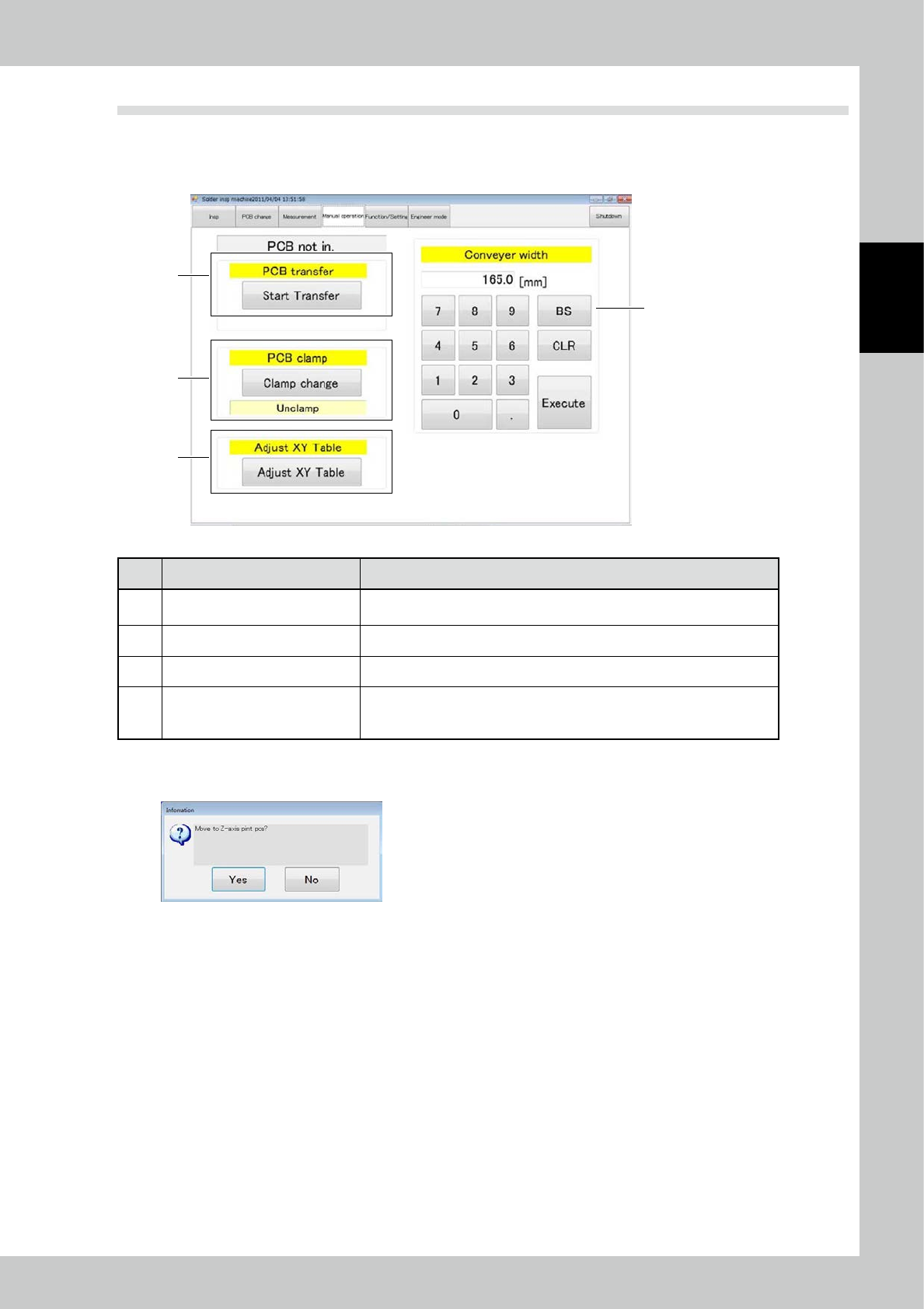
Items displayed on the manual operation screen and functions are described. On the manual operation screen,
you can manually transfer the PCB or switch the PCB clamp. Touch the [XY table] button to open the XY table
screen.
3
1
4
2
24242-KMN-00
No. Name Description of displayed item and functions
1 PCB transfer
The PCB can be loaded or unloaded in the standalone inspection mode. For
the operation method, refer to "2.5 PCB Transfer".
2 PCB clamp Press the [Clamp change] button to alternate the PCB clamp state.
3 Adjust XY table The XY table can be adjusted.
4 Conveyor width
The conveyor width is adjusted to the designated value. Enter the desired
number at the ten-key pad and touch the [Execute] button. (Use this function
without a PCB inside the inspection machine.)
XY table screen
Touch the [XY table] button to open the screen shown below.
24243-KMN-00
Touch [Yes] to open the XY table screen shown on the next page.
2-36
2
Operation
4
5
6
1
2
3
7 8 9
10
11
XY table screen
24244-KMN-00
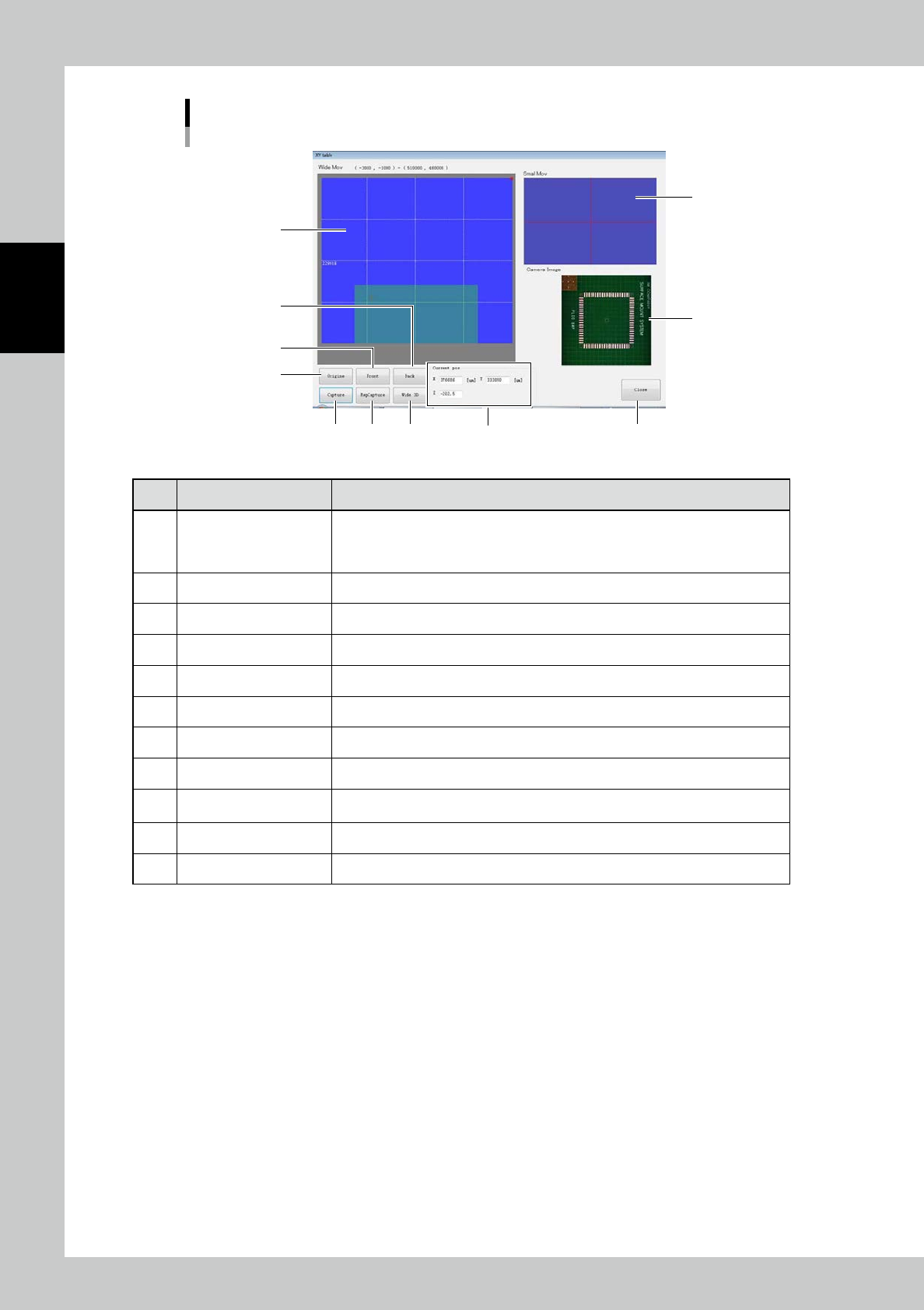
No Name Description of displayed item and functions
1 Wide area travel screen
The XY table traveling area is indicated with a blue screen. Touch the screen to
move the XY table to a desired position. The position of the XY table is indicated
with a pink cross. The bottom side of the screen corresponds to the nearer side of
the inspection machine.
2 Detail travel screen The machine moves similarly to 1); the XY table travels finely.
3 Camera image The camera image is displayed.
4 [Origin] button The XY table travels to the home position of the inspection machine.
5 [Front] button The XY table travels so that the camera unit is in the nearest position.
6 [Back] button The XY table travels so that the camera unit is in the farest position.
7 [Single Grab] button The image is acquired once.
8 [Continuous Grab] button Images are acquired continuously.
9 [Wide 3D] button
The wide area measurement screen opens. (Refer to "3.4.2 Wide Area Measurement
Screen".)
10 Current pos The X and Y coordinates are displayed. Enter desired values to move the XY table.
11 [Close] button Exit to return to the manual operation screen.