YSi-SP_Ope_E.pdf - 第112页
2-75 2 Operation 4.2.3 Light Intensity Adjustment Adjust the light intensity for inspection. T ouc h the PCB data [Light adjust] button on the engineer mode screen. 242A6-KMN-00 Light Adjustment has the following seven (…
2-74
2
Operation
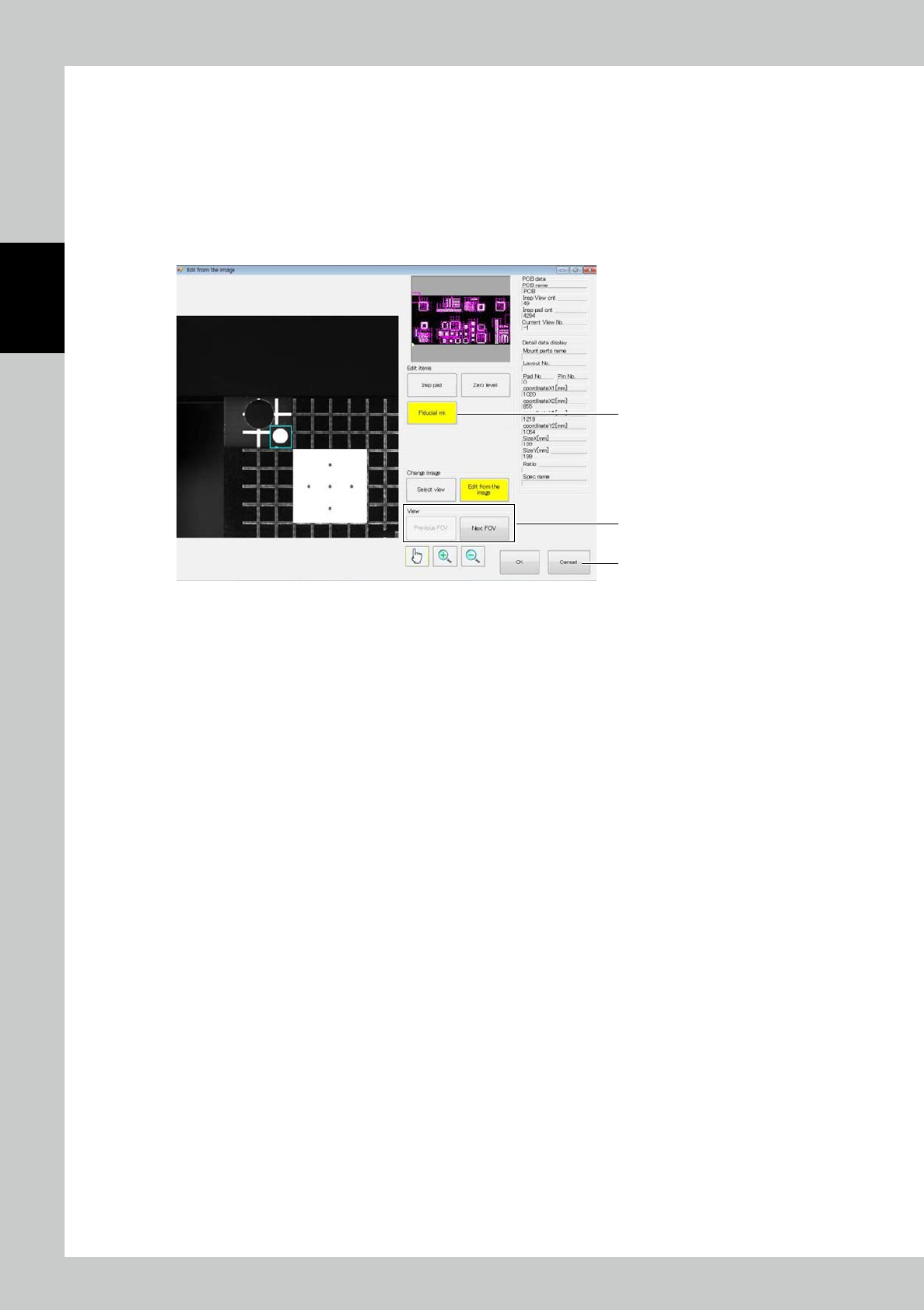
3. Fiducial mark
The position and size of the fiducial mark are changed.
1. Touch the [Fiducial mk] button. A field of view including a fiducial mark is selected.
2. Touch the frame enclosing the fiducial mark on the screen to enable editing.
3. Edit the position and size of the frame in the similar procedure to auto shape editing.
4. The [Previous FOV] or [Next FOV] button to display another fiducial mark and continue to edit.
5. After finishing editing, edit the inspection pad or fiducial mark or touch the [Save] button to save changes, then touch
the [Exit complete] button.
1
4
5
242A5-KMN-00
4.2.2 PCB Editing
Edit the PCB. (For details, refer to Section 3.3 in the Data Station Volume.)
2-75
2
Operation
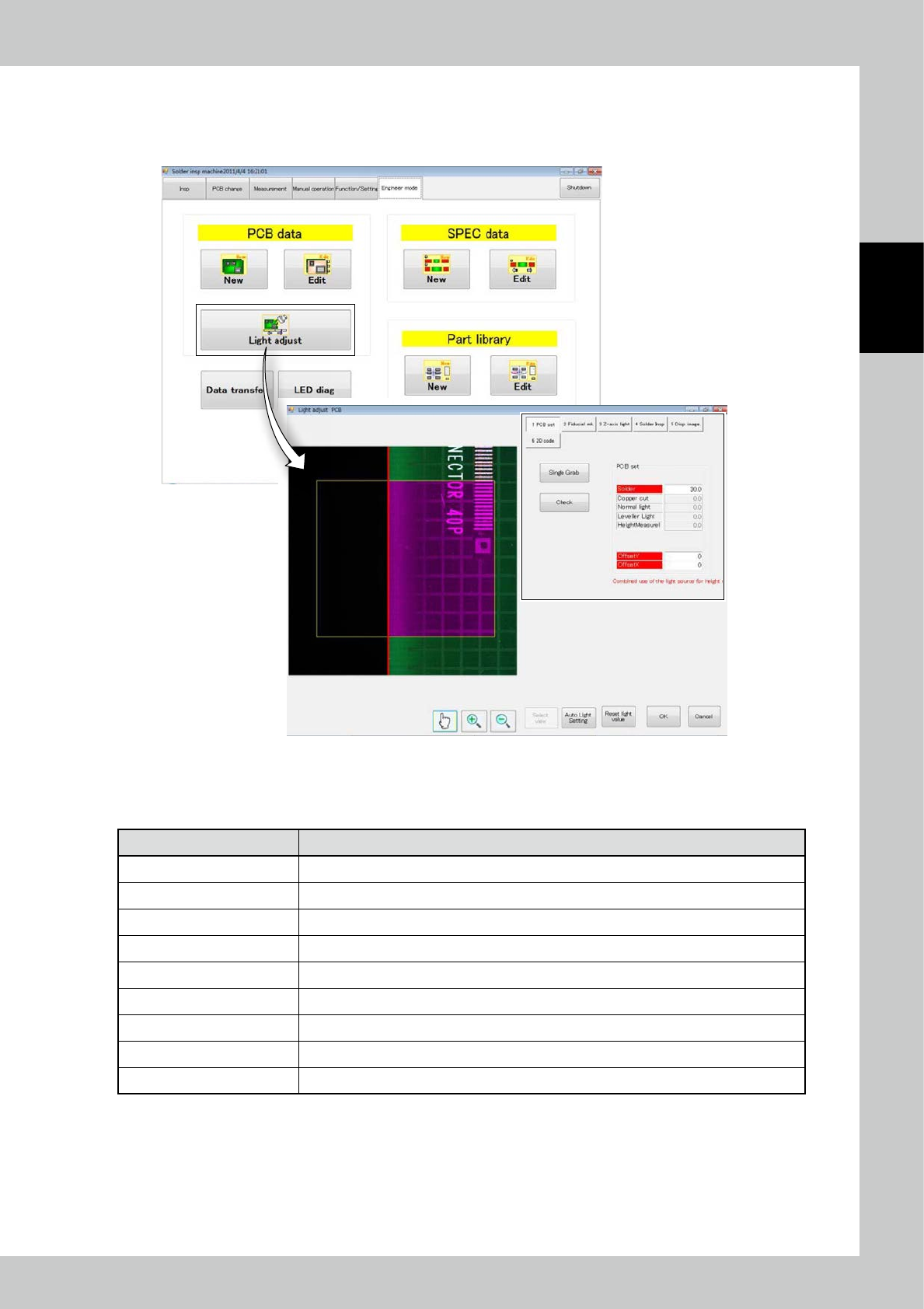
4.2.3 Light Intensity Adjustment
Adjust the light intensity for inspection.
Touch the PCB data [Light adjust] button on the engineer mode screen.
242A6-KMN-00
Light Adjustment has the following seven (7) items on the menu.Light intensity adjustment includes nine menus
as shown in the screen above. Touch the button to select the desired one.
■
Light intensity adjustment menu
Menu option Function
[PCB set] Adjust the light intensity for detecting the PCB edge.
[Fiducial mk1] Adjust the light intensity used for the fiducial mark.
[DSP image] Adjust the light intensity related to the regular camera image.
[Solder extraction] Adjust the light intensity used to extract solder.
[3D inspection] Adjust the light intensity used for 3D inspection.
[Z-axis light] Check if the Z-axis line light intensity is bright enough.
[Silk cut] Adjust the silk cut setting.
[2D Code] Adjust the 2D code setting. (*Optional function)
[Bad Mark] Adjust the bad mark setting.
2-76
2
Operation
■
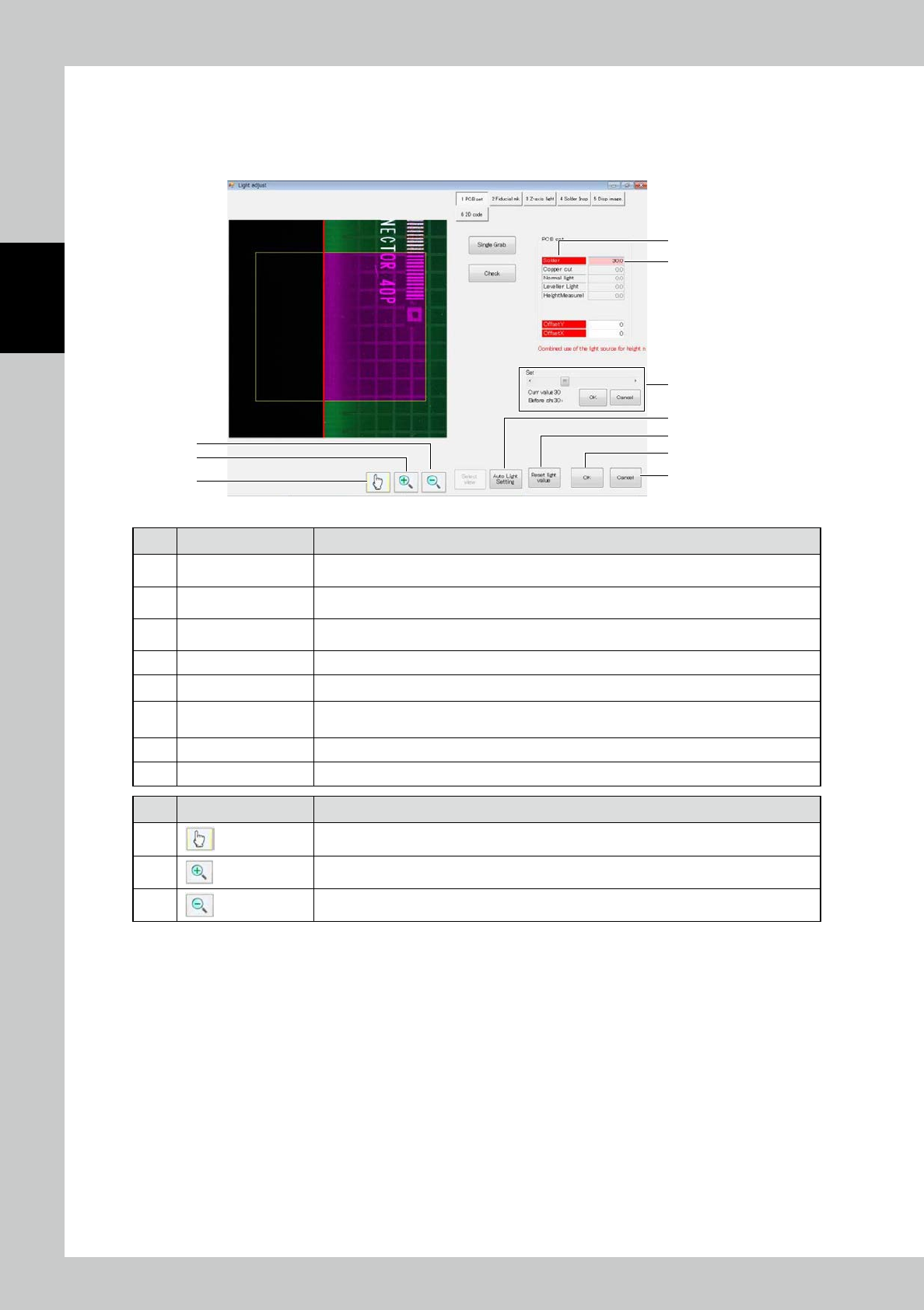
How to adjust the light intensity
To adjust the light intensity, use the table displayed on the right side of the screen during execution of the inspection
menu for light intensity adjustment.
This operation is common for the light intensity adjustment function.
2
1
9
10
11
5
6
7
8
3
242A7-KMN-00
No Name Description of displayed item and functions
1 Light source ON / OFF
ON and OFF alternate each time an item on the left row is touched. The one indicated in red
is turned on, while another indicated in no color is turned off.
2 Light intensity
Touch the number in the right row to highlight the background of the frame in pink, and the
brightness setting panel is displayed below.
3 Brightness setting
Use the scroll bar to adjust the value and press the [OK] button to determine. The setting
range is from 0 to 100%. To refrain from adjustment, touch the [Cancel] button.
4 [Move View] button Move to a designated view.
5 Auto Light Setting Make automatic adjustment of the light intensity.
6
[Reset light value]
button
The current setting becomes the initial value of light intensity. The initial value becomes the
light intensity assigned automatically when new PCB data is created.
7 [OK] button Save the current setting in the selected PCB data.
8 [Cancel] button Exit from light intensity adjustment and return to the engineer screen.
No Name Description of displayed item and functions
9
Cancel the zoom-in/out mode and start the edit mode.
10
Start the zoom-in mode. Touch the screen to enlarge the image around the designated point.
11
Start the zoom-out mode. Touch the screen to reduce the image around the designated point.