YSi-SP_Ope_E.pdf - 第109页
2-72 2 Operation Extract Pad Edit 1. Select a pad and select Extr act pad edit. 1 242A2-KMN-00 2. Select a red point and apply Add corner to add the corner . Select Delete corner to delete the selected corner . 3 4 2 242…
2-71
2
Operation
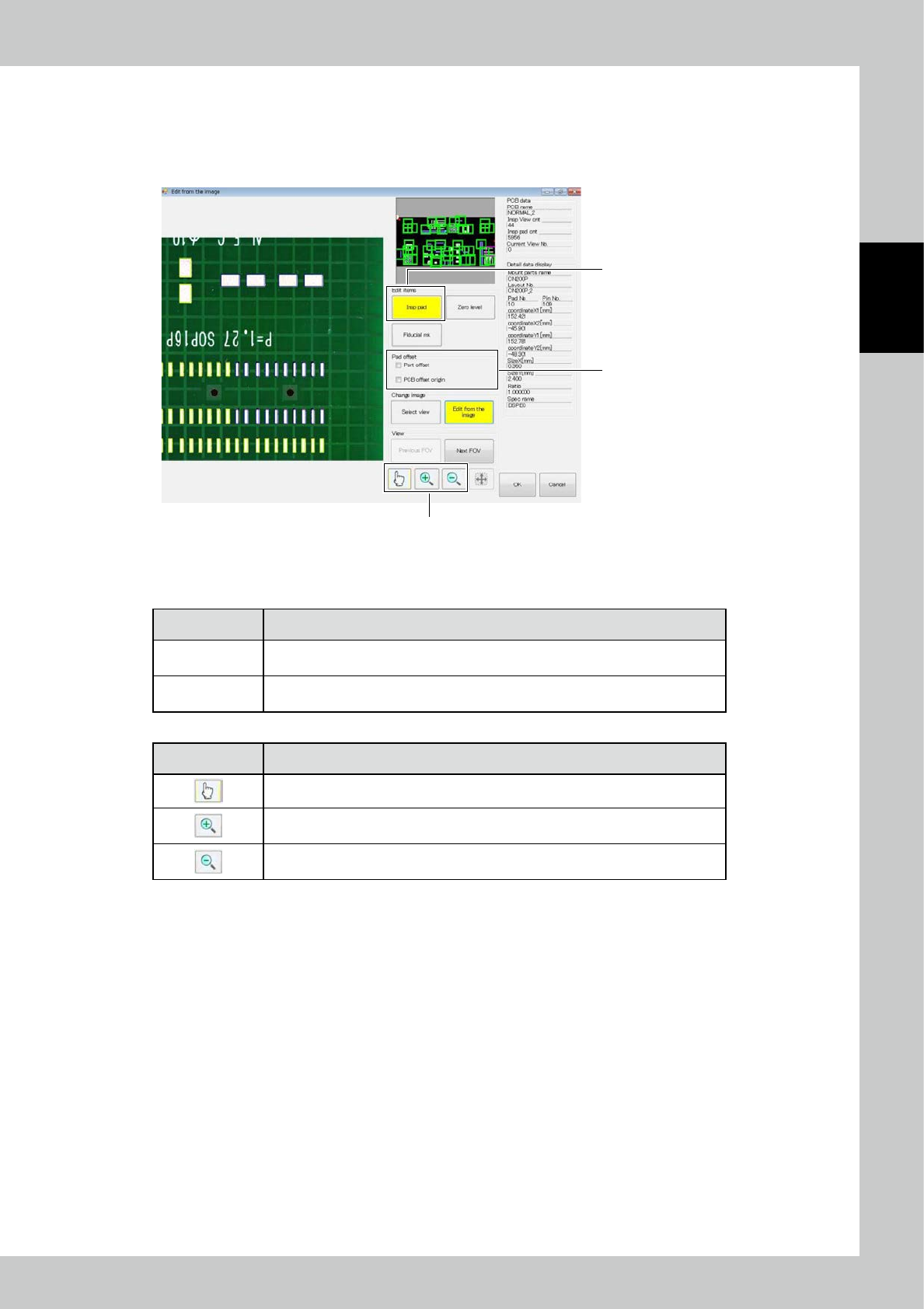
1. Inspection pad
The position or size of the inspection pad is changed, copied or deleted.
Pad offset function
With this function, the inspection pad moves by an offset. Drag and drop the desired pad to move the pad by an offset.
2
3
1
242A1-KMN-00
1. On the screen shown above, select the [Insp pad] button.
2. Place a check mark to simultaneously move multiple pads by an offset.
Name Function
Parts offset
You can change the position of inspection pads of a part. Drag and drop one of
inspection pads to change the position of pads having the same layout number.
PCB offset origin
The entire PCB moves by an offset. Drag and drop a single pad in the PCB to
move all pads simultaneously.
3. Touch the desired pad to be moved by an offset, and drag and drop it. The pad moves.
Name Function
In case of the zoom-in or -out mode, the edit mode starts.
Start the zoom-in mode. If the field of view image is clicked on in the zoom-in mode,
the image is enlarged around the designated point.
Start the zoom-out mode. If the field of view image is clicked on in the zoom-out
mode, the image is reduced around the designated point.
2-72
2
Operation
Extract Pad Edit
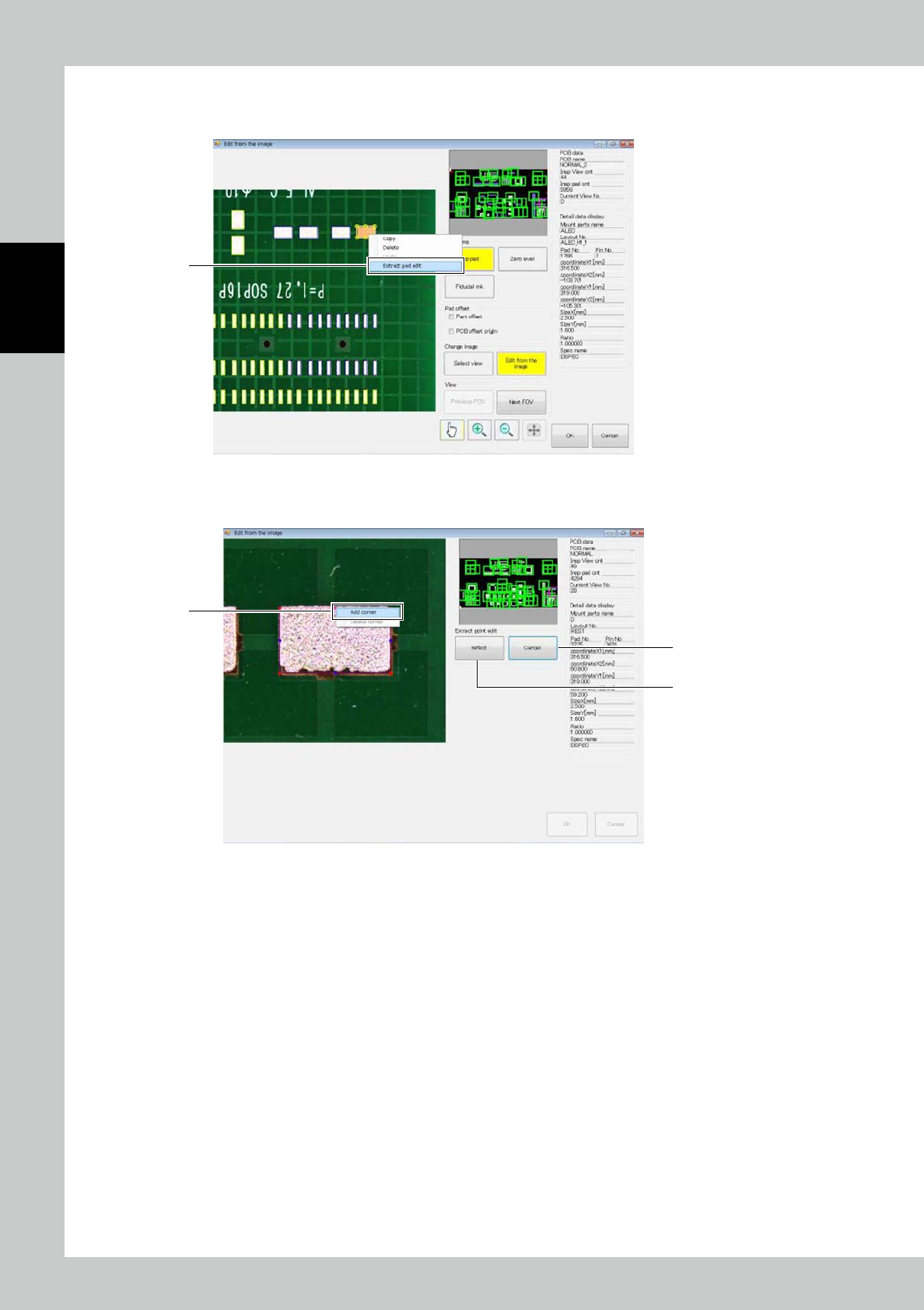
1. Select a pad and select Extract pad edit.
1
242A2-KMN-00
2. Select a red point and apply Add corner to add the corner.
Select Delete corner to delete the selected corner.
3
4
2
242A3-KMN-00
3. You can move the red point to change the shape.
Select Reflect to reflect changes and return to the pad editing screen.
4. Or press the Cancel button to abandon changes and return to the editing screen.
2-73
2
Operation
2. Zero level
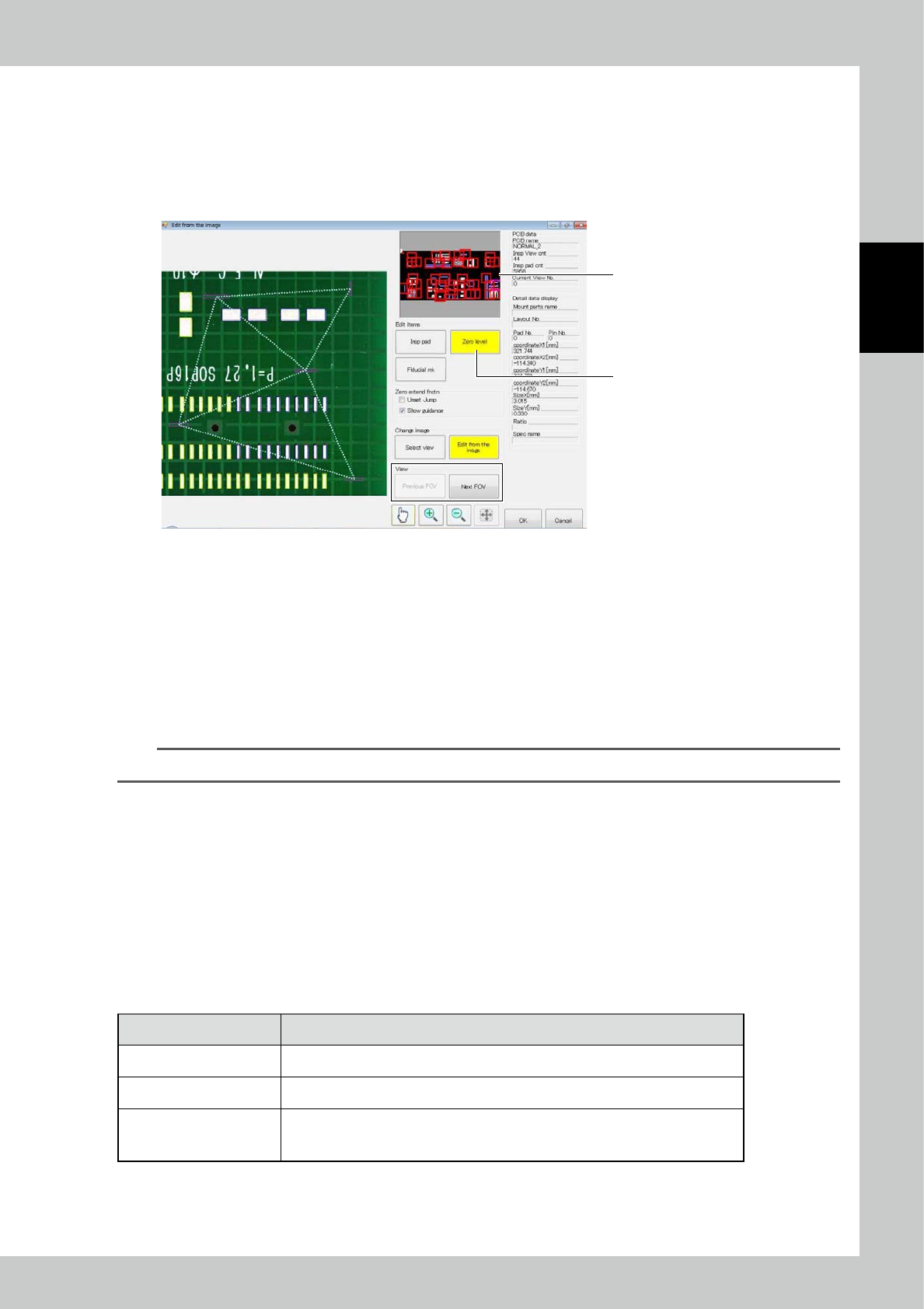
The zero level is one of references for the measurement of the pad position. A triangular plane is created using the
nearest three zero levels of a pad, so that the accurate position of the pad is measured. The zero level editing method is
described in this section.
1. Touch the [Zero level] button.
2. Select the field of view. Select directly in the image of the whole PCB, or use the [Previous FOV] or [Next FOV] button.
1
2
242A4-KMN-00
a. Extended zero level function
[Jump to undefined view]
After placing a check mark here, touch the [Previous FOV] or [Next FOV] button to display only fields of view
including pads having zero levels fewer than three. If three or more zero levels are specified for all pads, the touch of
the [Previous FOV] or [Next FOV] button moves to the previous or next field of view.
[Guidance display]
The triangular plane consisting of zero levels is displayed. The plane is indicated with white lines during regular
operation. Triangular planes having an acute angle of ≥ 30° and < 40° is indicated with yellow lines, and those having
an acute angle < 30° are indicated with red lines. Acute angles deteriorate the accuracy of zero level.
TIP
Guidance display is not shown if the automatic reference is effective.
b. Zero level editing
Select the field of view to be edited, using the extended zero level function described above or in another way. The
editing method includes the following variations similarly to inspection pad editing.
[Editing on screen]
Select the zero level to be moved or enlarged or shrunk. You can edit the frame position and size in the similar way to
auto shape editing.
[Right button click]
Use the accessory mouse of the inspection machine to edit.
Designate the range and click the right mouse button to execute menu items shown below.
■
Menu displayed upon the click of the right mouse button
Menu option Function
Add A new zero level is added.
Del area Designate an area including multiple zero levels and delete.
Change over pattern / resist
In case of an inspection program created through designation of pattern and resist
with automatic zero level, the pattern and resist references can be switched. Or
double click on the desired zero level to switch the pattern and resist similarly.
After finishing editing, edit the inspection pad or fiducial mark, or touch the [OK] button to save changes, then touch the
[Edit complete] button.