YSi-SP_Ope_E.pdf - 第140页
3-5 3 Optional Functions 3. Registering the size T he inspection area of the 2D code can be adjusted. T he blue rectangular frame in the center indicates the inspection area. T here is no need to adjust if the 2D code is…
3-4
3
Optional Functions
1.4 Light Amount Adjustment
1. Light amount adjustment
Select Engineer Mode
→
[Edit]
→
[Light Amount Adjustment]
→
"Special insp" tab
→
[2D code] in this order.
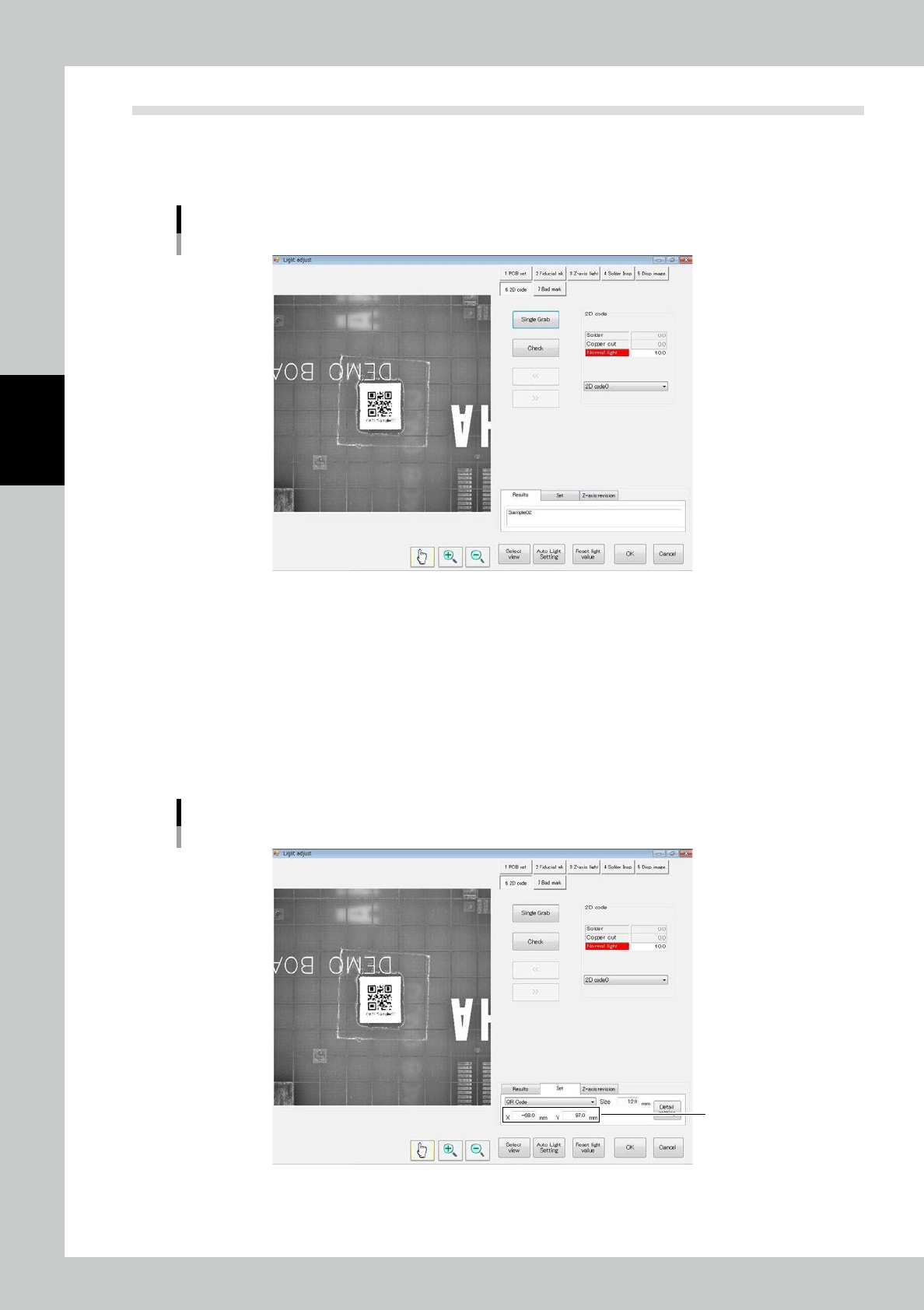
The screen shown in Fig. is displayed.
Light amount adjustment screen
24303-KMN-00
2. Registering coordinates
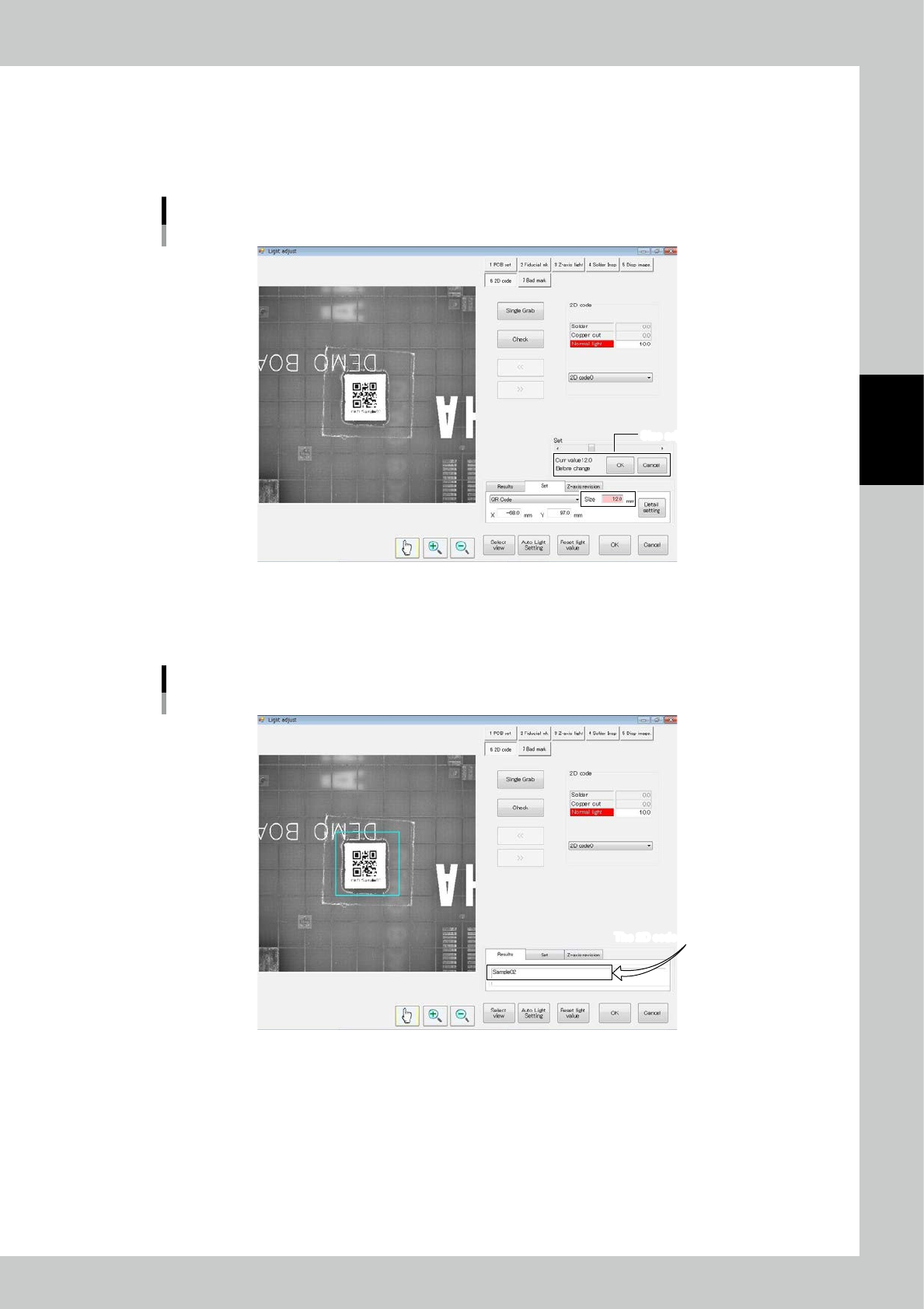
Adjust so that the 2D code coordinates are in the inspection view field.
If the 2D code is in the inspection view field, there is no need for adjustment.
Enter each of the X and Y coordinates.
※ Coordinates
From zero position of the PCB,
X: Positive toward the right on the screen, negative toward the left
Y: Positive toward the top of the screen, negative toward the bottom.
Coordinate adjustment screen
Coordinates
24304-KMN-00
3-5
3
Optional Functions
3. Registering the size
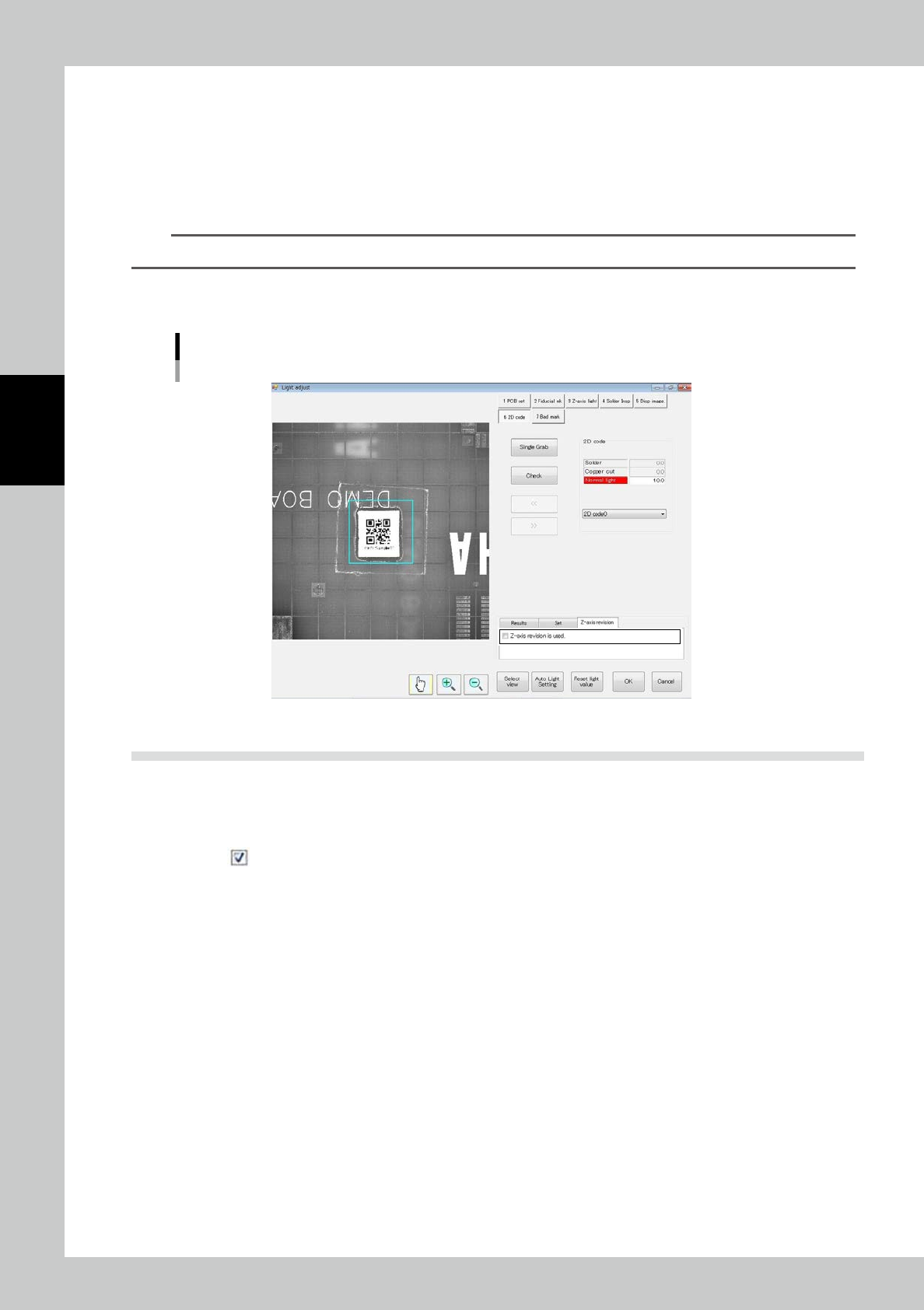
The inspection area of the 2D code can be adjusted.
The blue rectangular frame in the center indicates the inspection area.
There is no need to adjust if the 2D code is in the inspection area.
Use the slide bar to adjust the size.
Size adjustment screen
Size adjustment screenSize adjustment screen
24305-KMN-00
4. Registering the light amount
Touch the "Results" tab and adjust the value of the regular light source. Touch [Single Grab] and [Check] and check that
data is displayed in the "Results" field.
The 2D code is displayed here.The 2D code is displayed here.
Adjustment result screen
24306-KMN-00
If the result is good, touch [Save] and [Adjust end] buttons to finish adjustment.
If the result is an error, the "2D code read error" message is displayed.
Check the position, light amount and data code type.
3-6
3
Optional Functions
5. Registering Z axis revision
At happened below trouble due to PCB warping, Z axis adjust function improve scanning precision.
• 2D code image is smudgy
• Often happen 2D code scanning error
[Launch Z axis revision]
Select the tab of <Z axis revision>, and marking check mark on <Z axis revision is used>.
TIP
At using Z axis revision, it is effected cycle time due to adjust PCB warping.
[Stop Z axis revision]
Select the tab of <Z axis revision>, and uncheck <Z axis revision is used>.
Z axis adjustment screen
24307-KMN-00
1.5 Skipping 2D Code Inspection
The condition for skipping 2D code inspection is shown below.
[Method for skipping 2D code inspection]
1. Remove from "2D Code Insp" on the Function/Setting screen.