YSi-SP_Ope_E.pdf - 第76页
2-39 2 Operation 3.6.1 I/O Data Display Screen T he ON/OFF state of input/output signals of the machine can be monitored. T ouc h the [I/O data] button to open the screen shown below . 24247-KMN-00 ・ Out (output) : T he …
2-38
2
Operation
■
Stopping conditions setting
1. Continuous defect cnt
The equipment is stopped if the continuous PCB defect count has reached the setting.
(Example) Enter "1" to check details of the defect on the screen of the equipment.
2. Continuous warning
The equipment is stopped if the continuous PCB warning count has reached the setting.
3. Total warning
The equipment is stopped if the cumulative number of PCB warnings has reached the setting.
6 7
1
2
3
4
5
8
9
1110
24246-KMN-00
■
Disp Relation
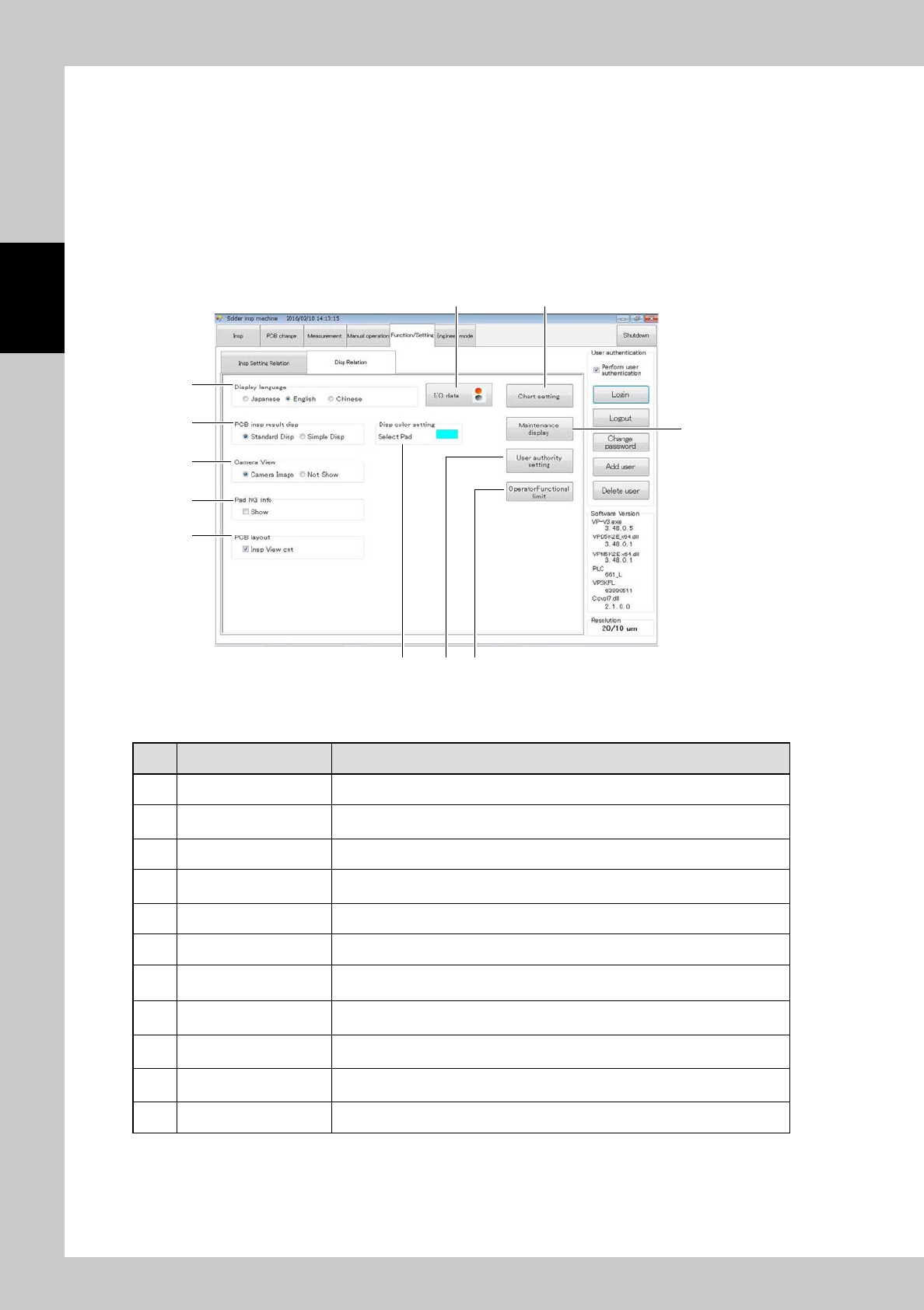
No Name Description of displayed item and functions
1 Display language The language displayed on all screens is switched.
2 PCB insp result disp
The display result of the main tab and measurement tab can be switched between
standard display and simple display. (Refer to "3.6.11 PCB insp result disp".)
3 Camera View Enter the display setting of the view field image in inspection.
4 Pad NG info
The NG info display of the individual pad can be switched. (Refer to "3.6.10 Pad NG
info".)
5 PCB layout Setting up for the display of PCB layout screen.
6 I/O data Show the "I/O Data Display screen." (Refer to "3.6.1 I/O Data Display Screen".)
7 Chart setting
Enter the graph display setting on the measurement tab. (Refer to "3.6.5 Chart
Setting".)
8 Maintenance display
Setting up for announce display and coming replace timing.
(Refer to "3.6.12 Maintenance display".)
9 User authority setting
The menu display switching setting can be entered for each log-in user.
(Refer to "3.6.9 User authority setting".)
10 Select Pad Color
You can change the display color of the currently selected to have pad. Opens the
display color setting screen by clicking the display of color.
11 OperatorFunctional limit You can limit some of the functionality that can be used in the Operator privileges.
2-39
2
Operation
3.6.1 I/O Data Display Screen
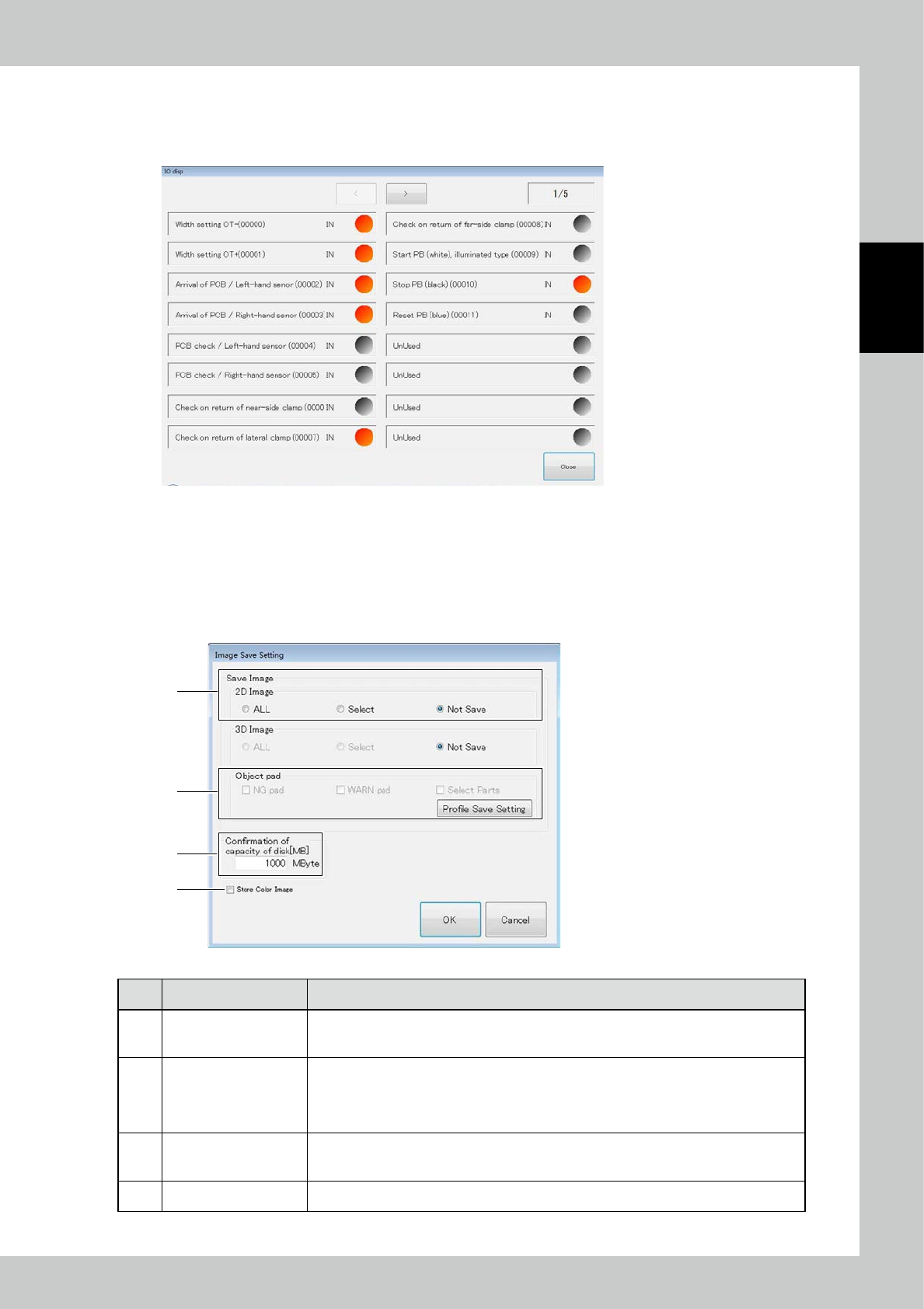
The ON/OFF state of input/output signals of the machine can be monitored.
Touch the [I/O data] button to open the screen shown below.
24247-KMN-00
・
Out (output) : The active output is indicated in red.
・
IN (input) : The active input is indicated in red.
3.6.2 Image Save Setting
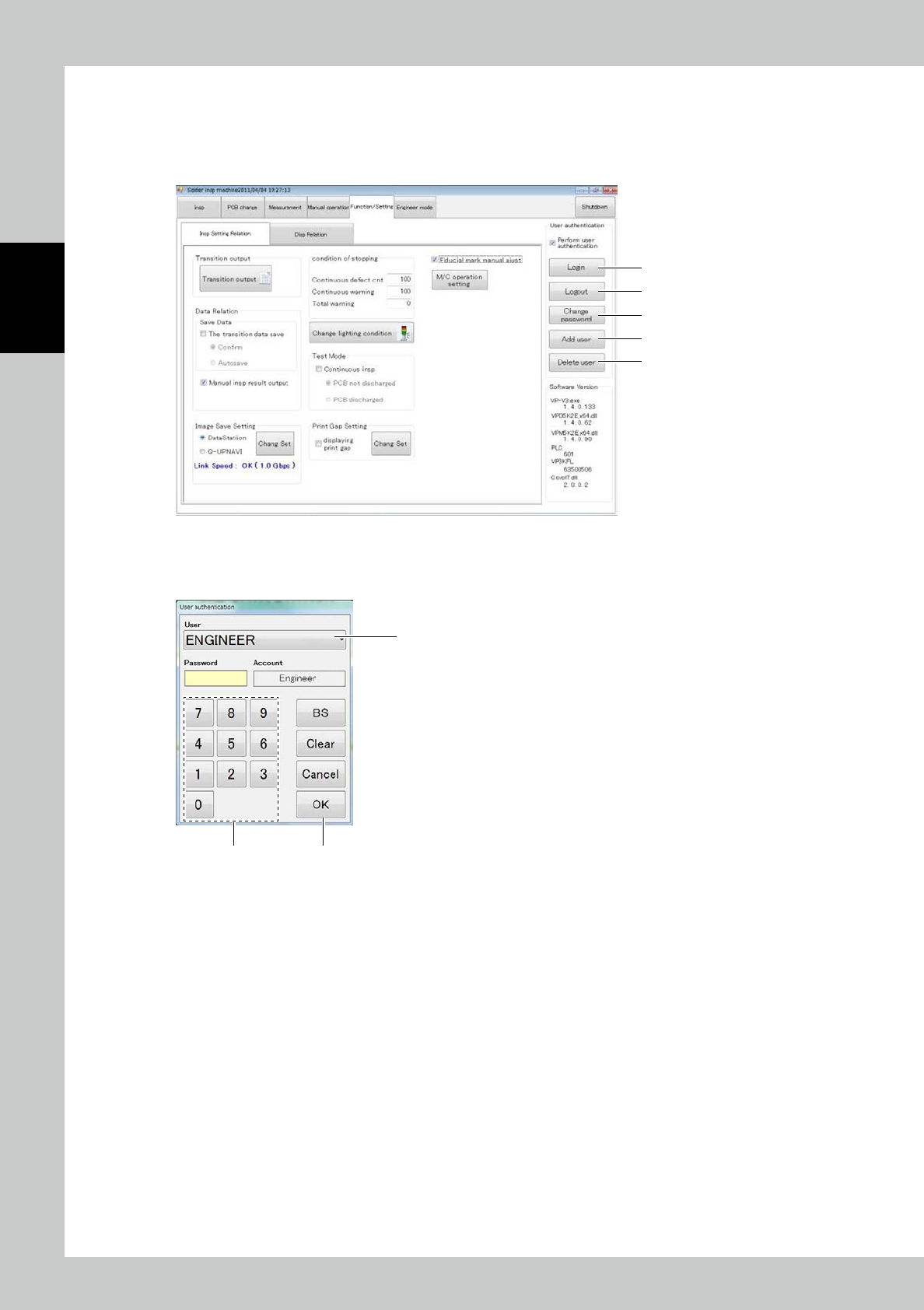
Configure the inspection image saving function.
1
2
3
4
24248-KMN-00
No Name Description of displayed item and functions
1 Save Image
•
ALL : All pads are saved without relations to the inspection result or setting.
•
Select : The image is saved according to the entered conditions.
•
Not Save : The image preservation is not done.
2 Object pad
•
NG Pad : Save faulty pads.
•
WARN Pad : Save WARN pads.
•
Select Parts : Save selected parts. The function does not depend on the inspection result.
(For the setting method, refer to Section 3.3.9 in the Data Station Volume.)
•
Profile Save Setting : Select the part to be stored.
3
Confirmation of capacity
of disk [MB]
Specify the free disk space to stop outputting the inspection result.
If the free disk space of the destination of saving falls below the setting, the inspection
machine is stopped with a warning message.
4 Store Color Image Change the stored image to the color image. (* The inspection cycle time becomes longer.)
2-40
2
Operation
3.6.3 User Authentication
Select “Function/Setting” of the inspection machine for user authentication.
Place a check mark in the user authentication check box to perform user authentication during startup of the
inspection machine.
1
2
4
3
5
24249-KMN-00
1. Login
Touch the [Login] button to open the user authentication window.
1
2 3
24250-KMN-00
1. Select the user name in the drop-down menu.
2. Enter the password at the ten-key pad.
3. Touch the [OK] button.
2. Logout
Touch the [Logout] button after you have logged in, to log out.