YSi-SP_Ope_E.pdf - 第79页
2-42 2 Operation 5. Deleting a user T ouch the [Delete user] button to open the window sho wn below . 1 2 24253-KMN-00 1. Select the user name to be deleted. 2. T ouch the [Delete] button.
2-41
2
Operation
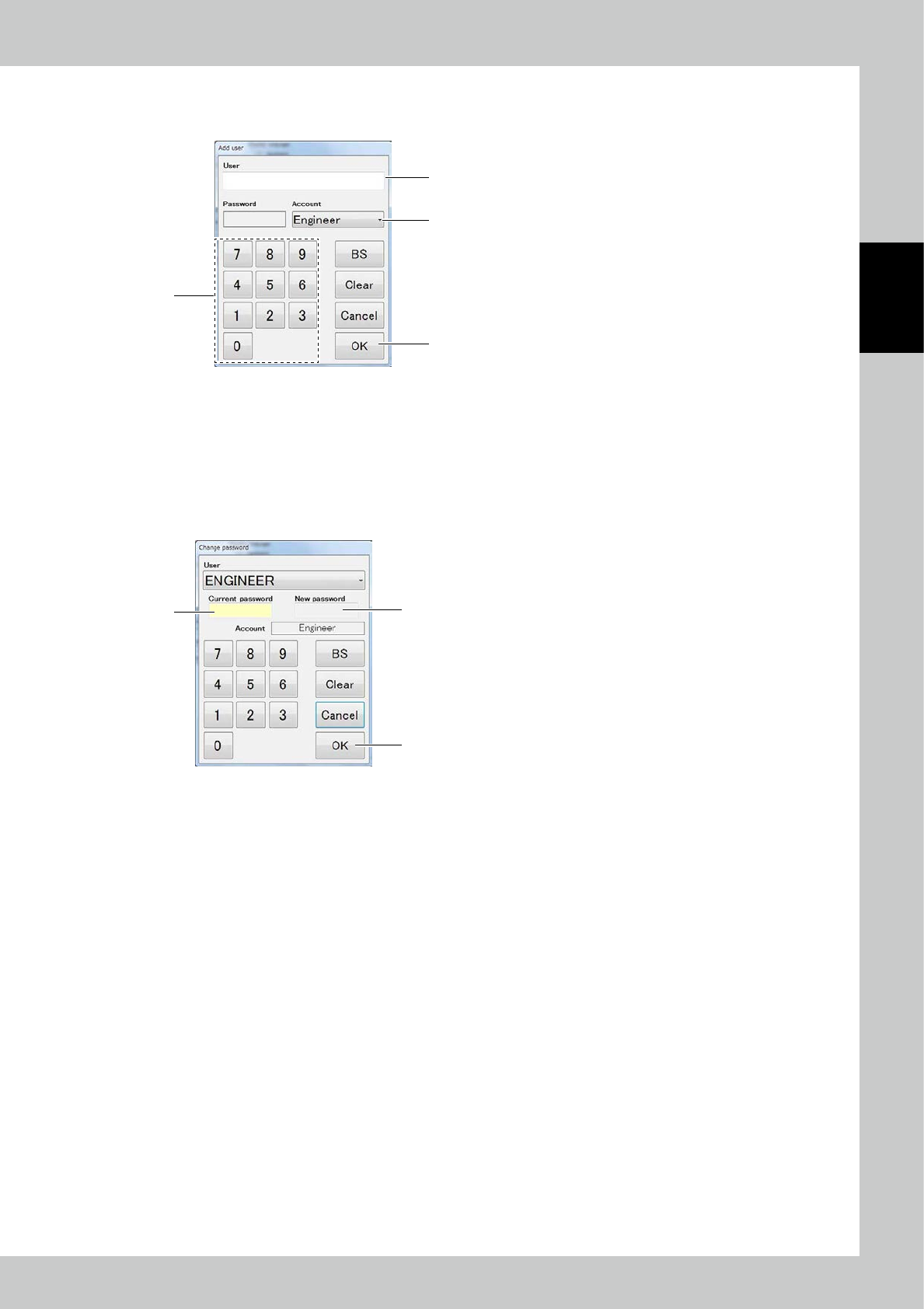
3. Adding a user
Touch the [Add user] button to open the window shown below.
1
3
4
2
24251-KMN-00
1. Enter the name of the new user.
2. Enter the password at the ten-key pad.
3. Select the account.
4. Touch the [OK] button.
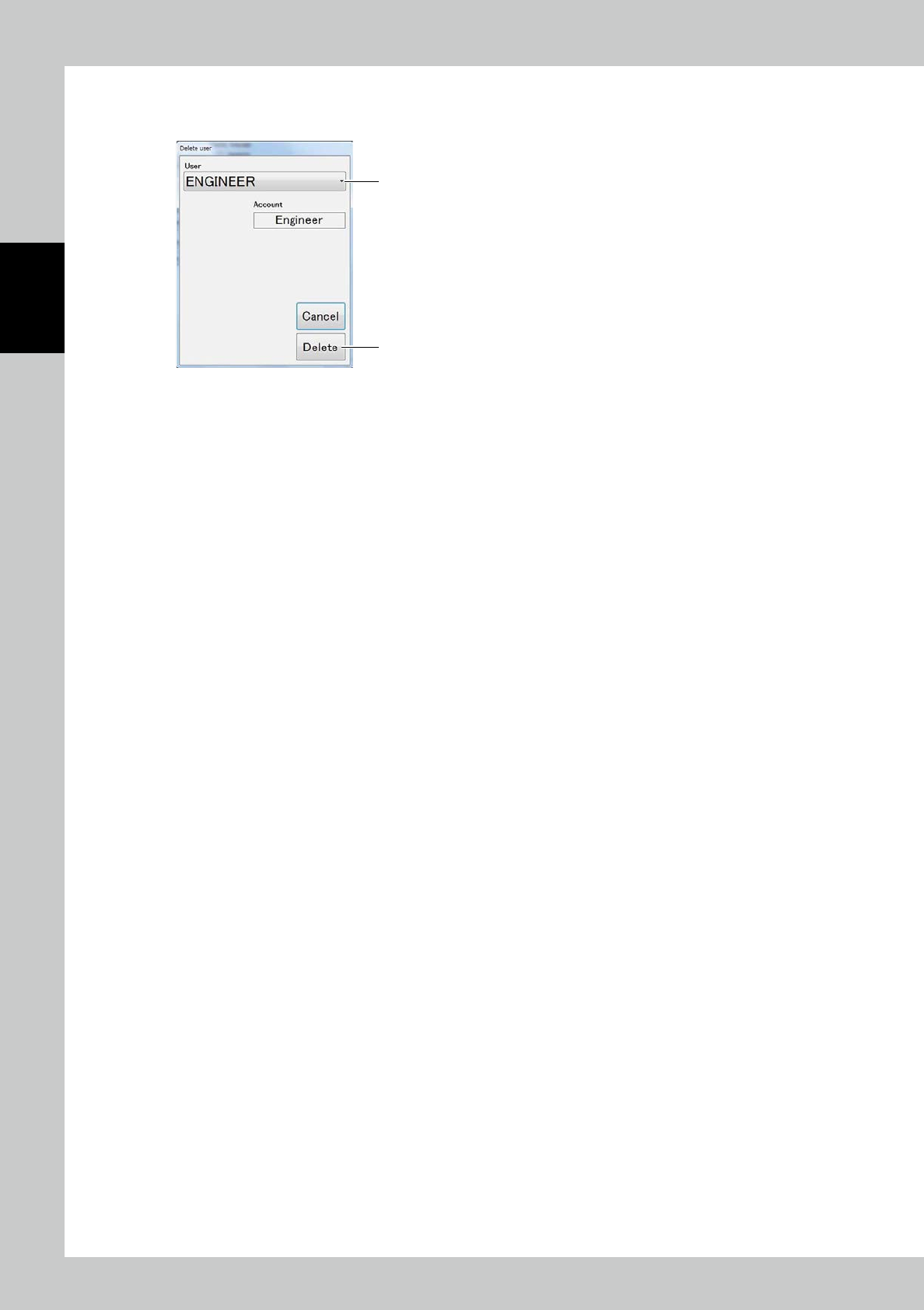
4. Changing the password
Touch the [Change password] button to open the window shown below.
2
3
1
24252-KMN-00
1. Enter the current password at the ten-key pad.
2. Enter the new password.
3. Touch the [OK] button.
2-42
2
Operation
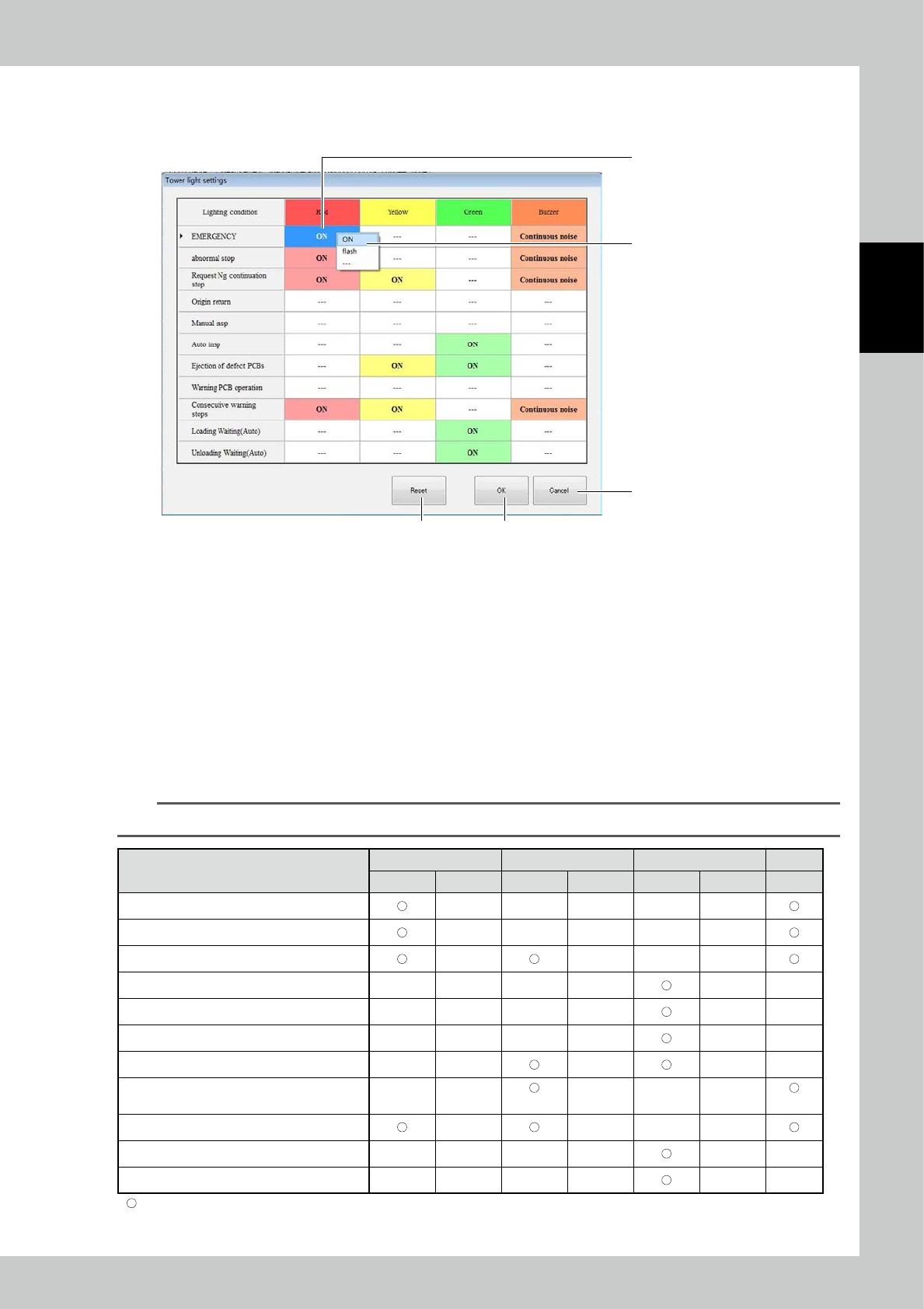
5. Deleting a user
Touch the [Delete user] button to open the window shown below.
1
2
24253-KMN-00
1. Select the user name to be deleted.
2. Touch the [Delete] button.
2-43
2
Operation
3.6.4 Tower Light Setting
Clicking the Change lighting condition button opens the "Tower Light Setting" screen.
1
2
5
4, 6
7
24254-KMN-00
●
To change any of the lighting conditions.
1. Select the item in regard to which you want to make a change.
2. Choose a tower light color and condition for the buzzer.
3. To make any other changes, repeat steps 1 to 2.
4. After the completion of setting, click OK.
●
To return to setting chosen at the factory,
5. Click Reset.
6. Clicking the OK button returns the machine to factory-selected setting.
●
To cancel setting that has been chosen
7. Click the Cancel button.
TIP
Settings listed in the table below can be changed.
Red Yellow Green Buzzer
Light up Flash Light up Flash Light up Flash
Emergency stop
Error-related stop
Contiguous defects
Return to home position
Individual operation
Automatic operation
Defective PCBs being ejected
Alarm generated
(3sec)
(3sec)
Machine shutdown due to contiguous alarms
PCBs being taken in
PCBs being ejected
: Indicates default setting.