YSi-SP_Ope_E.pdf - 第116页
2-79 2 Operation 3. Normal image 2 1 3 242B0-KMN-00 1. T ouch the [Dsp image] button. 2. T ouch the [Single Grab] button to refresh the image. 3. Change the normal light sour ce value to change the brightness of the imag…
2-78
2
Operation
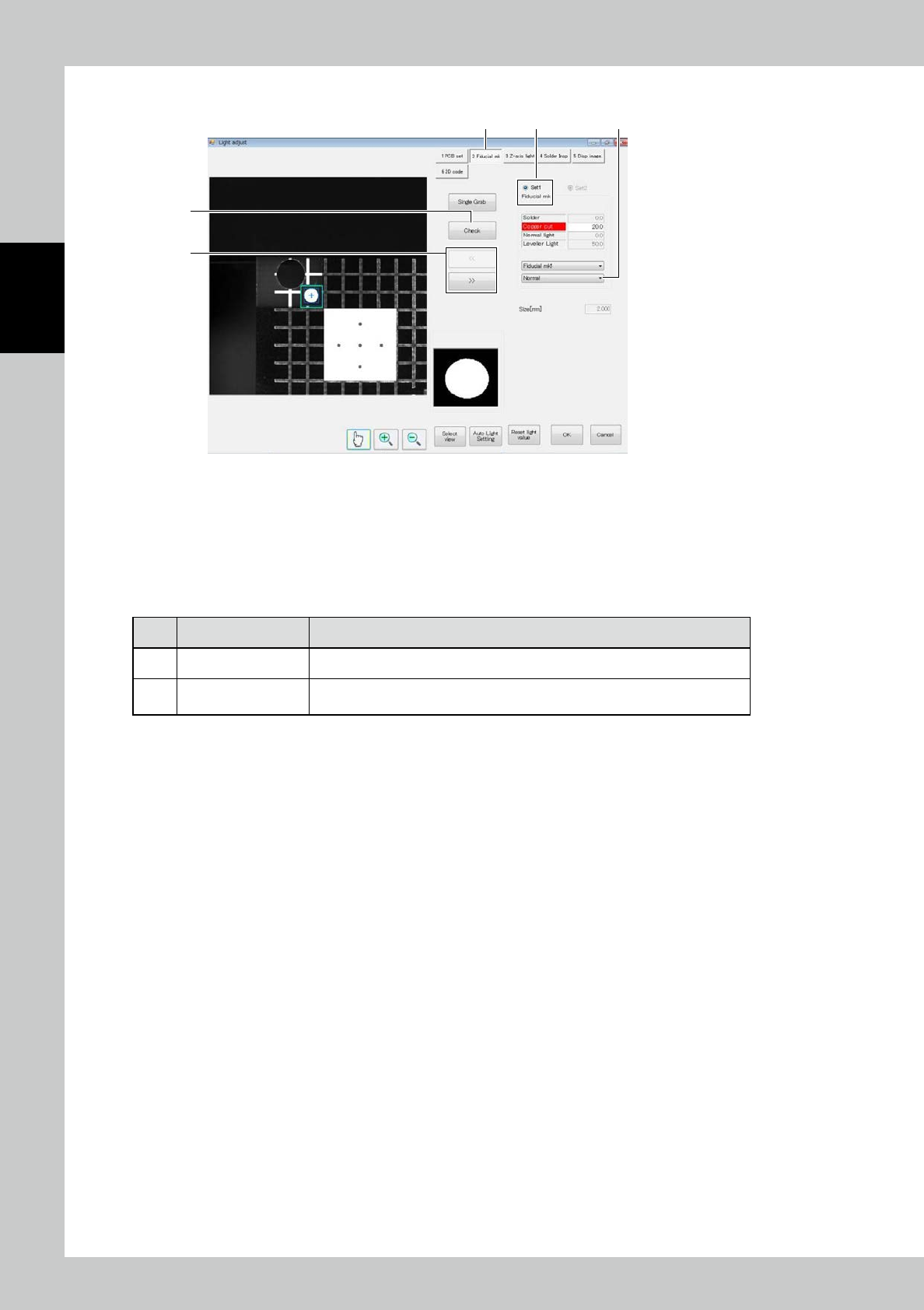
2. Fiducial mark
2
41
3
5
242A9-KMN-00
1. Touch the [Fiducial mk1] button.
2. When the [Check] button is touched, the screen shows the result of check. The reference frame is displayed in white,
while the accurate frame is displayed in blue.
3. Touch the [<<] or [>>] button to switch between fiducial mark 1 and fiducial mark 2, and perform the similar
procedure to adjust.
■
Description of screen
No. Name Displayed data and function
4 Select fiducial mark Enter the setting of the selected fiducial mark.
5
Select judgment
method
Change the fiducial mark judgment method. According to the setting, the
silhouette displayed at the lower right of the screen changes.
2-79
2
Operation
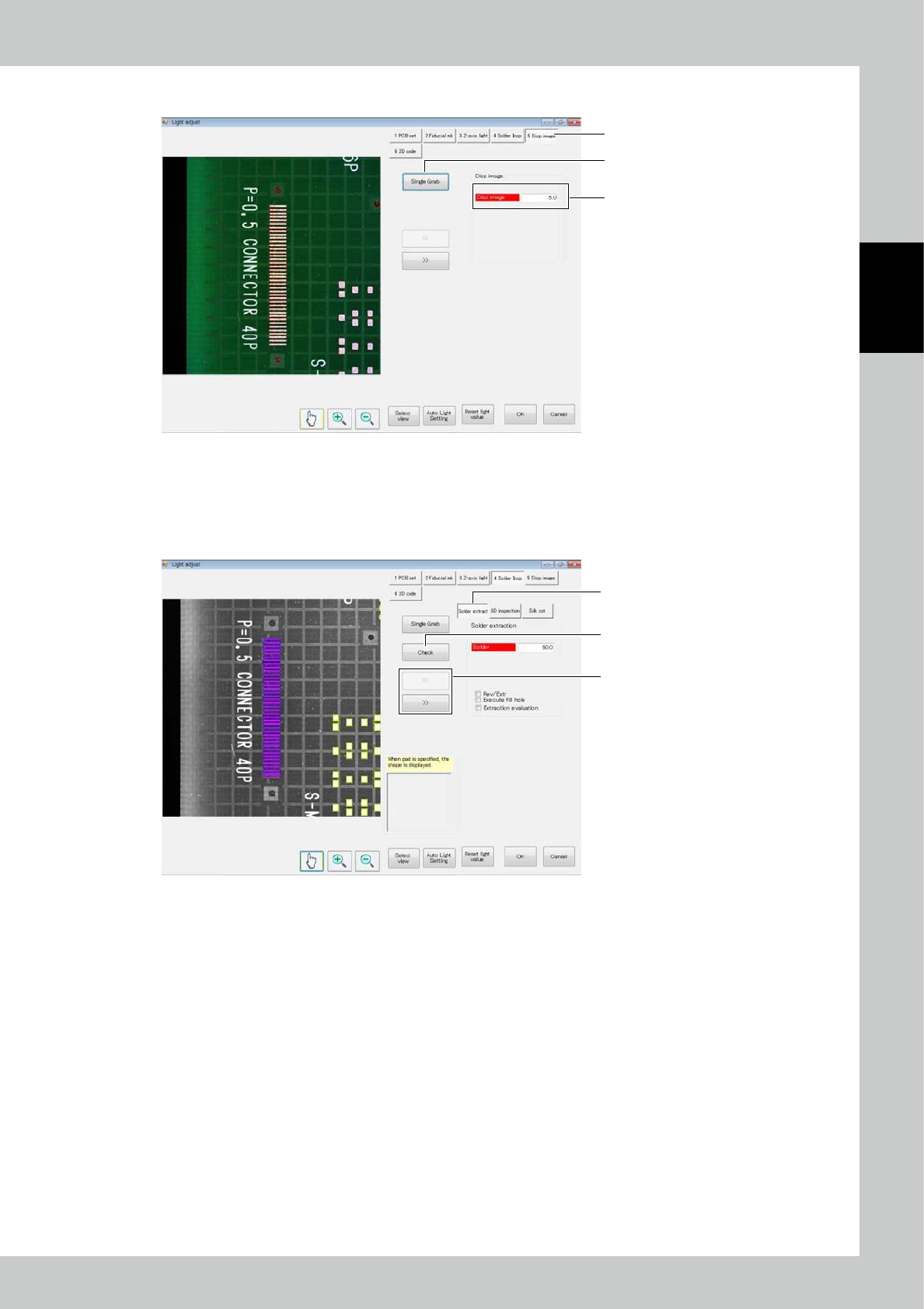
3. Normal image
2
1
3
242B0-KMN-00
1. Touch the [Dsp image] button.
2. Touch the [Single Grab] button to refresh the image.
3. Change the normal light source value to change the brightness of the image.
4. Solder extraction
1
3
2
242B1-KMN-00
1. Touch the [Solder Insp] button. Touch the [Solder extraction] button.
2. Touch the [<<] or [>> button to select the field of view.
3. Touch the [Check] button to display the results of check on the screen.
2-80
2
Operation
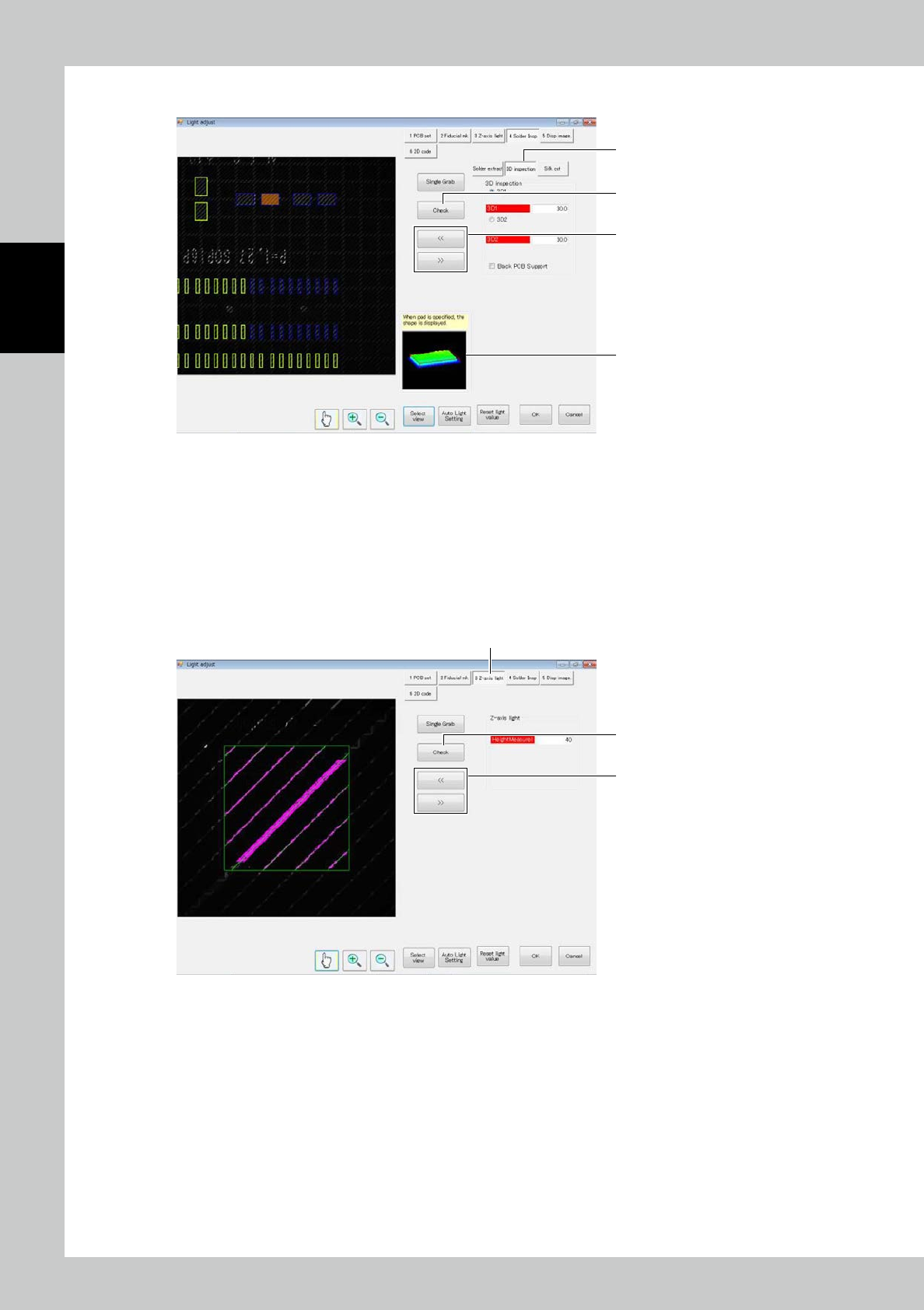
5. 3D inspection
3
4
1
2
242B2-KMN-00
1. Touch the 3D Inspection Button. For a start, adjust the first light projector. Touch the [3D inspection] button.
2. Touch the [<<] or [>>] button to select the field of view.
3. Touch the [Check] button to display the results of check on the screen. The color gradation helps recognize the height
variation.
For height check, zero levels must be defined.
To check the height, define the zero level first.
4. After checking, select a pad in the field of view image to show the shape of the designated point.
6. Z-axis light source
3
1
2
242B3-KMN-00
1. Touch the [Z-axis light] button.
2. Touch the [<<] or [>] button to select the field of view.
3. Touch the [Check] button to display the results on the screen.
Checks whether extracted along the stripe.