80S-2080F480F4-680F5 User’s Manual.pdf - 第121页
2 Introduction and Basic Concepts SIPLACE 80S-20/F4/F4-6/F5 User’s Manual 2.4 Brief Description and Principles of the User Interface Edition 03/98 from Software Version SR.404.xx 2 - 44 2.4.4.9 GEM Default Settings (Opti…
SIPLACE 80S-20/F4/F4-6/F5 User’s Manual 2 Introduction and Basic Concepts
Edition 03/98 from Software Version SR.404.xx 2.4 Brief Description and Principles of the User Interface
2 - 43
PLEASE NOTE
This function can take a relatively long time.
2.4.4.8 Video Image
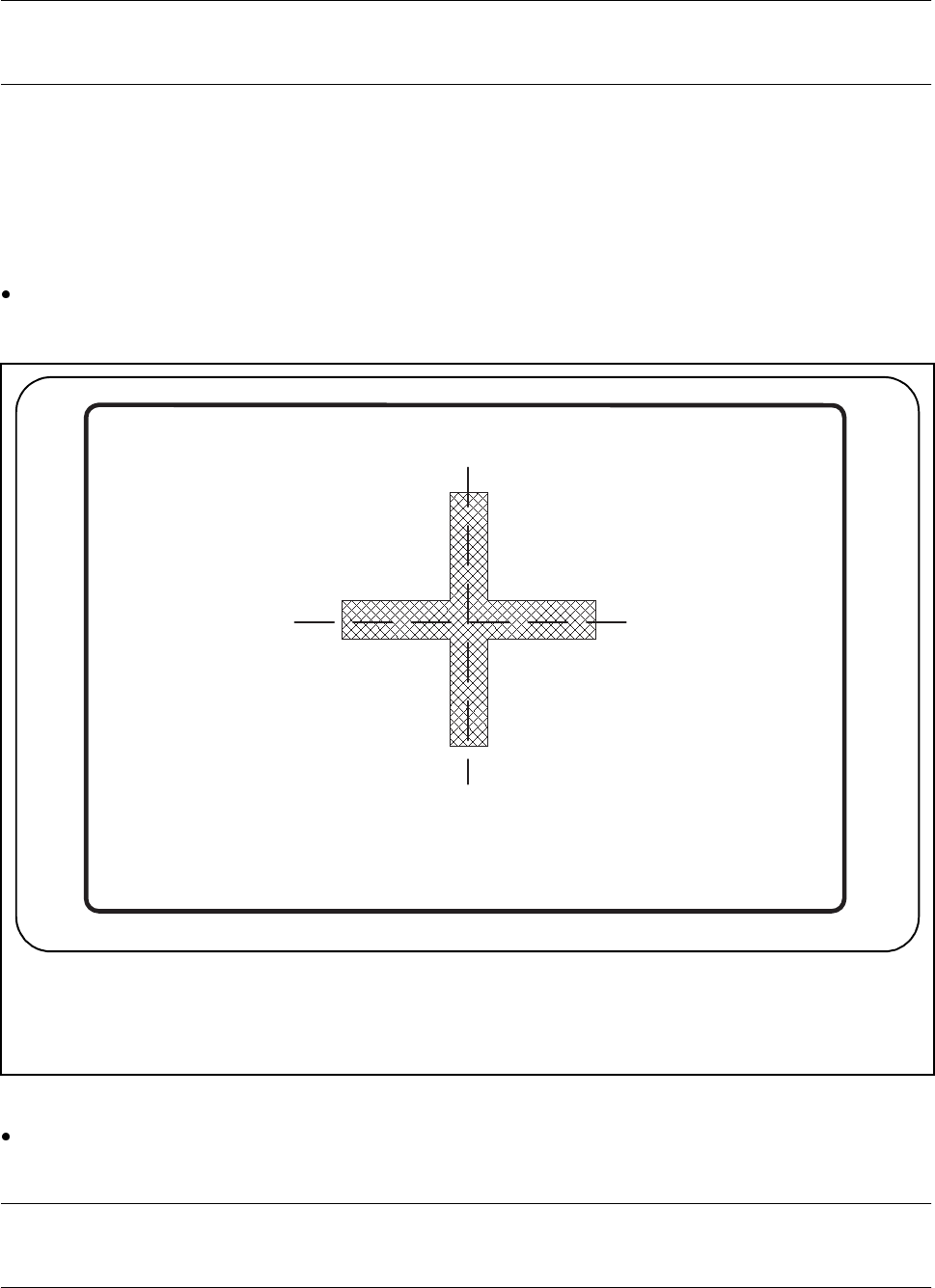
For certain actions, it may be necessary to overlay the camera image from the MVS system (vision evaluation
unit) on the screen of the station computer during placement.
Click on the Video image option in the Options menu to switch to the camera image of the MVS system
(vision evaluation unit).
Fig. 2.4.11 Example of a video image
Press the ’ESC’ key to leave the video image and return to the previously displayed menu window on the
user interface.
PLEASE NOTE
The complete range of functions is described in Chapter 5 of this User’s Manual.
2 Introduction and Basic Concepts SIPLACE 80S-20/F4/F4-6/F5 User’s Manual
2.4 Brief Description and Principles of the User Interface Edition 03/98 from Software Version SR.404.xx
2 - 44
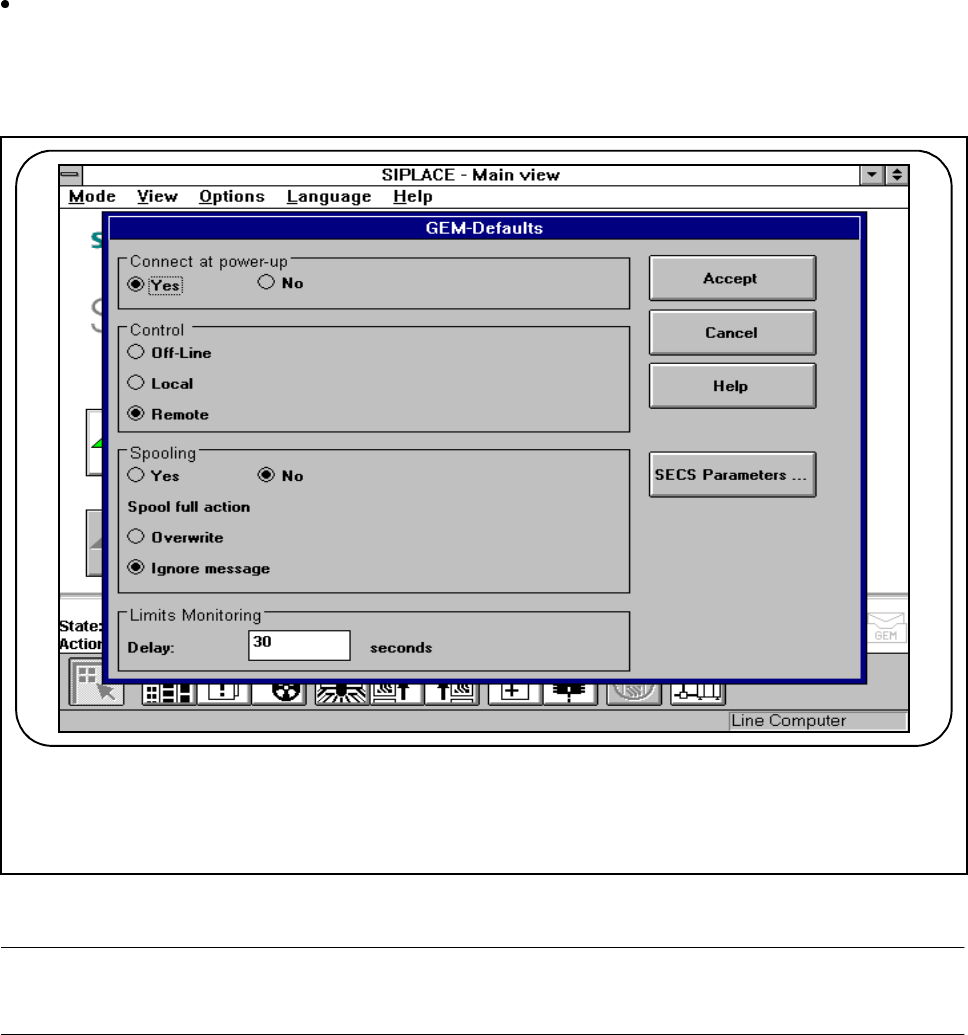
2.4.4.9 GEM Default Settings (Option)
Click on the GEM default settings option in the Options menu to set the default settings for the GEM
option on the station computer.
In this menu, you can set various parameters for the GEM interface. These will be used as standard
parameters for the SIPLACE station when it is switched on.
Fig. 2.4.12 Example of a GEM default setting
PLEASE NOTE
The complete range of functions is described in Section 11.9 of this User’s Manual.
SIPLACE 80S-20/F4/F4-6/F5 User’s Manual 2 Introduction and Basic Concepts
Edition 03/98 from Software Version SR.404.xx 2.4 Brief Description and Principles of the User Interface
2 - 45
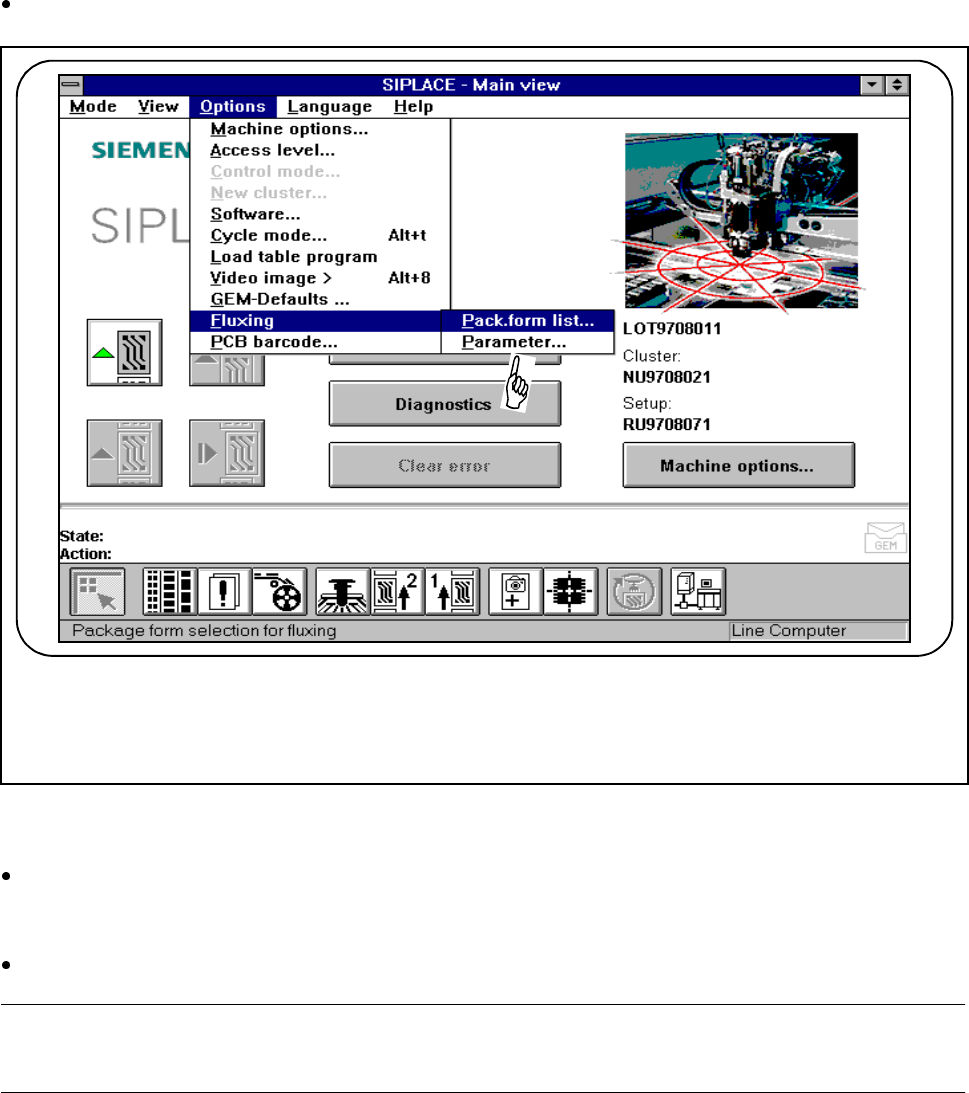
2.4.4.10 Flux Application (Option)
In order to apply flux for placing flip-chips on a PCB, the process data for the flip-chip must be entered in a list
and general flux application parameters must be entered on the station computer.
Select the Fluxing submenu from the Options menu on the menu bar
.
Fig. 2.4.13 Flux application option
l Package form list
Use this menu to add and edit flip-chip components with an associated package form (GF) no.
l Parameters
Select the "Parameters“ menu in order to specify data for the flux application sequence.
PLEASE NOTE
The complete range of functions is described in Chapter 11 of this User’s Manual.