80S-2080F480F4-680F5 User’s Manual.pdf - 第82页
2 Introduction and Basic Concepts SIPLACE 80S-20/F4/F4-6/F5 User’s Manual 2.1 Display and Controls on t he Machine Edition 03/98 from Software Version SR.404.xx 2 - 4 2.1.1. 1 General Comments Each sta tion ha s a desk t…
SIPLACE 80S-20/F4/F4-6/F5 User’s Manual 2 Introduction and Basic Concepts
Edition 03/98 from Software Version SR.404.xx 2.1 Display and Controls on the Machine
2 - 3
2.1 Display and Controls on the Machine
2.1.1 Overview
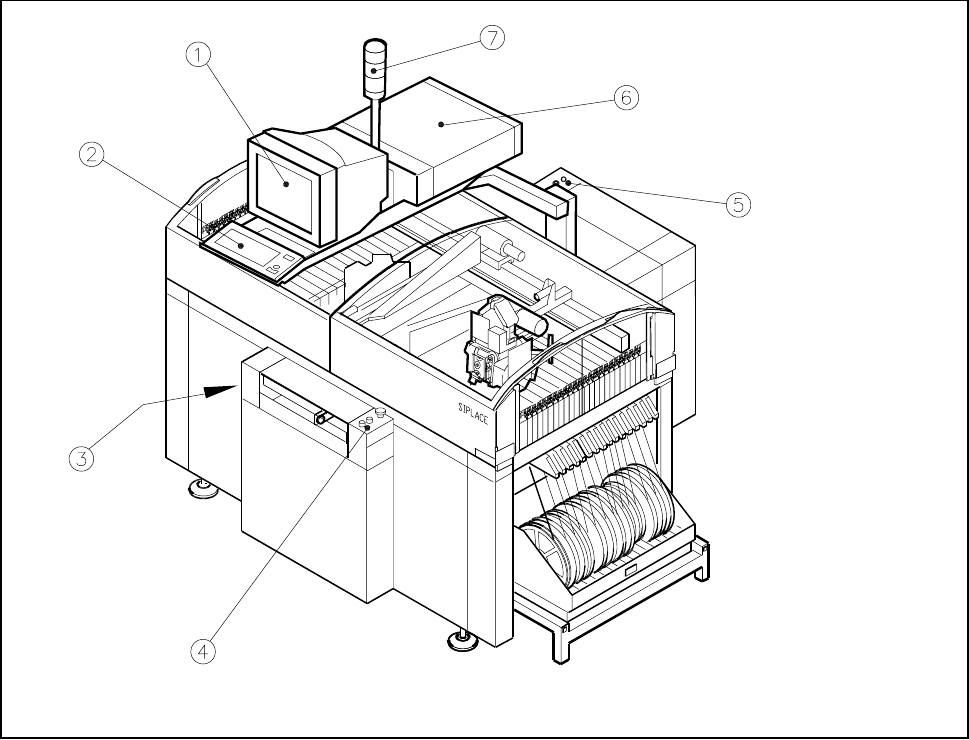
Fig. 2.1.1 Machine display and controls
- Key to Fig. 2.1.1
1 Monitor 2 Keyboard
3 Main switch 4 Front operating panel
5 Rear operating panel 6 Computer
7 Main fault indicator

2 Introduction and Basic Concepts SIPLACE 80S-20/F4/F4-6/F5 User’s Manual
2.1 Display and Controls on the Machine Edition 03/98 from Software Version SR.404.xx
2 - 4
2.1.1.1 General Comments
Each station has a desktop computer with a 3.5 " floppy drive and a CD-ROM drive, a keyboard with integral
trackball and a touch-screen color monitor. Two operating panels on the front and back of the machine
accommodate start and stop buttons, EMERGENCY STOP buttons, key-operated switches and component
counters. The menus of the user interface can be accessed by keyboard input, the trackball or the touch
screen see ’Principles and Structure of the User Interface’ on Page 11.
WARNING
The machine base doors are only permitted to be opened by qualified personnel since certain parts of the
machine carry hazardous voltages. The relevant accident prevention and VDE regulations must be strictly
complied with. Failure to do so may result in death, severe physical injury or considerable damage to property.
SIPLACE 80S-20/F4/F4-6/F5 User’s Manual 2 Introduction and Basic Concepts
Edition 03/98 from Software Version SR.404.xx 2.1 Display and Controls on the Machine
2 - 5
2.1.2 Keyboard
The keyboard for the SIPLACE 80S-20/F
4
/F
4
-6/F
5
is an ultraflat IBM-compatible compact keyboard with an
integrated mouse (trackball). The keyboard and trackball are both standard input devices for the Windows
user interface used on the station computer.
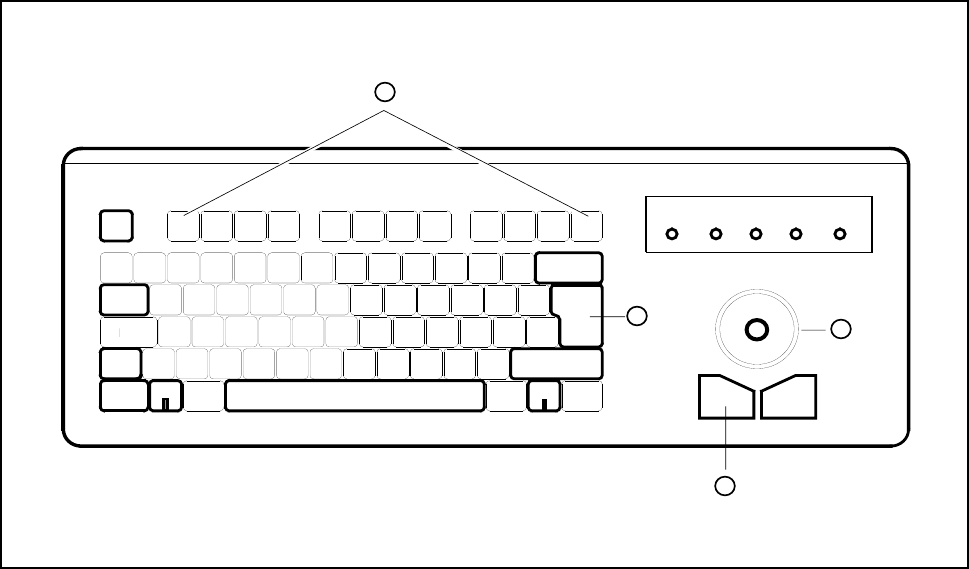
Fig. 2.1.2 Keyboard and key assignments
- Key to Fig. 2.1.2
1 Return key 2 Lefthand mouse button
3 Trackball 4 Function keys F1 to F12
LASER
PROG
ESC
TAB
1
Q
F1
CTRL
Scroll Pad TrackballNum Caps
F2 F3 F4 F5 F6 F7 F8 F9 F10 F11 F12
1
2
3
4