80S-2080F480F4-680F5 User’s Manual.pdf - 第380页
SIPLACE 80S-20/F4/F4-6/F5 User’s Manual 5 Vision Functi on s Edition 03/98 from Software Version SR.404.xx 5.10 Test Component: Supplements to t he 80F4, 80F4-6 or 80F5 Mac hines Line engi neer 5 - 159 With the mouse poi…
5 Vision Functions SIPLACE 80S-20/F4/F4-6/F5 User’s Manual
5.10 Test Component: Supplements to the 80F4, 80F4-6 or 80F5 Machines Edition 03/98 from Software Version SR.404.xx
5 - 158 Line engineer
5.10.1
Select Package Form
Menu
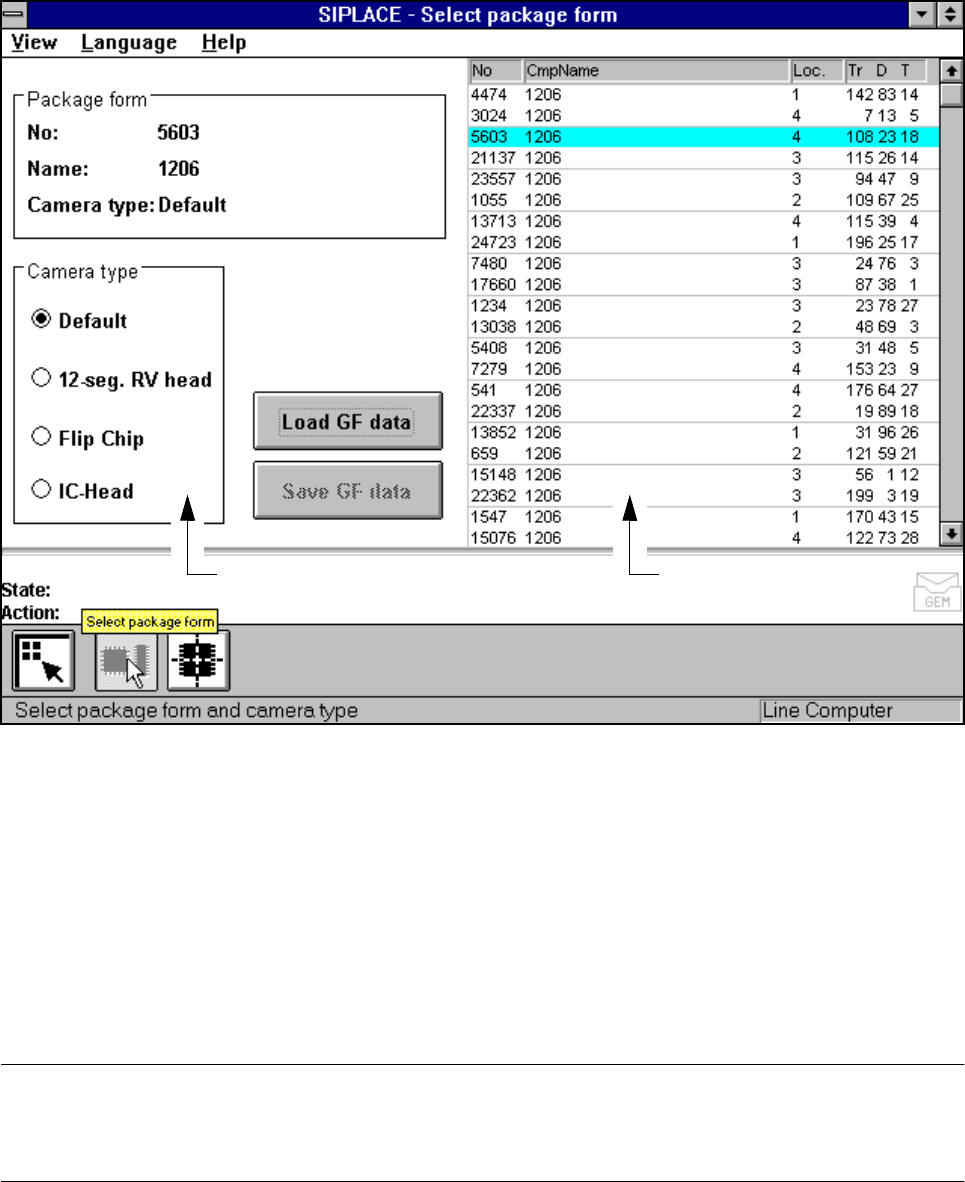
Following selection of the Test component menu the Select package form menu will drop down. Here you
can specify a package form and the corresponding camera type.
Fig. 5.10.2 Select package form menu
If you had previously changed measurement conditions or package form you will be asked where you wish to
discard or save the data. For a description of this please refer to Section 5.6.3 from Page 5 - 77.
The menu that appears after this query differs from that of the 80S-20 only in that the 80S-20 automatic place-
ment system has a component vision system on both revolver placement heads, while the 80F
4
/F
4
-6-auto-
matic placement system has a component vision system on the 12x or 6x revolver head, and one or two
component vision systems can be used on the machine frame for the IC placement head. The component
vision system with IC camera centers fine-pitch components and BGAs, while the component vision system
with FC camera centers flip-chips and fine-pitch components.
PLEASE NOTE
Only select the revolver head, IC head or IC head/flip-chip camera type if you want to insert components of
the same type with both the 12x or 6x revolver head and the IC head.
Camera type options field Lists field
SIPLACE 80S-20/F4/F4-6/F5 User’s Manual 5 Vision Functions
Edition 03/98 from Software Version SR.404.xx 5.10 Test Component: Supplements to the 80F4, 80F4-6 or 80F5 Machines
Line engineer 5 - 159
With the mouse pointer mark a component from the list field or the vision system in the Camera type
options field.
Click on the Load GF data button. The data are transferred to the program.
Click on the Main view symbol, break off the dialog without saving and return to the Main view menu.
5.10.2
Test Component
Menu
5.10.2.1
Select Component Type
Option
With the 80F
4
, 80F
4
-6 or 80F
5
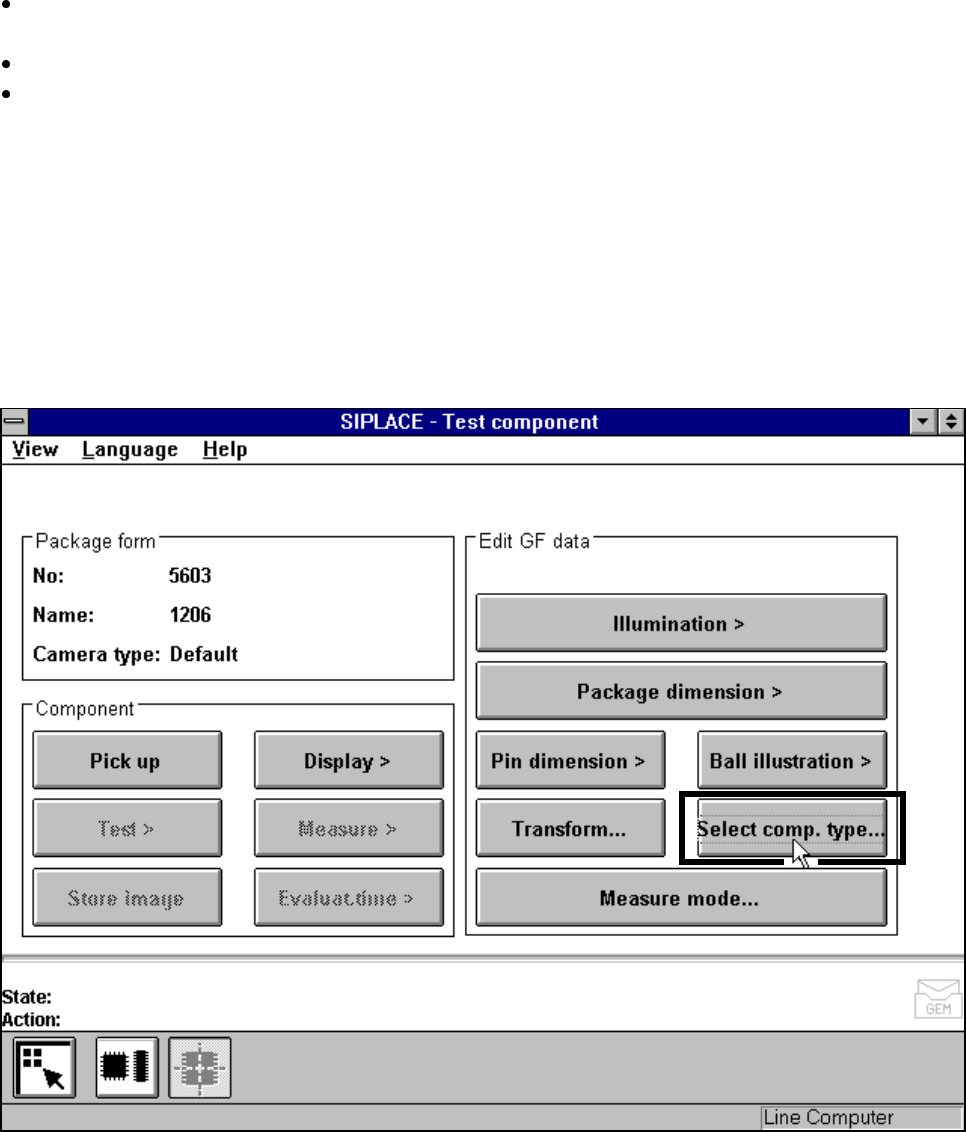
machines, the Test component menu (for a description see Section 5.10.2,
Page 5 - 159) also includes the Select component type option.
Fig. 5.10.3 Test component menu (80F
4
, 80F
4
-6 or 80F
5
)
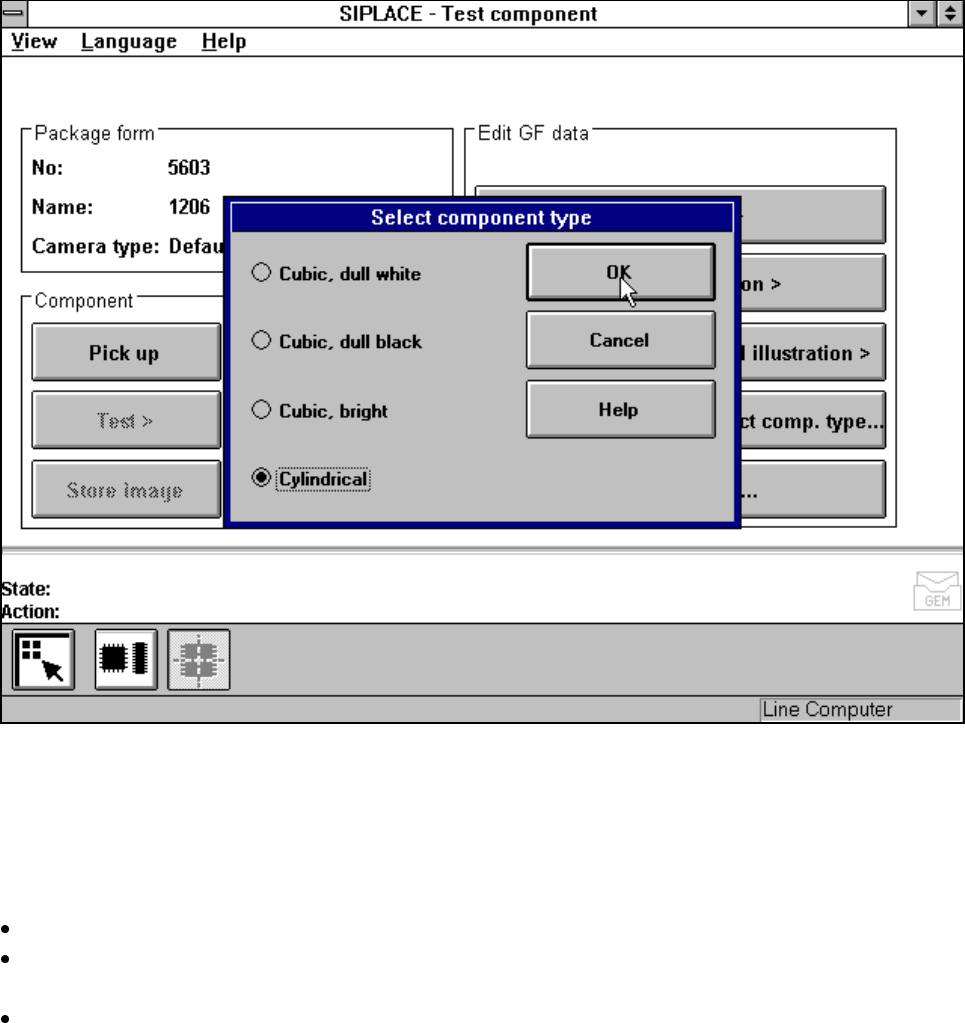
When you select this option the following menu will open.
5 Vision Functions SIPLACE 80S-20/F4/F4-6/F5 User’s Manual
5.10 Test Component: Supplements to the 80F4, 80F4-6 or 80F5 Machines Edition 03/98 from Software Version SR.404.xx
5 - 160 Line engineer
Fig. 5.10.4 Test component menu, Select component type option
You should select this option when centering errors occur with standard lighting. The 4 possibilities available
here for selection enable you to match the lighting optimally to the component in question. Each of these
options contains certain combinations of the flat, middle and steep types of illumination.
Mouse functions
Use the mouse pointer to mark the corresponding component type.
With OK confirm your input and the option field will be closed. You will be returned to the Test component
menu.
Click on Cancel to quit the option field without taking over any modifications you may have changed.