80S-2080F480F4-680F5 User’s Manual.pdf - 第668页
SIPLACE 80S-20/F4/F4-6/F5 User’s Manual 11 Station Extensions/Options Edition 03/98 from Software Version SR.404.xx 11.9 GEM Interface 11 - 71 l Upload / Download Click on the co rrespondi ng button wh en you wan t to do…
11 Station Extensions/Options SIPLACE 80S-20/F4/F4-6/F5 User’s Manual
11.9 GEM Interface Edition 03/98 from Software Version SR.404.xx
11 - 70
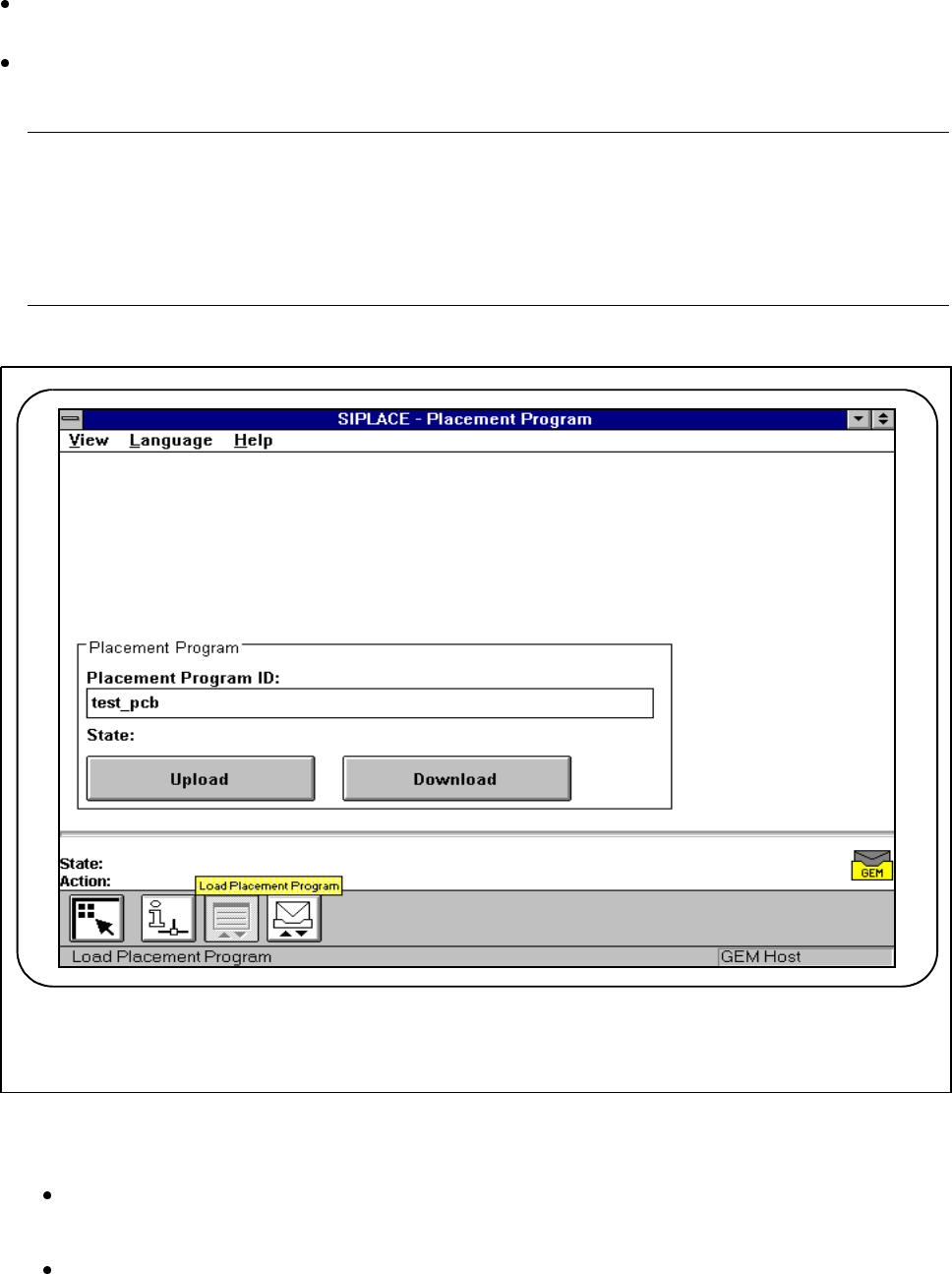
11.9.2.7 Load Placement Program
Click on the icon for GEM (see Fig. 11.9.2) in the main view. You can pick any one of three different menus
(see Fig. 11.9.7).
Click on the Load placement program icon. You can download placement programs from the host to the
station or upload placement programs from the station to the host.
NOTE
Depending on the action being performed, the corresponding placement program must be available at the
station or at the host.
To download a placement program the Control mode submenu in the Option menu must be set to GEM
host (in this connection, see Section 11.9.2.2 "Control Mode").
Fig. 11.9.8 Load placement program
l Placement program ID
Type the name of the placement program into this input field and click on the corresponding button.
l State
The current status of the action performed is shown in this display field.
F
SIPLACE 80S-20/F4/F4-6/F5 User’s Manual 11 Station Extensions/Options
Edition 03/98 from Software Version SR.404.xx 11.9 GEM Interface
11 - 71
l Upload / Download
Click on the corresponding button when you want to download a placement program to the station or
upload a placement program to the host.
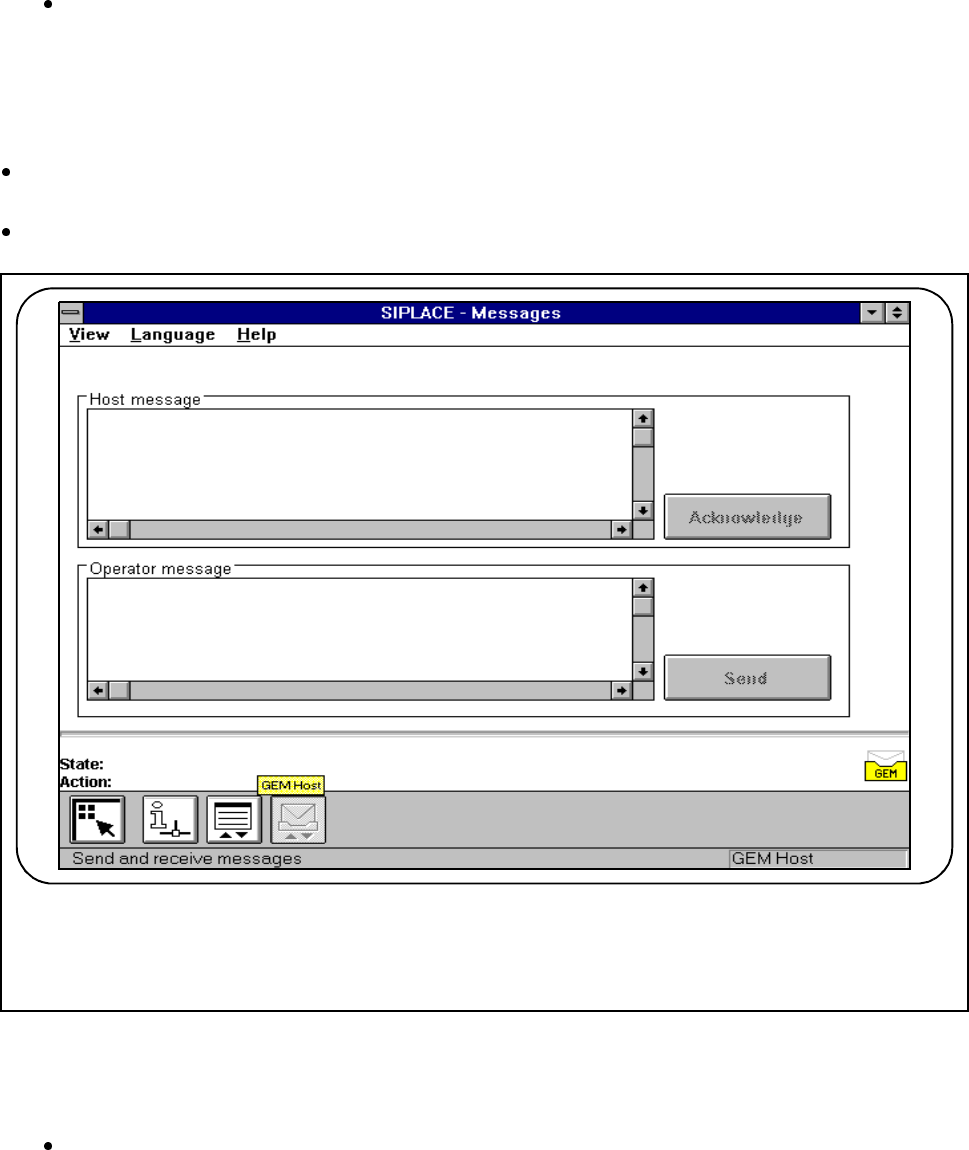
11.9.2.8 Messages
In the main view click on the icon for GEM (see Fig. 11.9.2). You can pick any one of three different menus
(see Fig. 11.9.7).
Click on the Messages icon. You can send messages to the host and receive messages from the host.
Fig. 11.9.9 Load placement program
l Host message
In this display window you can read the message which was received from the host.
Once you have read the message, click on the Acknowledge button. Confirmation is then sent to the
host that the message has arrived and been read.
The message last received appears at the bottom.
F

11 Station Extensions/Options SIPLACE 80S-20/F4/F4-6/F5 User’s Manual
11.9 GEM Interface Edition 03/98 from Software Version SR.404.xx
11 - 72
l Operator message
In this input window you can write a message to the host. The last message to have been written remains
displayed in the input window.
Click on the Send button. The message is now sent to the host.
NOTE
A message may not be longer than 160 characters.