80S-2080F480F4-680F5 User’s Manual.pdf - 第261页
5 Vision Functions SIPLACE 80S-20/F4/F4-6/F5 User’s Manual 5.4 Access to the Teach Fiducial and Test Com ponent Options Edition 03/98 from Software Vers ion SR.404.xx 5 - 40 Line engine er Move the mous e pointer over th…
SIPLACE 80S-20/F4/F4-6/F5 User’s Manual 5 Vision Functions
Edition 03/98 from Software Version SR.404.xx 5.4 Access to the Teach Fiducial and Test Component Options
Line engineer 5 - 39
5.4 Access to the
Teach Fiducial
and
Test Component
Options
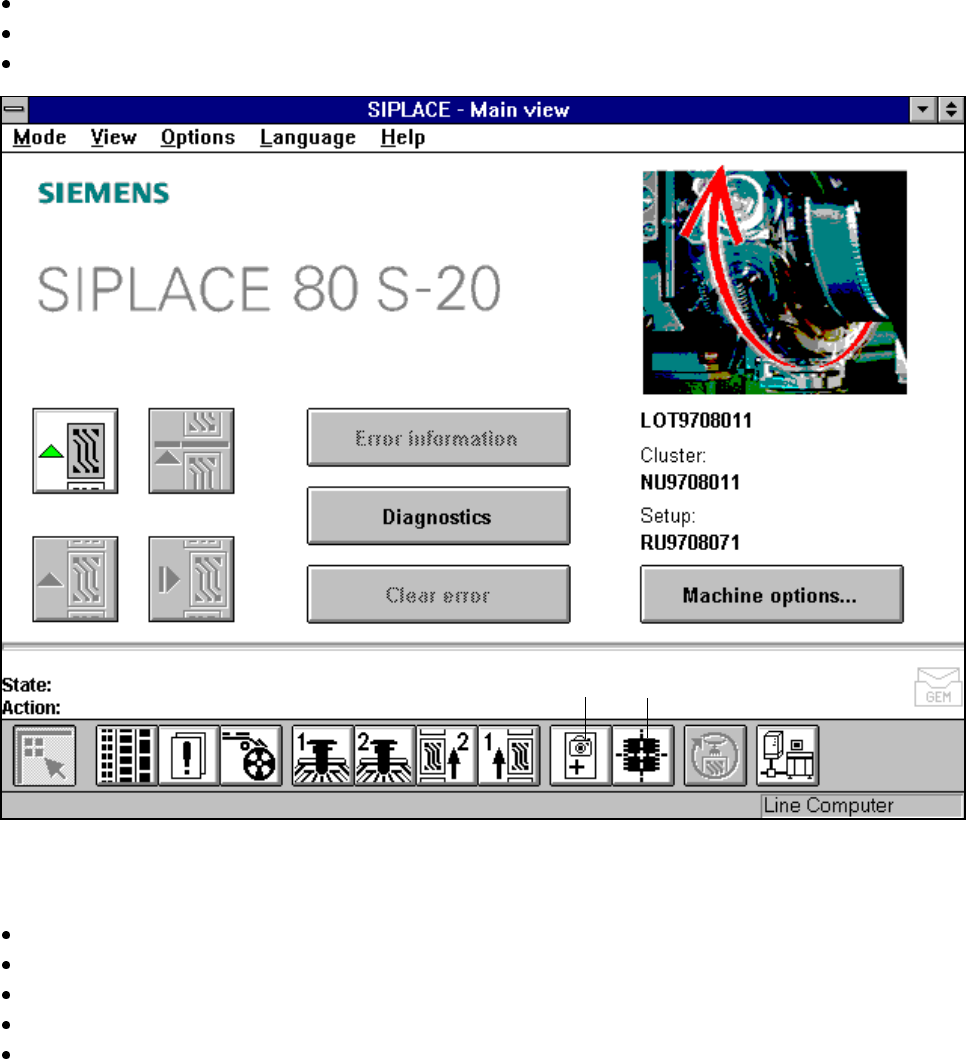
Access to the Teach fiducial and Test component options is only available to user class Line engineer and
higher. The Teach fiducial and Test component icons will remain grayed out until user classes Line engi-
neer or Service engineer have been selected. These grayed-out structures of the icons will then appear
black, indicating that the options are available.
Selection of user classes:
In the menu bar of the Main view menu click on the Options pull-down menu.
Click on the Access level option. The user class option box will drop down.
Select the appropriate user class.
Fig. 5.4.1 Access to the options Teach fiducial and Test component
You can also protect the user classes Line engineer and Service engineer by entering a password at the
station computer which will then be used to control access.
In the menu bar of the Main view menu click on the Options pull-down menu.
Click on the Access level option. The user class option box will drop down.
Click on the Change password. The input box for the password will drop down.
Type in the password and then confirm this.
Click on OK to accept the password or Cancel to reject it.
Icon ’Test component’Icon ’Teach fiducial’
5 Vision Functions SIPLACE 80S-20/F4/F4-6/F5 User’s Manual
5.4 Access to the Teach Fiducial and Test Component Options Edition 03/98 from Software Version SR.404.xx
5 - 40 Line engineer
Move the mouse pointer over the Teach fiducial or Test component option. The status line will display a
brief explanatory text for the option in question. You can also use the F8 or F9 function keys to access the
options. The View drop-down menu will list the allocations of the function keys and the individual options.
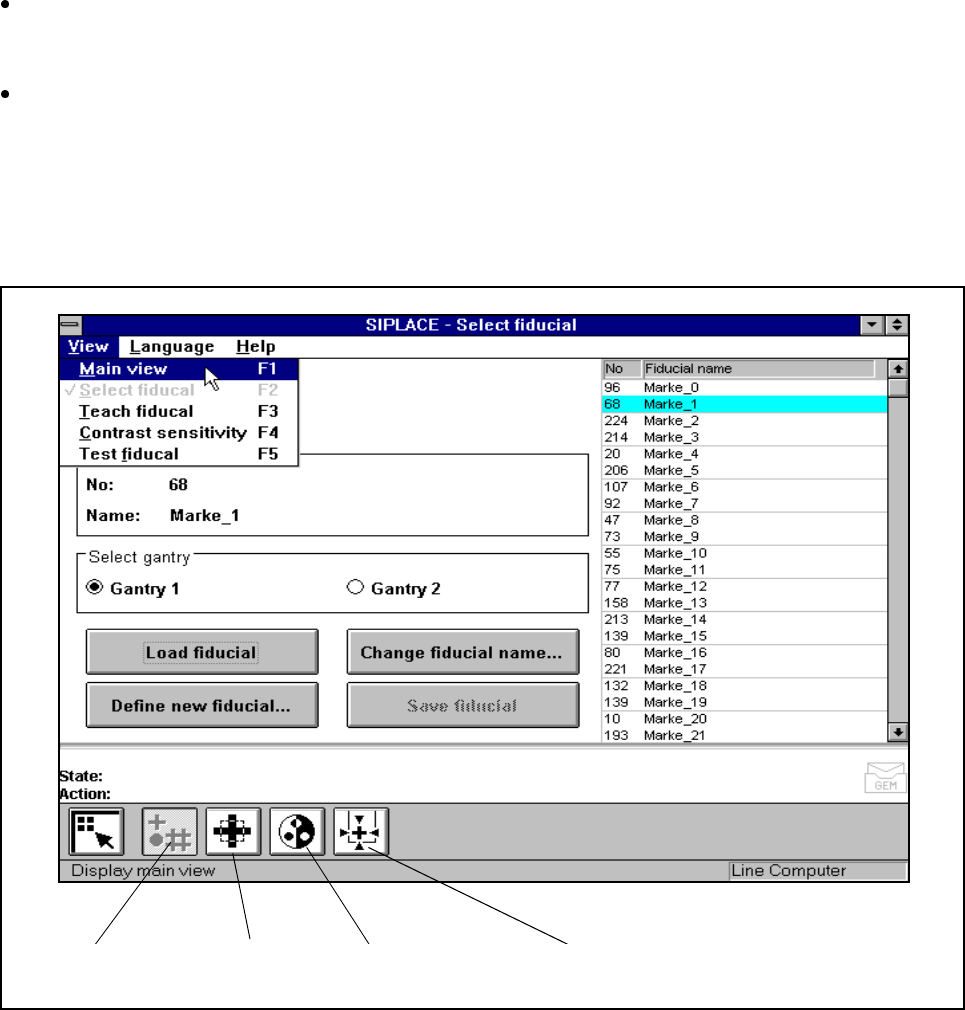
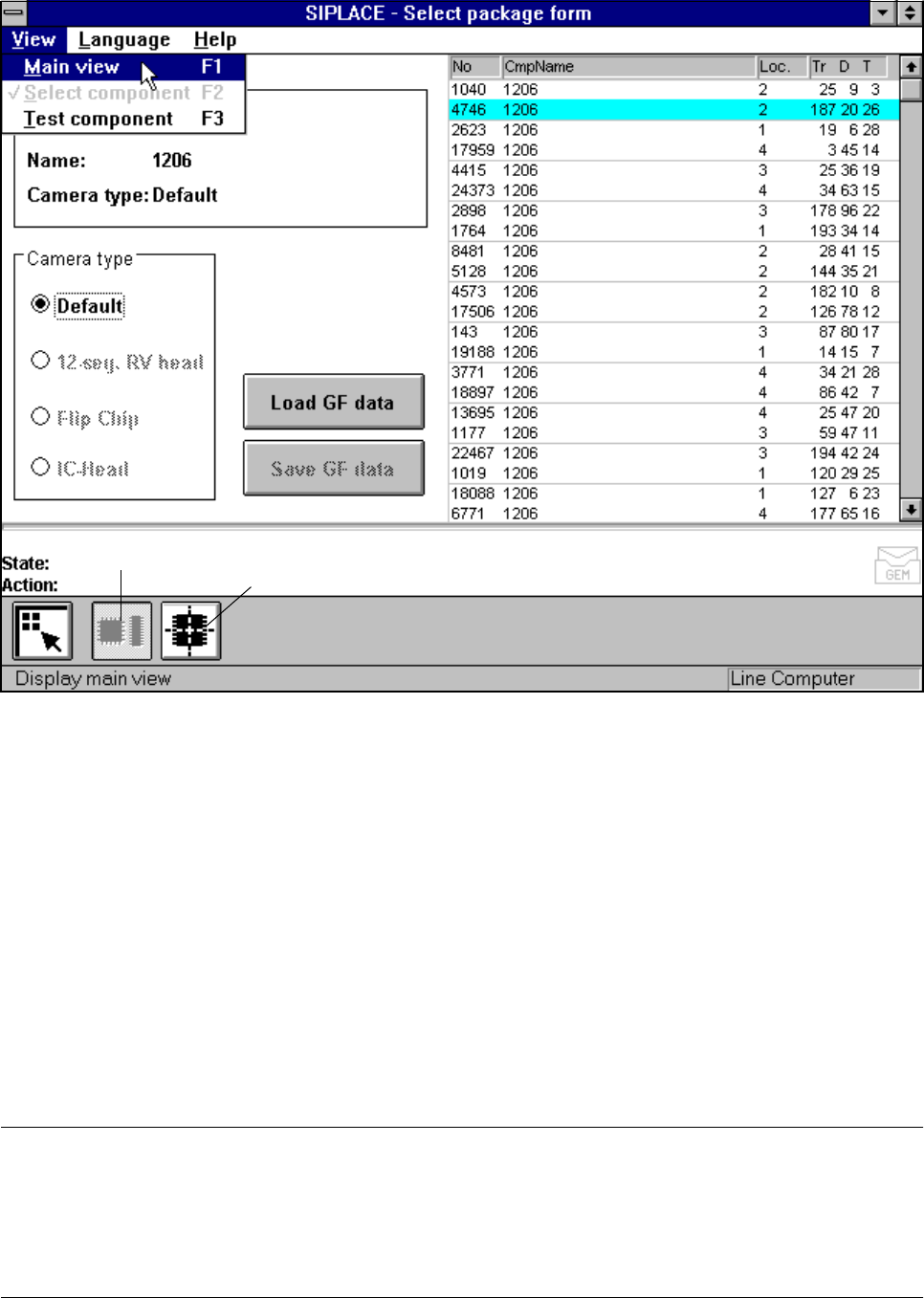
Click on either of the two icons (buttons). The screen will then display either the Select fiducial menu or
the Select package form menu depending on whether you have selected the Teach fiducial option or the
Test component option (see Fig. 5.4.2, Page 5 - 40 and Fig. 5.4.3, Page 5 - 41).
Again, depending on your choice, you can access further menus for the Teach fiducial option or the Test
component option.
Fig. 5.4.2 Teach fiducial option: menus
You can select the following menus from the Teach fiducial option either by clicking on the icons in the
symbols bar or by using function keys F2 to F5:
– Select fiducial
– Teach fiducial
– Contrast sensitivity, and
– Test fiducial.
You can return to the Main view menu either by clicking on the Main view icon or by pressing function key
F1.
Contrast sensitivity
icon
Teach fiducial
icon
Test fiducial
icon
Select fiducial
icon
SIPLACE 80S-20/F4/F4-6/F5 User’s Manual 5 Vision Functions
Edition 03/98 from Software Version SR.404.xx 5.4 Access to the Teach Fiducial and Test Component Options
Line engineer 5 - 41
Fig. 5.4.3 Test component option: menus
You can select the following menus from the Test component option either by clicking on the icons (buttons)
or by pressing function keys F2 to F3:
– Select package form
– Test component
You can return to the Main view menu either by clicking on the Main view icon or by pressing function key
F1.
The options Teach fiducial and Test component are described in Section 5.5 from Page 5 - 43 and Section
5.6 from Page 5 - 71.
To provide you with some orientation, at the start of each section you will find a flow chart and a brief descrip-
tion for the Teach fiducial and Test component options. Each flow chart begins with Main view menu and
shows you the hierarchical structure of all of the menu options.
NOTE
Section 2.2 ’Principles and Structure of the User Interface’ includes a general description of
• using the menus with trackball, touch screen and function keys F1 to F12,
• the layout of the screen, and
• the screen displays.
Icon ’Select package form’
Icon ’Text component’