80S-2080F480F4-680F5 User’s Manual.pdf - 第133页
3 Placement Functions SIPLACE 80S-20/F4/F4-6 User’s Manual 3.1 Overview Edition 07/97 from Software Version SR.403.xx 3 - 4 3.1.1 General The placem ent functio ns of the SIP LACE 80F 4 or 80F 4 -6 are iden tical to tho …
SIPLACE 80S-20/F4/F4-6 User’s Manual 3 Placement Functions
Edition 07/97 from Software Version SR.403.xx 3.1 Overview
3 - 3
3.1 Overview
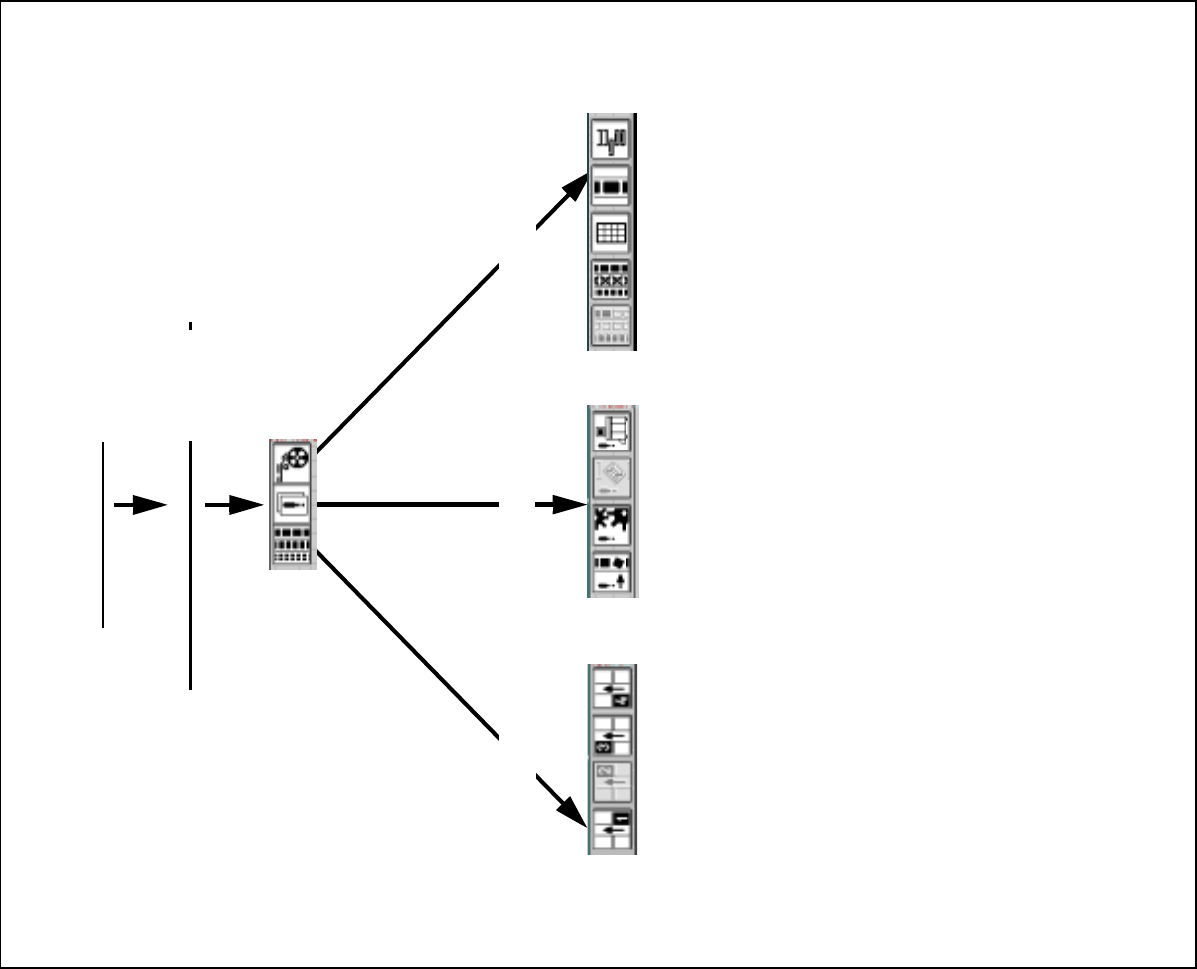
Fig. 3.1.1 Overview - Placement functions
Placement functions (Chapter 3)
Execute wafflepack changer functions
Display and vibrate linear feeders
Display magazine and change inventory levels
Omit components
Display and fill empty tracks
Display general errors
Display transport errors
Display machine errors
Display track errors
Display set-up for location 4
Display set-up for location 3
Display set-up for location 2
Display set-up for location 1
From flow chart 2.3.2
Feeders
Errors
Set-up
3 Placement Functions SIPLACE 80S-20/F4/F4-6 User’s Manual
3.1 Overview Edition 07/97 from Software Version SR.403.xx
3 - 4
3.1.1 General
The placement functions of the SIPLACE 80F
4
or 80F
4
-6 are identical to those of the SIPLACE80S-20. On the
SIPLACE 80F
4
or 80F
4
-6 the only additional functions for the wafflepack changer are those that are described
in this User Manual. Accordingly, Chapter 3 ’Placement Functions’, of the User’s Manual, 07/97 issue, will
apply to both machine types. However, the screen will show the actual designation of the machine. In the
case of additional functions or differences in the functions of the SIPLACE 80S-20 the corresponding section
will include the additional information.
If at a later point in time there are further functional changes or additions which differ from the SIPLACE
80S-20, Chapter 3 ’Placement Functions’, will be revised accordingly.
SIPLACE 80S-20/F4/F4-6 User’s Manual 3 Placement Functions
Edition 07/97 from Software Version SR.403.xx 3.2 Set-Up
3 - 5
3.2 Set-Up
If the cluster with its corresponding set-up has been specified, the set-up for every location can be displayed
in this menu.
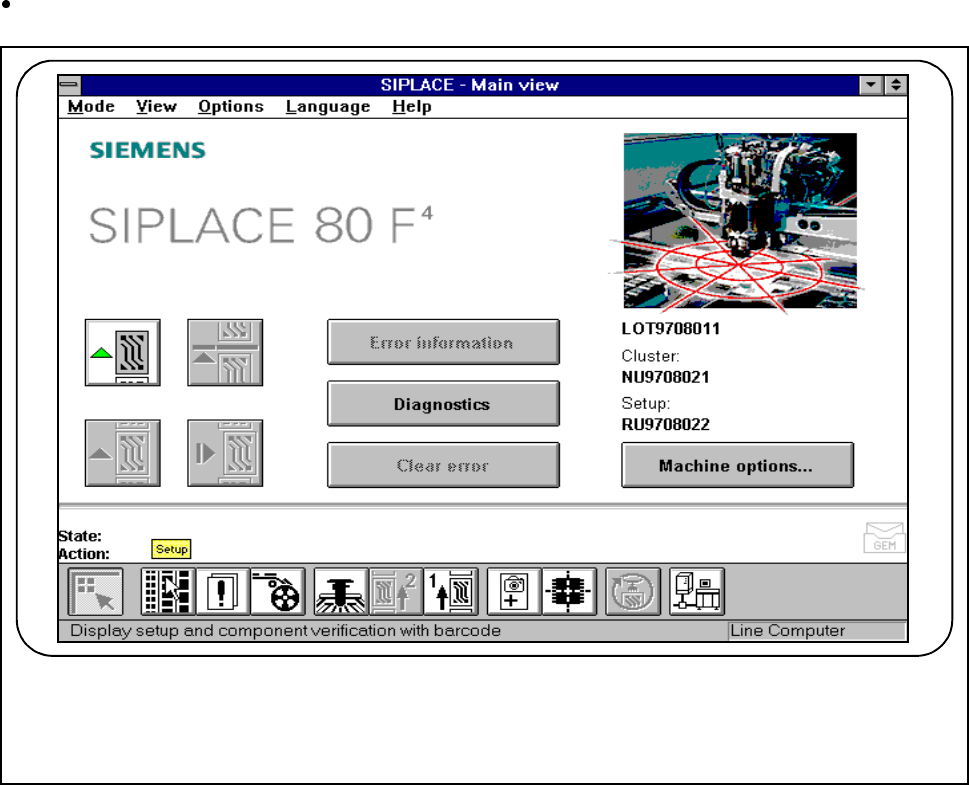
Click on the Set-up button in the Main view.
Fig. 3.2.1 Display set-up
The following window will open:
F