80S-2080F480F4-680F5 User’s Manual.pdf - 第124页
SIPLACE 80S-20/F4/F4-6/F5 User’s Manual 2 Introduction and Basic Concepts Edition 03/98 from Software V ersion SR.404.xx 2.4 Brief D escription and Principles of the User Interface 2 - 47 2.4.5 Tr oubleshooting and Diagn…
2 Introduction and Basic Concepts SIPLACE 80S-20/F4/F4-6/F5 User’s Manual
2.4 Brief Description and Principles of the User Interface Edition 03/98 from Software Version SR.404.xx
2 - 46
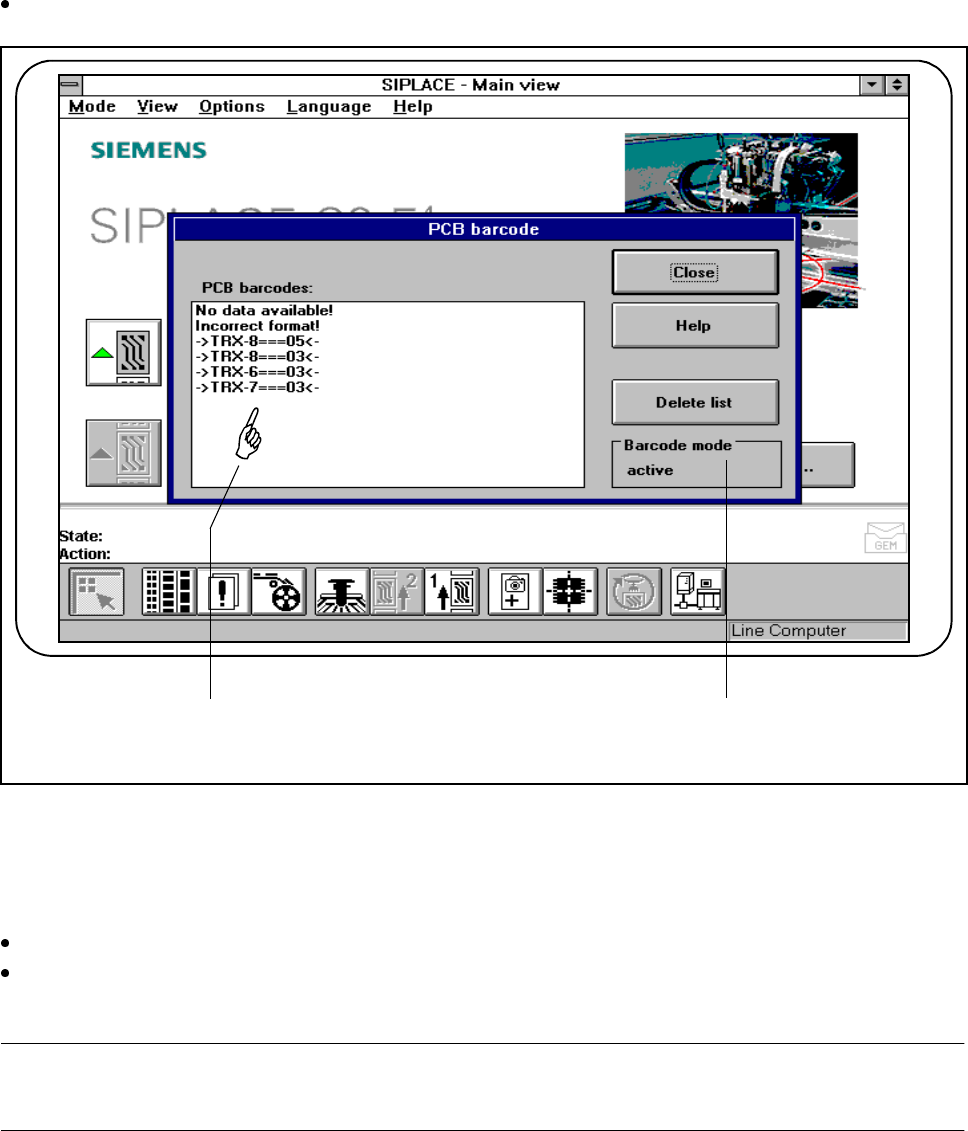
2.4.4.11 Display PCB Barcode (Option)
This menu is used to display the last barcode to be read by the PCB barcode reader in a list box.
It also indicates whether the barcode was read incorrectly or a start signal or the wrong signal occurred, or
whether no data was available.
Select the PCB barcode submenu from the Options menu on the menu bar.
Fig. 2.4.14 Display PCB barcode
- Key to Fig. 2.4.14
1 List box 2 Status display
Click on the Delete list button to delete the list.
The status display in the menu window shows the operating status for barcode mode. This operating sta-
tus is activated and deactivated by the line computer.
PLEASE NOTE
This menu is only active if the PCB bar code option has been installed and activated in the machine options.
1 2
SIPLACE 80S-20/F4/F4-6/F5 User’s Manual 2 Introduction and Basic Concepts
Edition 03/98 from Software Version SR.404.xx 2.4 Brief Description and Principles of the User Interface
2 - 47
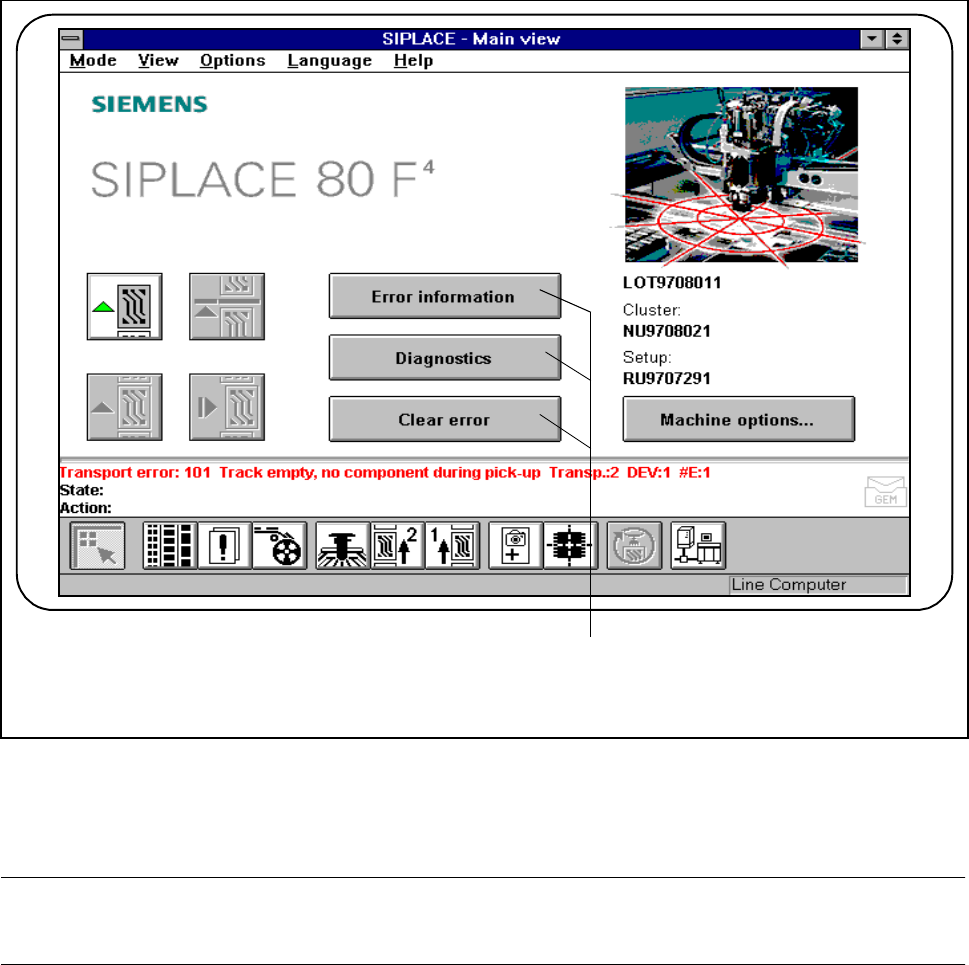
2.4.5 Troubleshooting and Diagnostics Buttons
Fig. 2.4.15 Troubleshooting and diagnostics
- Key to Fig. 2.4.15
1 Troubleshooting and diagnostic buttons
PLEASE NOTE
The complete range of functions is described in Chapter 7 of this User’s Manual.
2.4.5.1 Error Info
If errors occur while the PCB is being processed, you can call up information on the error. This information
can be called from the main view or by using “Display error“.
1
2 Introduction and Basic Concepts SIPLACE 80S-20/F4/F4-6/F5 User’s Manual
2.4 Brief Description and Principles of the User Interface Edition 03/98 from Software Version SR.404.xx
2 - 48
2.4.5.2 Diagnostics (Option)
If the information in the error info is not sufficient to rectify an error, you can also start the Diagnostics function.
The Diagnostics function helps the operator to trace the error by searching for possible references.
2.4.5.3 Clear error
Press this button to clear errors that occur.
The errors will only be deleted from the status window. They will still be present in the error menu.
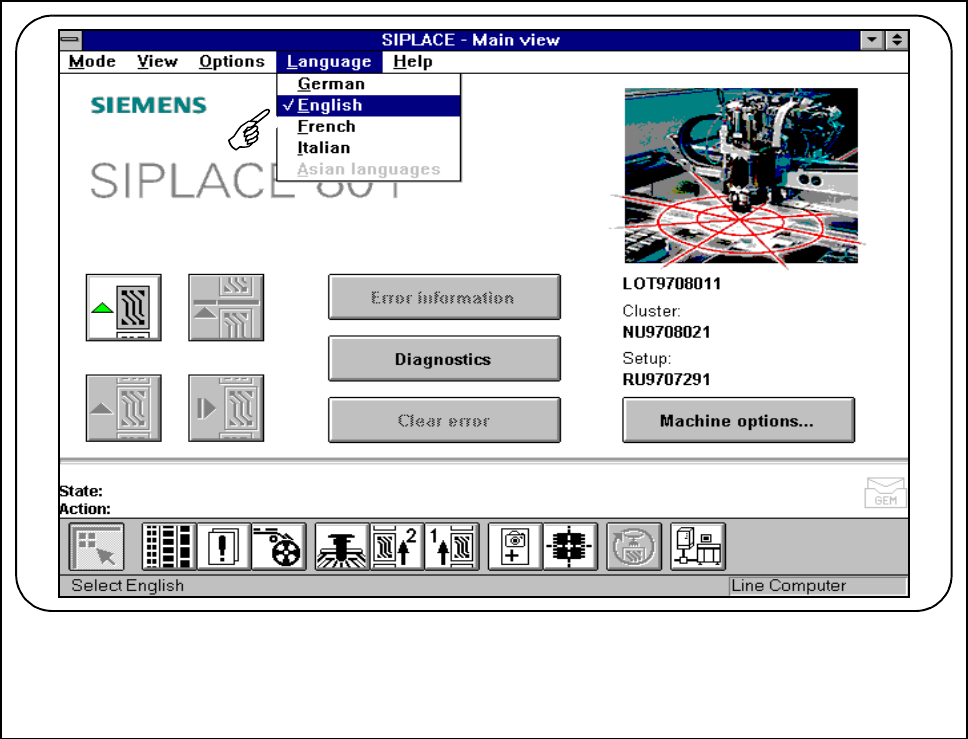
2.4.6 The Language Menu
You can select the language of the user interface in each view.
You can switch between German, English, French, Italian and to Asian languages.
Fig. 2.4.16 Set language